You imagine, your agent executes. Build with Marso MCP.
Ask your agent for one asset, or a scene of assets. Marso MCP is the ultimate 3D content engine for meshes and high-quality PBR materials with physics.
https://mcp.api.marso.app/mcp
- Kettle
- Cutting board
- Cast iron skillet
- Toaster
- Wooden bowl
- Kitchen towel
- Mug 1
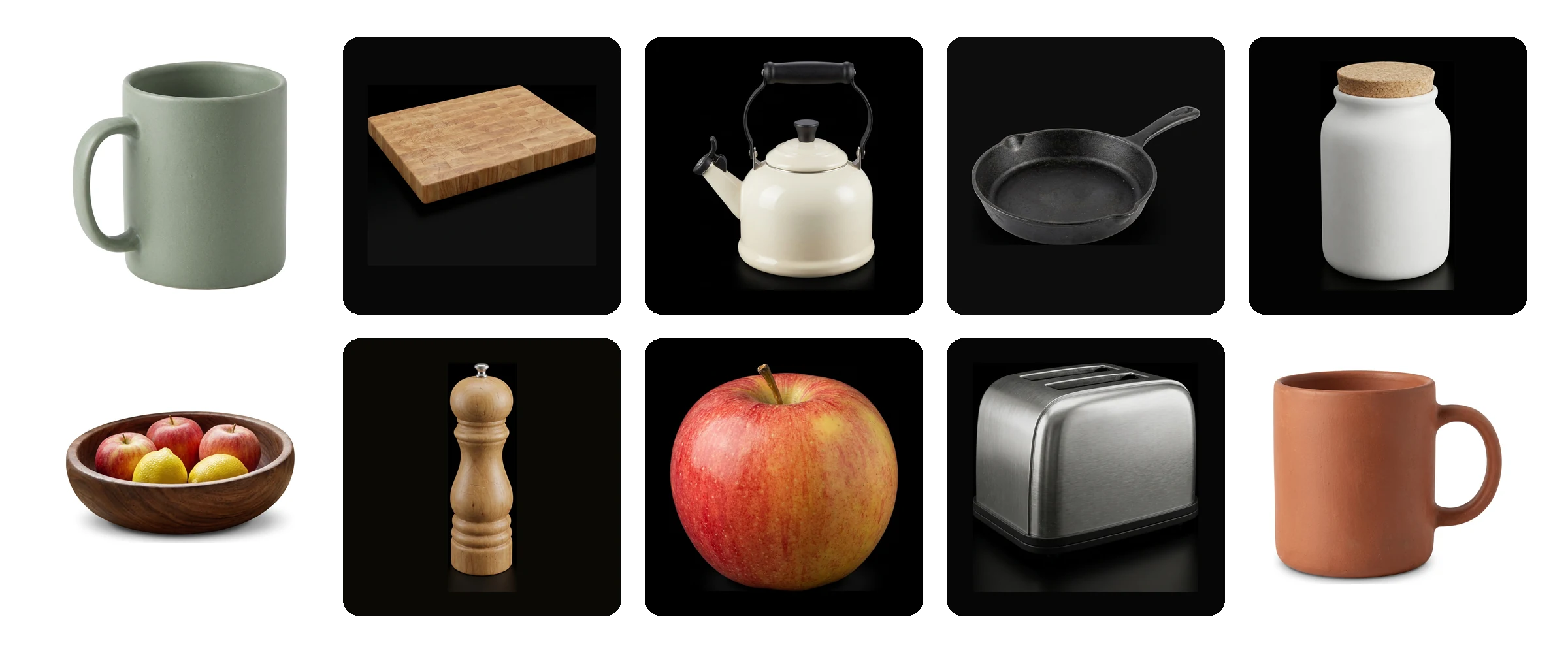
- Reference images × 10Priced at current rates
- Meshes × 10Priced at current rates
- PBR materials × 10Priced at current rates
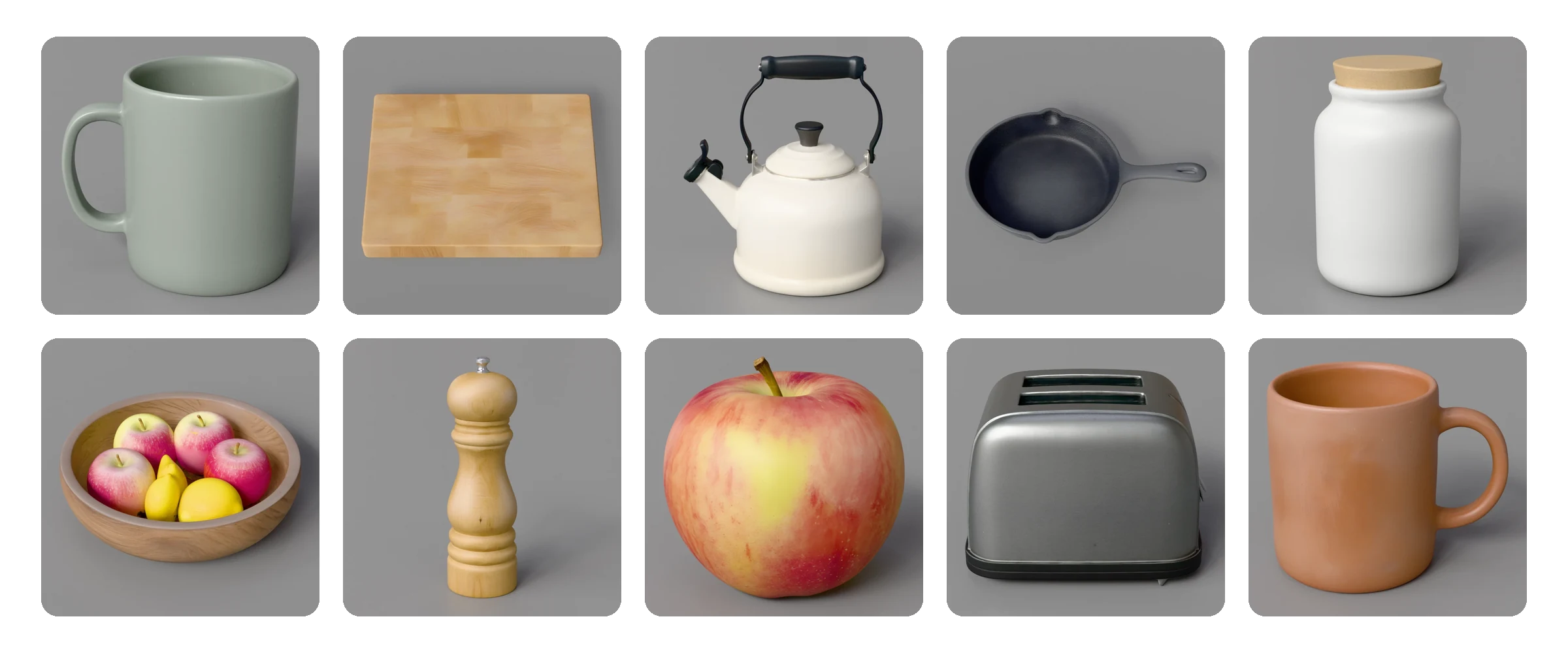
Kitchen counter
10 assets with predicted PBR materials
Your work lives in Marso Studio
You ask in the chat. Marso Studio keeps the projects your agent builds, in your account, ready to open, change and pick up again.
Your agent, such as Codex, Claude or ChatGPT, sends the request to Marso MCP. Marso MCP then works in three places: it builds and saves the project in Marso Studio on marso.app, and through the Marso plugins it puts the assets into Blender and Isaac Sim.
Codex, Claude or ChatGPT
Set up a home kitchen counter for a robot to practise on, with each object as a 3D asset with PBR materials.
Request sent
Works in marso.app, Blender and Isaac Sim
Steps priced and run
Project: Kitchen counter
10 assets saved
Through the Marso add-on
In your scene
Through the Marso extension
On the stage
Codex, Claude or ChatGPT
Set up a home kitchen counter for a robot to practise on, with each object as a 3D asset with PBR materials.
Request sent
Works in marso.app, Blender and Isaac Sim
Steps priced and run
Saved as a project
Reference images, meshes and materials land on a node graph, in a project in your Marso Studio account. The images and meshes you upload go to your library.
Open it on marso.app
Change a step, run one again or download the results in the web app, with no agent in the loop.
Pick it up from any agent
Start in Claude and carry on in Codex. Each agent that you connect can open your projects and see where each run stands.
What your agent can build
The server comes with six workflows. Describe what you need in plain words, or start from a prompt below. The agent picks the steps, checks the price and runs them in Marso Studio.
Every object in a scene
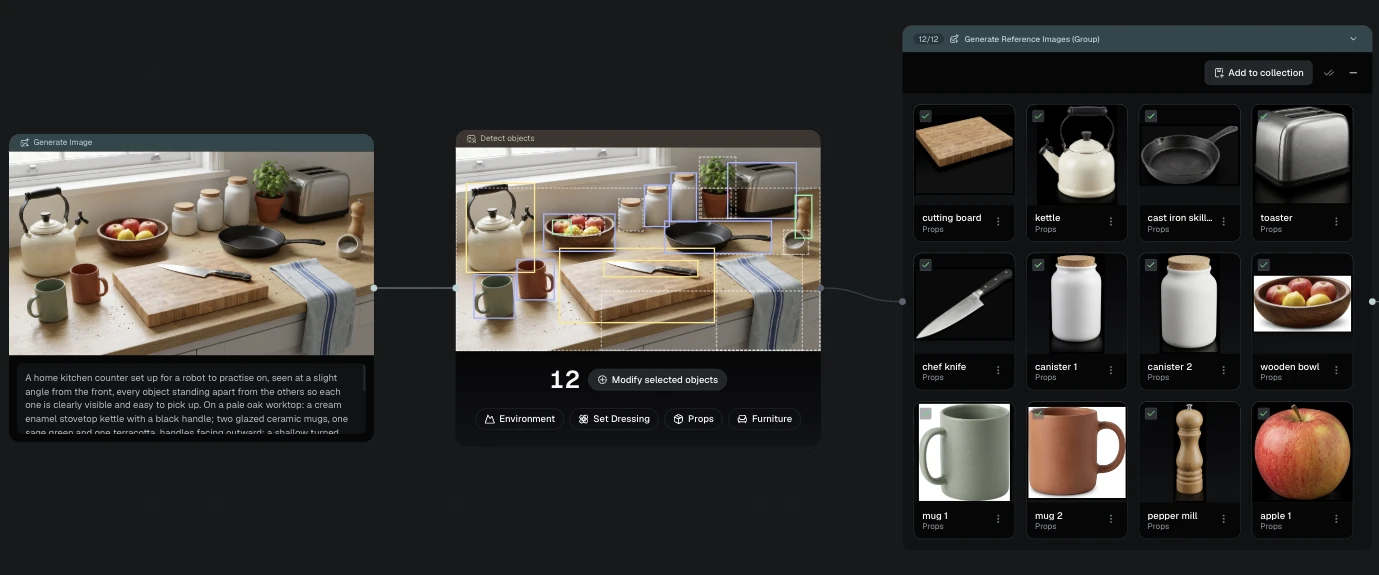
Start from a photo or a generated scene. The agent finds the objects, you pick the ones you want, and each one becomes a mesh with predicted PBR materials.
Prompt to try“Find the objects in this kitchen photo and make each one a 3D asset with PBR materials.”
One object, start to finish
Describe an object or share a reference image. The agent makes the reference, the mesh and the materials. It also makes sets with one look, and versions such as old, wet or broken.
Prompt to try“Make a weathered oak barrel with iron bands as a 3D asset with PBR materials.”
A set from one idea
No image needed. Ask for a set, and each item in it becomes its own mesh with predicted PBR materials.
Prompt to try“Make 24 unique potion bottles as 3D assets with PBR materials.”
One change across a set
Apply one change to a whole group of images at once, such as a new material or a new finish.
Prompt to try“Make all of these images weathered brass.”
Materials for your meshes
Give it a textured GLB, USDZ or FBX, or a zipped FBX, and get predicted albedo, roughness, metallic and IOR maps with a USDZ.
Prompt to try“Make PBR materials for these three meshes.”
Maps from a flat image
Give it a texture or a swatch, such as a fabric, a wood grain or a paint, and get its predicted albedo, roughness, metallic and IOR maps.
Prompt to try“Turn this fabric swatch into a PBR material.”
Every material comes from I2M, our image-to-material model. Its output is a prediction, from a model trained on material data we measure ourselves.
Connect your agent
Pick your client. It takes one URL, a sign-in and your Marso API key.
Connect Claude
mcp.api.marso.app- 1
In Claude, on the web or in the app, open Settings, then Connectors, and choose Add custom connector.
- 2
Name it Marso and paste the server URL.
https://mcp.api.marso.app/mcp - 3
In a chat, turn on Marso from the tools menu and ask for an asset. The first time, sign in to your Marso account and paste your Marso API key.
On a Team or Enterprise plan, an owner adds the connector first, in Admin settings.
Connect ChatGPT
mcp.api.marso.app- 1
Open Settings, then Apps & Connectors, then Advanced settings, and turn on Developer mode.
- 2
Back in Apps & Connectors, choose Create. Name it Marso, paste the server URL and pick OAuth.
https://mcp.api.marso.app/mcp - 3
In a chat, add Marso from the + menu and ask for an asset. The first time, sign in to your Marso account and paste your Marso API key.
Developer mode depends on your ChatGPT plan. In a workspace, an admin may need to turn it on first.
Connect Codex
mcp.api.marso.app- 1
Run this command:
codex mcp add marso --url https://mcp.api.marso.app/mcp - 2
Run this command. In the browser, sign in to your Marso account and paste your Marso API key:
codex mcp login marso - 3
Start a Codex session and ask for an asset.
The Codex IDE extension reads the same settings, so you add the server once.
Connect Claude Code
mcp.api.marso.app- 1
Run this command:
claude mcp add --transport http marso https://mcp.api.marso.app/mcp - 2
In Claude Code, run this command and pick marso. Sign in to your Marso account and paste your Marso API key:
/mcp - 3
Ask for an asset. Claude Code can upload images and meshes from your machine for you.
Other clients that support remote MCP servers, such as VS Code and Gemini CLI, connect with the same URL. Sign-in happens on the first tool call.
The steps your agent runs
Ask in plain words, and the agent picks the steps. These are the main ones.
Find the objects in a scene
BuildPuts an image and an object detection step on the graph, ready to run.
Work through many objects
RunMakes reference images, meshes or materials for a group of objects, billed per item.
Turn an image into a mesh
RunGenerates a textured mesh from the reference image linked into the step.
Predict the PBR materials
RunTextures a mesh with I2M, our image-to-material model: albedo, roughness, metallic and IOR.
Price a run before it starts
CreditsPrices each step at current rates and checks the total against your balance and your allowance.
See the results in the chat
DisplayShows assets in a card that opens into an interactive 3D viewer with the PBR passes.
Your agent sees each step it can take when it connects.
Your agent in Blender and Isaac Sim
The server also drives Blender and Isaac Sim through their Marso plugins. Switch on Connect to Marso Agents in the plugin, and your agent can see the scene and work in it. Both apps can be connected at once.
Blender
Marso add-on 1.4.1 or later · Blender 5.2 or later
- Check the scene, with a viewport screenshot
- Put Marso assets into the scene
- Add PBR materials to your own meshes
- Turn a flat image into a material on your objects
- Send the viewport, a camera render or a mesh to start a generation
- Set up a studio: backdrops, framing, lighting and HDRIs
- Make turntables, showcases with reveals and camera paths
- Render a still or a movie into the chat
Each step that spends credits is priced first.
Add-on 1.4.1 arrives on the Plugins page soon.
Open the Plugins pageIsaac Sim
Marso Library extension 0.2.0 or later · Isaac Sim 6.0 or later
- Check the stage, your Marso library and Sim Studio
- Put finished assets on the stage as USD, ready for physics
- Film physics tests: real-world scale, drop, friction, wind and collision
- Film robot tests: Franka pick-and-place, UR10 suction, UR10e wide gripper, Unitree G1 humanoid and a two-robot handover
- Set the quality, the aspect ratio and the branding of each video
- Play each video in the chat
Sim Studio videos are free to run.
The extension arrives on the Plugins page soon.
Open the Plugins page
Each plugin connects out to Marso, so nothing listens on your machine, and the agent only sees the apps signed in to your Marso account. It can only run a fixed list of Marso commands. It cannot read your files, run code in the app or change the settings of the plugin.
FAQ
What people, and their agents, check before they connect.
Yes. M-XR, the company that makes Marso Studio, builds and runs it. The server URL is https://mcp.api.marso.app/mcp, and it signs you in with your Marso account.
Any client that connects to remote MCP servers over HTTP and supports OAuth sign-in. This page has steps for Claude, ChatGPT, Codex and Claude Code. Other clients, such as VS Code and Gemini CLI, connect with the same URL.
Yes, through the Marso plugin for each app. Blender needs the Marso add-on 1.4.1 or later and Blender 5.2 or later. Isaac Sim needs the Marso Library extension 0.2.0 or later and Isaac Sim 6.0 or later. Switch on Connect to Marso Agents in the plugin, and your agent can put assets into the scene, texture your meshes, render, and film physics and robot tests. These plugin versions arrive on the Plugins page on marso.app soon.
You need a Marso API key, and there is nothing to install. Add one URL to your client. The first time you connect, you sign in to your Marso account and paste your key on the sign-in page, which shows you how to make one. The key never goes through the chat, and each teammate signs in as themselves.
The server is free to connect. Runs use the same credits as the Marso Studio web app, from the same balance. The Free plan includes 400 credits per month. Steps that only build the graph are free, and steps that run a model cost credits.
Only up to an allowance you set. Tell your agent how many credits a run may spend without asking, and it asks you before a run that costs more. It also checks the current price and your balance before it runs anything.
Project runs give you meshes with predicted PBR materials, on a node graph in a Marso Studio project that you open on marso.app. Material runs on your own files give you albedo, roughness, metallic and IOR maps, and a USDZ when you start from a mesh.
Predicted. I2M, our image-to-material model, predicts every material. It learned from material data that we measure from real objects with Marso Measure. Measured describes the training data, never the output.
Yes. It takes PNG, JPG and WebP images, and GLB, USDZ and FBX meshes. The server runs remotely and cannot read files on your machine, so your agent uploads them for you or gives you an upload link.
In your Marso Studio account. Project work is saved to a project on a node graph, with a column for each stage and a row for each object, and the images and meshes you upload go to your library. Open the project on marso.app to change a step, run it again or download the results. Material runs on your own files come back as download links in the chat.
No. The server has no tool that deletes a node or a project. An agent can turn a node off, which you can undo, and anything you want gone you delete yourself on the canvas.