Assets that look right in any light, in any tool
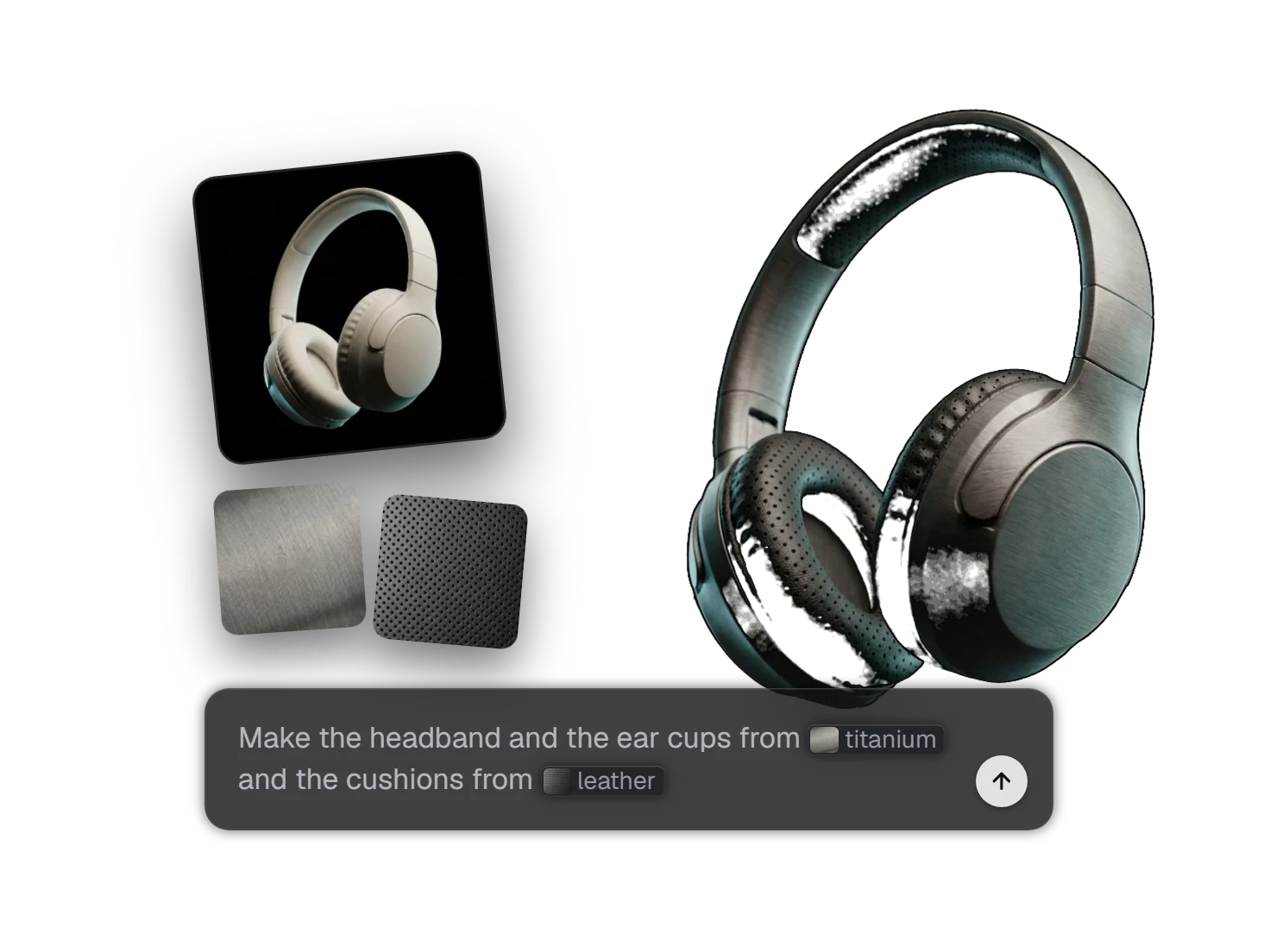
PBR (physically based rendering) materials in Marso Studio describe how each surface of an asset reacts to light, as five maps in its USD. The light stays in your scene and not in the texture, so the asset looks right under any lighting, in a game engine, a renderer or a simulator.
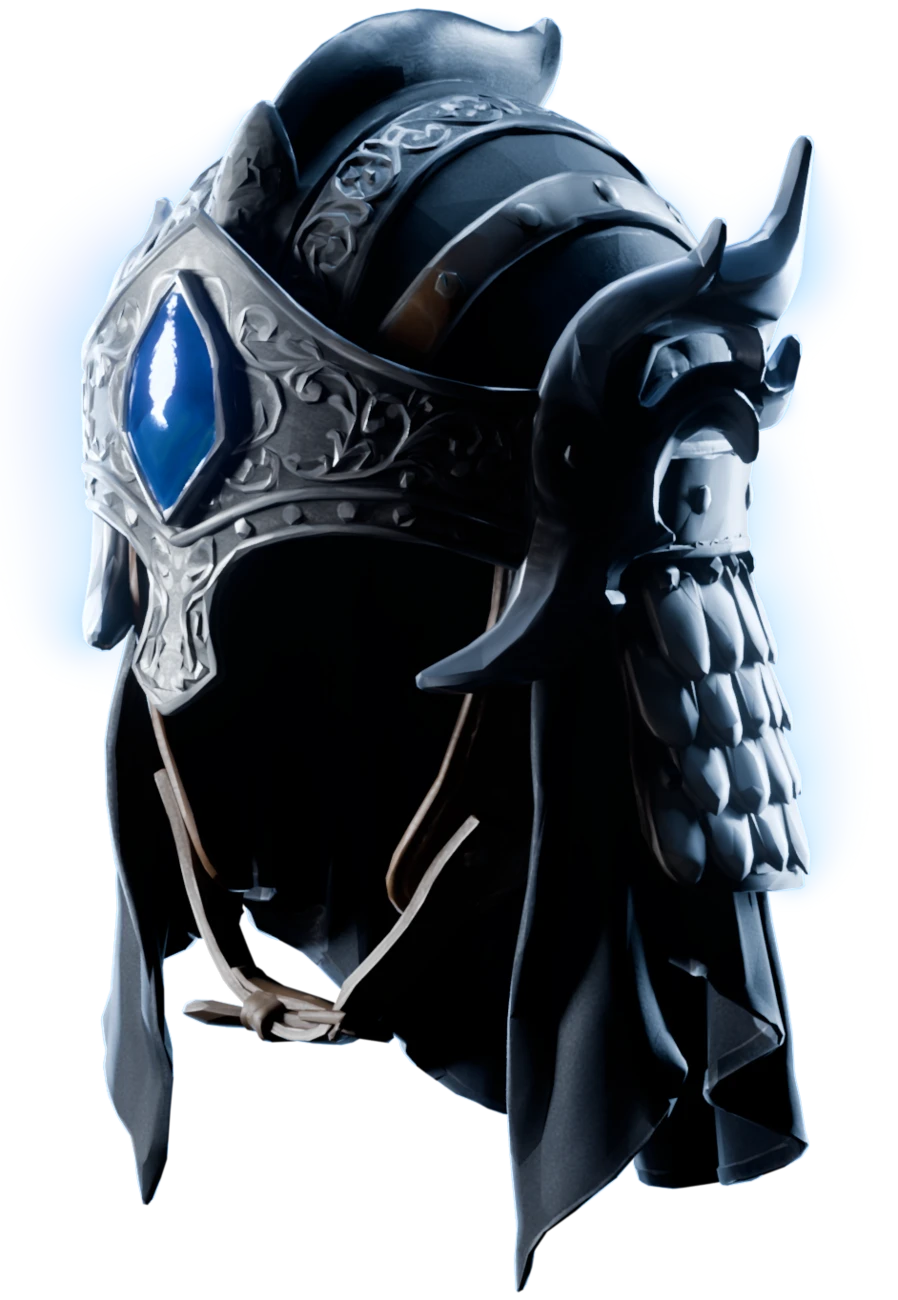
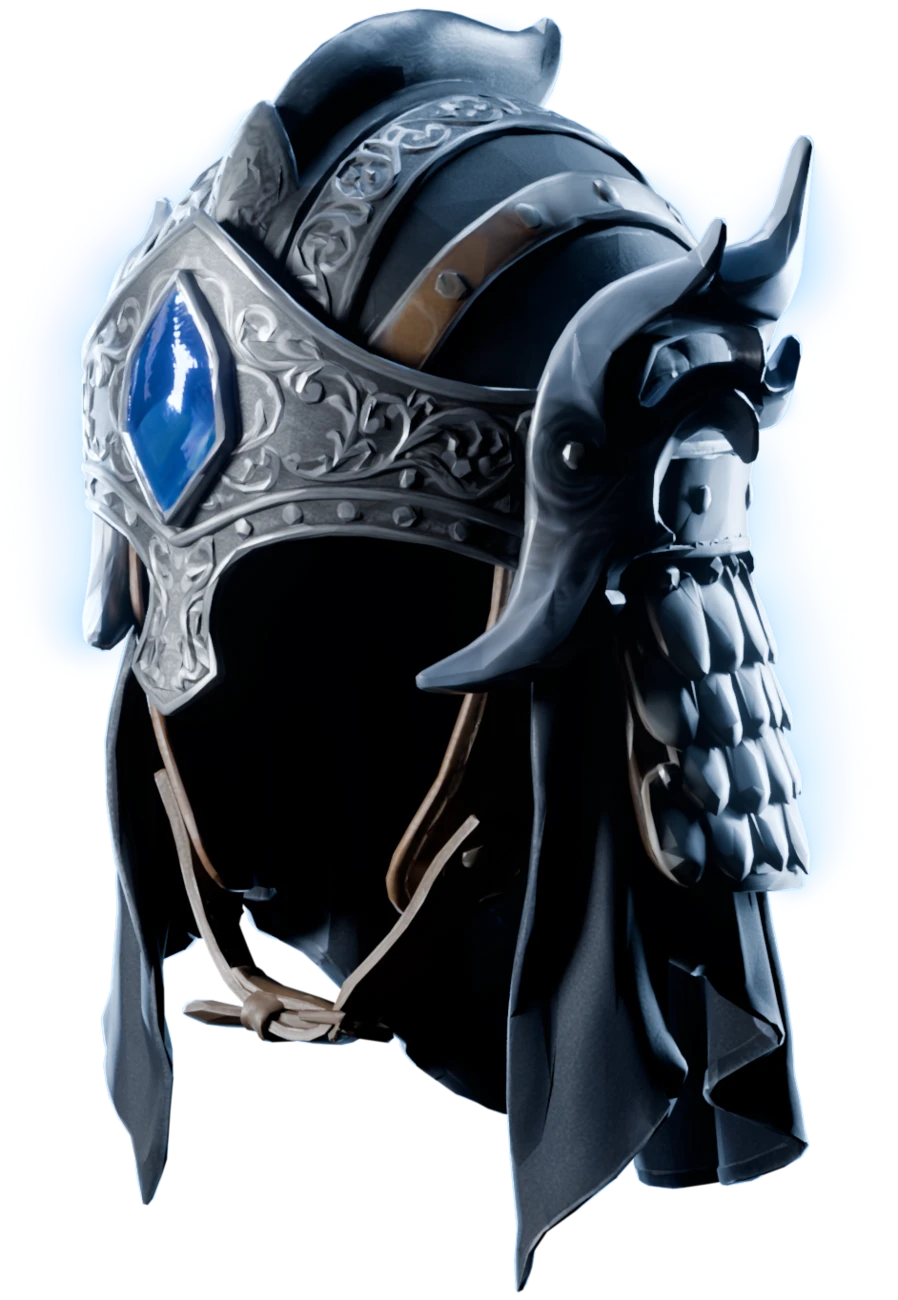
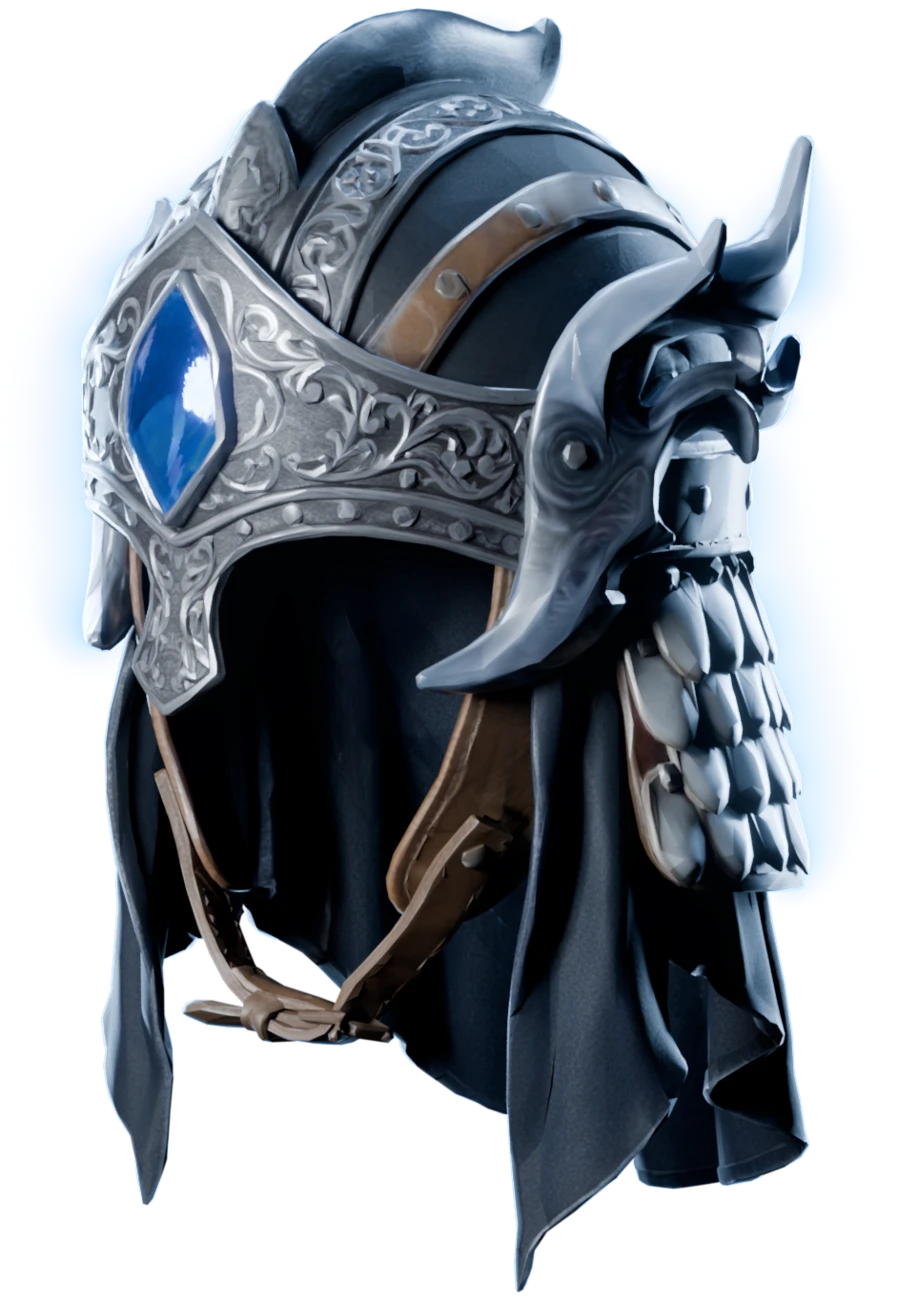
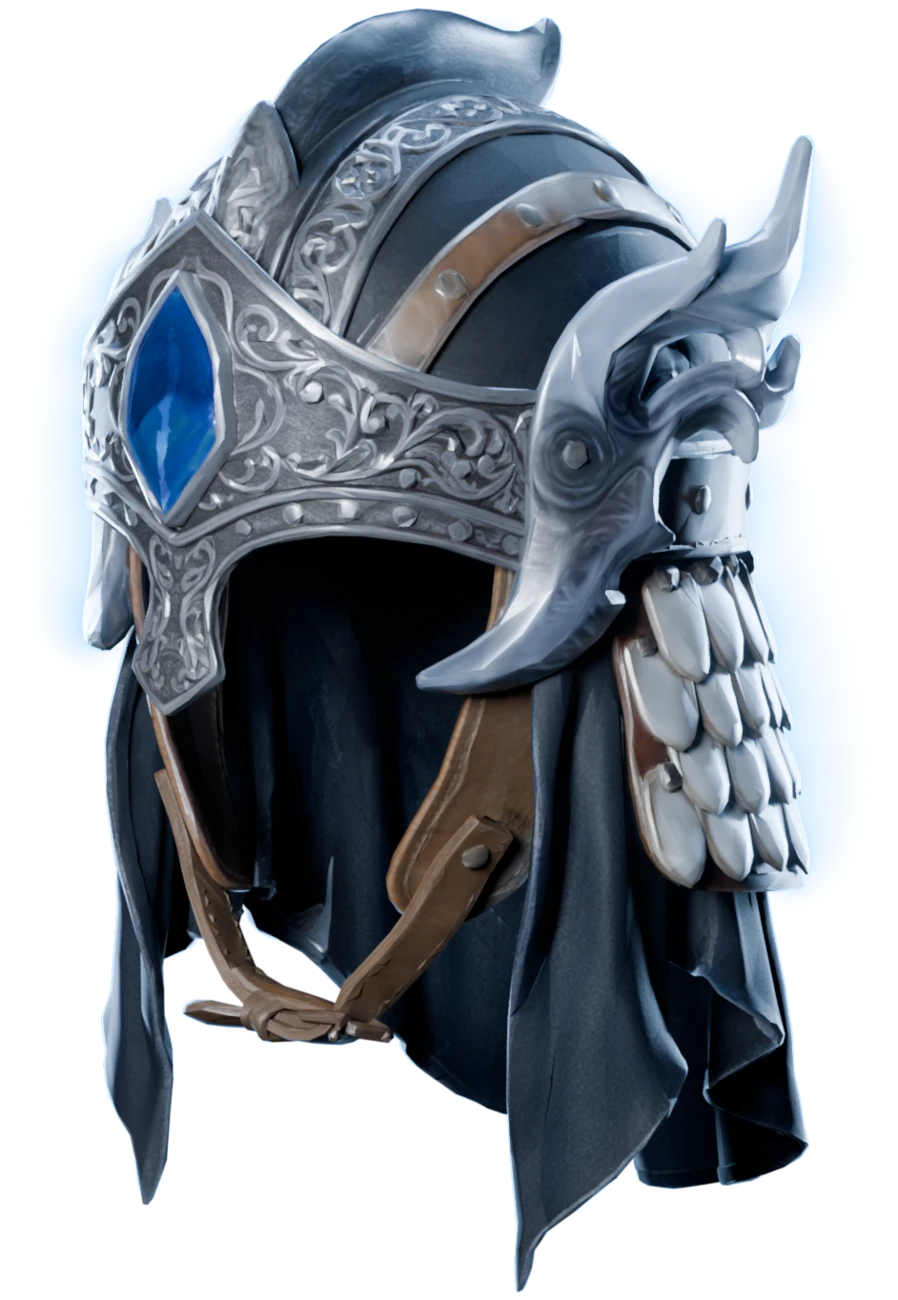
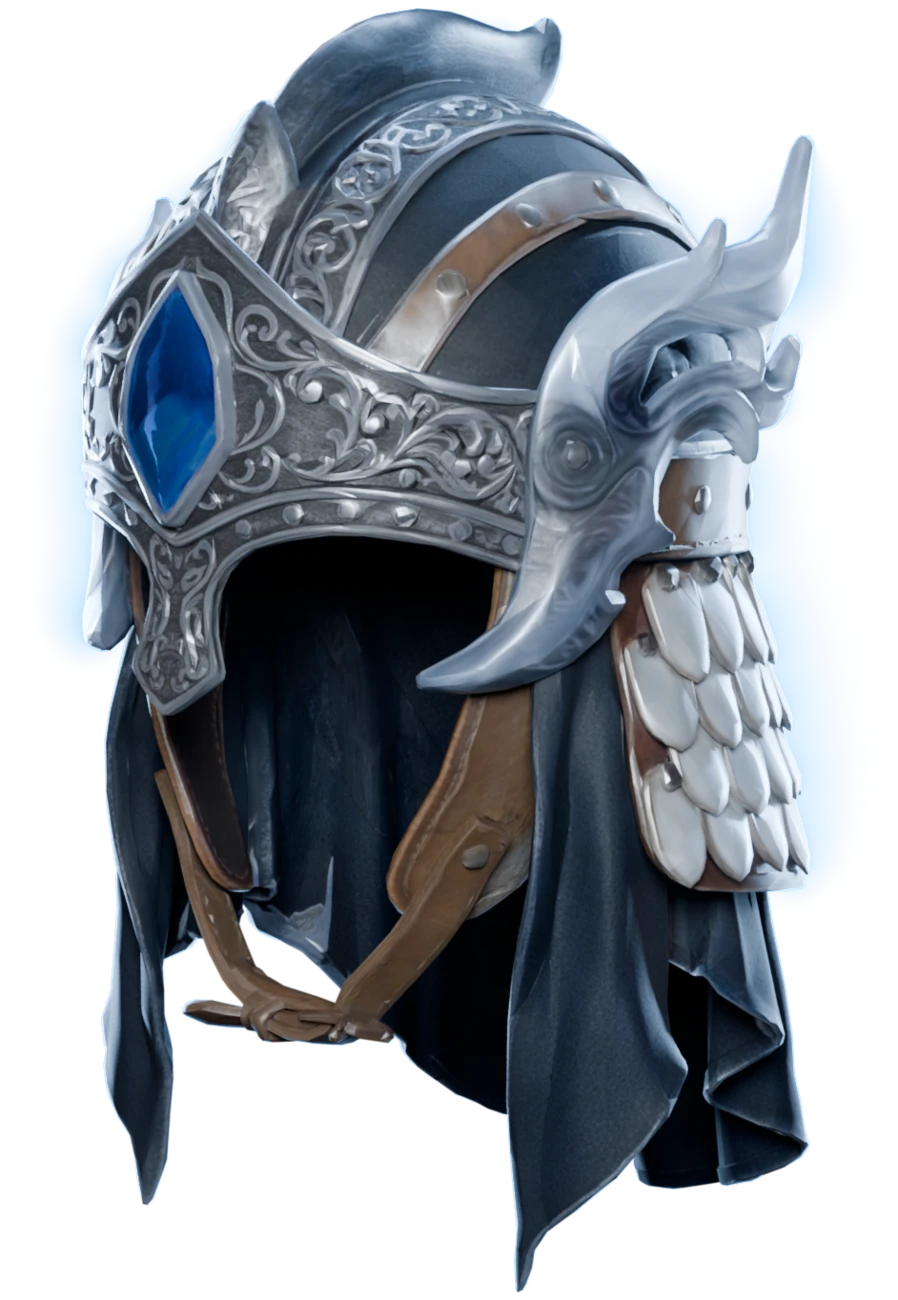
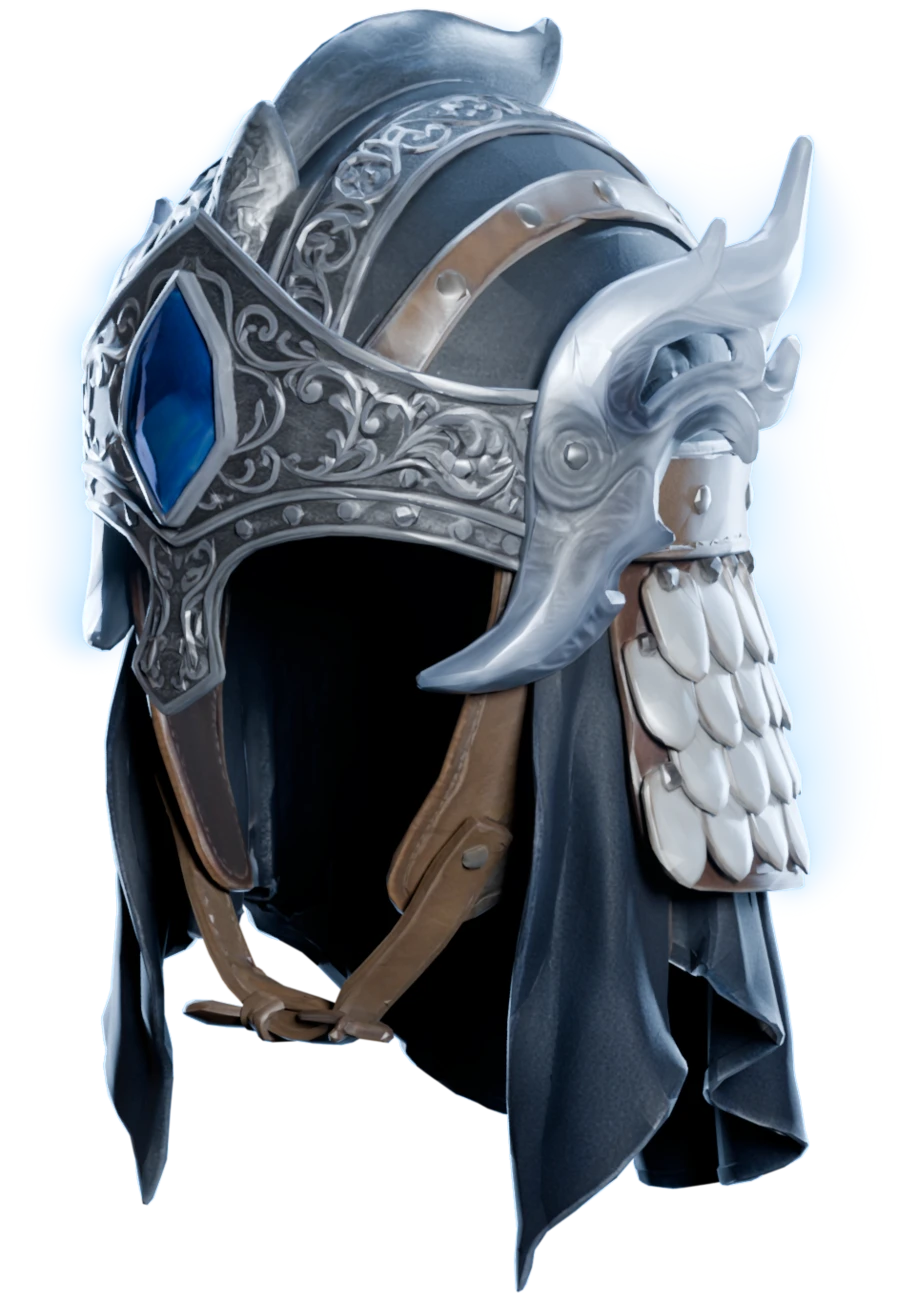
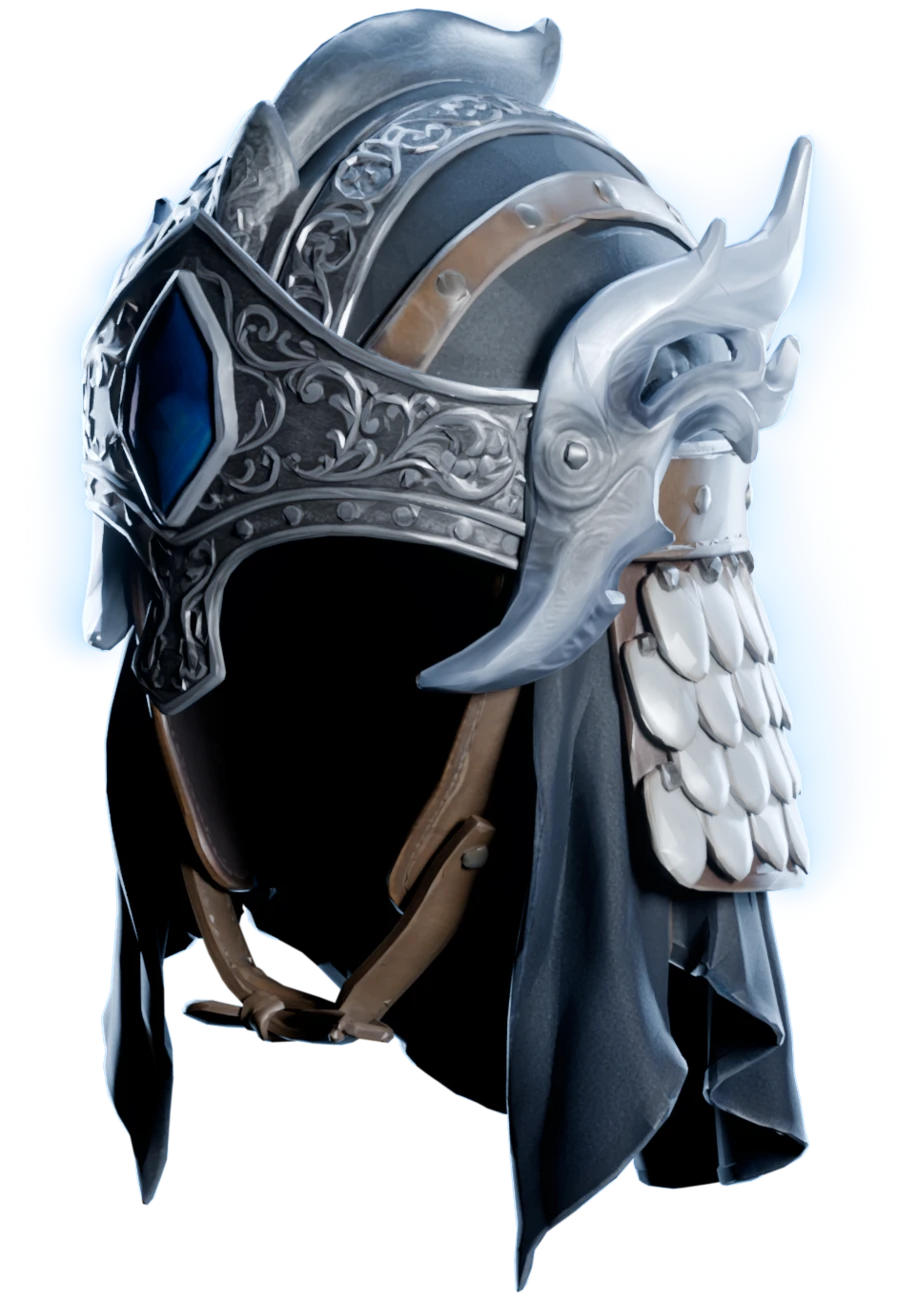
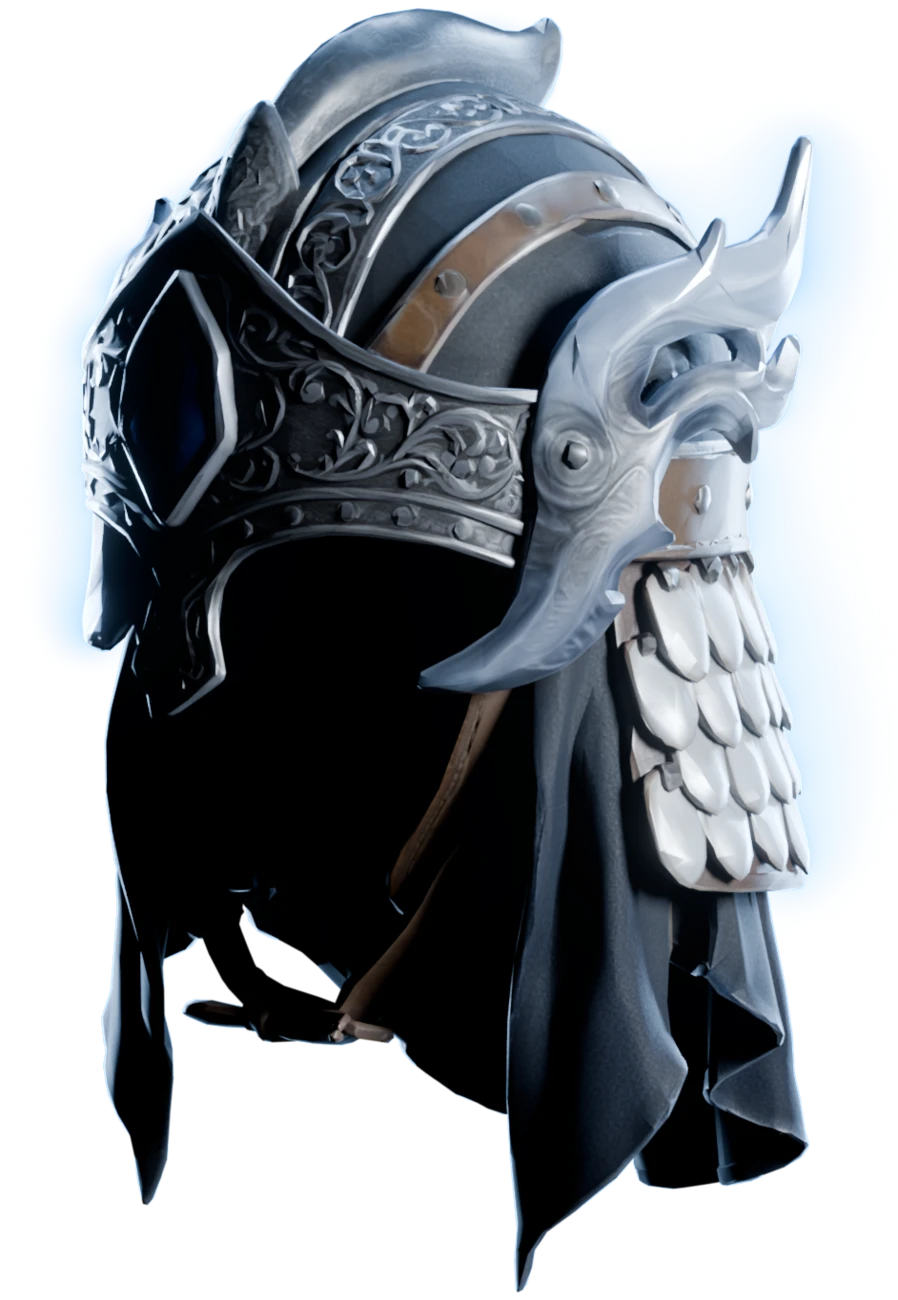
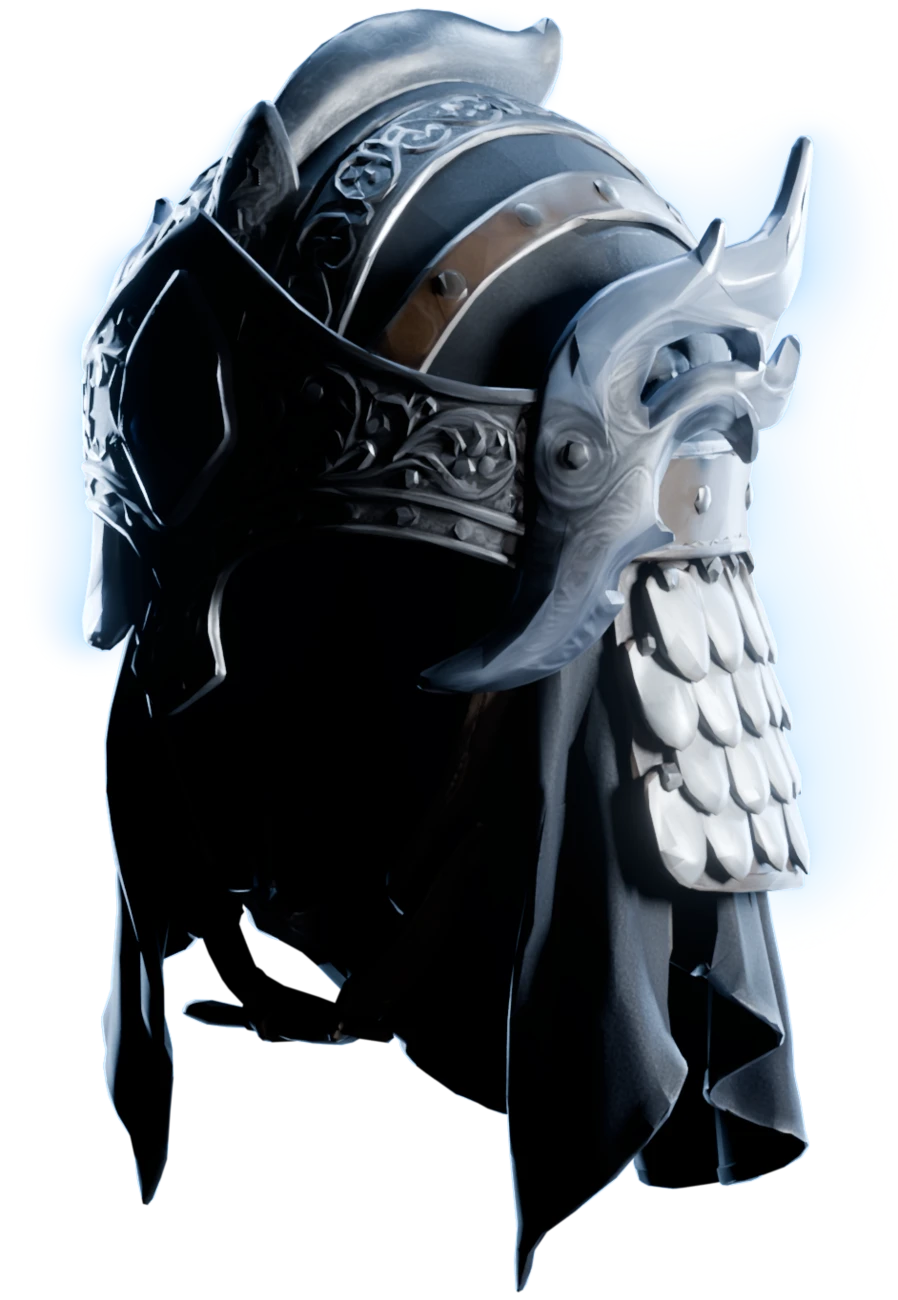
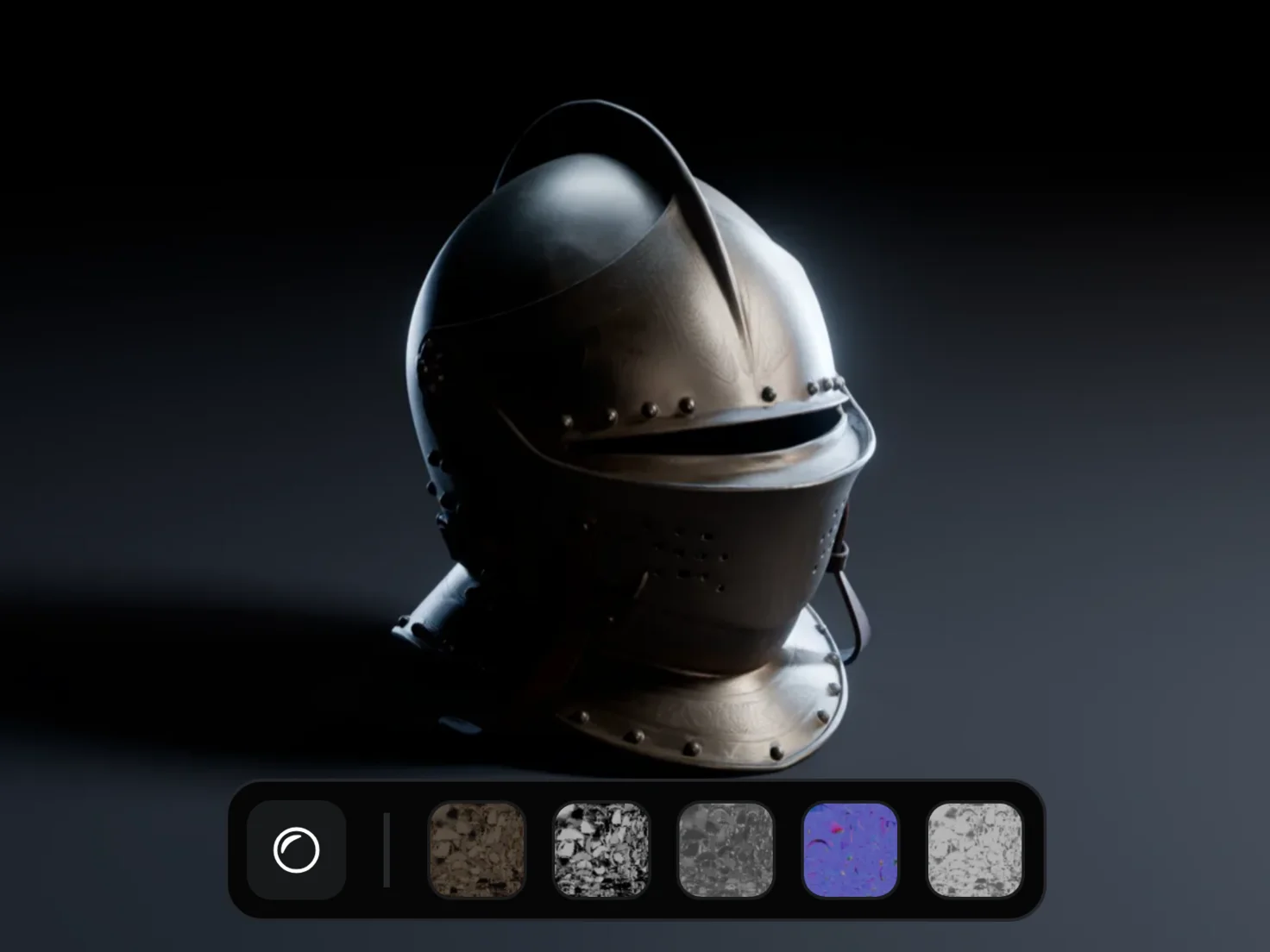
Move across the helmet to move the light
What each PBR map does
Albedo: the colour, with no light in it
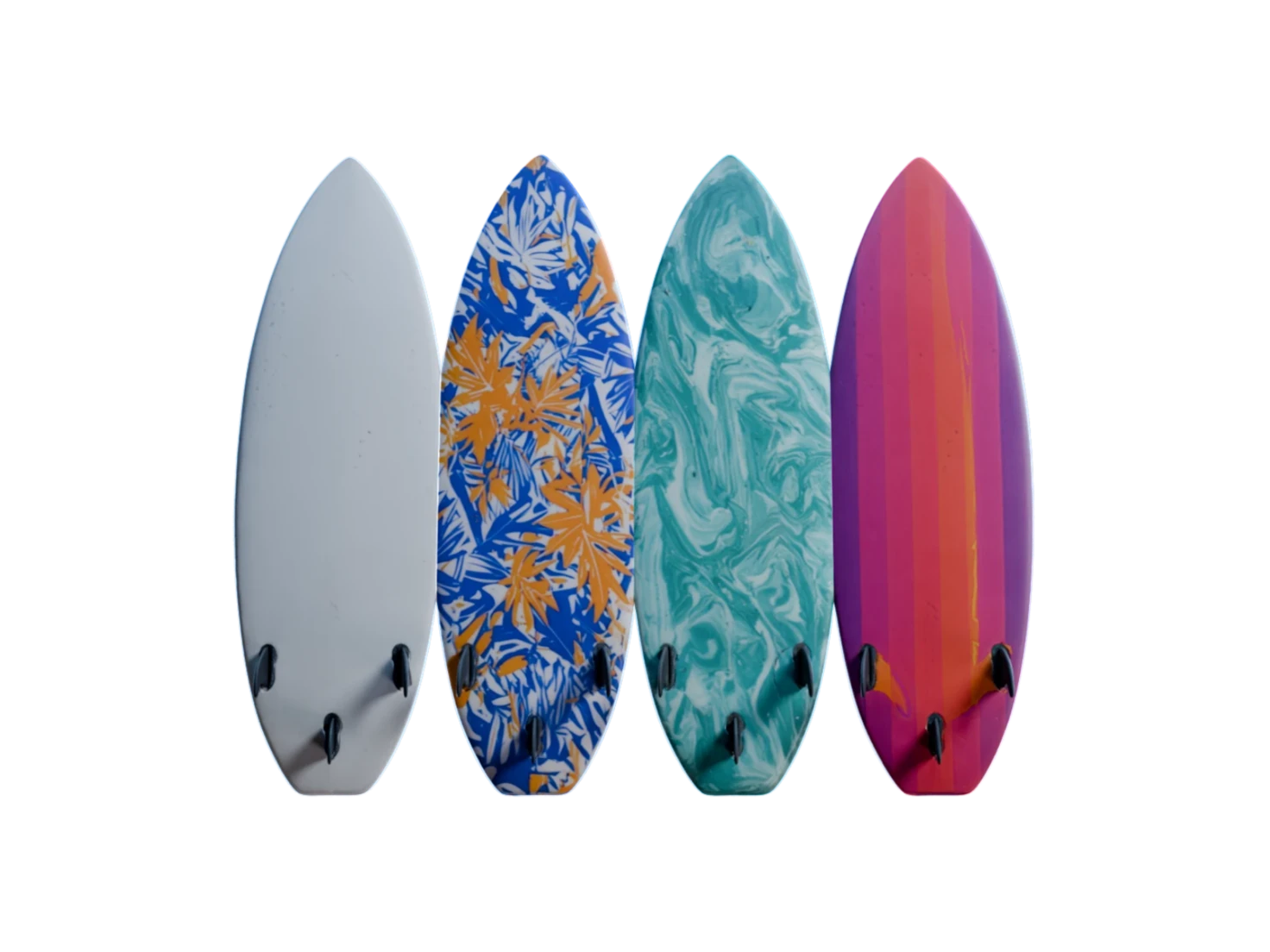
The albedo map of a PBR material holds the true colour of each point of the surface, with no shadow and no highlight painted in. Thus your renderer adds the light of your scene, and the asset fits a sunny exterior and a dim interior alike.
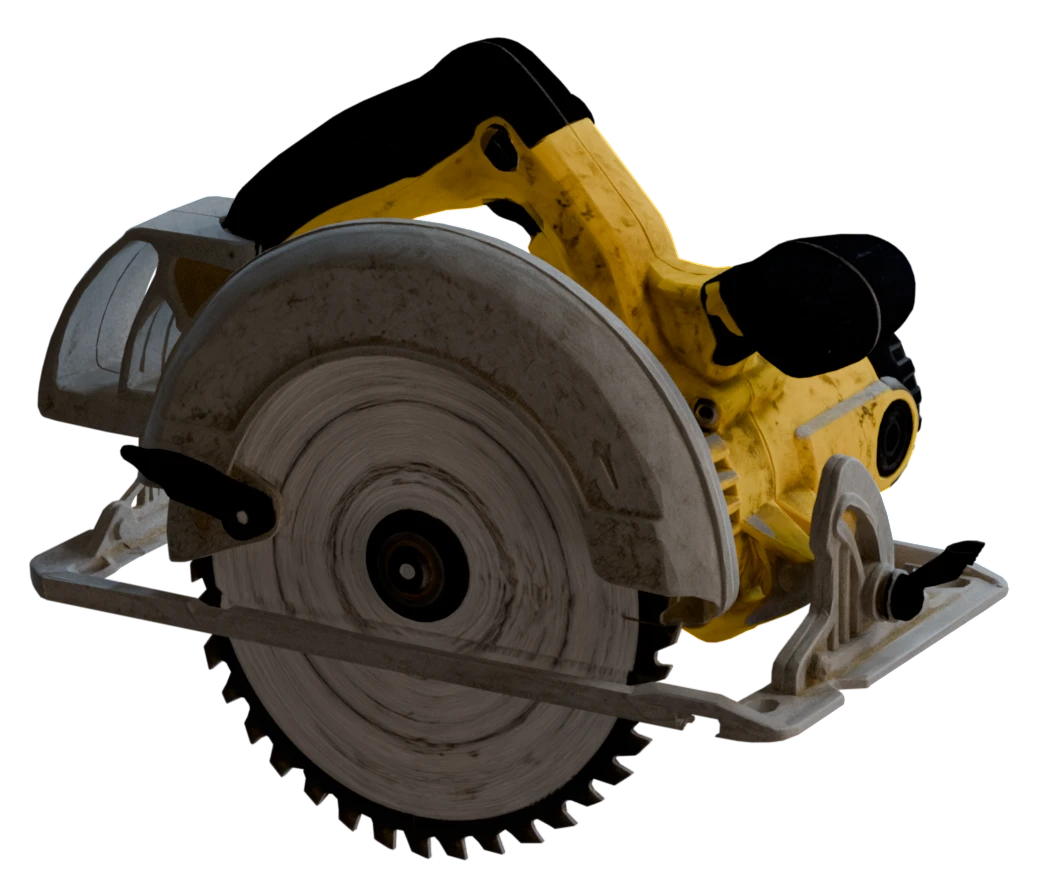
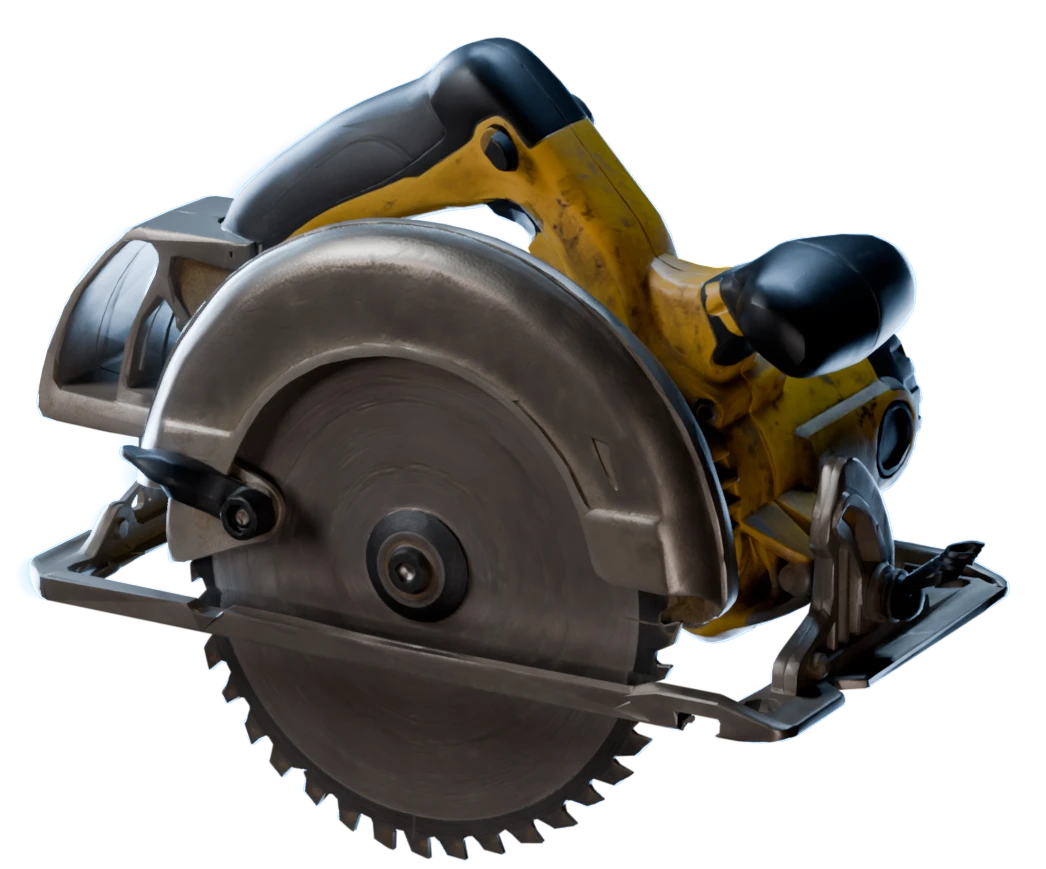
Roughness: from mirror to matte
The roughness map tells how smooth each point of the surface is. A low value gives a sharp, small highlight, as on polished chrome. A high value spreads the light into a soft sheen, as on rubber or raw wood, thus one asset can be glossy in one place and matte in another.
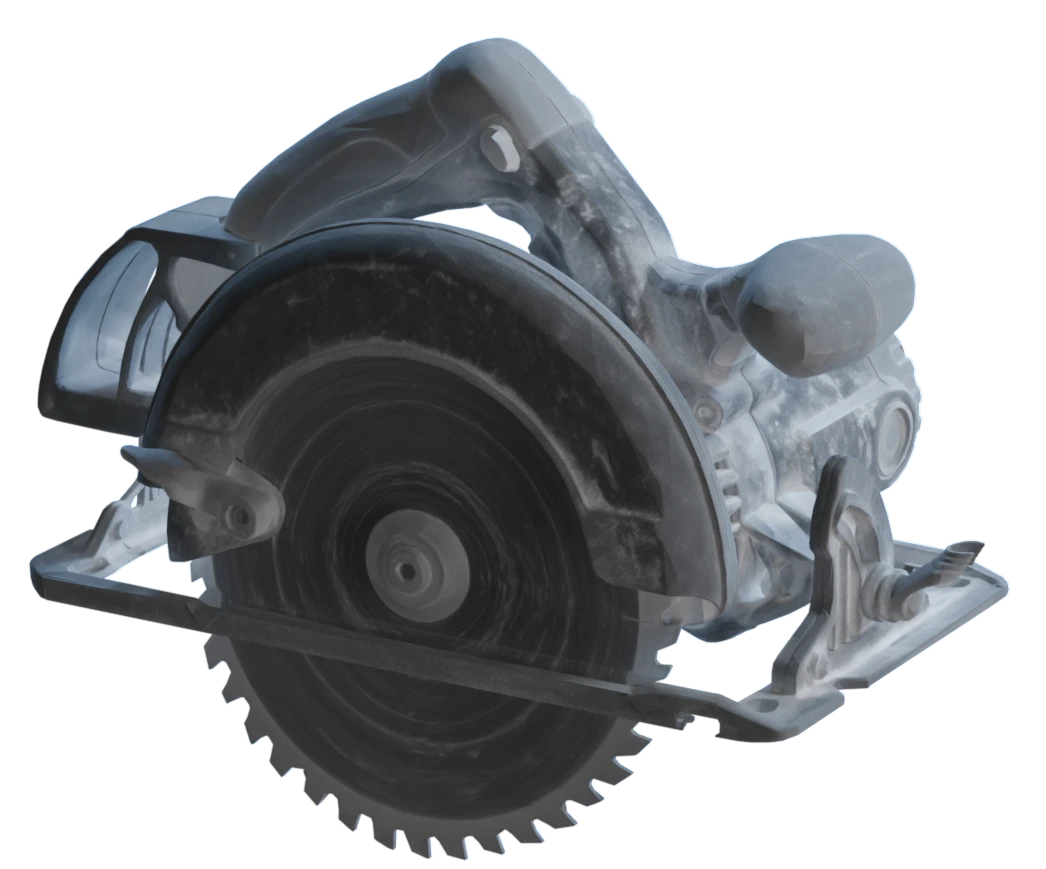
Metallic: metal or not
The metallic map tells which parts of the surface are bare metal. A metal reflects its surroundings in its own colour, and a painted or plastic part shows its colour under a clear reflection. Thus a steel blade and the yellow body of a saw read as two different materials on one model.
IoR (Index of Refraction): how much a surface reflects
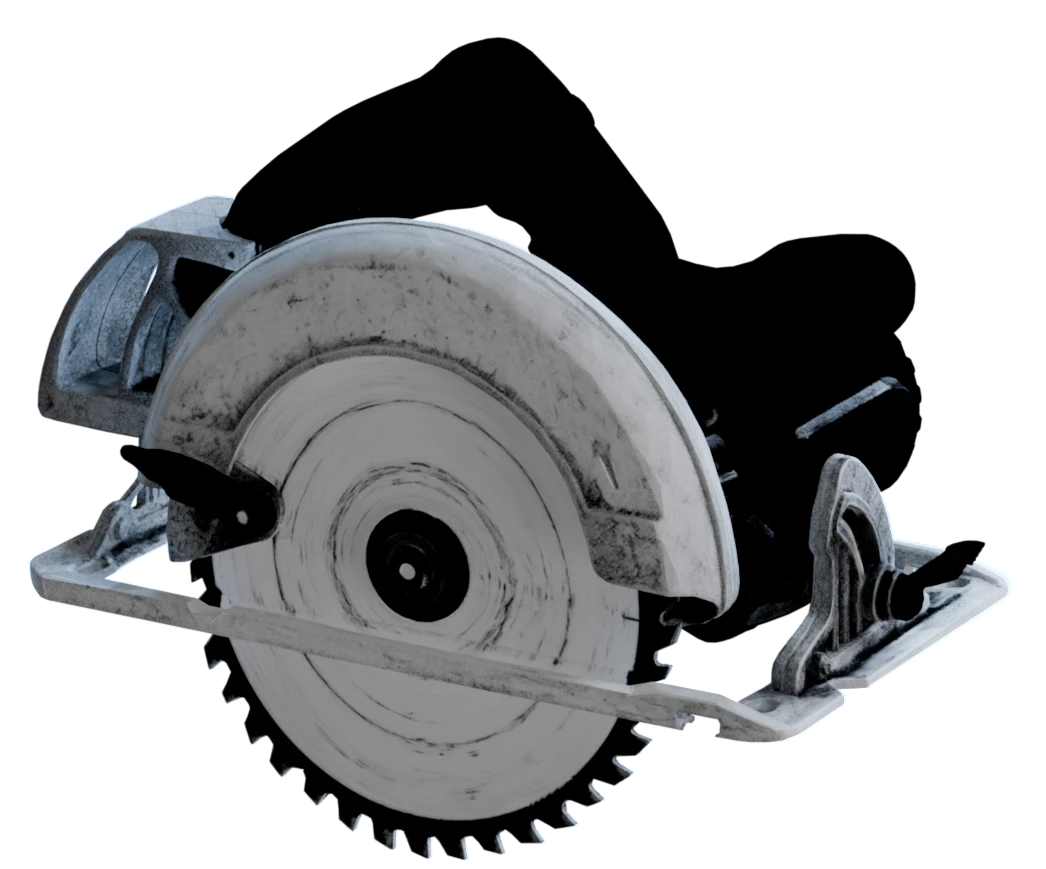
The IoR map tells how much light a surface reflects when you look at it head-on. The map itself is on a 0 to 1 scale, and the USD of a Marso Studio asset remaps it to 1.0 to 1.79. A higher value gives glass, gems and gloss paint a stronger glint, and a low value keeps cloth and dust quiet. Some render engines call this control specular.
Normal: fine detail, with no more polygons
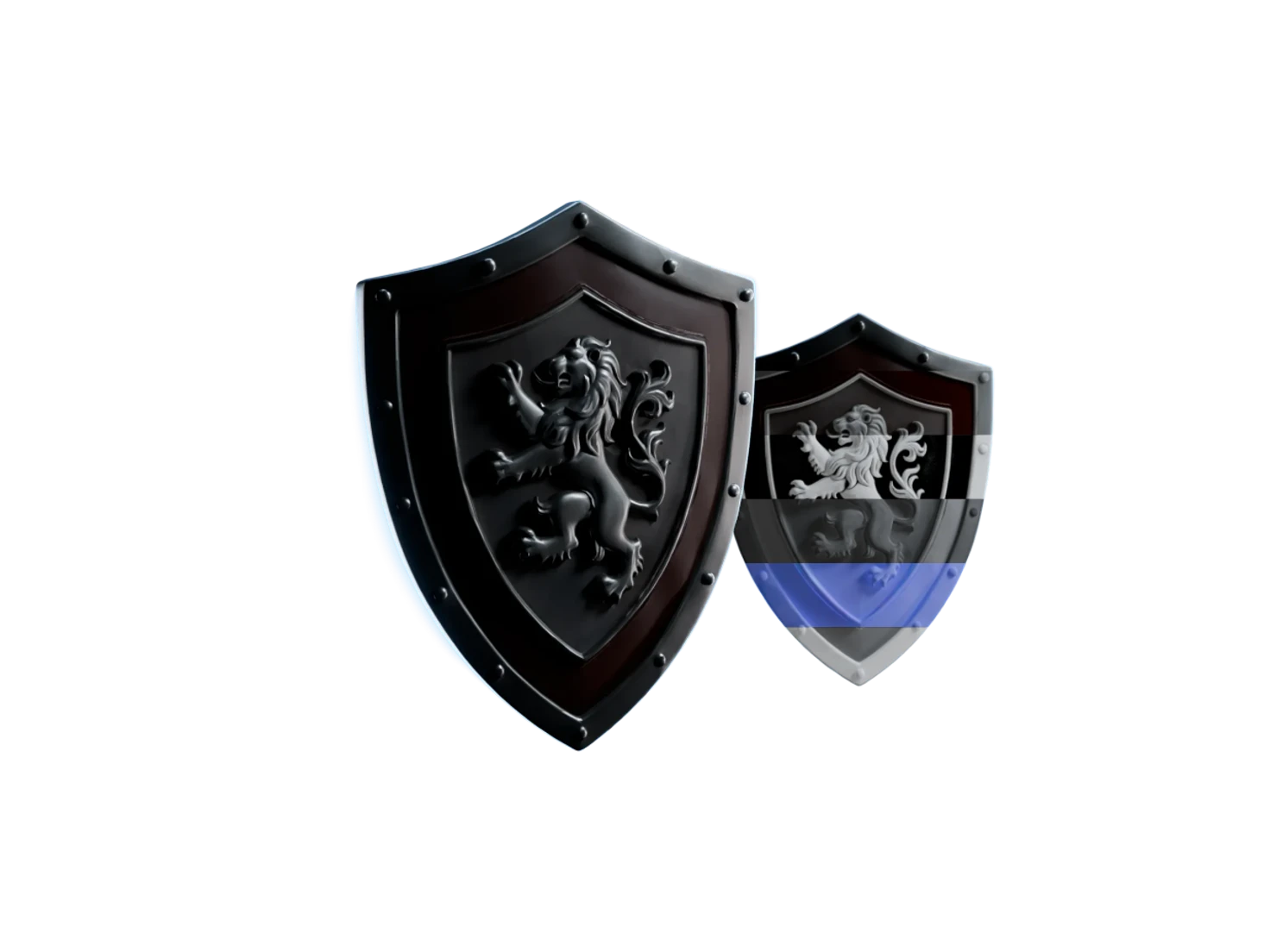
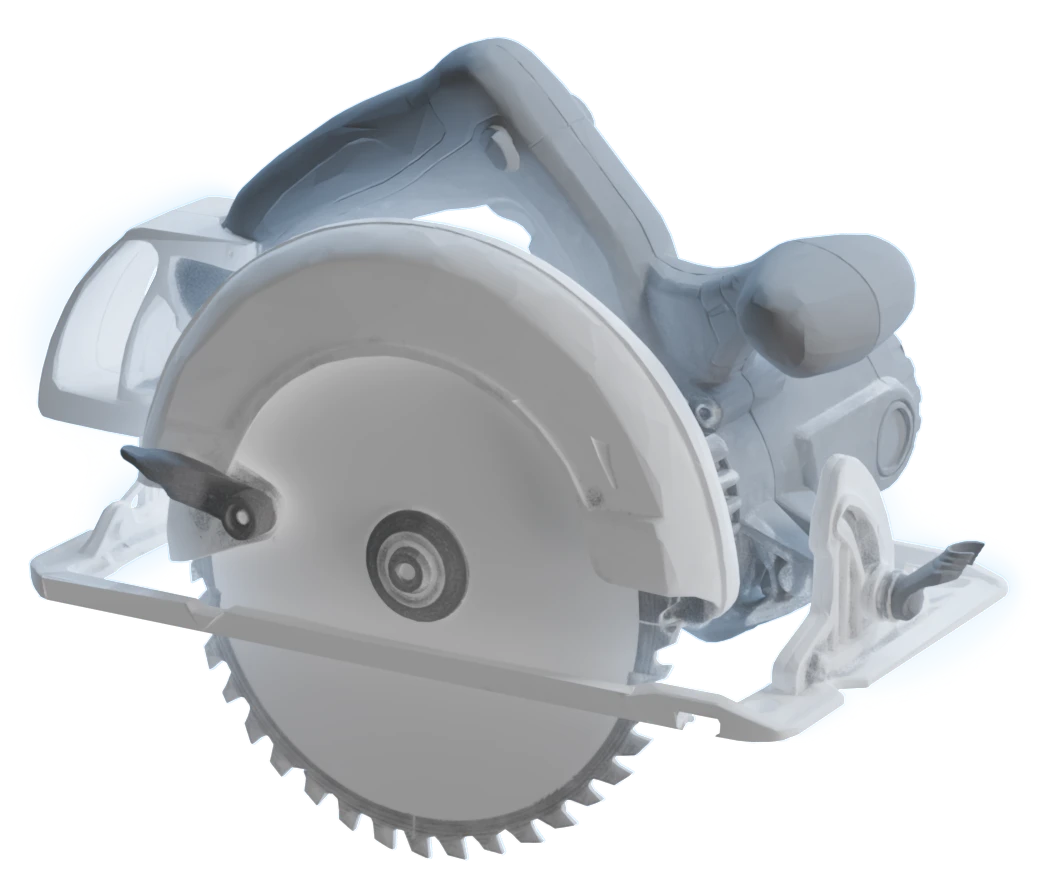
The normal map tilts the light at each point of the surface, thus a flat face shows scratches, grain, stitches and engraving. The renderer draws that detail from the map, so the model keeps its polygon count and stays light enough for a game engine or a simulator.
Displacement: real depth for 2D materials
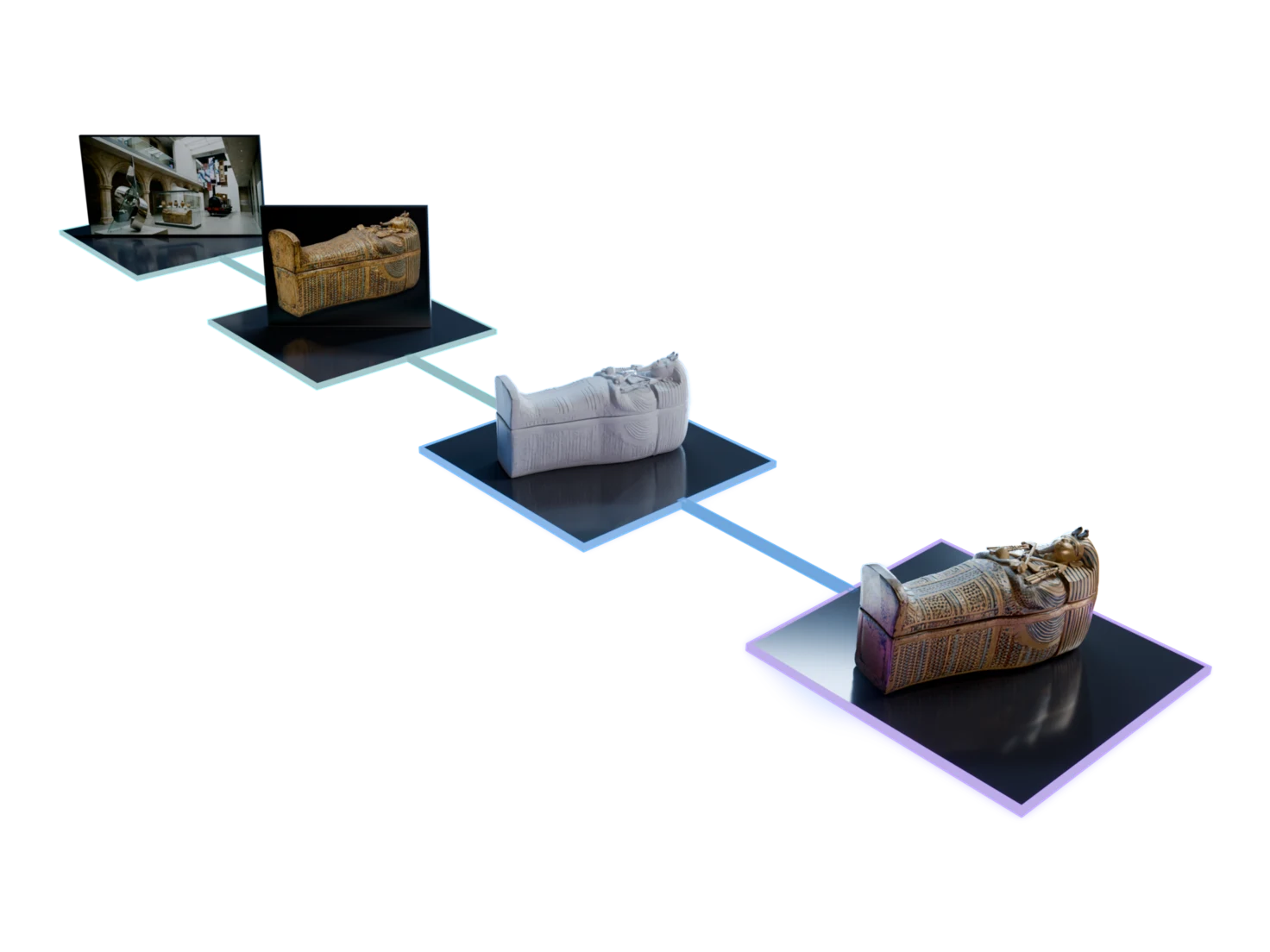
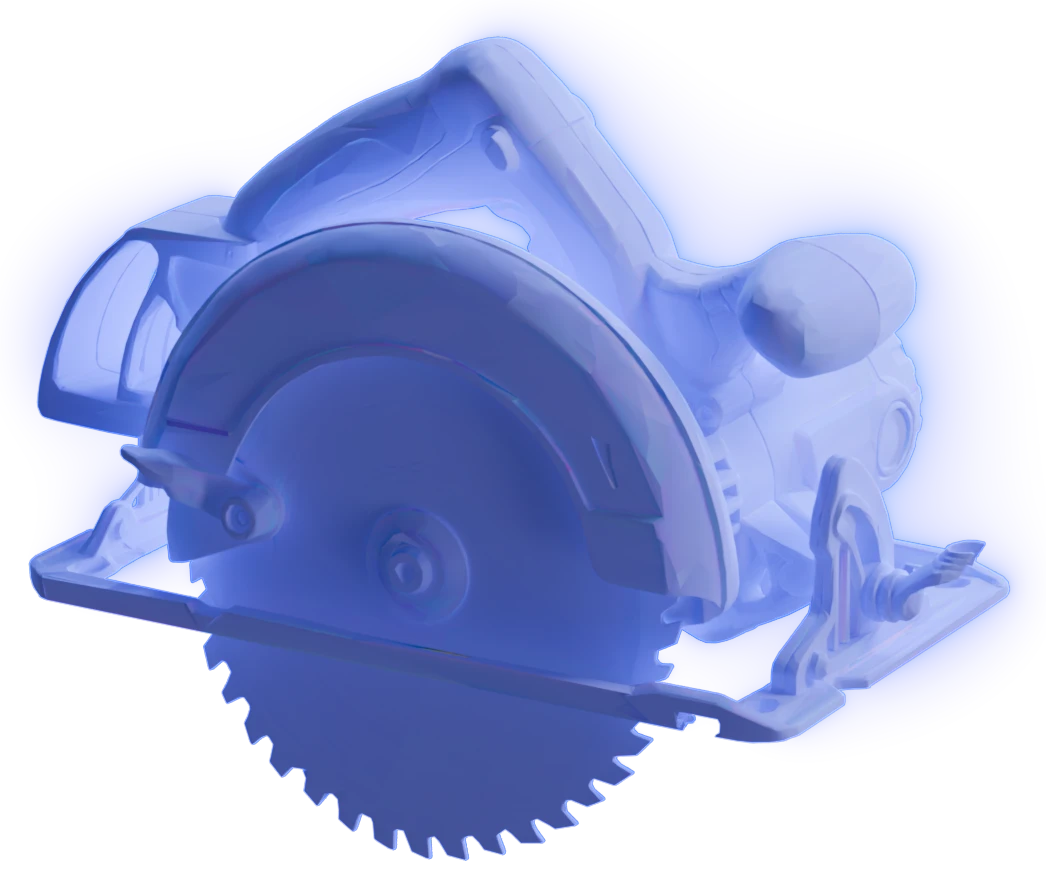
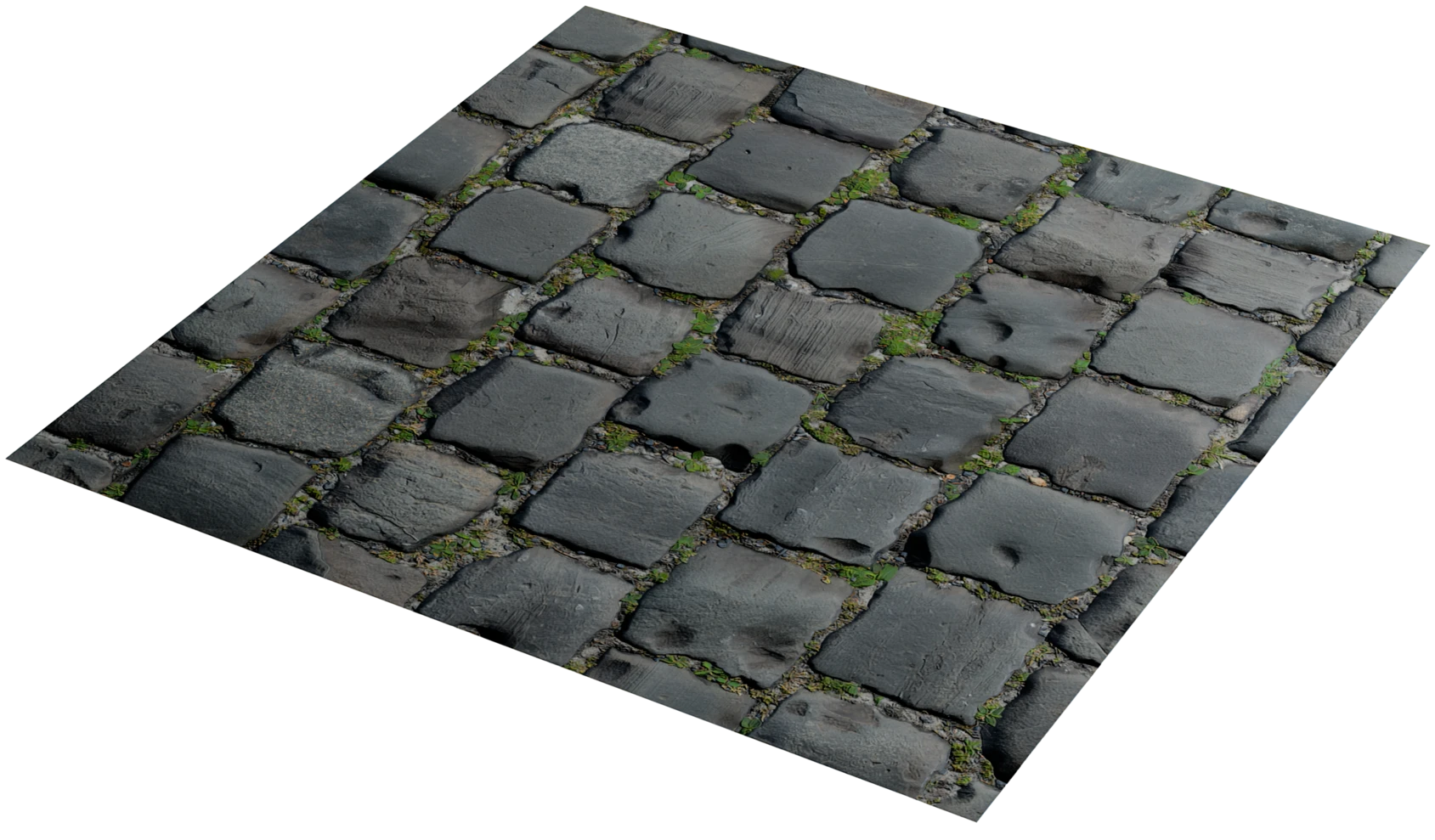
When you make a PBR material from an image, you can also ask for a displacement map. It tells how high or low each point of the surface is, and your renderer moves the geometry to match: joints sink, stones stand up, and the edges show their real shape. You set the depth in your renderer, from none to a subtle relief to an exaggerated one.
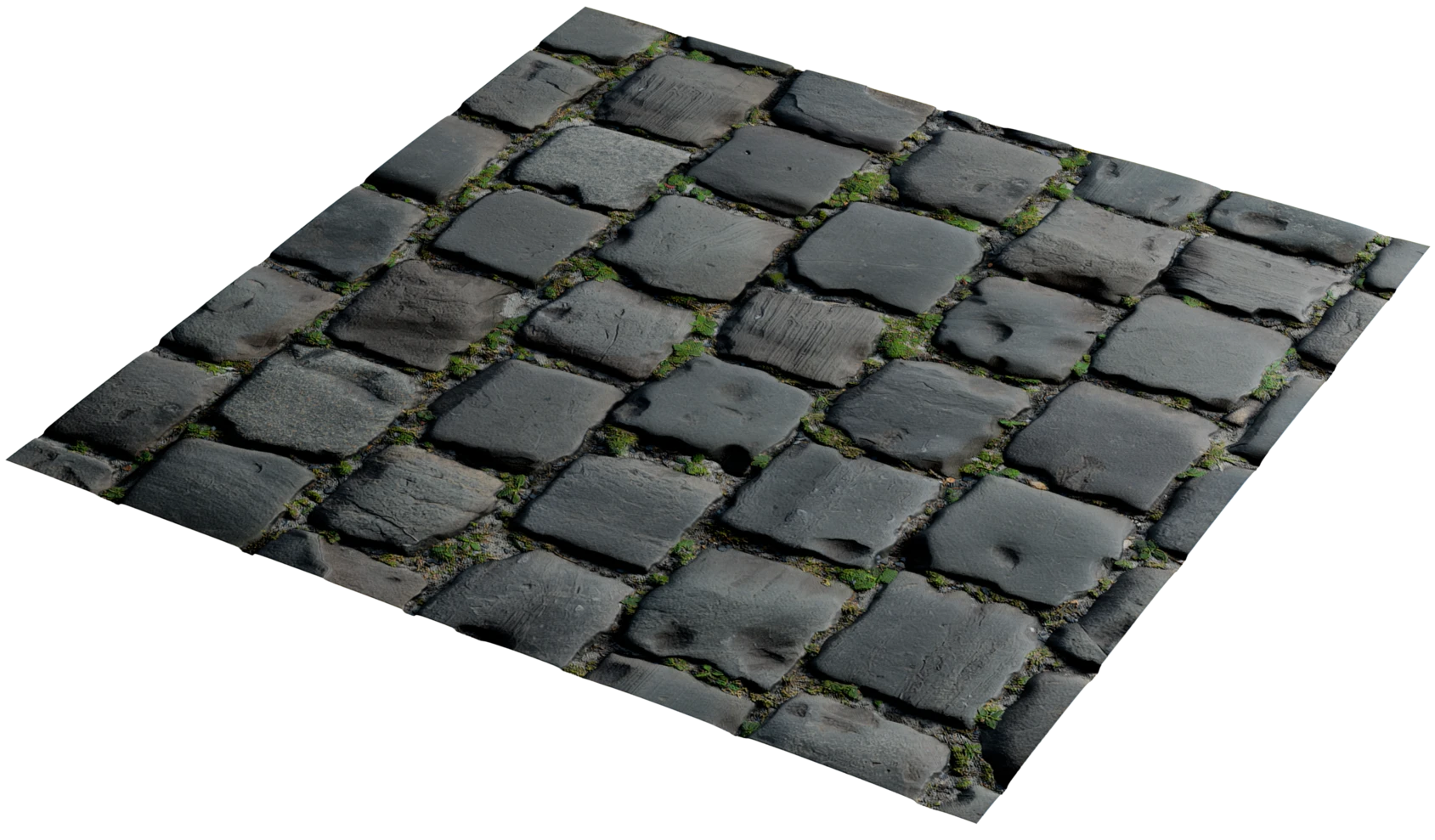
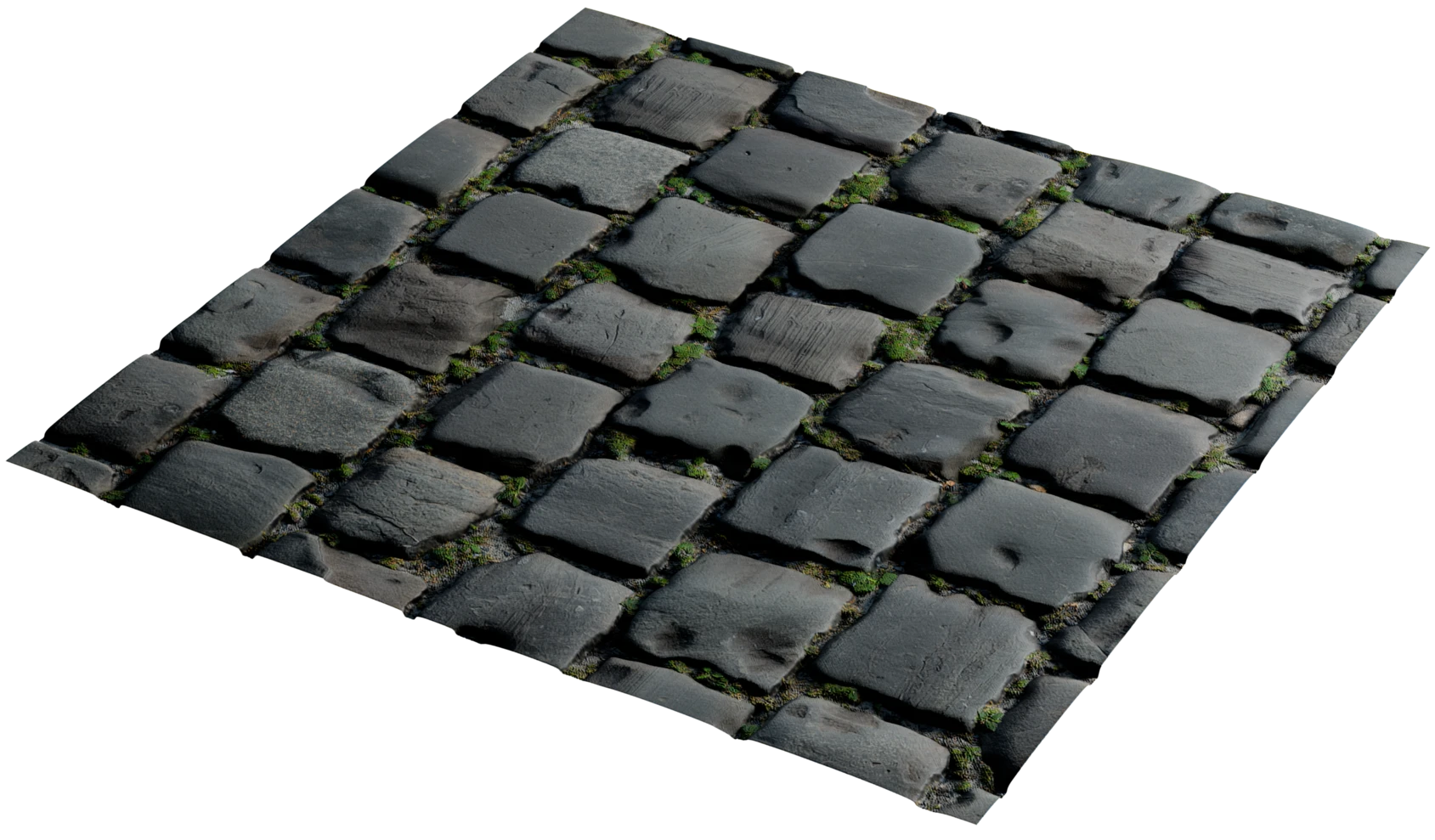
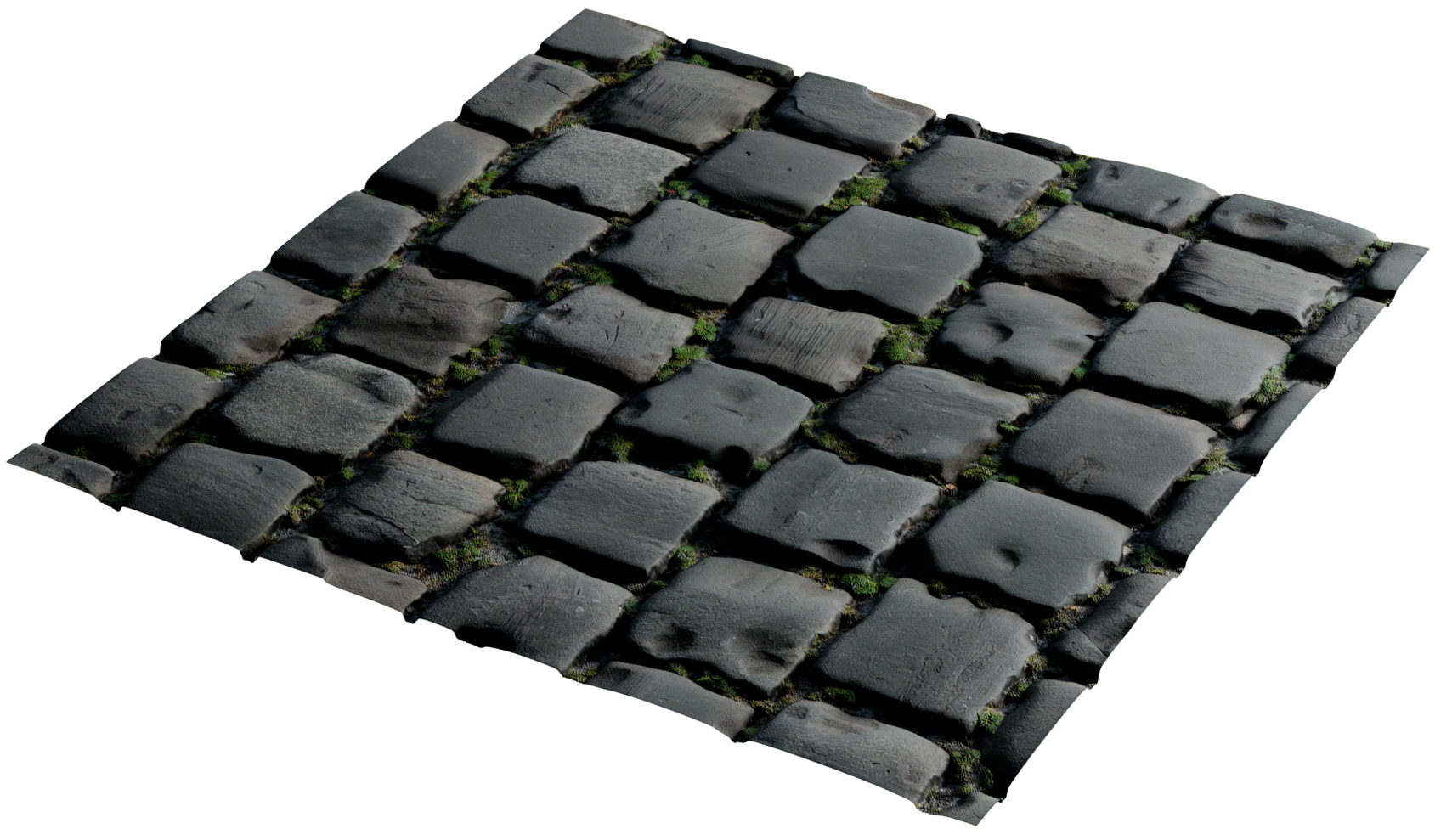
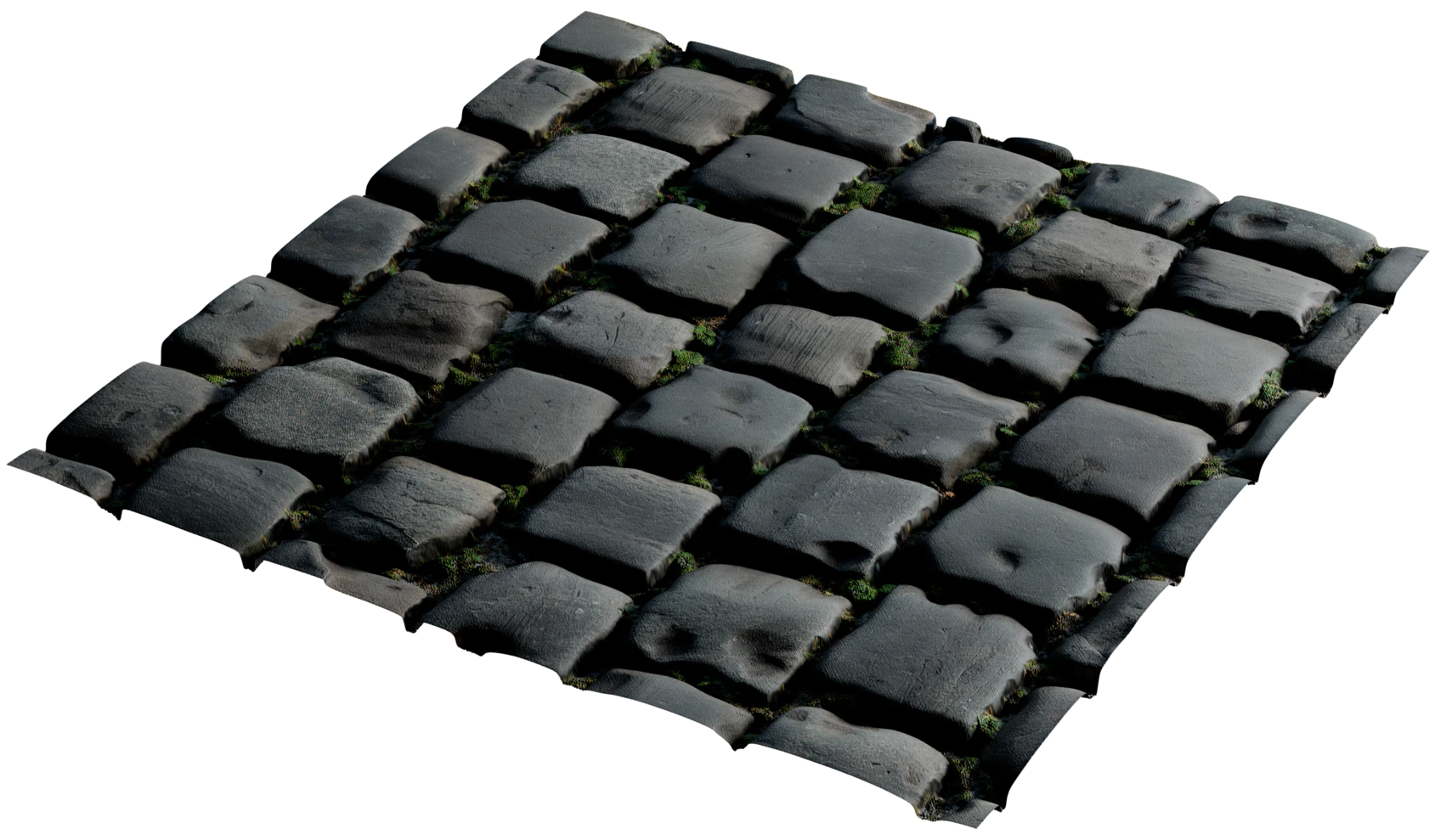
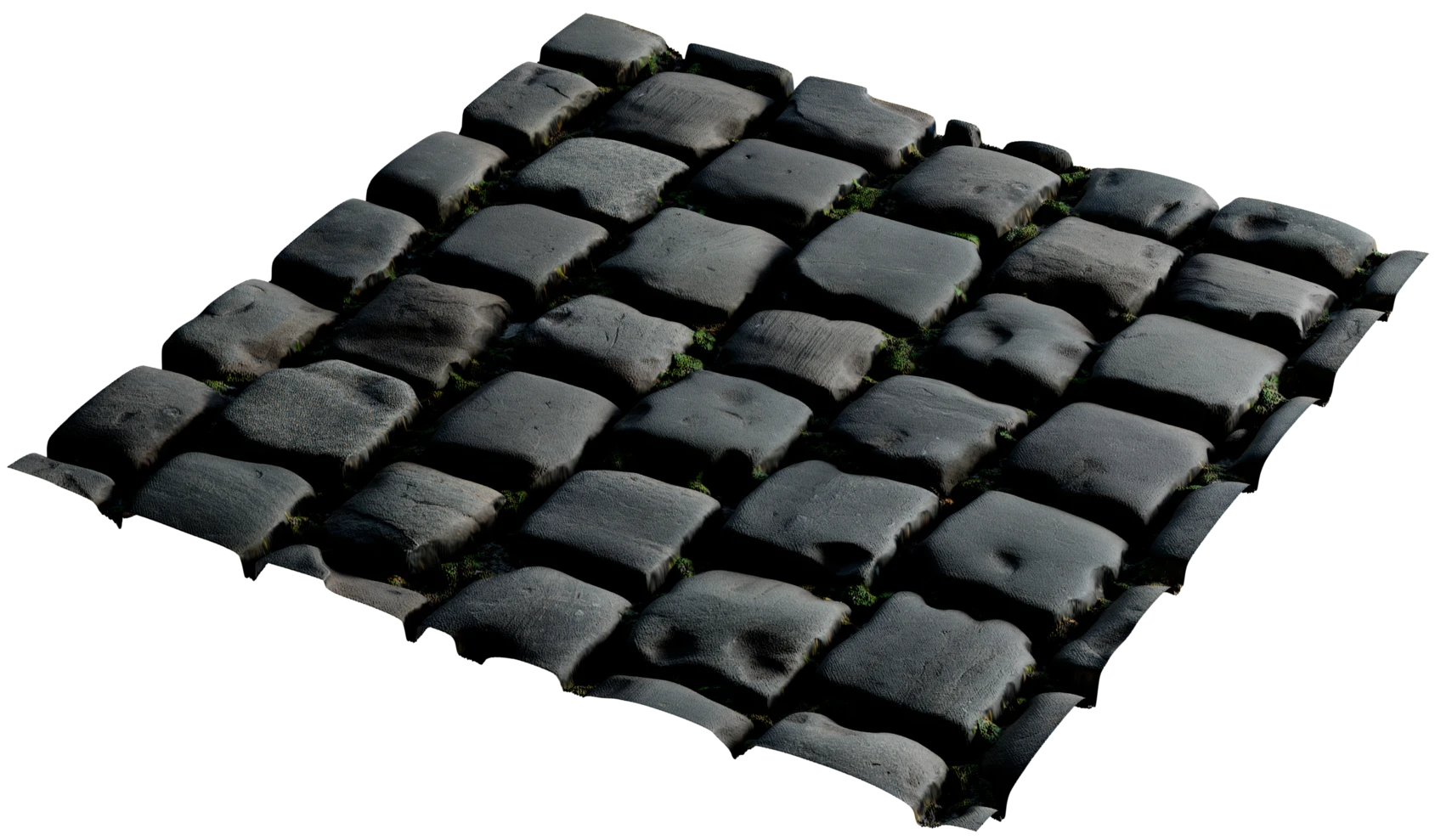
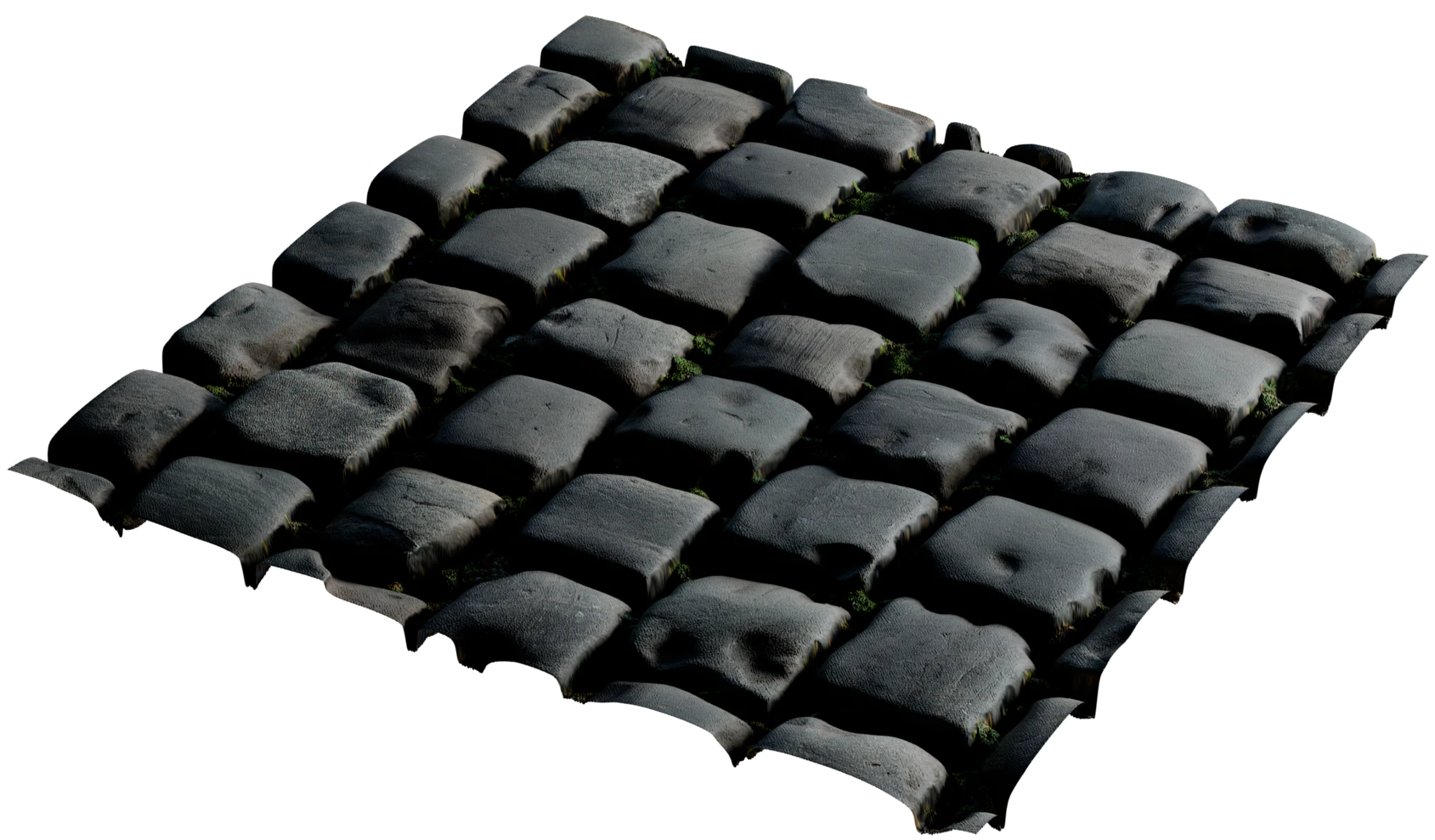
Off
Normal
Exaggerated
The same model, with and without PBR
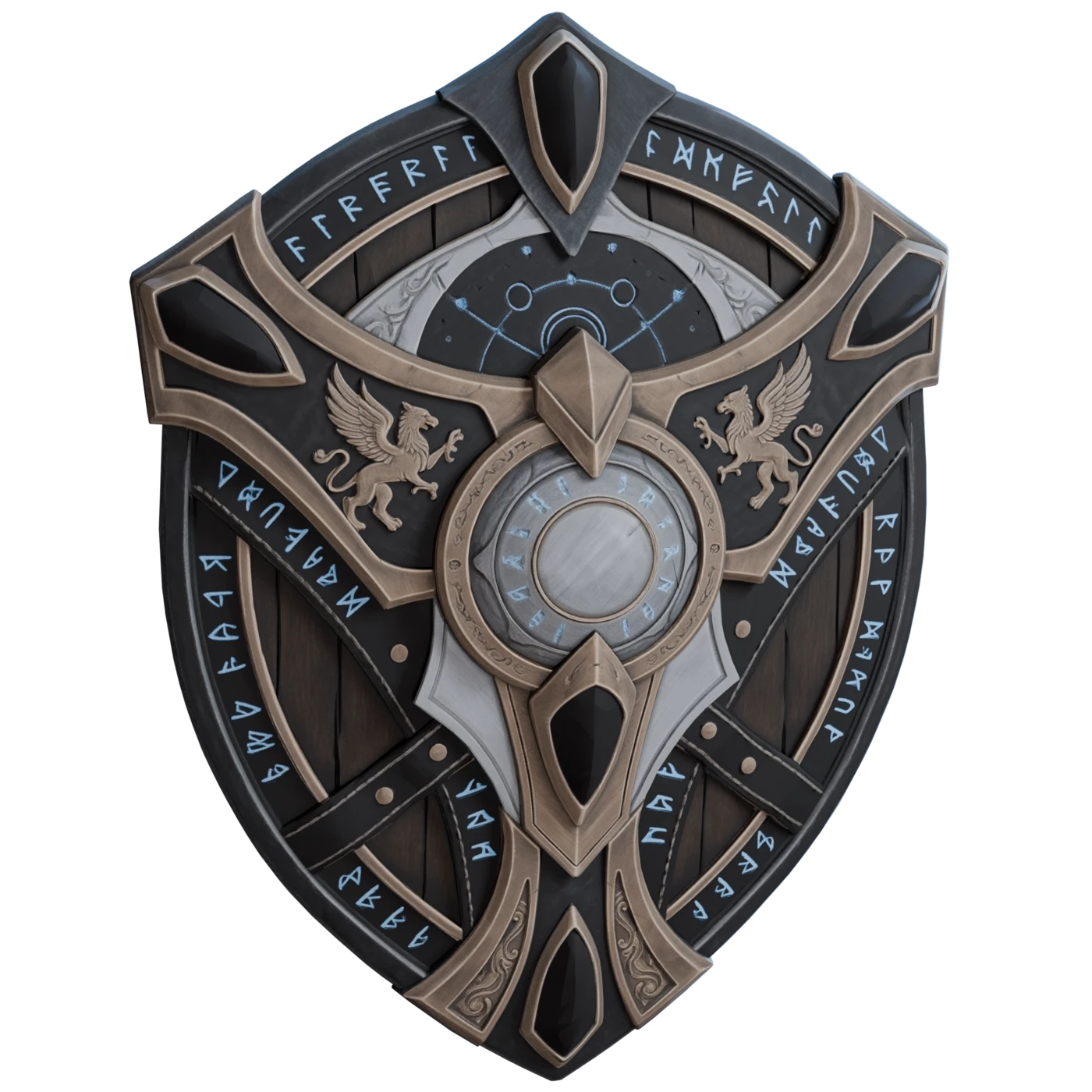
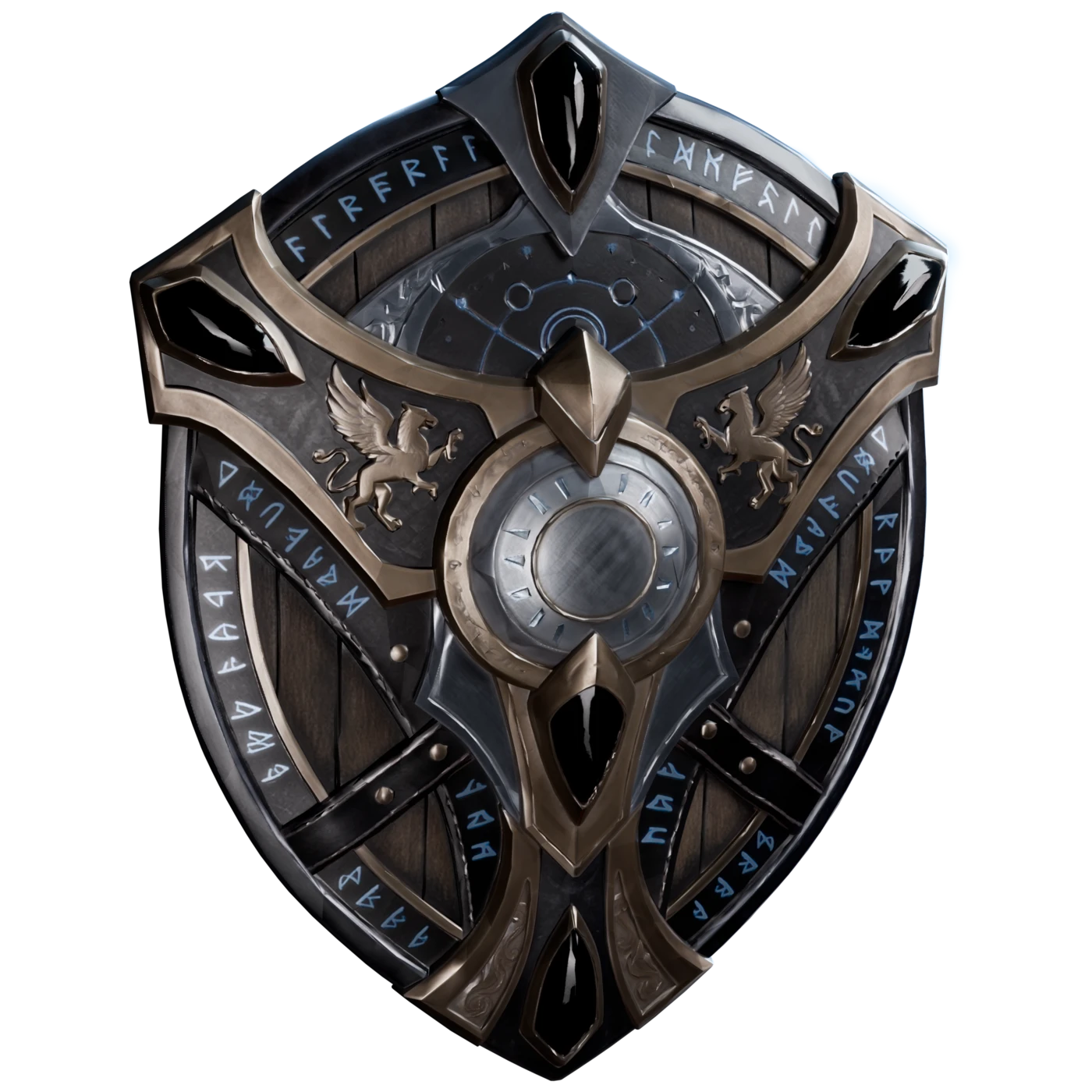
Without PBR
With PBR
What PBR gives every asset
One asset for every scene
A PBR material keeps the light out of the texture, so you do not texture an asset again for each scene. The same Marso Studio asset looks right at noon, at night and under studio lights, because the scene lights it.
Opens in the tools you use
Marso Studio writes the five maps into a standard USD material, so Blender, Unreal Engine, Unity, Omniverse and Isaac Sim shade the asset with no conversion. You also get each map as a PNG file, to build the material in any engine.
Detail without extra geometry
The normal and roughness maps carry scratches, grain and wear that would take far more polygons to model. The asset stays light, so a game keeps its frame rate and a simulator keeps its speed.
True to a real camera
A camera in a simulator sees the glint of metal and the dull face of rubber as a real camera does. Thus synthetic images of Marso Studio assets look like the images that a robot sees in the real world.
Questions about PBR materials
What artists, game developers and robotics teams ask about PBR before they use a generated asset.
PBR (physically based rendering) materials describe how a surface reacts to light, not how it looked in one photo. A PBR material in Marso Studio holds five maps: albedo for the colour, roughness, metallic, IoR for the reflection, and normal for the fine detail. Any renderer that supports PBR then shades the asset correctly under its own lights.
PBR materials let one asset look right in every scene. A texture with light baked in keeps the same shadows and highlights wherever the light goes, so the asset looks flat or wrong in a new scene. With PBR, the game engine, the renderer or the simulator lights the asset itself, and the asset matches the rest of the scene.
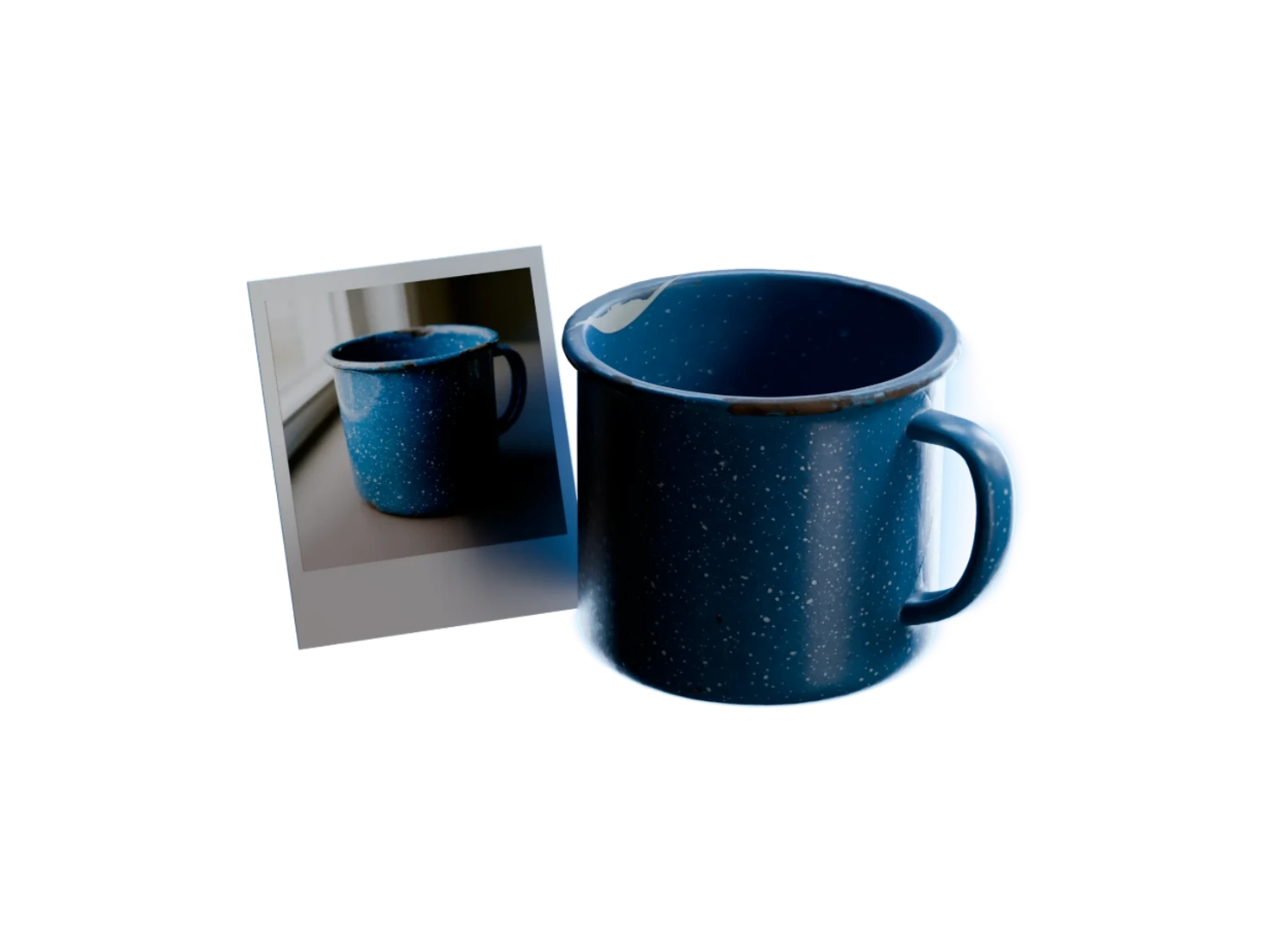
Connect the model to Generate PBR Textures in Marso Studio and run it once. The node predicts the five PBR maps on the UVs that the model already has, and writes them into its USD. It works on a model from 3D Generation or on your own mesh, and one image of an object gives a PBR material too.
Yes. Marso Studio writes each PBR material as a UsdPreviewSurface in the USD of the asset, and Unreal Engine and Unity both import USD. You can also download each map as a PNG file and connect it to the material of your engine yourself: albedo to base colour, then roughness, metallic and normal to their slots.
They control the same thing: how much a surface reflects when you look at it head-on, and some render engines call it specular. The USD of a Marso Studio PBR material works as it is in each tool that reads USD, such as Unreal Engine, Maya and Sketchfab. The IoR map itself is on a 0 to 1 scale, and the USD remaps it to 1.0 to 1.79. Some engines take the map as it is, and others need that remap.
PBR materials make a simulated camera see what a real camera sees. A robot learns from the images that a simulator renders. With light baked into a texture, an asset keeps its shadows wherever the light goes, and a perception model learns from wrong images. With Marso Studio PBR materials, you can change the lights for each run, and the asset follows them.
Yes. Isaac Sim reads the UsdPreviewSurface of each Marso Studio PBR material with no conversion. After each PBR run, Marso Studio also adds physics to the USD: real-world scale, a rigid body, colliders and friction, thus the asset is simulation-ready. Import it with the Isaac Sim add-on.