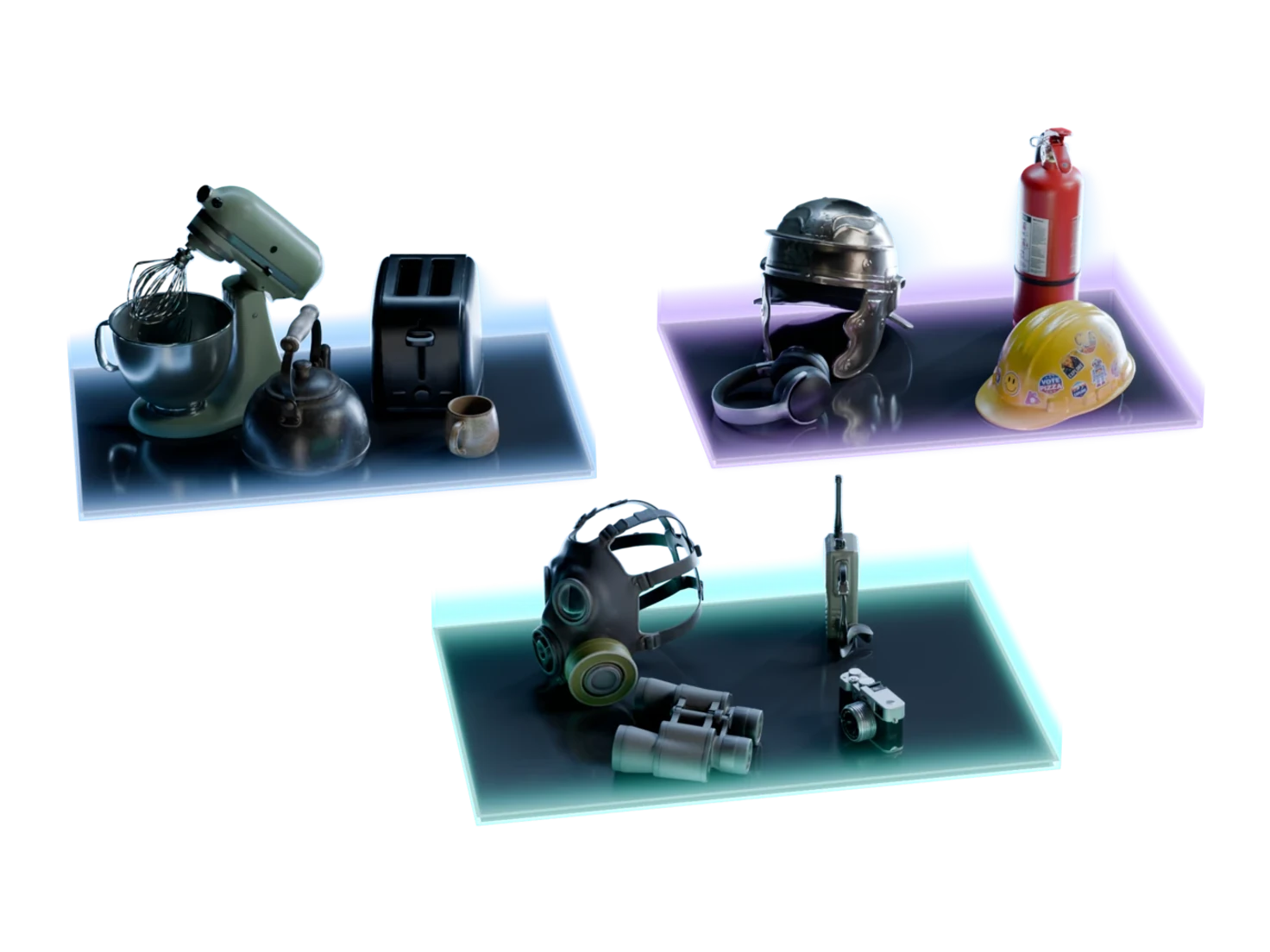
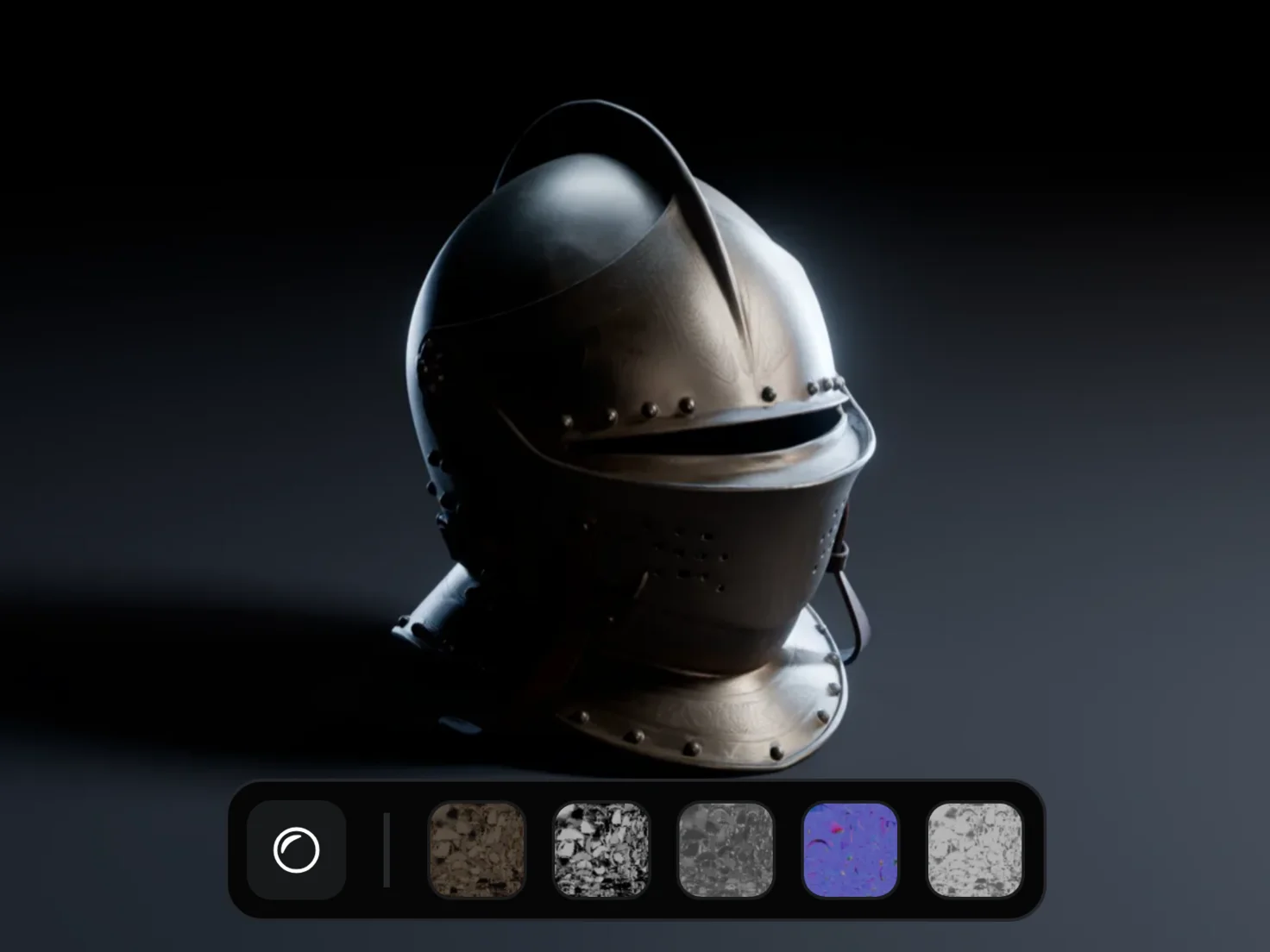
Start with the nodes already in place
Project templates and example projects are the two ways to skip the blank canvas in Marso Studio. Three templates on the canvas of a new project place the nodes of a single object, a textured 3D model or a whole scene for you, and four finished example projects show how full scenes and asset packs are built, node by node.
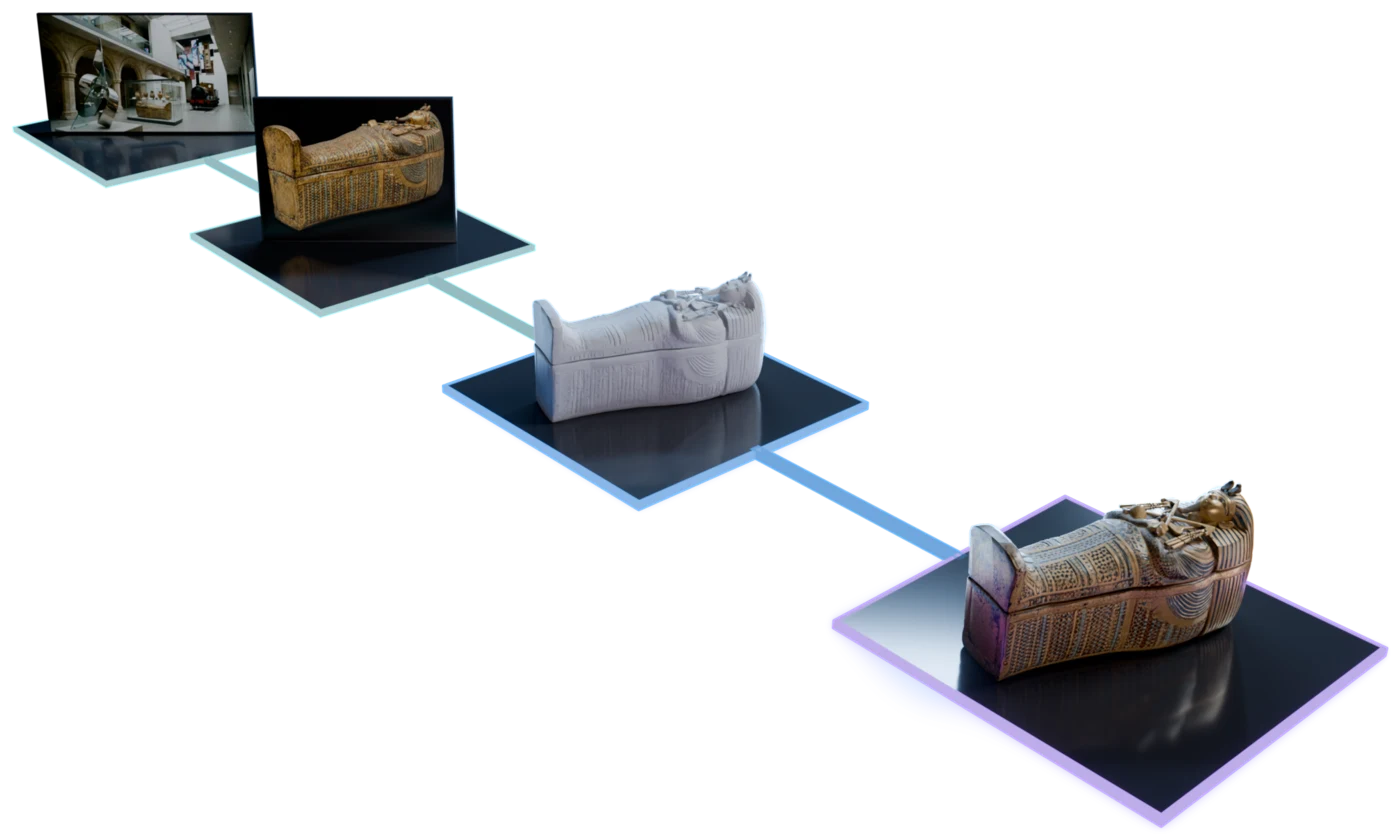
How to start a 3D asset project from a template
- 1
Click Create Project.
On the Projects page or on Home, Create Project opens a new, empty project. The canvas of the empty project shows the three project templates.
- 2
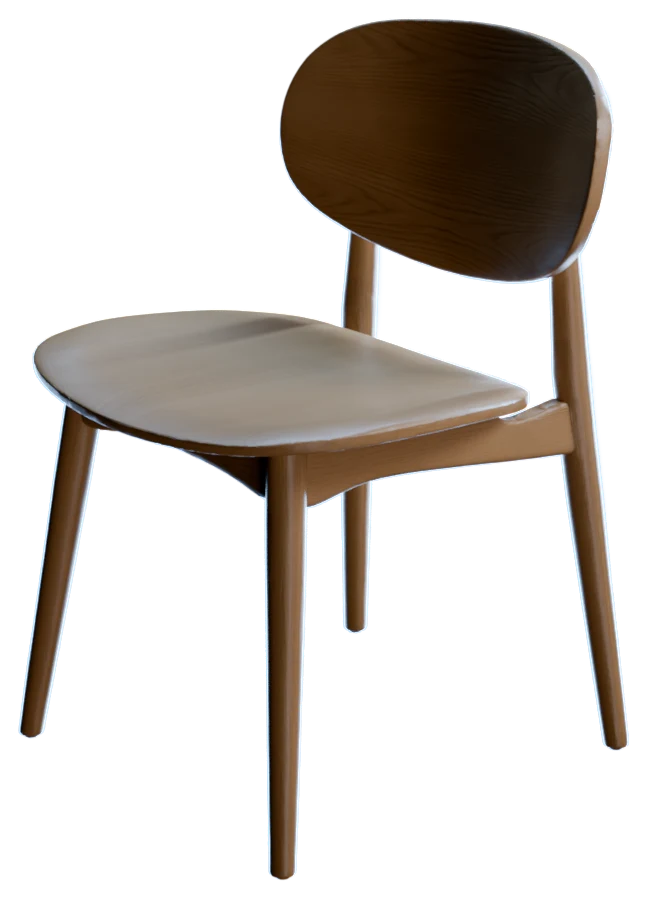
Pick a template.
Single object, Add PBR to 3D Model and Scene Generation each place the nodes of their pipeline on the canvas, connected and ready for a prompt or a 3D model. To build your own pipeline, add the nodes yourself.
- 3

Or open an example.
The Example Projects row of Home and of the Projects page holds four finished projects. Open one to see each node and each result.
A blank canvas is a slow start
3templates
Three ways to start
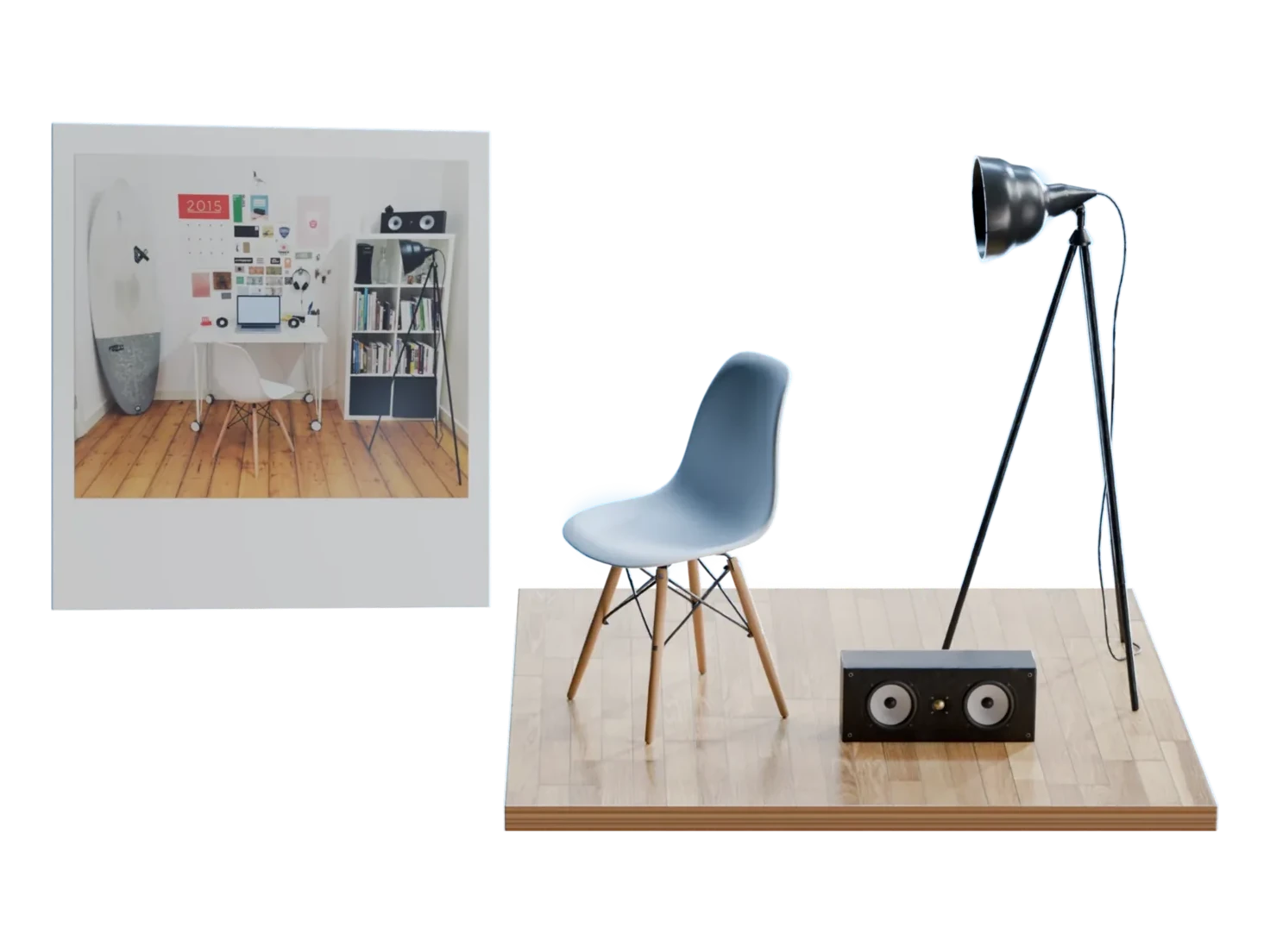
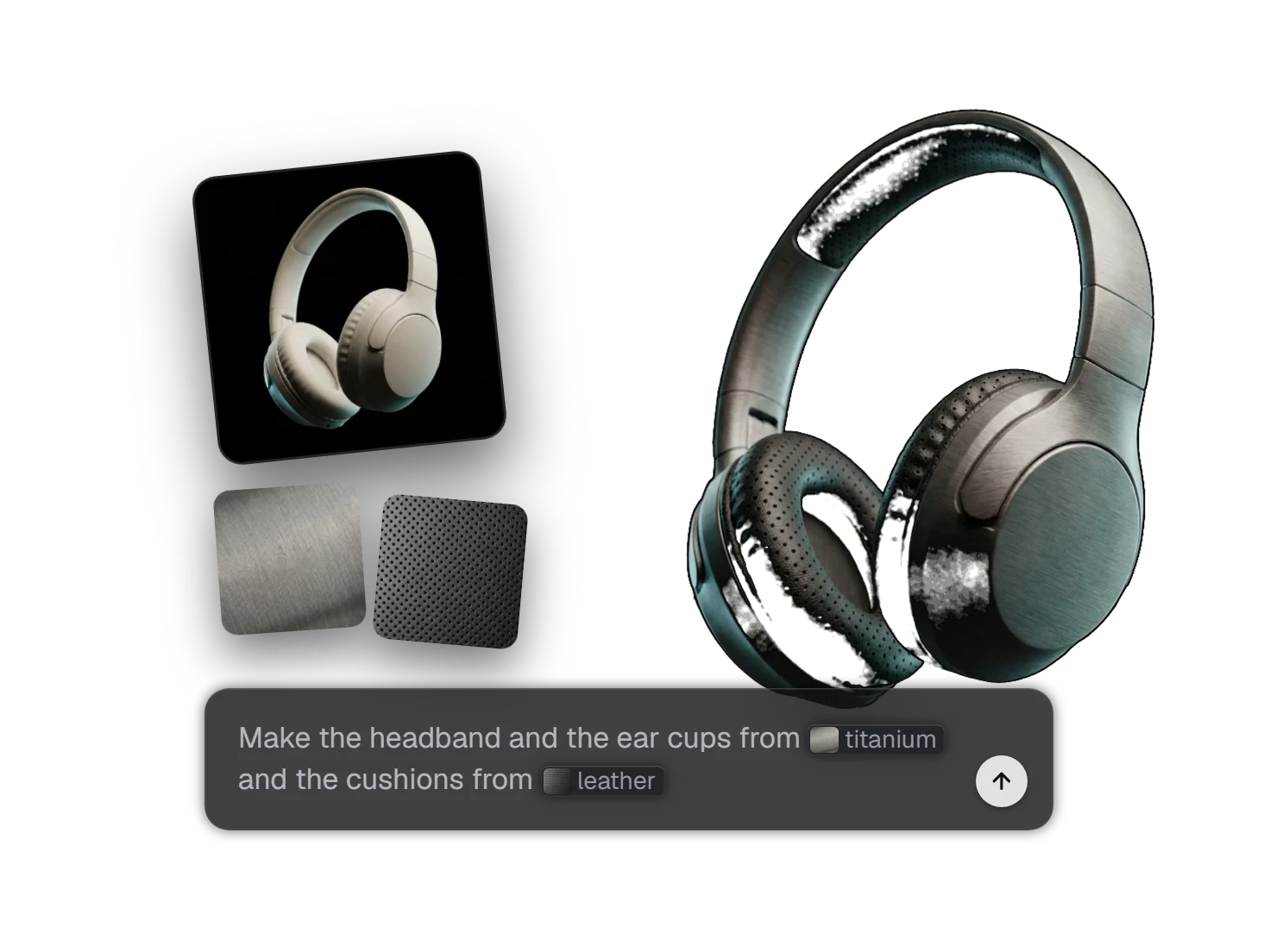
The project templates of Marso Studio are Single object, Add PBR to 3D Model and Scene Generation. Single object makes one textured 3D asset from a prompt, Add PBR to 3D Model textures a 3D model that you have, and Scene Generation turns one image of a room into a pack of 3D assets.
5nodes placed by Scene Generation
A whole scene, set up for you
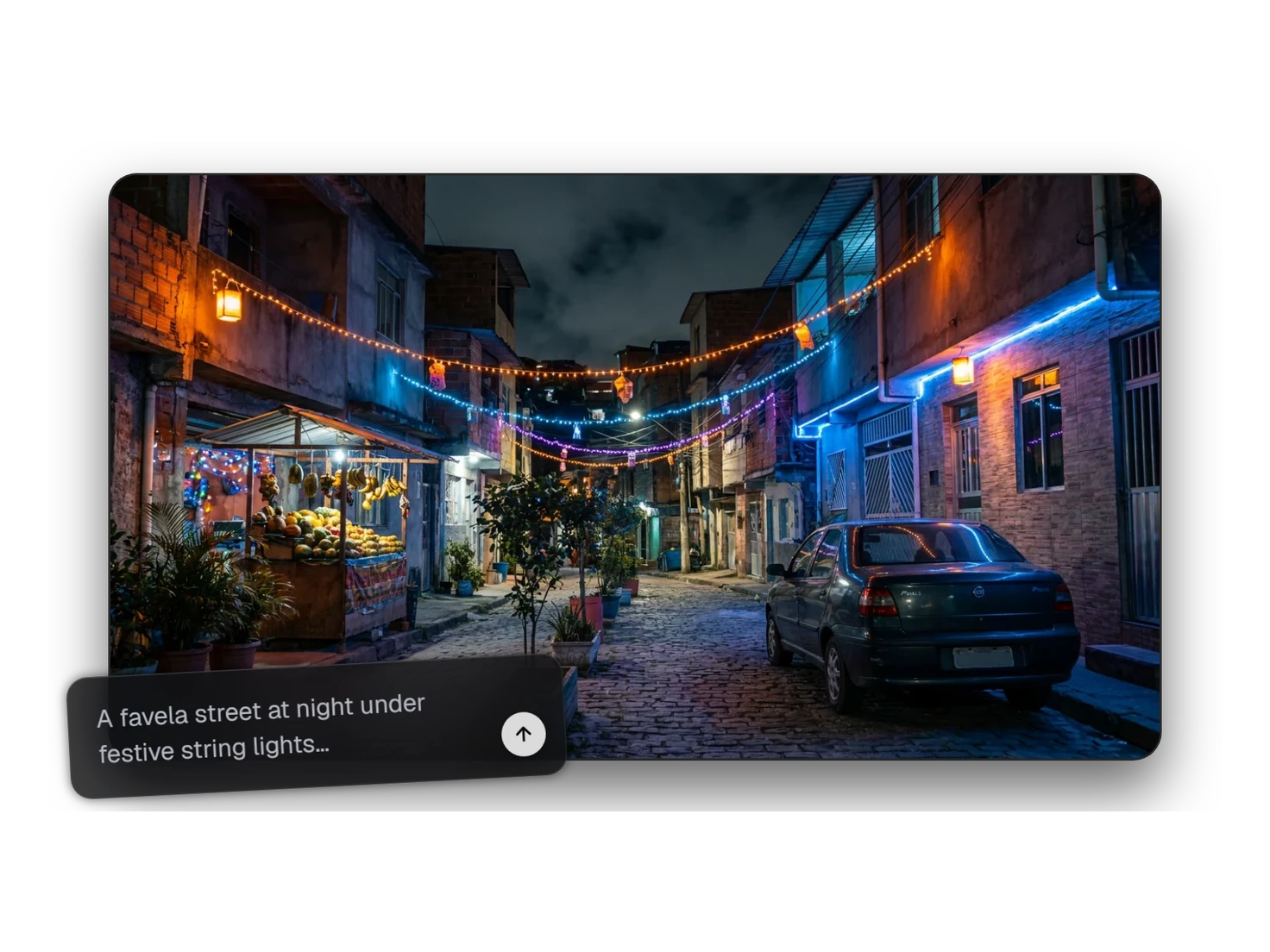
The Scene Generation template places five nodes: Generate Image in Scene mode, Detect Objects, then the reference image, 3D model and PBR texture groups. Write a prompt and run each step in order.
4example projects
Four finished projects to learn from
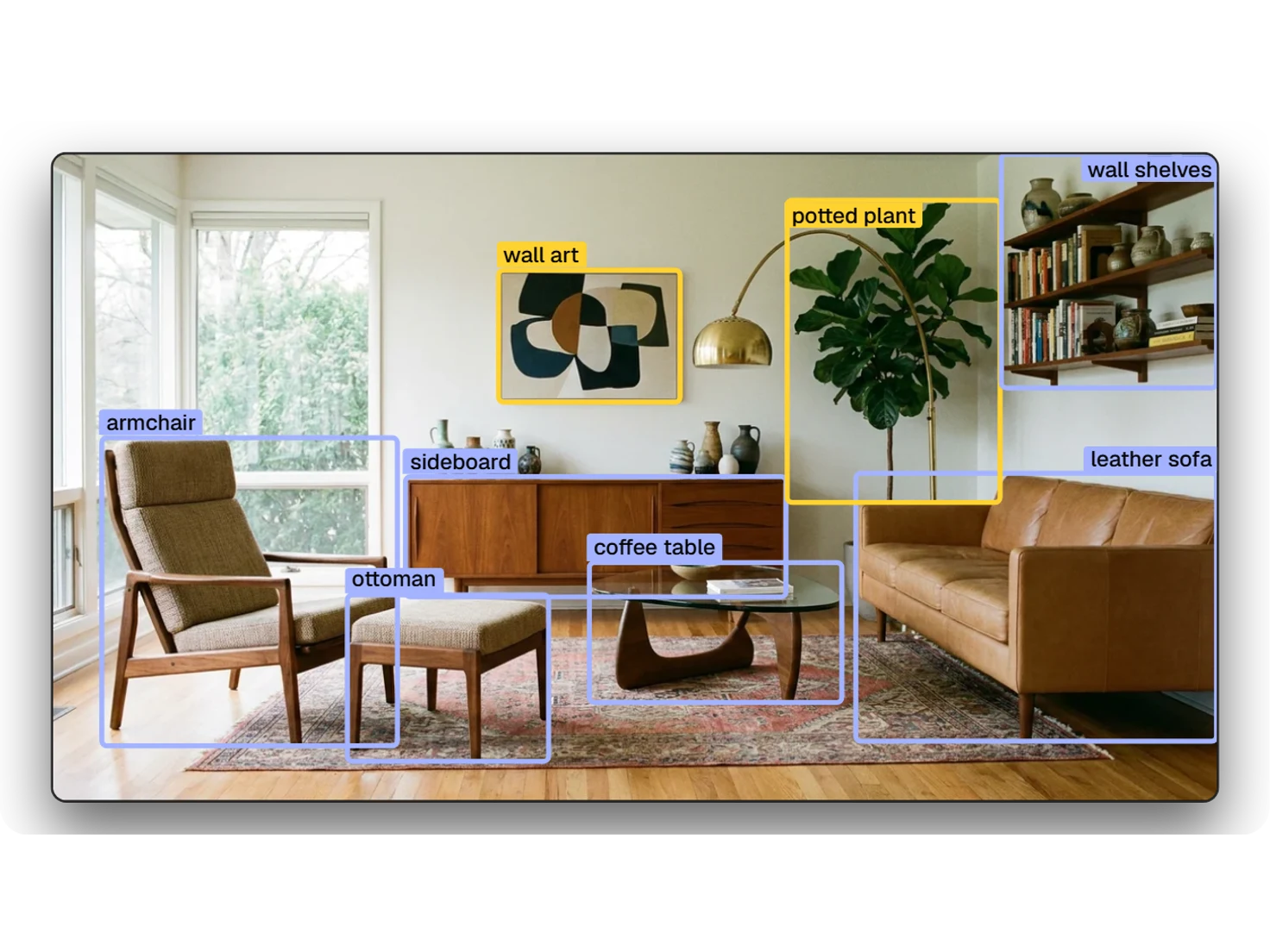
The example projects are Mid-century Living Room, Medieval Shields, Blacksmith Workshop and Cyberpunk Interior. Each example project is a full node graph, with the prompts, the settings and the results of each step.
0credits to explore an example
Explore without breaking anything
Example projects open read-only. Open a group to see each item, drag nodes to see the links, and download the finished assets. No node runs, thus an example costs no credits.
What the example projects show
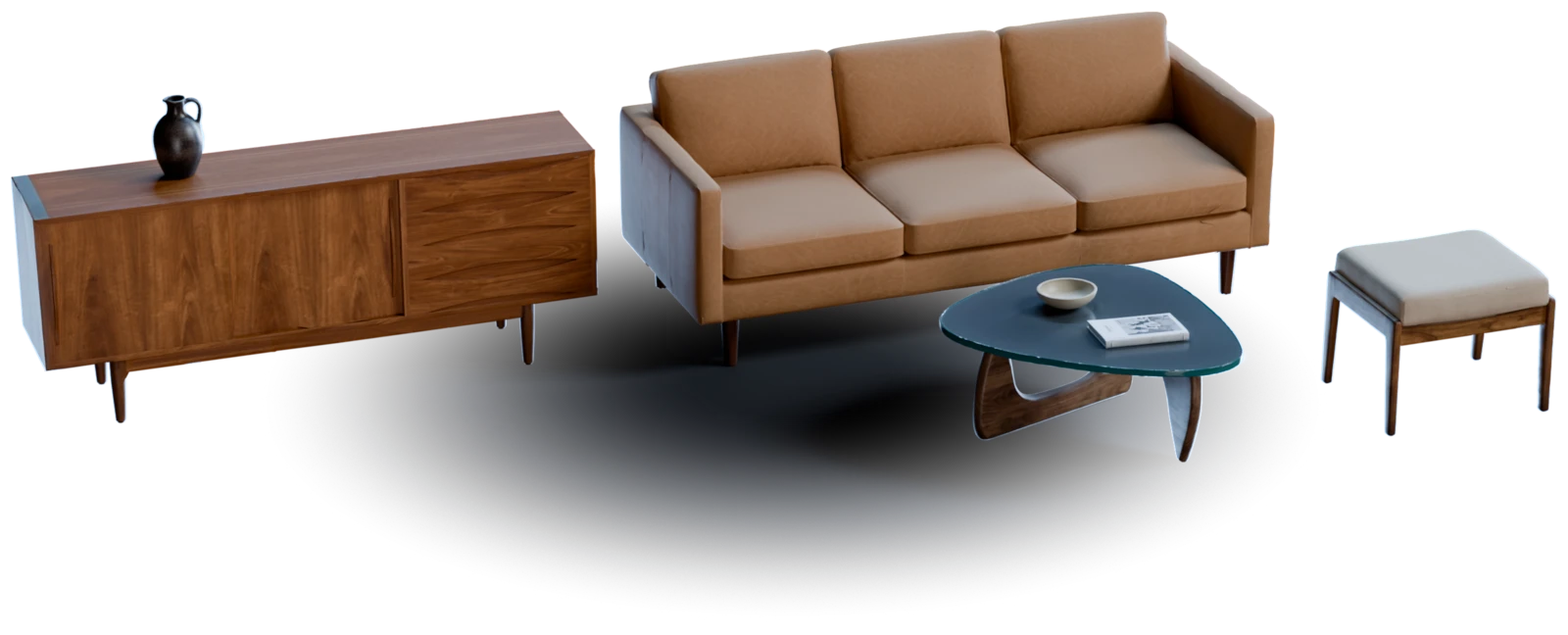
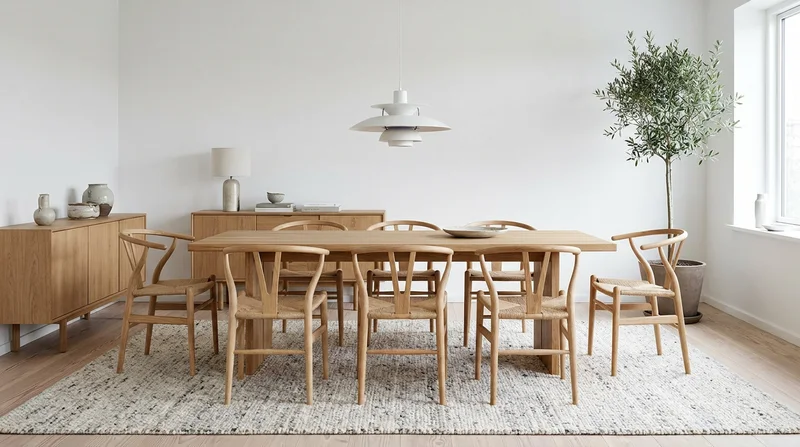
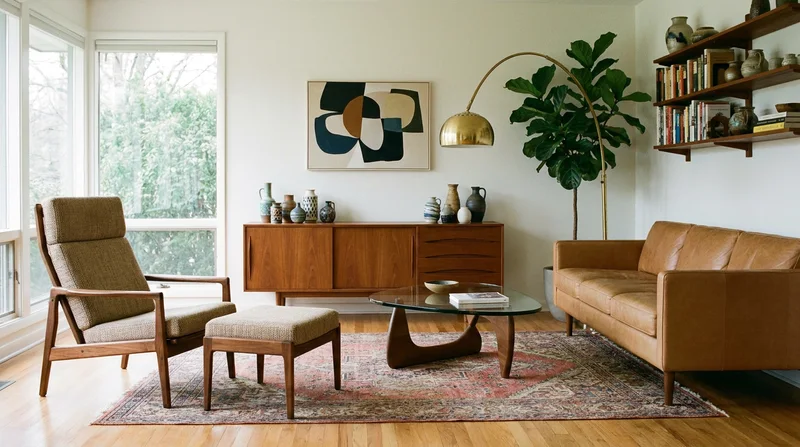
Mid-century Living Room
One image of a room goes through Detect Objects and the reference image, 3D model and PBR texture groups, and comes out as furniture and props with PBR textures.
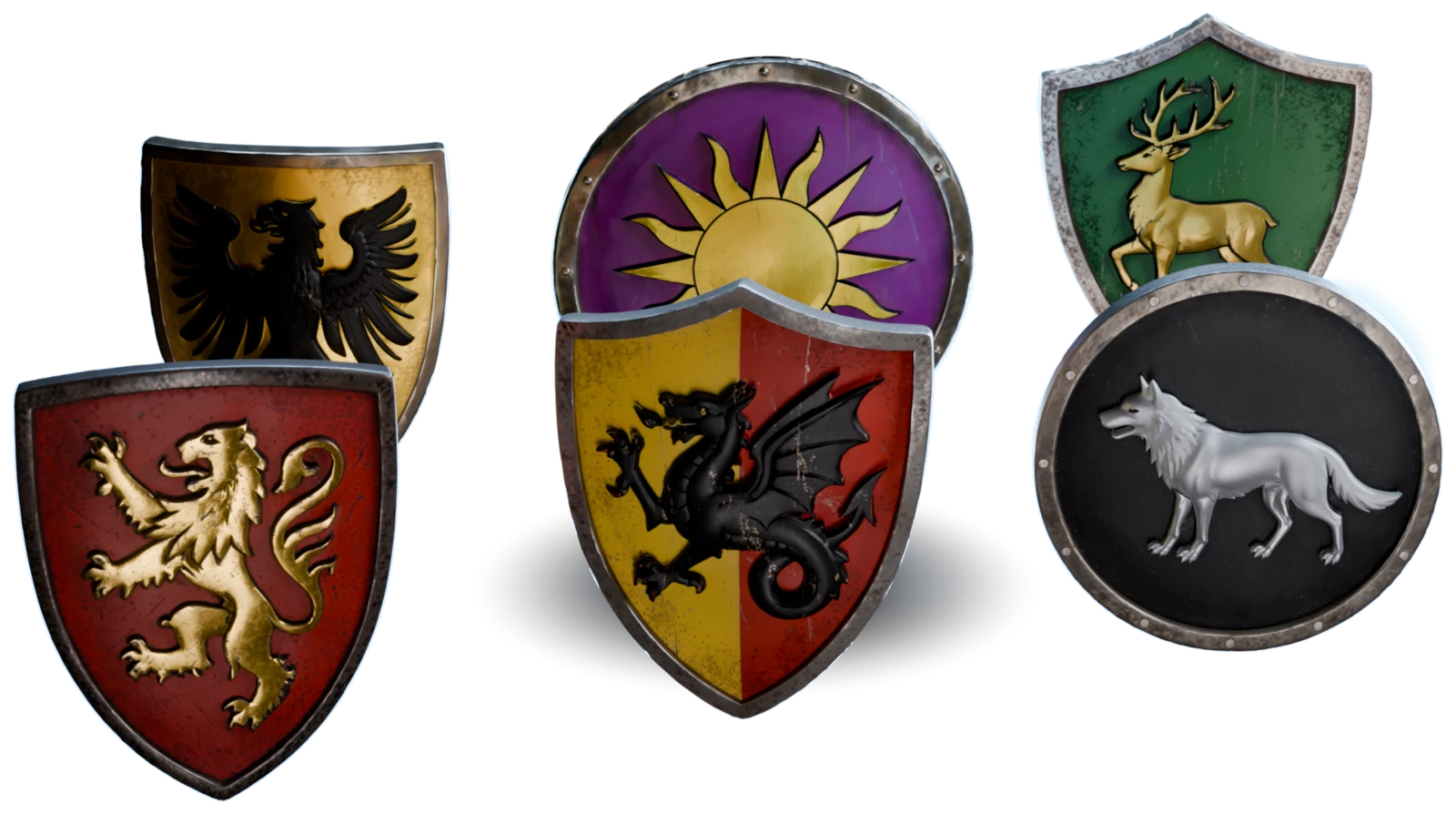
Medieval Shields
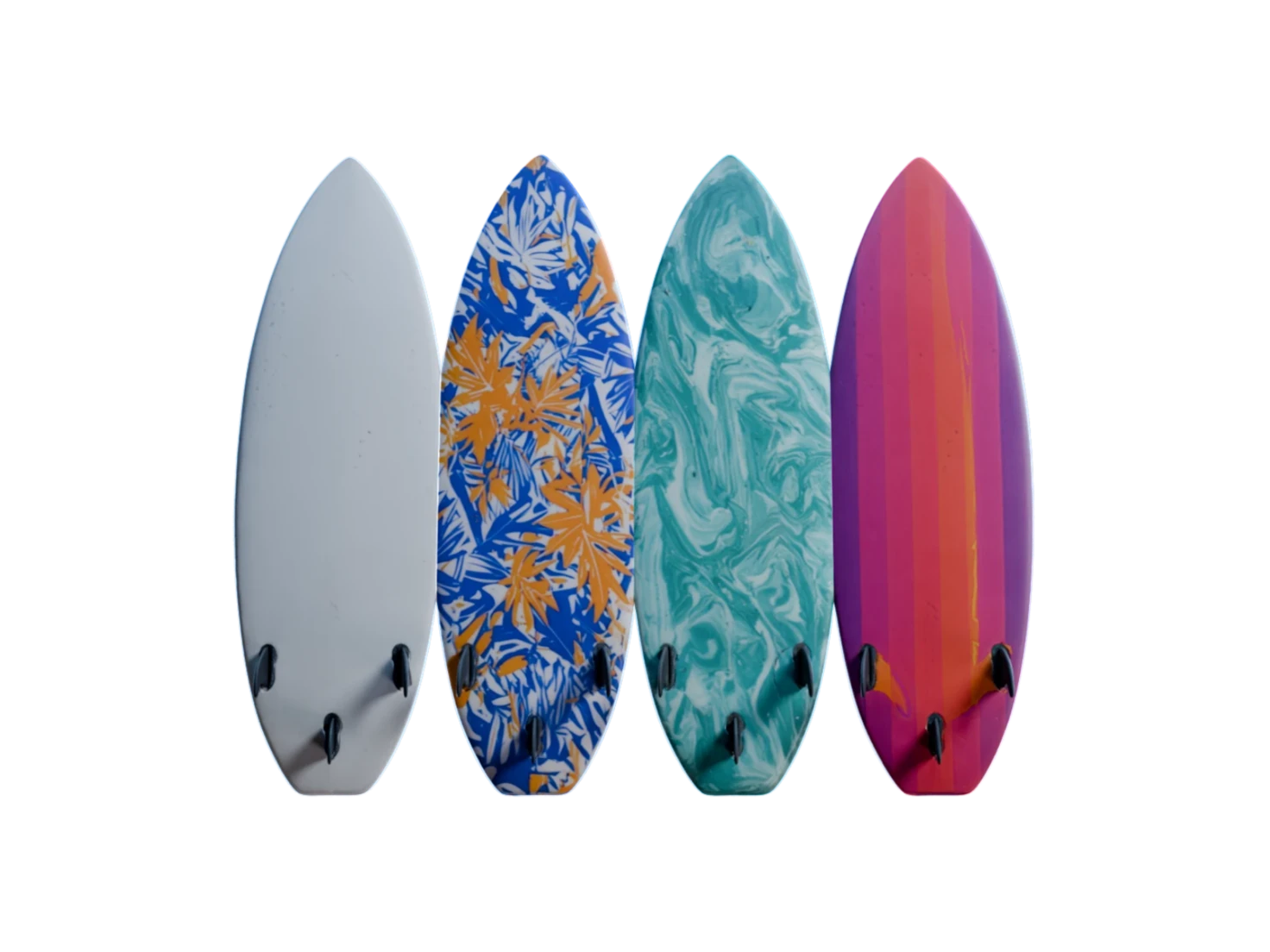
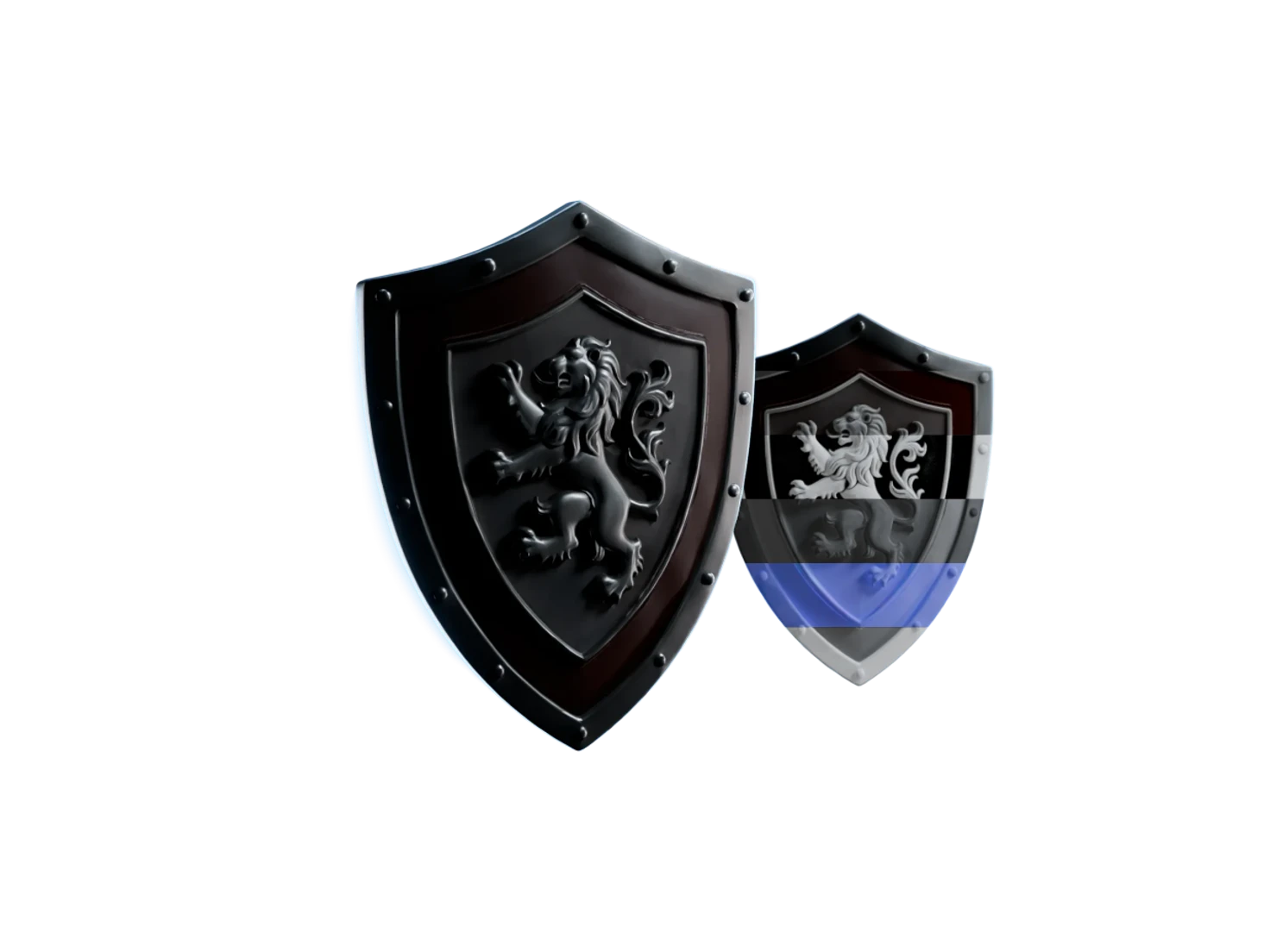
One generated image holds a grid of twenty-five shields. Detect Objects picks out each shield, and the groups turn them into a variety pack of one object type.
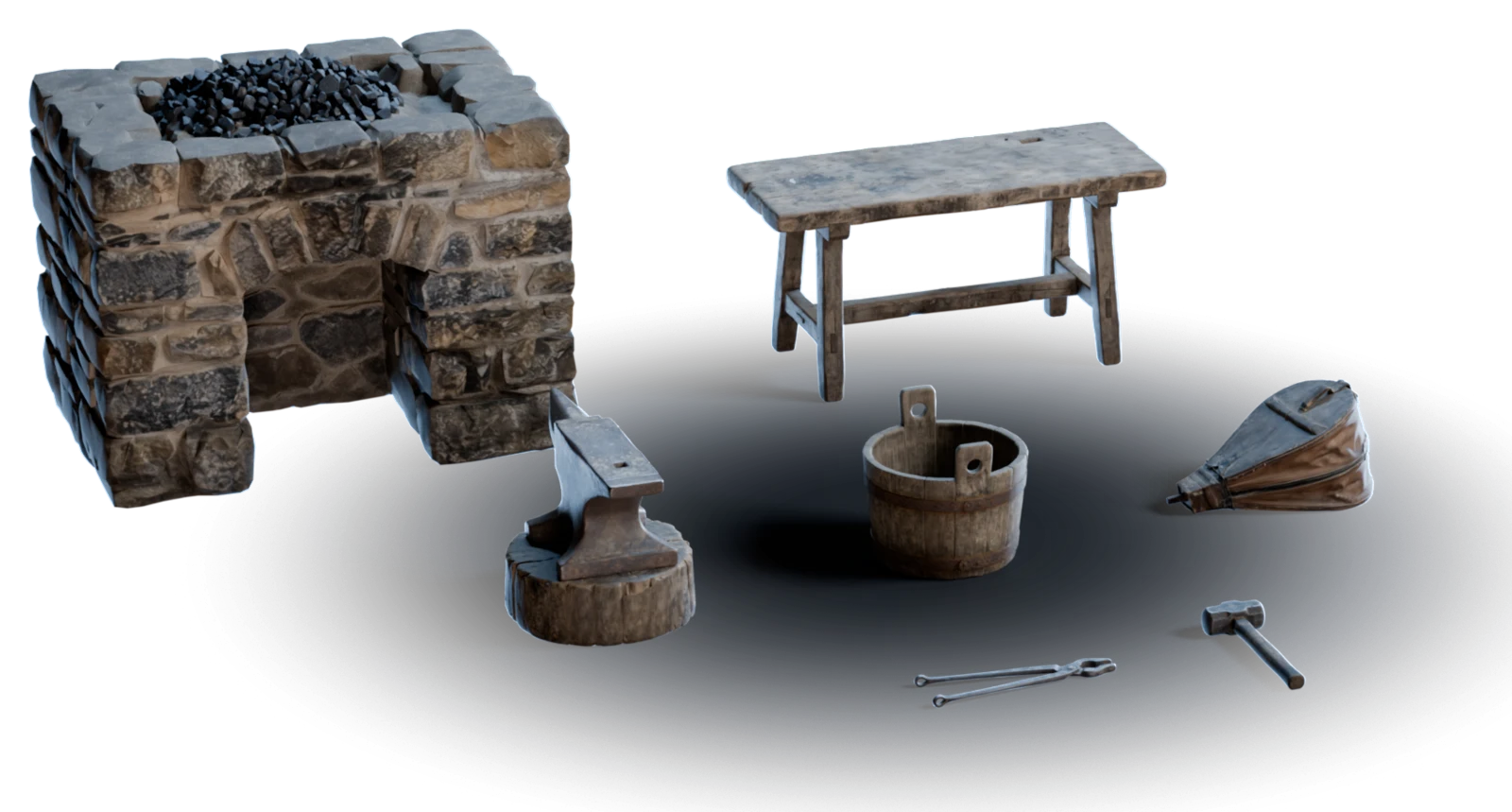
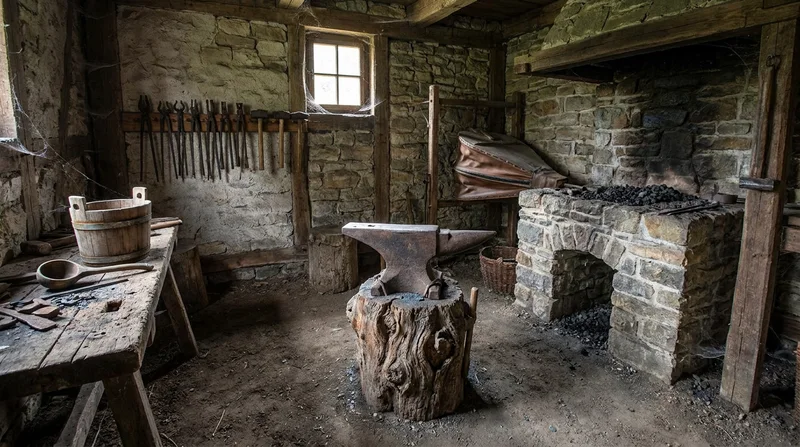
Blacksmith Workshop
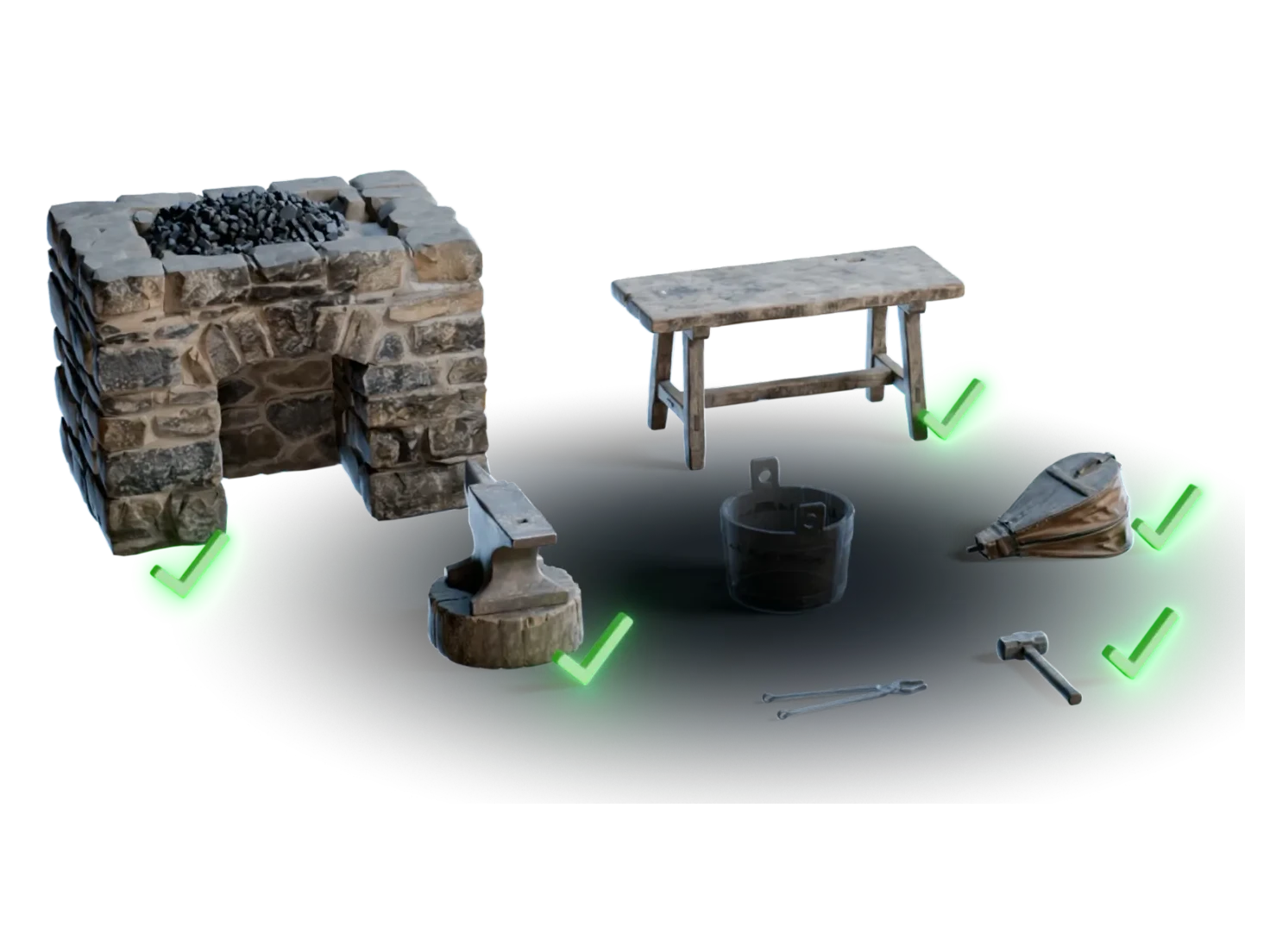
A full workshop from one scene image: the forge, the anvil, the tools and the props, each a textured 3D asset.
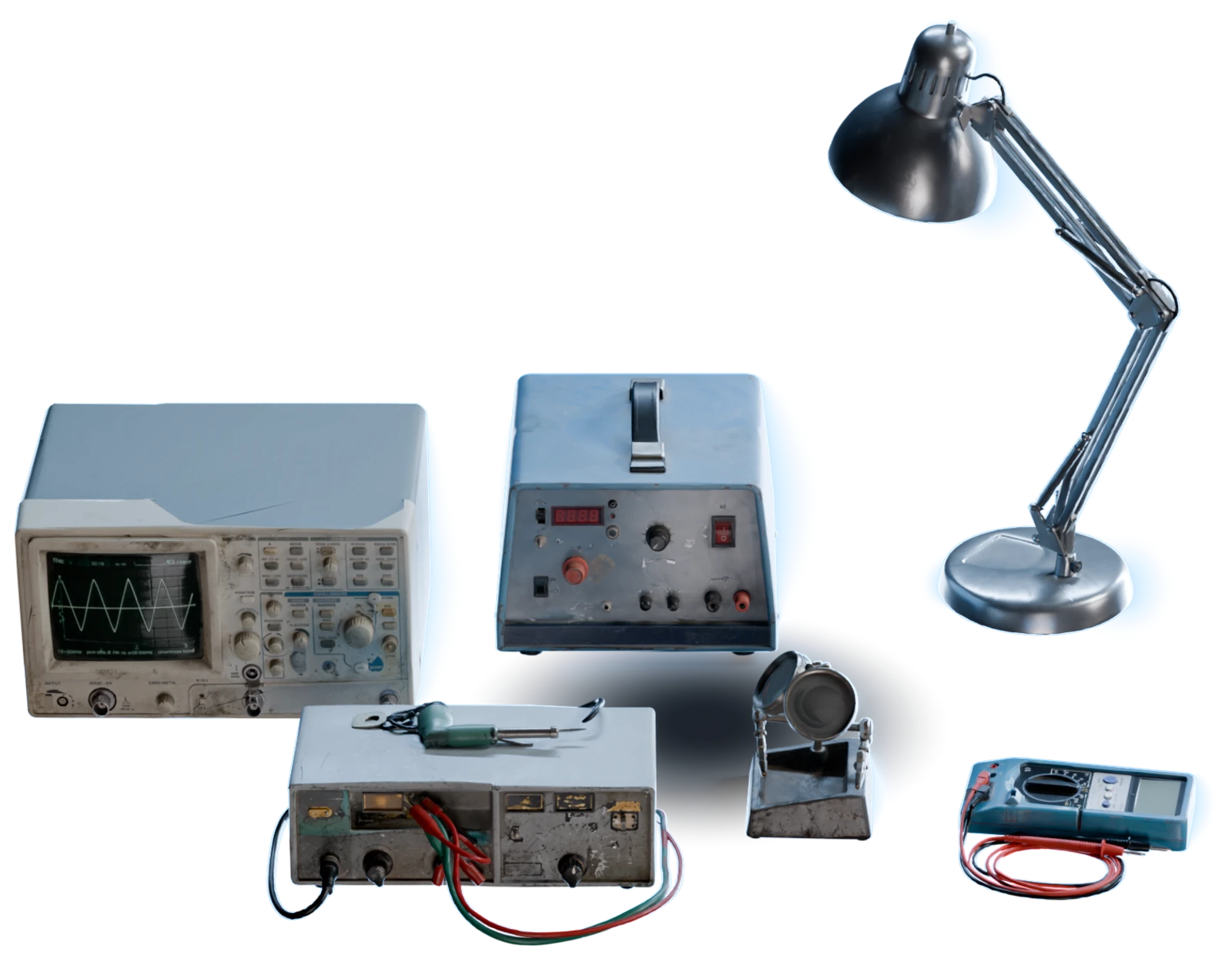
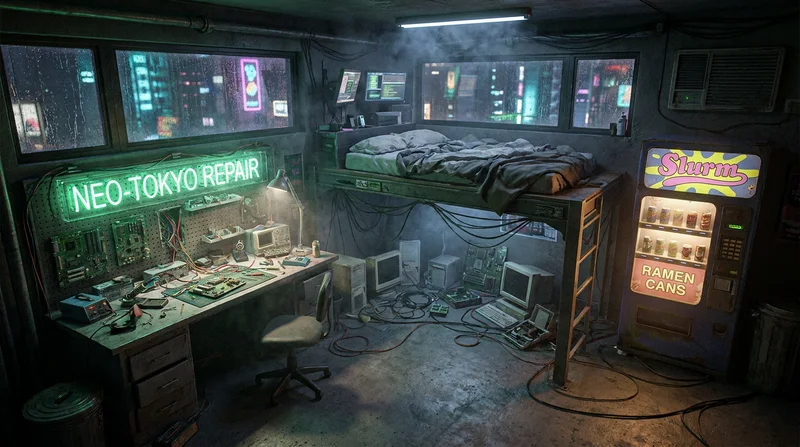
Cyberpunk Interior
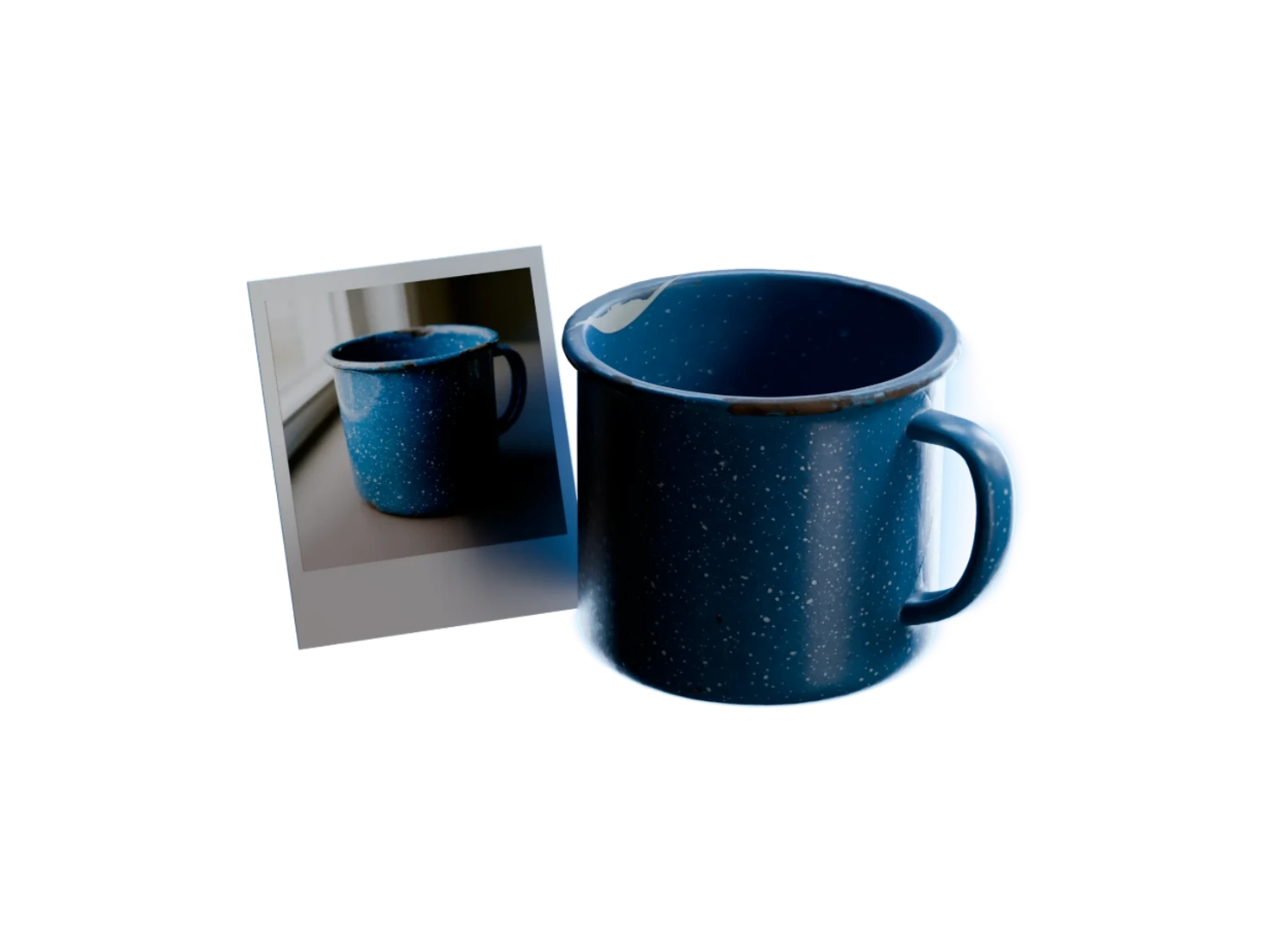
Edit Image moves the camera in on a workbench, and Detect Objects runs on the close-up as well as on the full scene, for more objects from one scene.
Questions about templates and example projects
What new users ask before they build their first pipeline.
Project templates are the three starting points on the canvas of a new Marso Studio project. Single object places Generate Image, Generate 3D Model and Generate PBR Textures. Add PBR to 3D Model places Load 3D Model and Generate PBR Textures. Scene Generation places the five nodes that turn one image of a room into a pack of textured 3D assets.
Open the Projects page and click Create Project. Marso Studio makes an empty project, names it for you and opens its canvas. The empty canvas shows the three project templates: Single object, Add PBR to 3D Model and Scene Generation. Click one, and its nodes appear in place and connected. Rename the project from its name on the canvas.
Single object and Add PBR to 3D Model are open on every plan. The Scene Generation template needs a paid plan, because it runs Detect Objects and the batch groups. On a free plan, a click on Scene Generation opens the Plans panel. The example projects open on every plan.
No. Example projects open read-only, with an "Example · read-only" badge on the canvas. You can open each group, drag nodes to see the links, and download the finished assets. To build your own version, start a project from the Scene Generation template and follow the same steps.
The four example projects show full pipelines that M-XR built in Marso Studio. Mid-century Living Room and Blacksmith Workshop turn one room into a set of assets, Medieval Shields makes a variety pack from a grid of twenty-five shields, and Cyberpunk Interior uses Image Edit to move the camera in on one area.
To rename a Marso Studio project, click its name at the top left of the canvas. On the Projects page, the menu of each project card also has Rename and Delete. Example projects have no menu, because they are read-only.
Start with the nodes already in place
Pick a template or open an example project, and build from there.