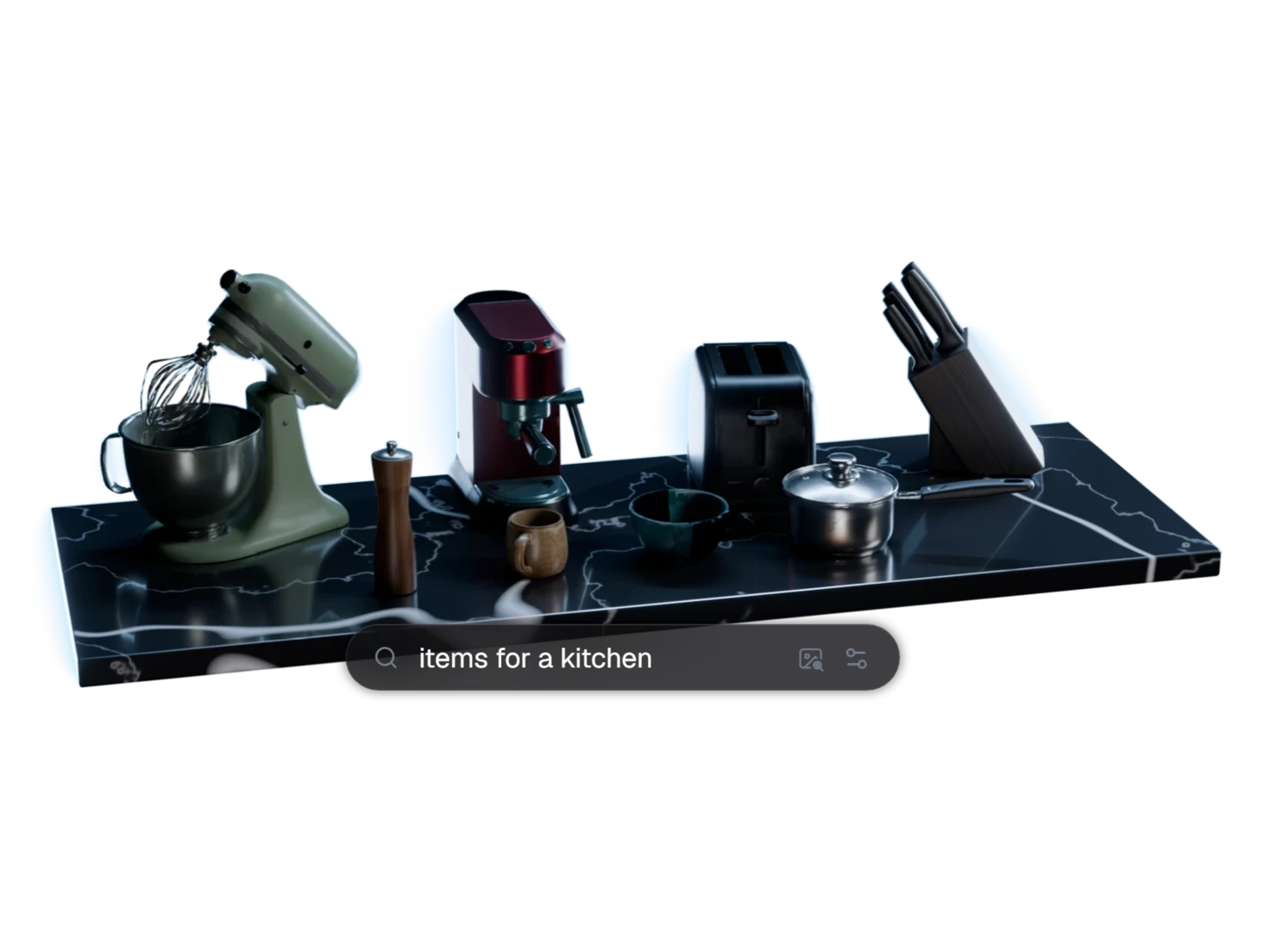
Everything you've made, in one place
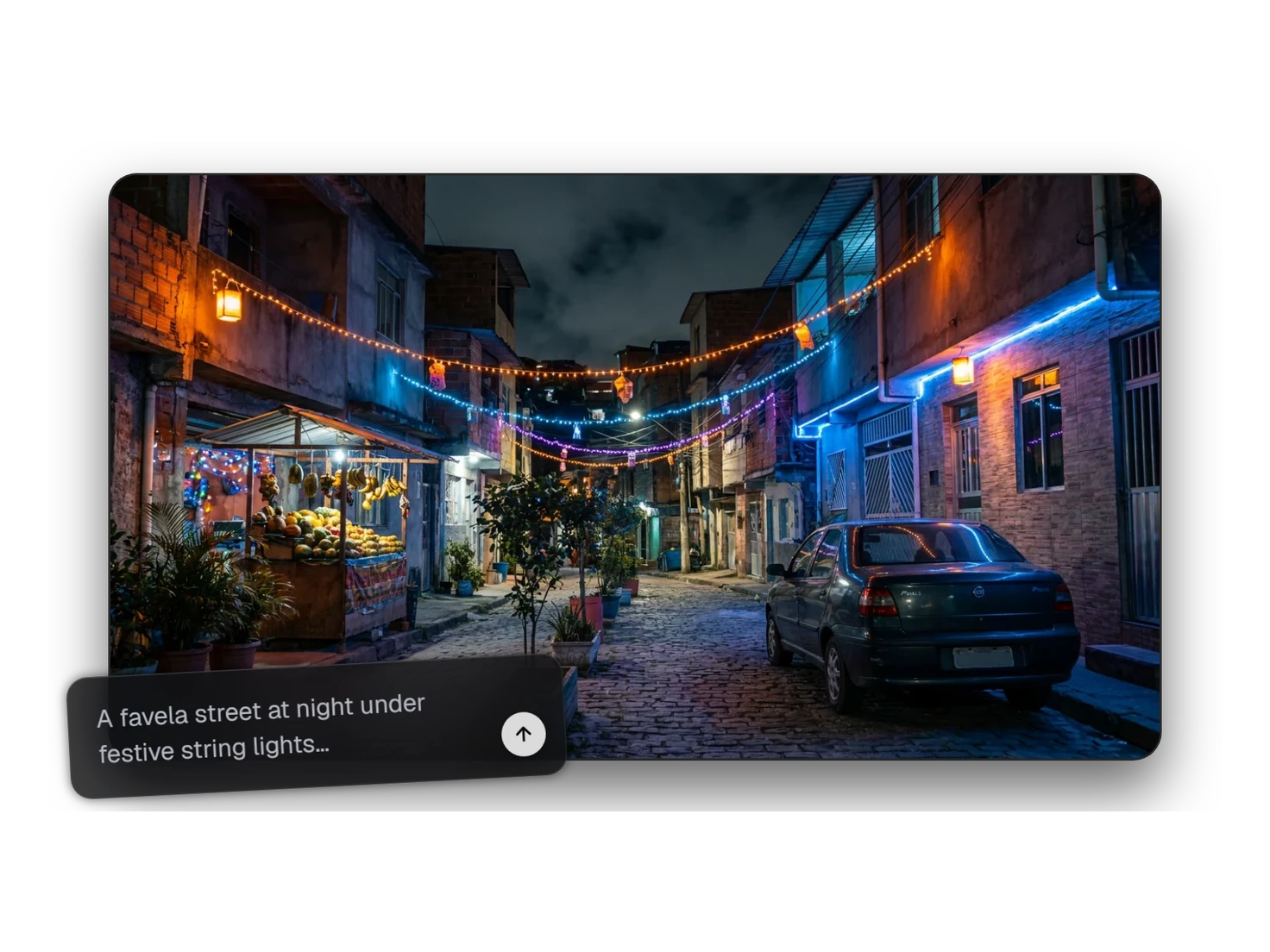
The Asset Library holds every image and 3D model from every project in Marso Studio. Filter it, see how each asset was made, group assets into collections, and put any of them back into a project.
How to find and reuse 3D assets across projects
- 1
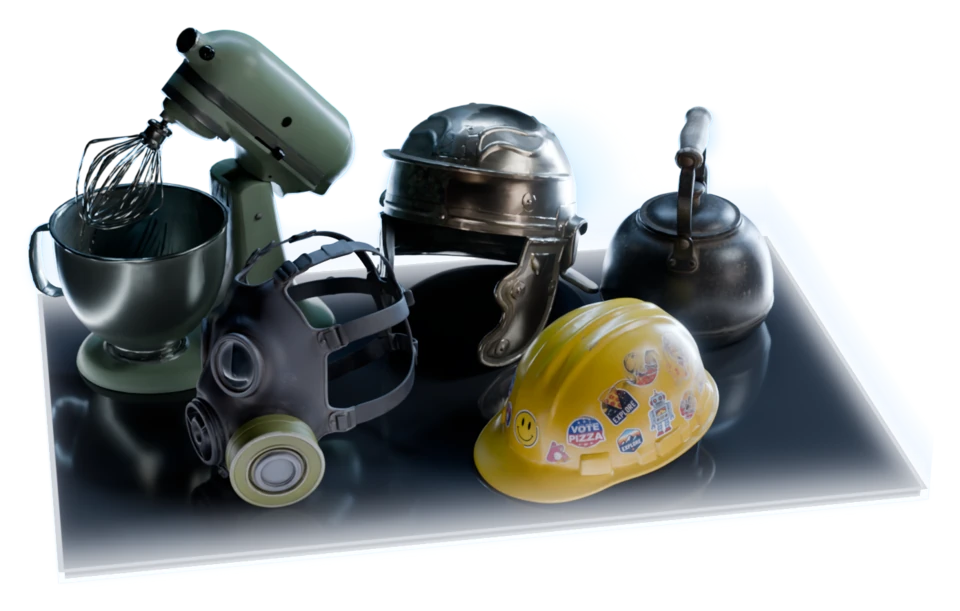
Open Library.
Every image and 3D model from every project, in one place.
- 2
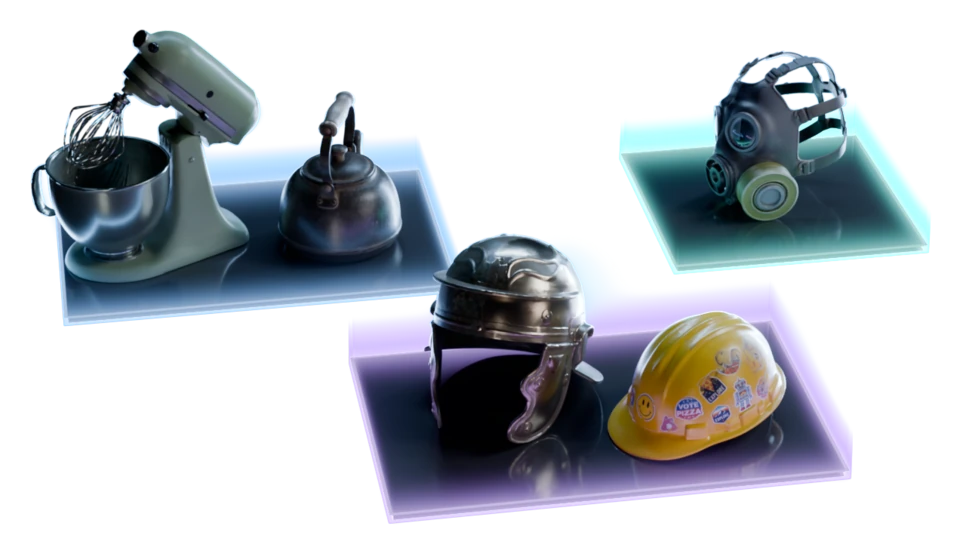
Filter and group.
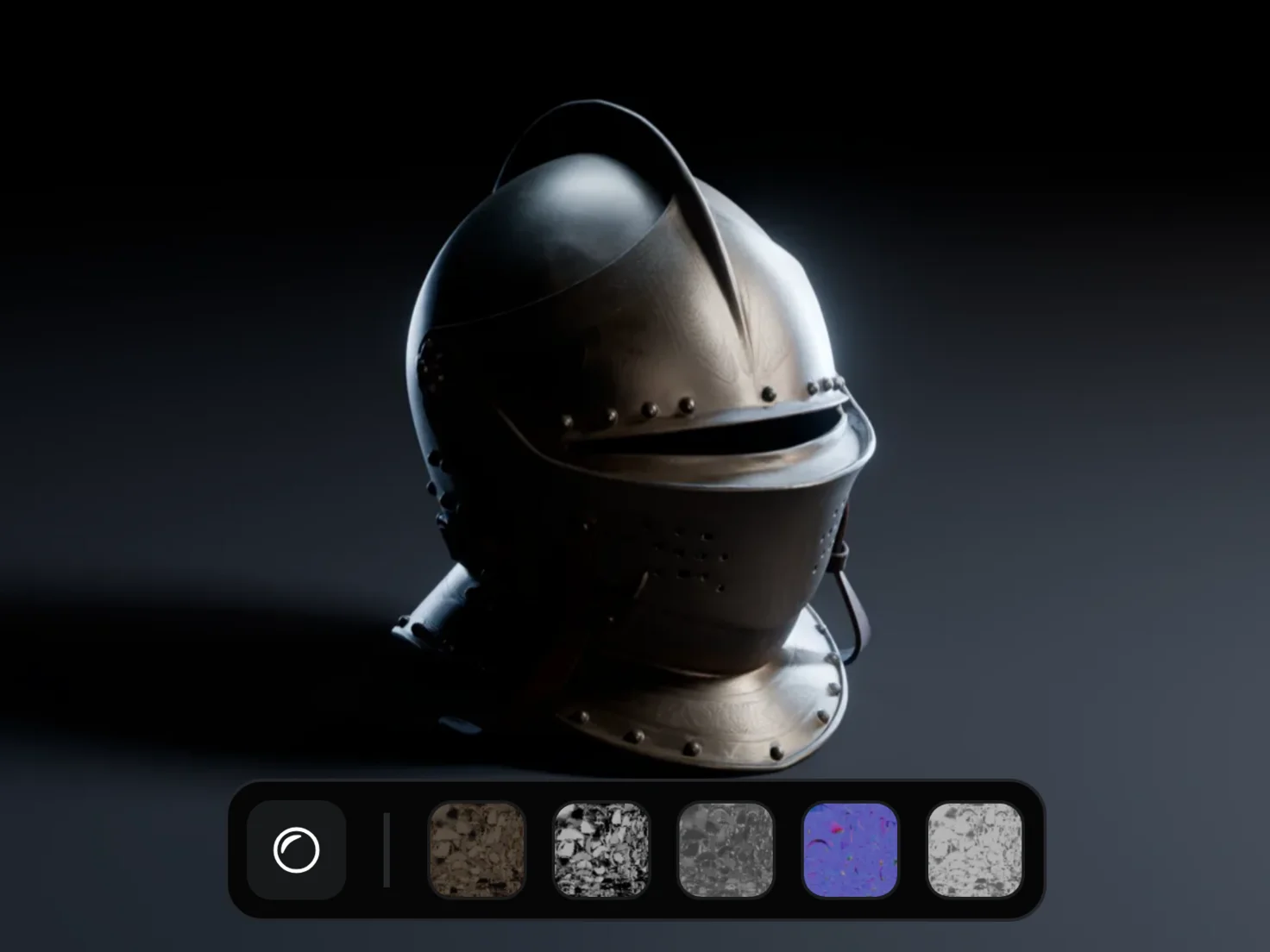
Show All, PBR, 3D or 2D, grouped by time or by project.
- 3
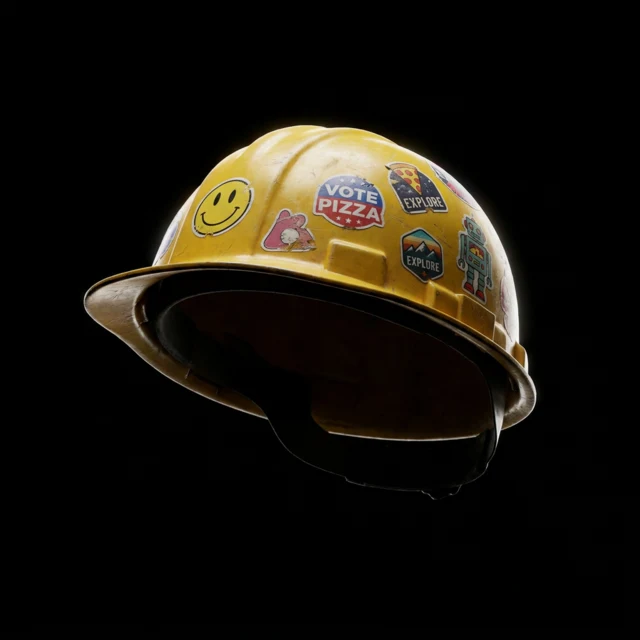
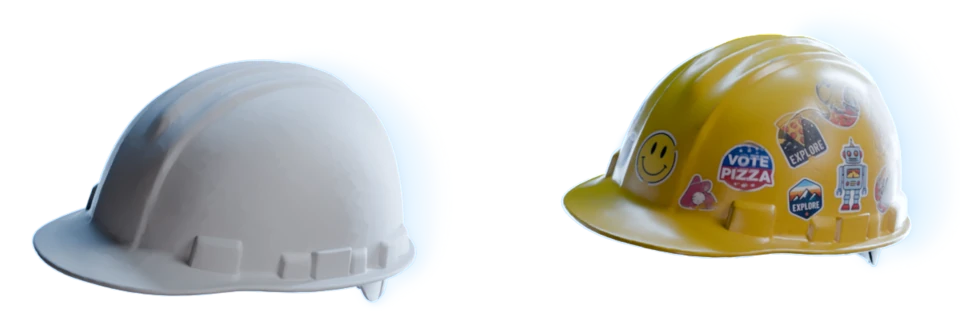
Open an asset.
See the assets it came from, its project and its collections.
- 4
Reuse it.
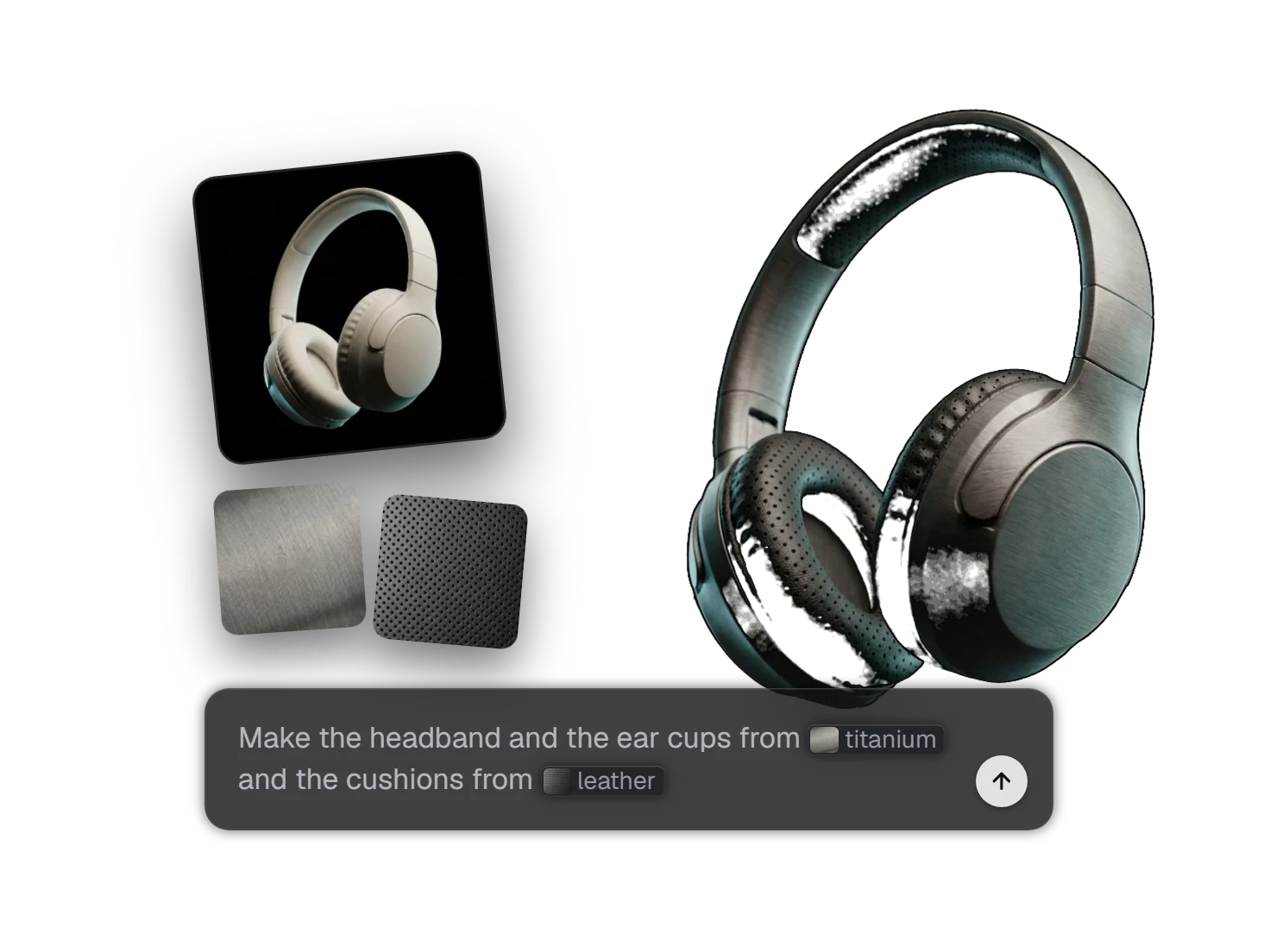
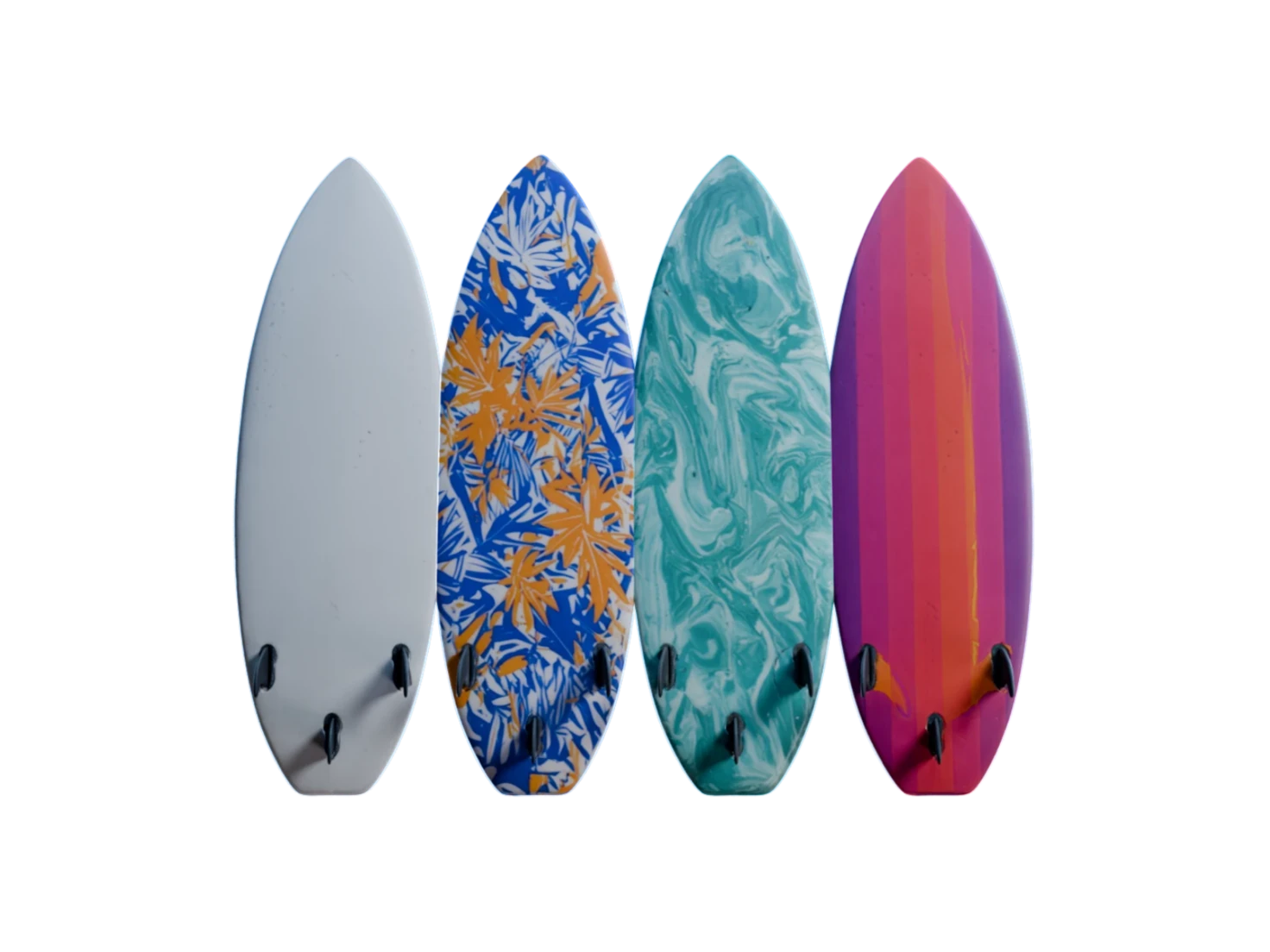
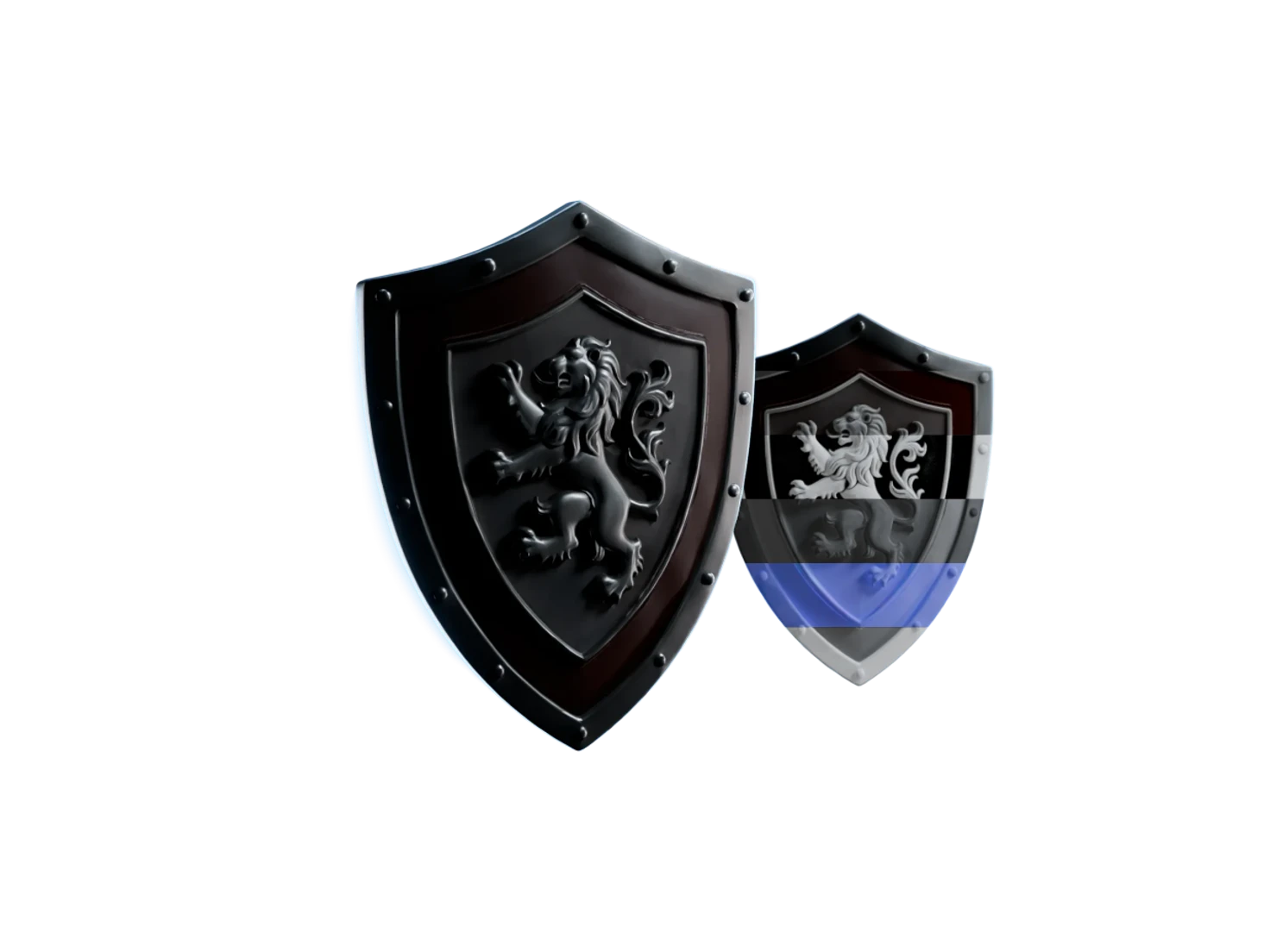
Add it to any project from the Library panel on the canvas, then restyle it or give it PBR textures.
Make it once. Use it everywhere.
See how every asset was made
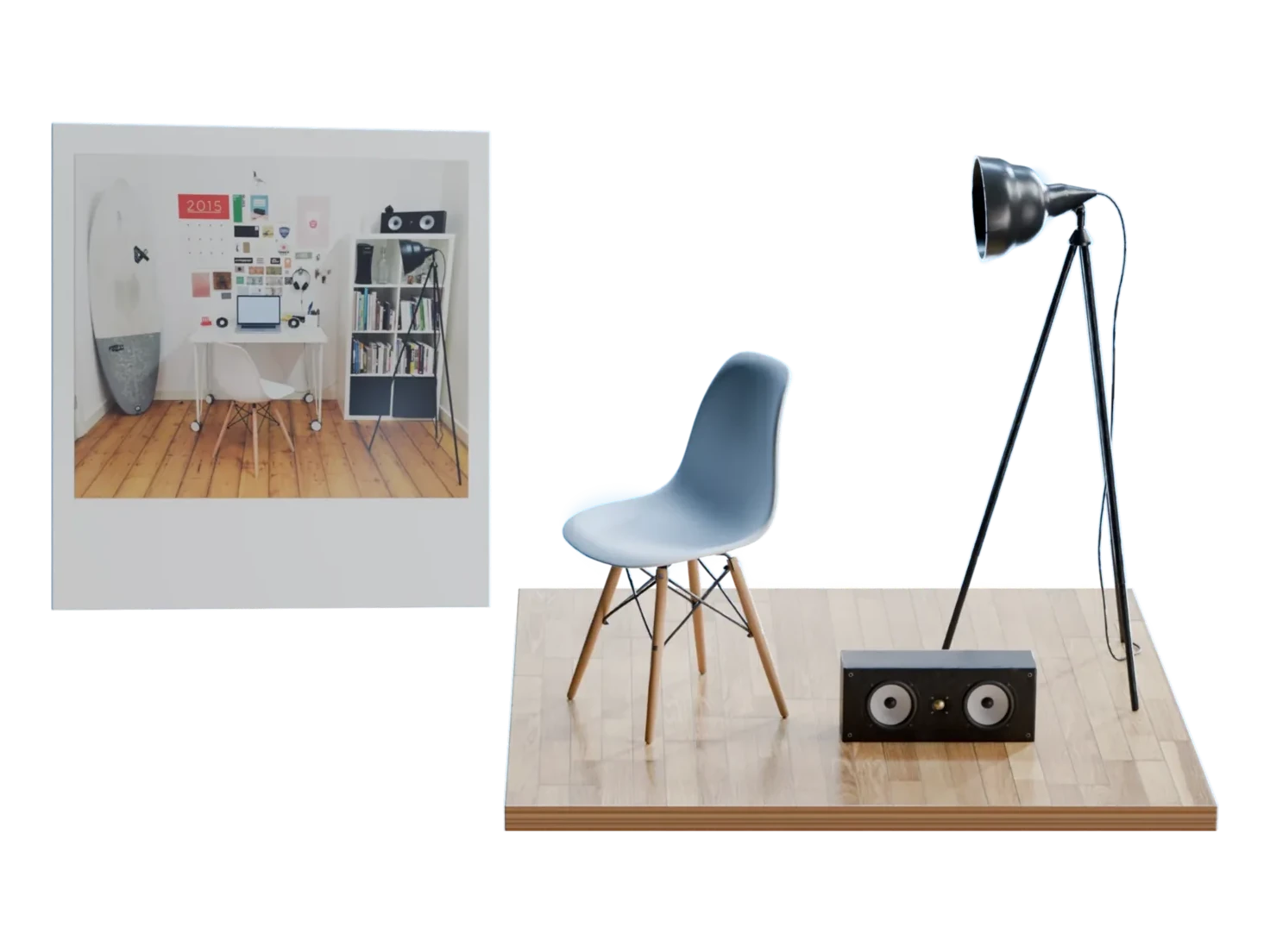
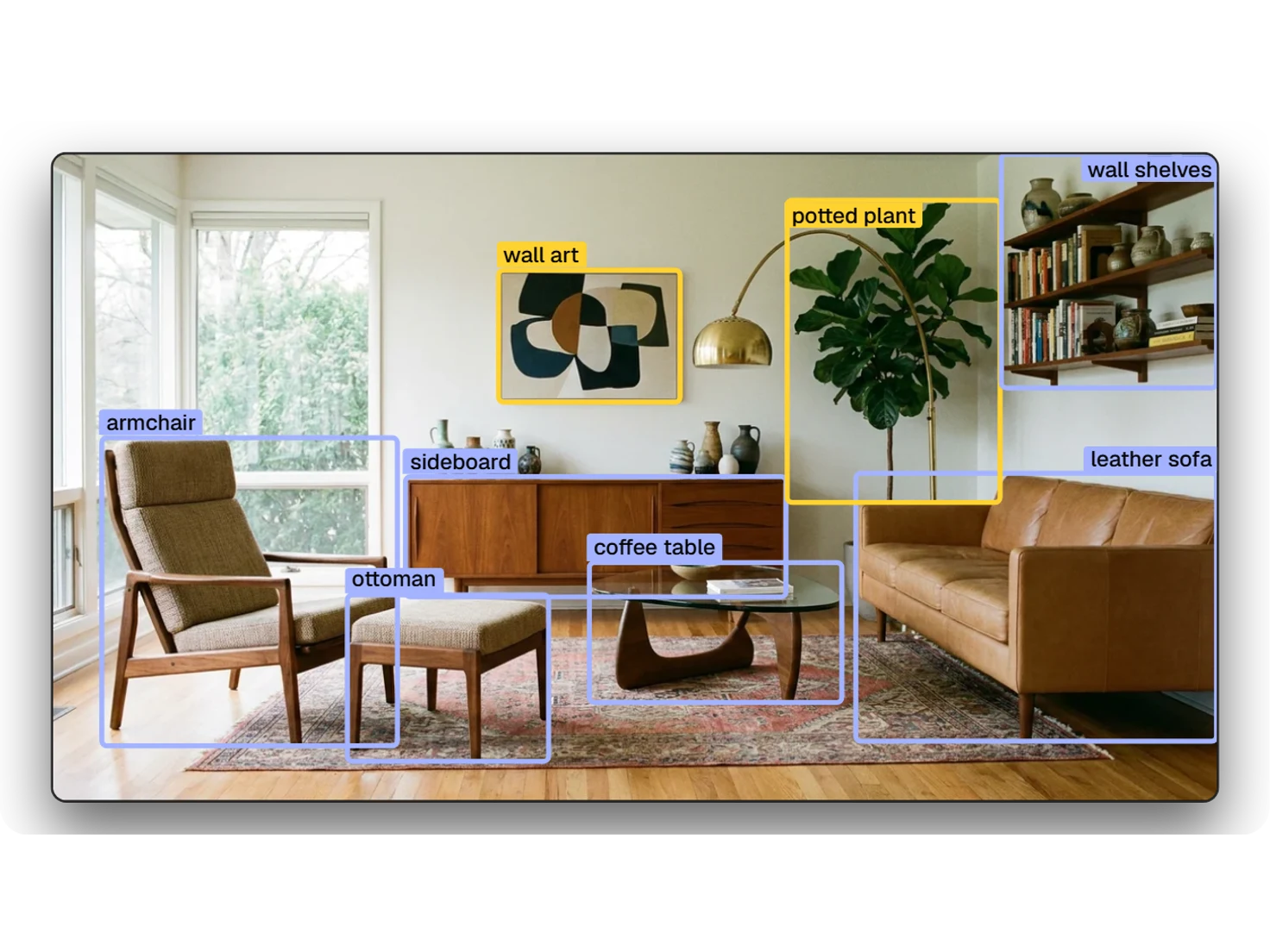
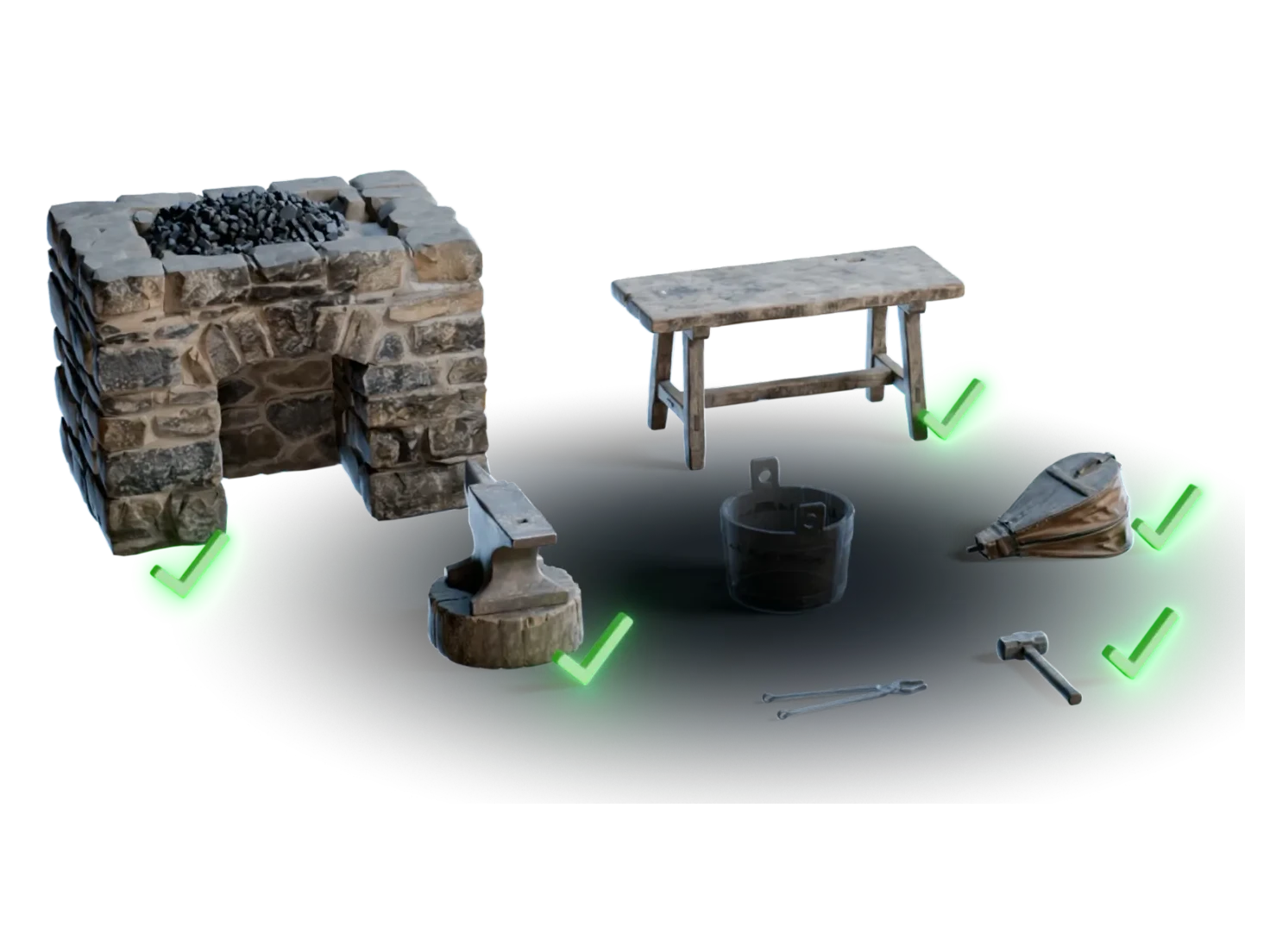
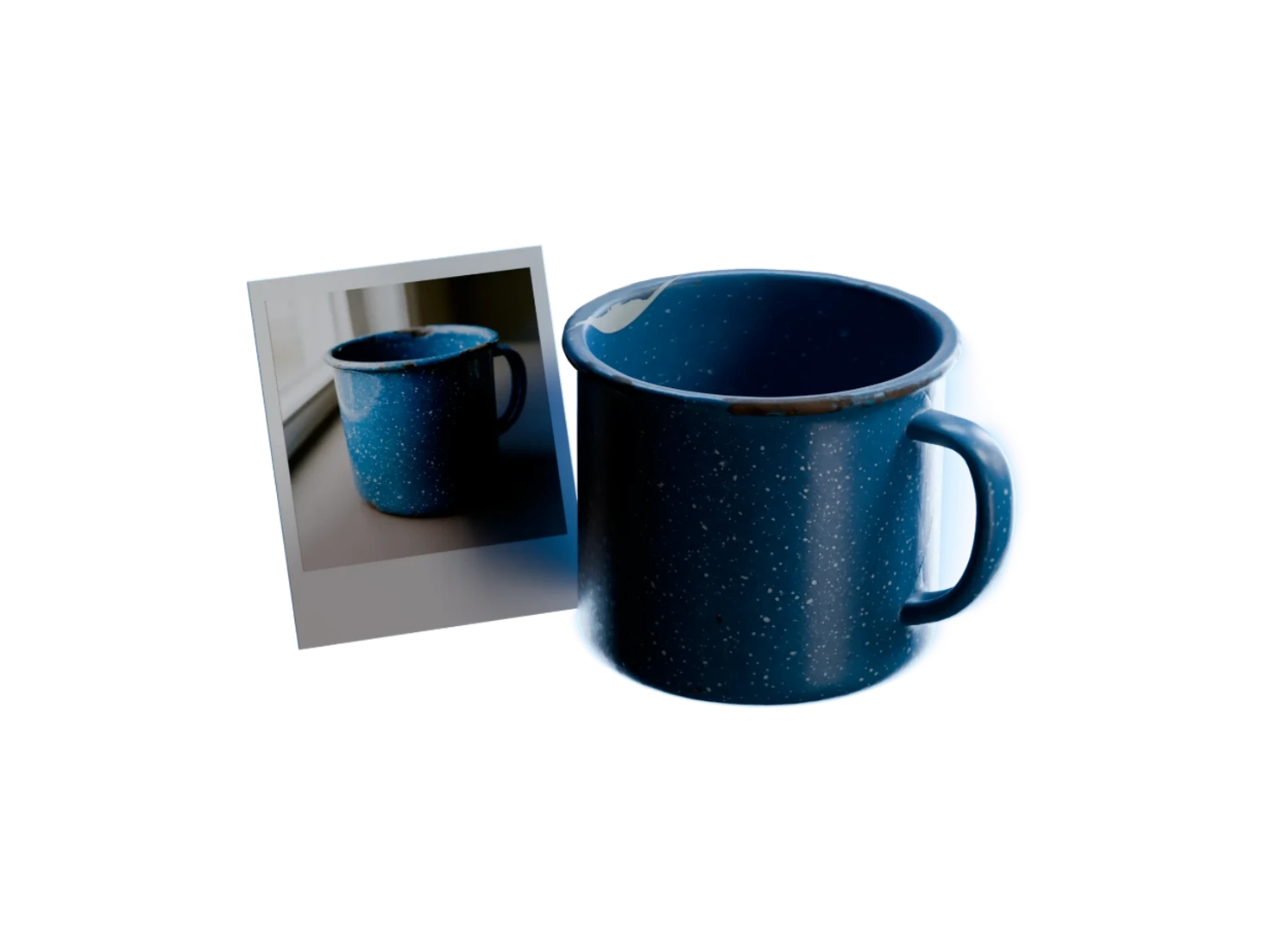
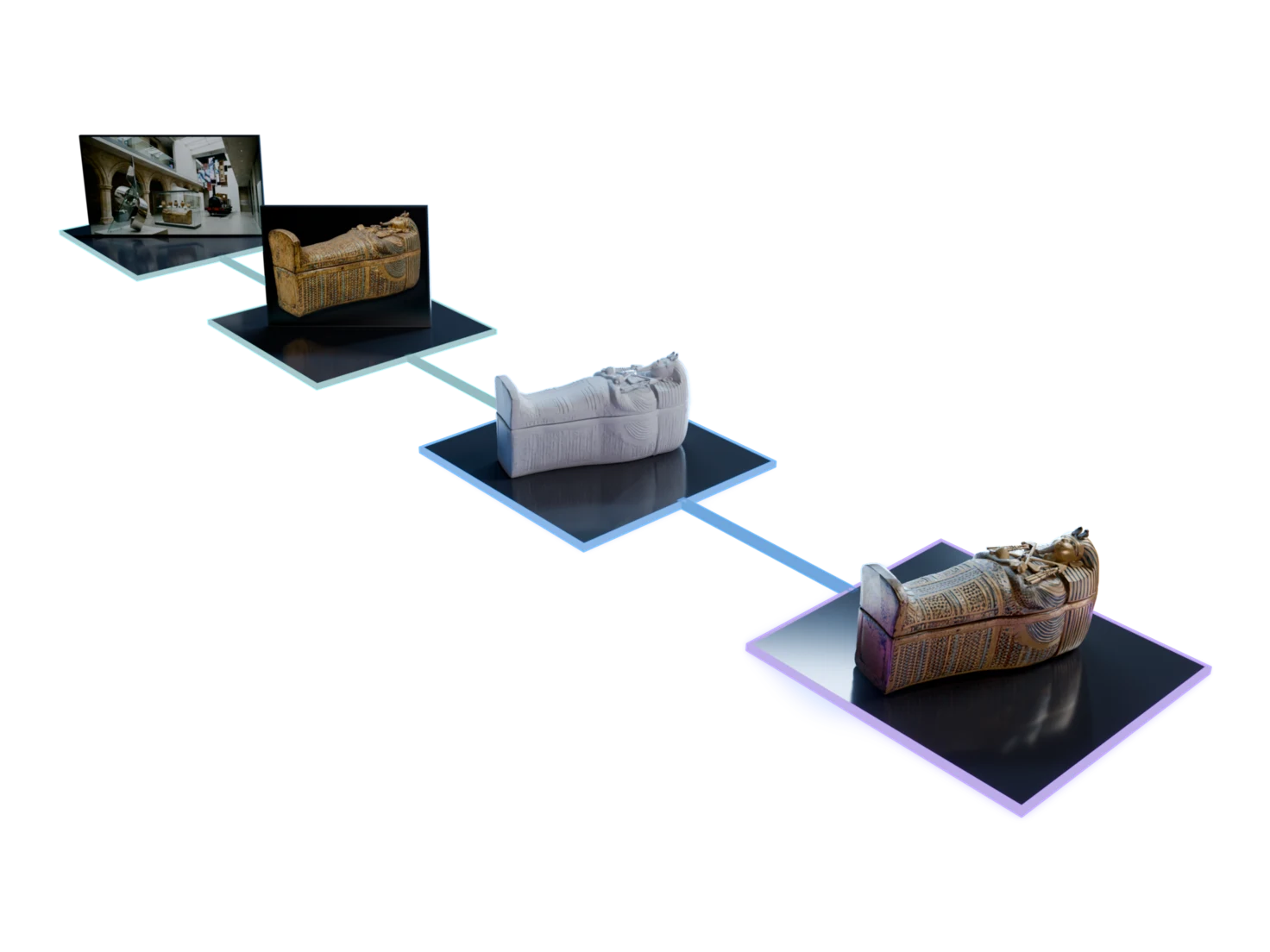
The Asset Library keeps the family of each asset: the assets it came from and each one made from it. Follow a PBR asset back to its 3D model, its reference image and the scene image that Detect Objects found it in.
Reuse it in one step
Open Library on the canvas of any project, pick an image or a 3D model, and choose Add to project. The Asset Library drops it on the canvas, ready to restyle or texture. Tick up to twenty-five assets to add them at once.
Collections you name
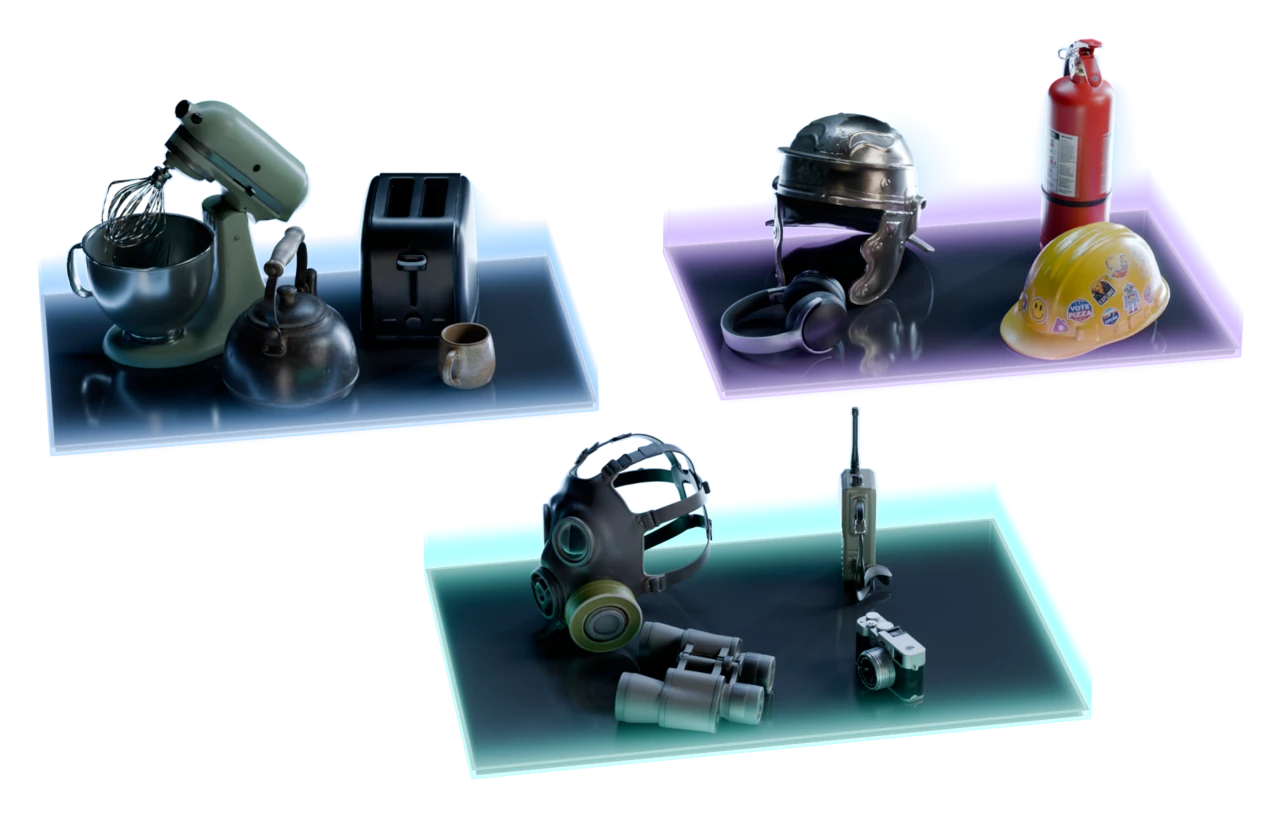
Group related assets from any project into named collections in the Asset Library. One asset can be in several collections, and each asset shows the collections it's in.
Find it, view it, share it
Search the Asset Library by words or by picture with Image Search. Open a 3D asset in the viewer, or share it with a link.
Questions about the Asset Library
What teams ask before they reuse what they've already made.
The Asset Library is the one place in Marso Studio that holds every image and 3D model you generate or upload, from every project. Each asset keeps its family, the assets it came from, so you can see how it was made, group it into collections, and add it to any other project.
Open the project, click Library in the bar on the left of the canvas, pick the model and click Add to project. The Asset Library panel opens on the current project: click Library at the start of its path to see every project. Tick up to twenty-five images and 3D models to add them at once.
Yes. Every image and 3D model that you generate or upload goes into the Asset Library, from every project. Group the assets by project to see each project's assets together, or by time, from the past twenty-four hours to all time.
Yes. Open the asset and look at Family. The Asset Library lists the assets it came from and each one made from it, for example the scene image, the reference image, the 3D model and its PBR version. The Details of a 3D model also name the 3D generator that made it.
Yes, on a paid plan. In the Asset Library, an image or a 3D model downloads as its original file. A PBR asset downloads as its PBR maps in PNG files, or as one USDZ with the textures embedded. Tick several assets to download them together.
Everything you've made, in one place
Every asset you make is ready for the next project.