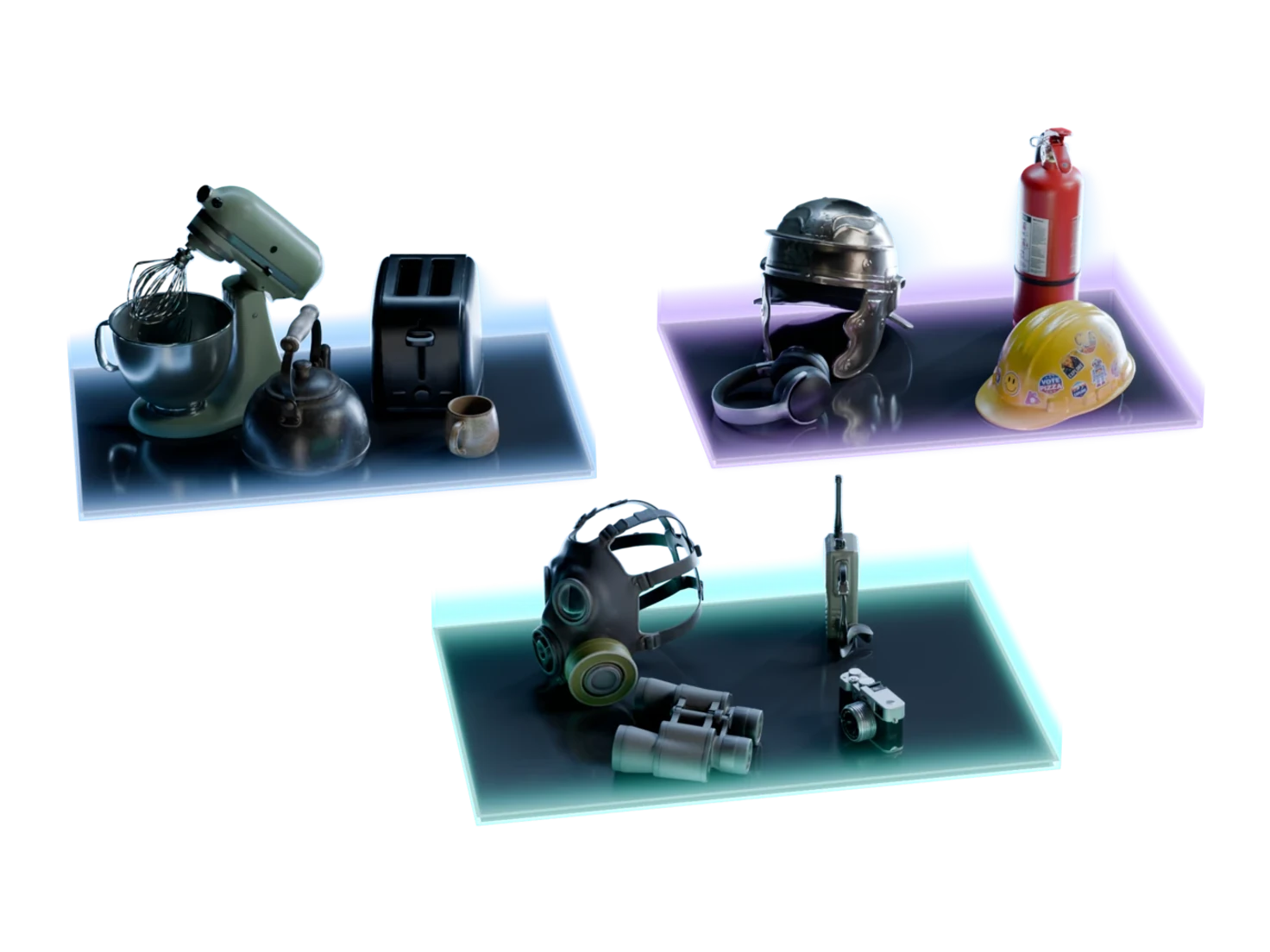
Every object in the scene, through the pipeline at once
Group Nodes run reference images, 3D models and PBR textures for a whole selection of objects, one batch for each step. Set the model and the polygon count once, change one item where you need to, and download every asset in one zip.
How to generate 3D models for every object in a scene
- 1
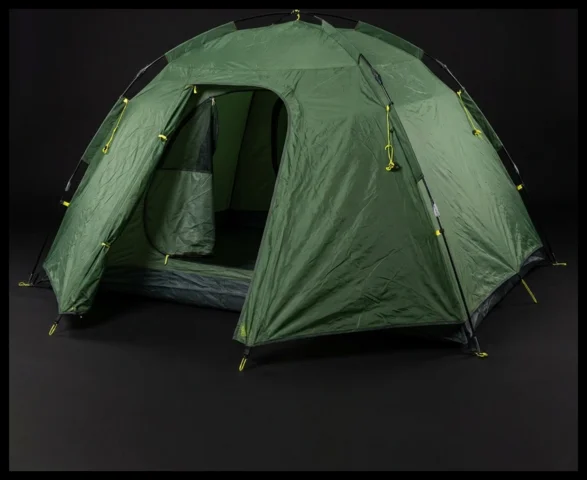
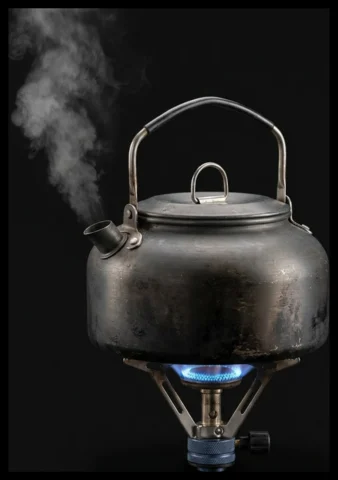
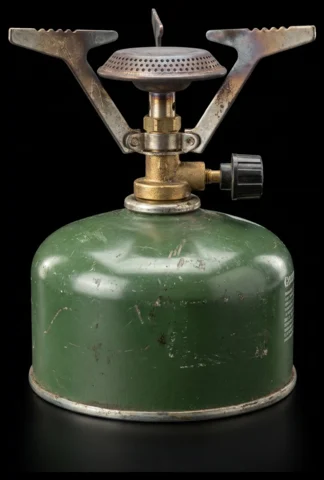
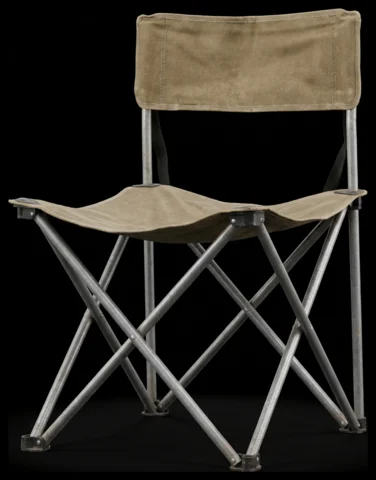
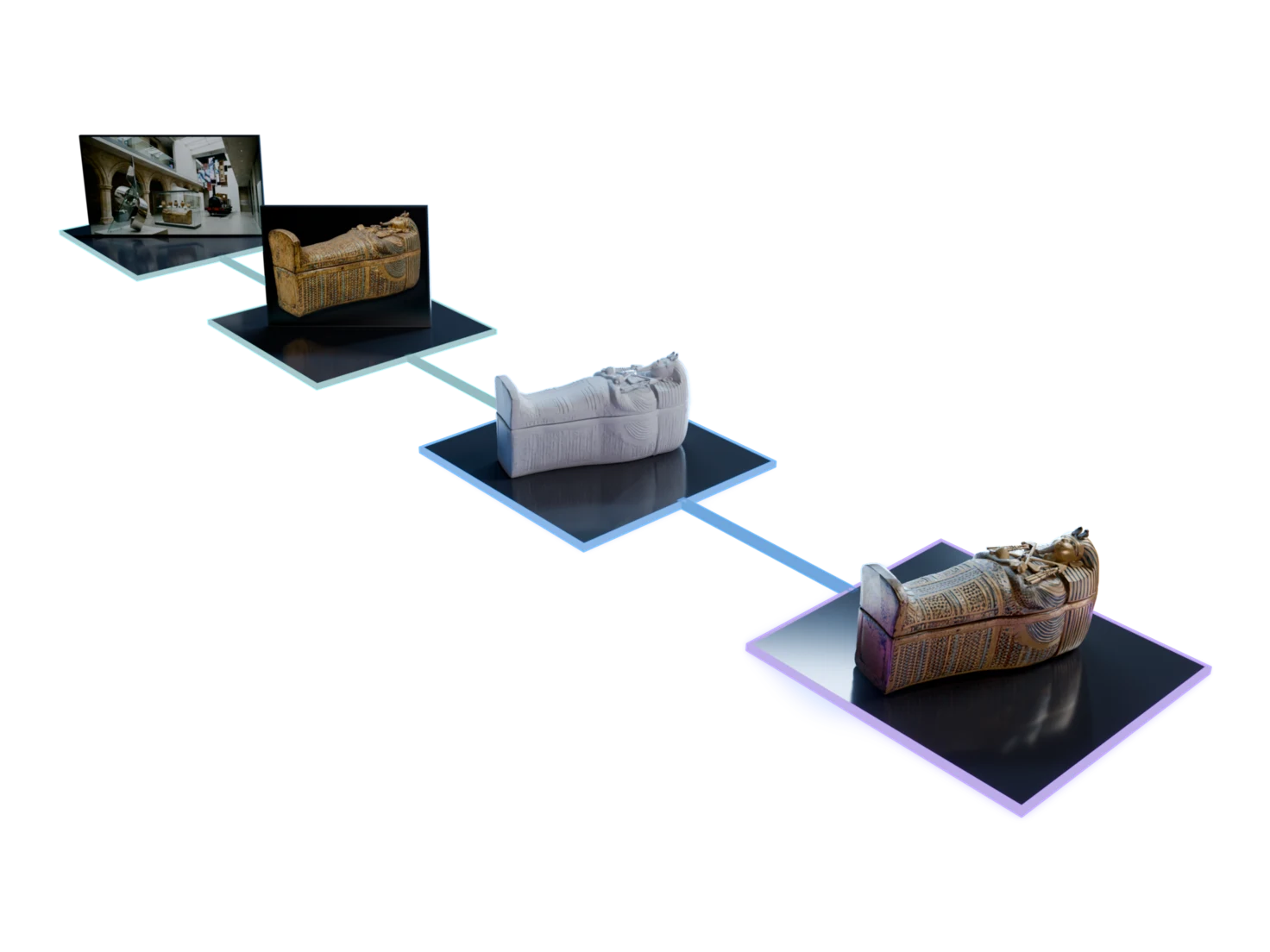
Generate reference images.
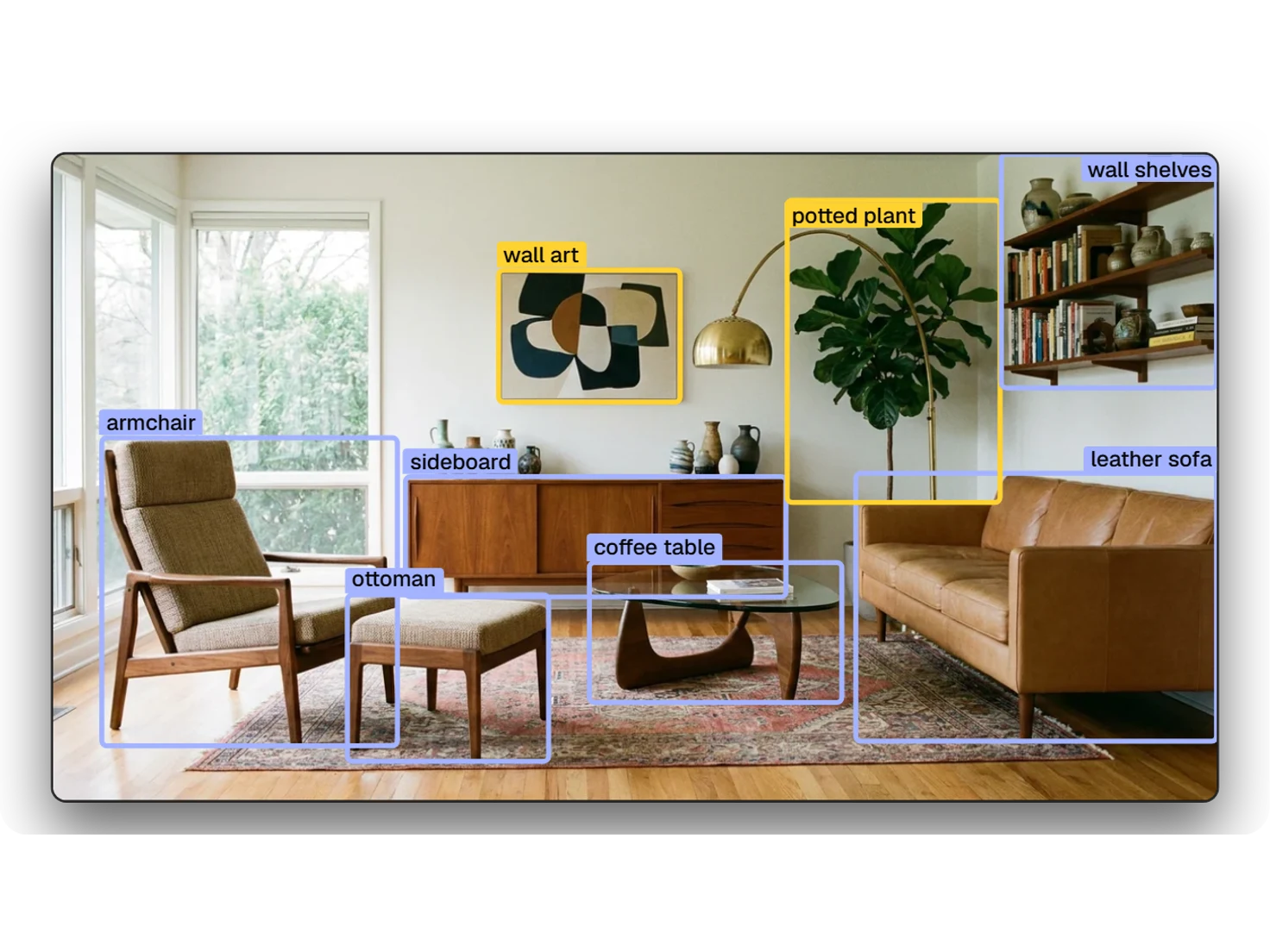
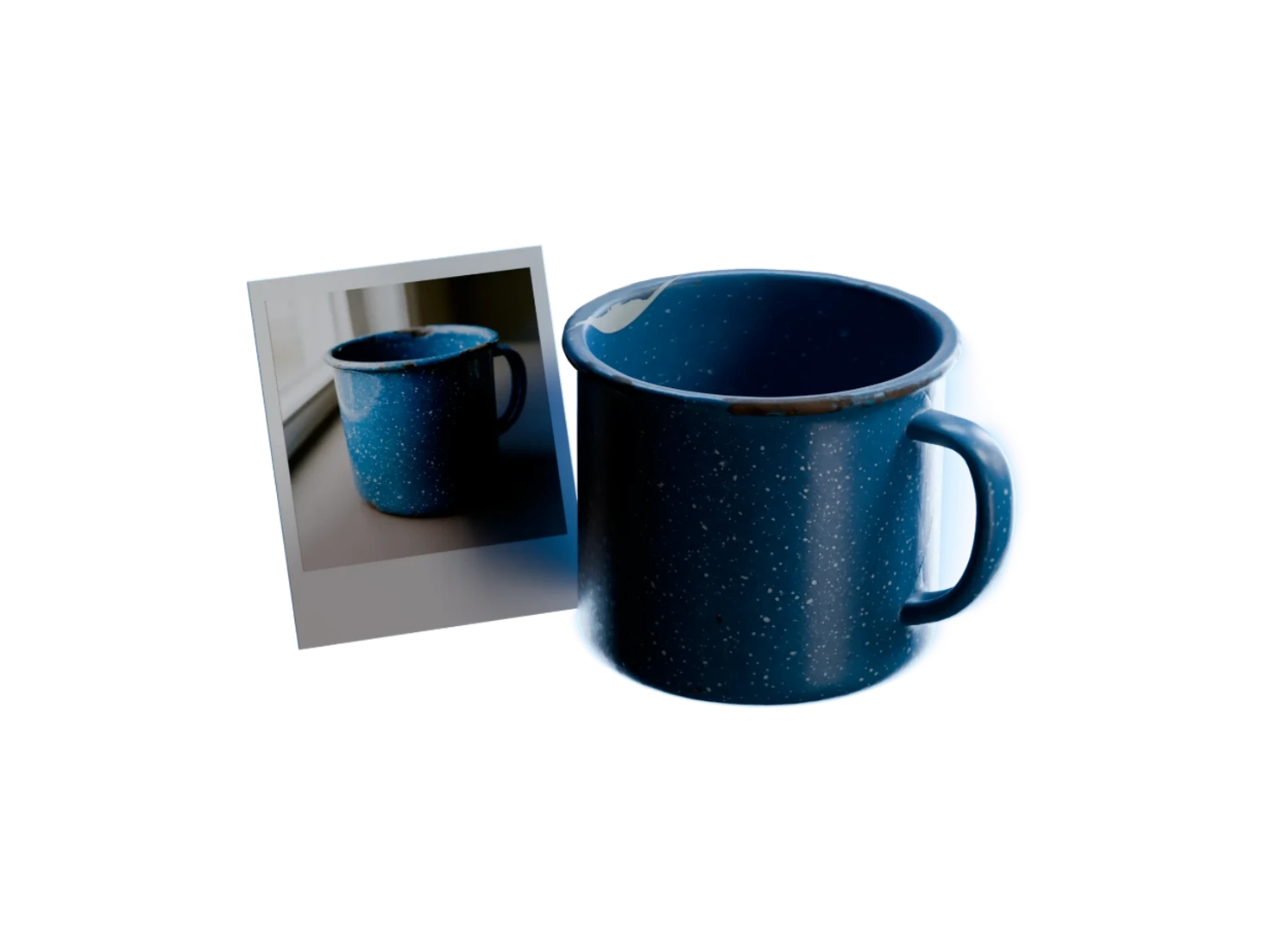
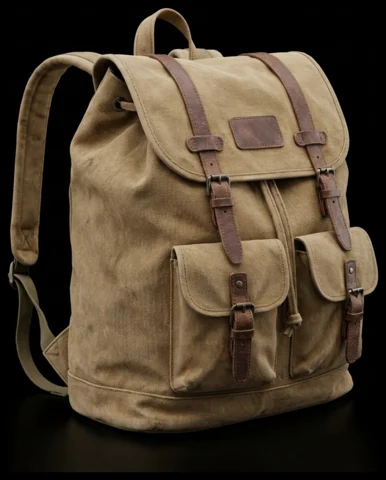
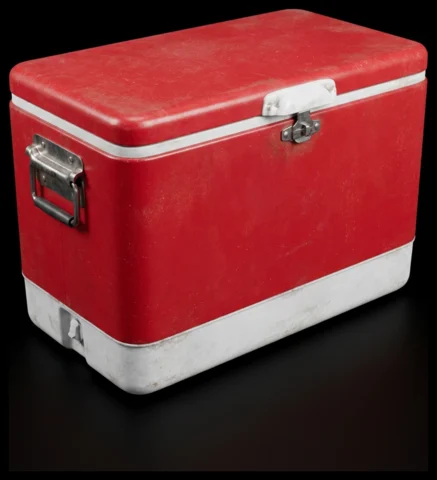
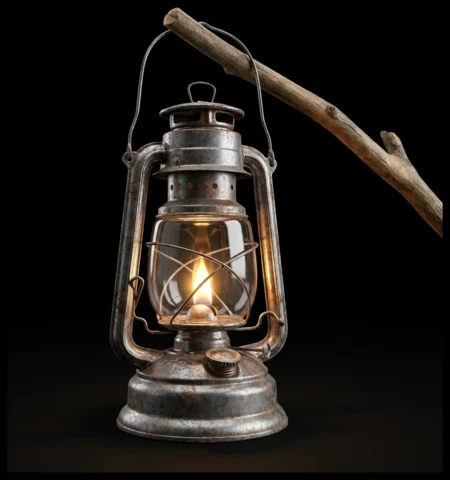
Confirm a selection in Detect Objects, and a Generate Reference Images group makes one clean image of each object.
- 2

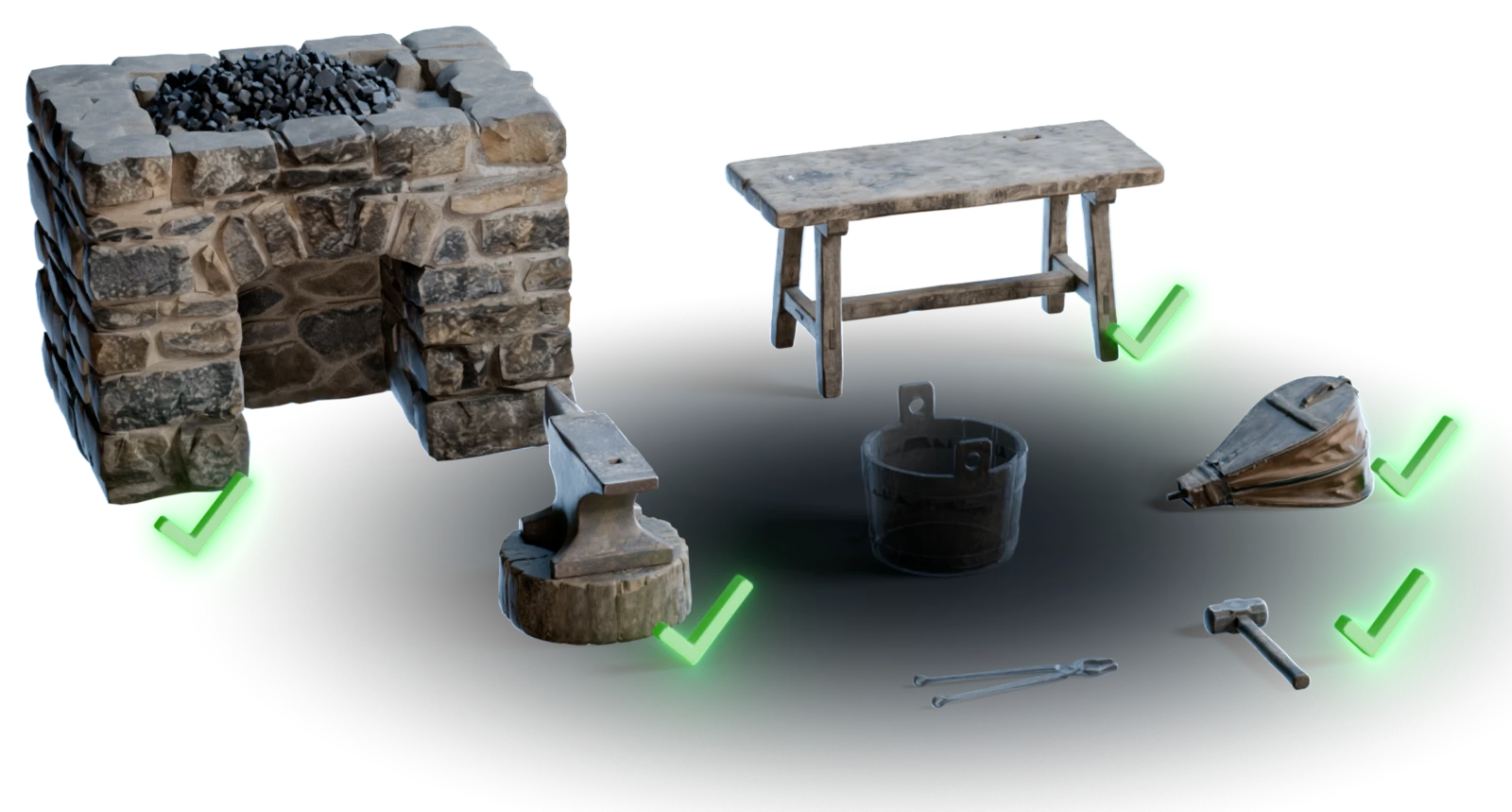
Tick what goes forward.
Only the ticked items go on to the next group. Untick a weak image, or use Select all and Deselect all on the group.
- 3
Generate 3D models.
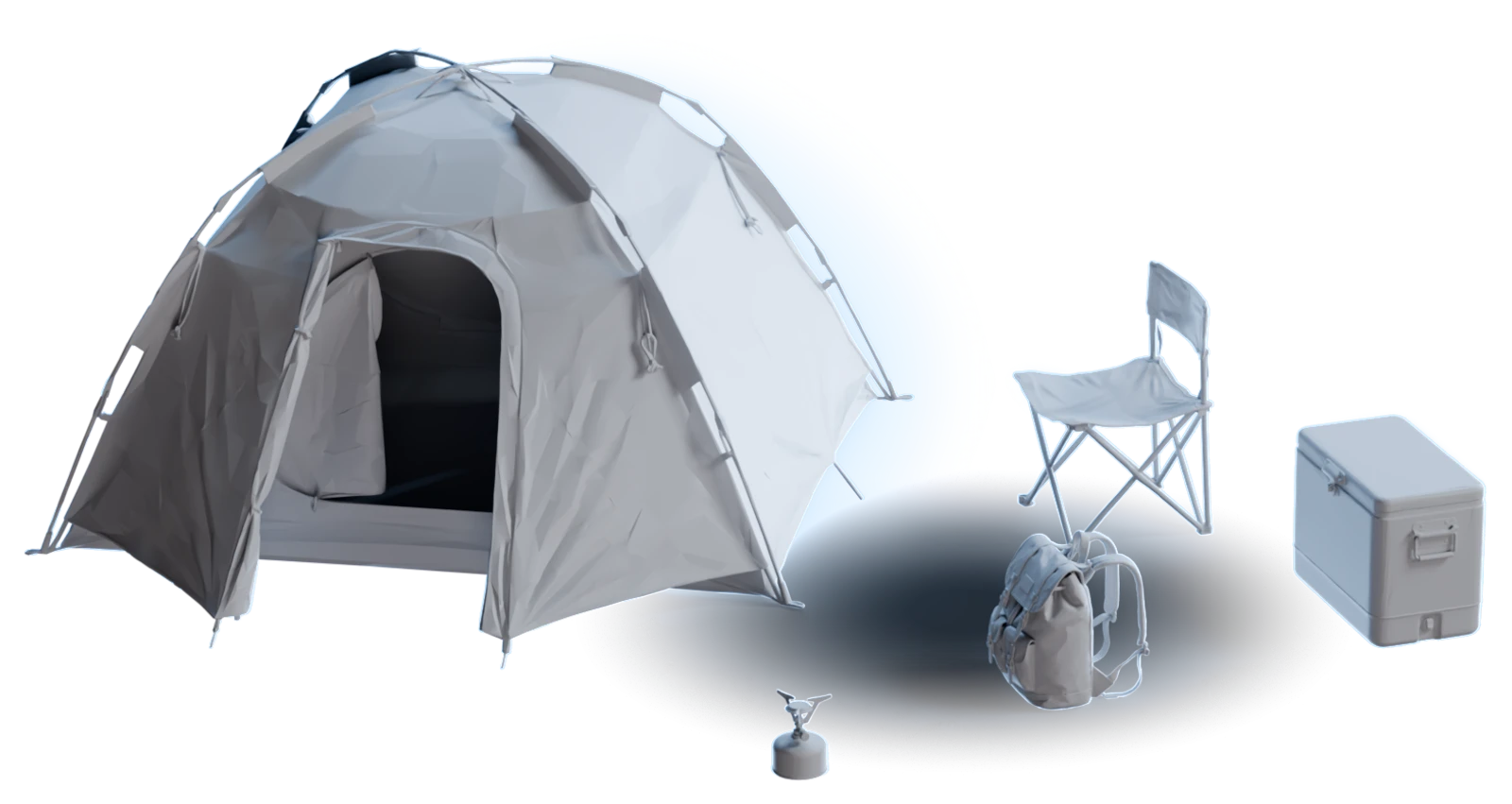
Connect a Generate 3D Models group and choose the model and the polygon count once. 3D Generation runs on every ticked image together.
- 4
Texture and download.
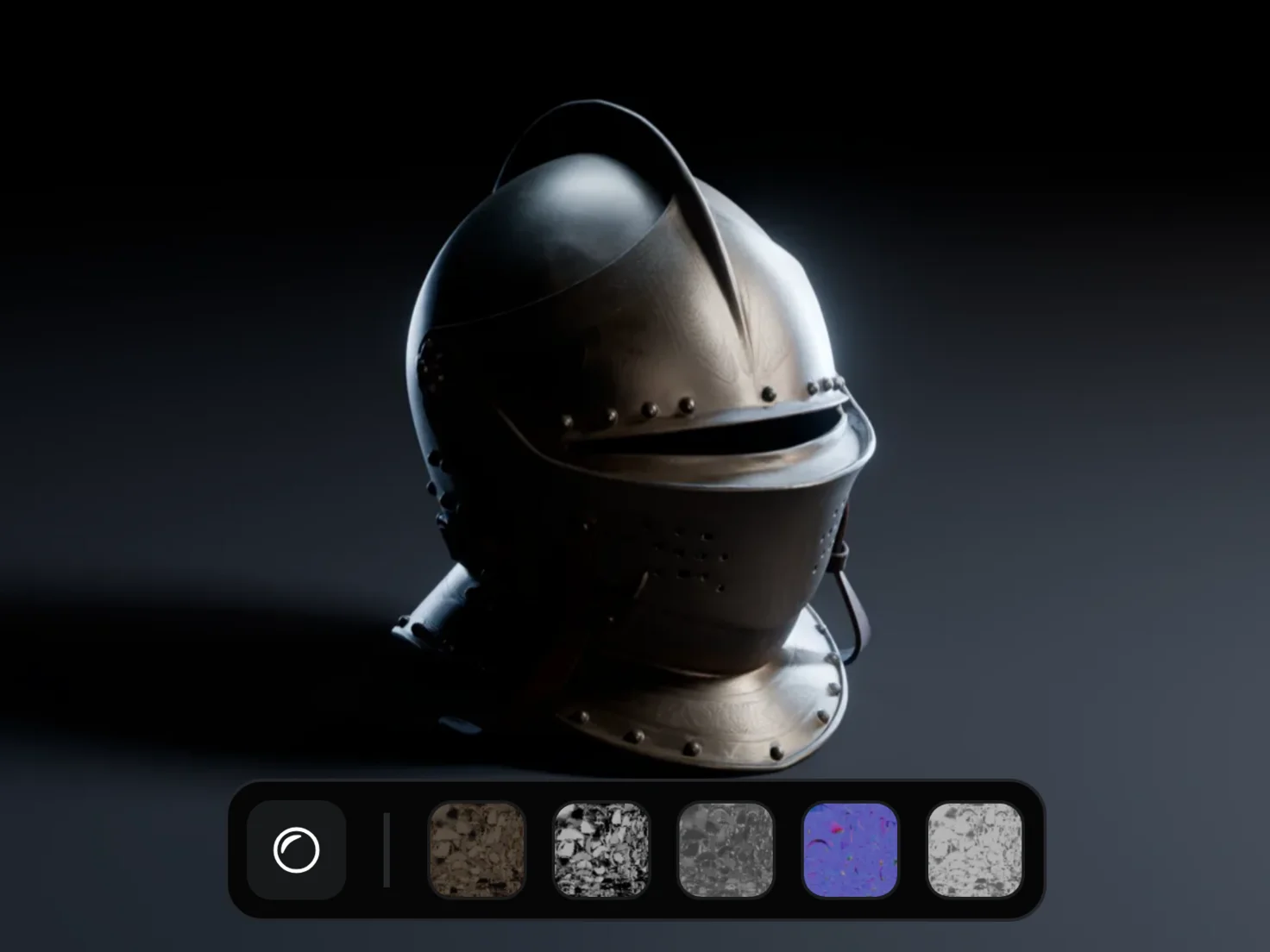
A Generate PBR Textures group gives each model PBR textures. Then download the whole group as one zip.
A room full of props shouldn't mean a room full of pipelines
2levels of settings: group and item
One setting, with overrides
Group Nodes take one model and one polygon count for the whole group, or Adaptive in place of a number. To give one hero prop more detail, set its polygon count from its own card, and the rest of the group keeps the group setting.
1prompt for every ticked image
Edit the batch with one prompt
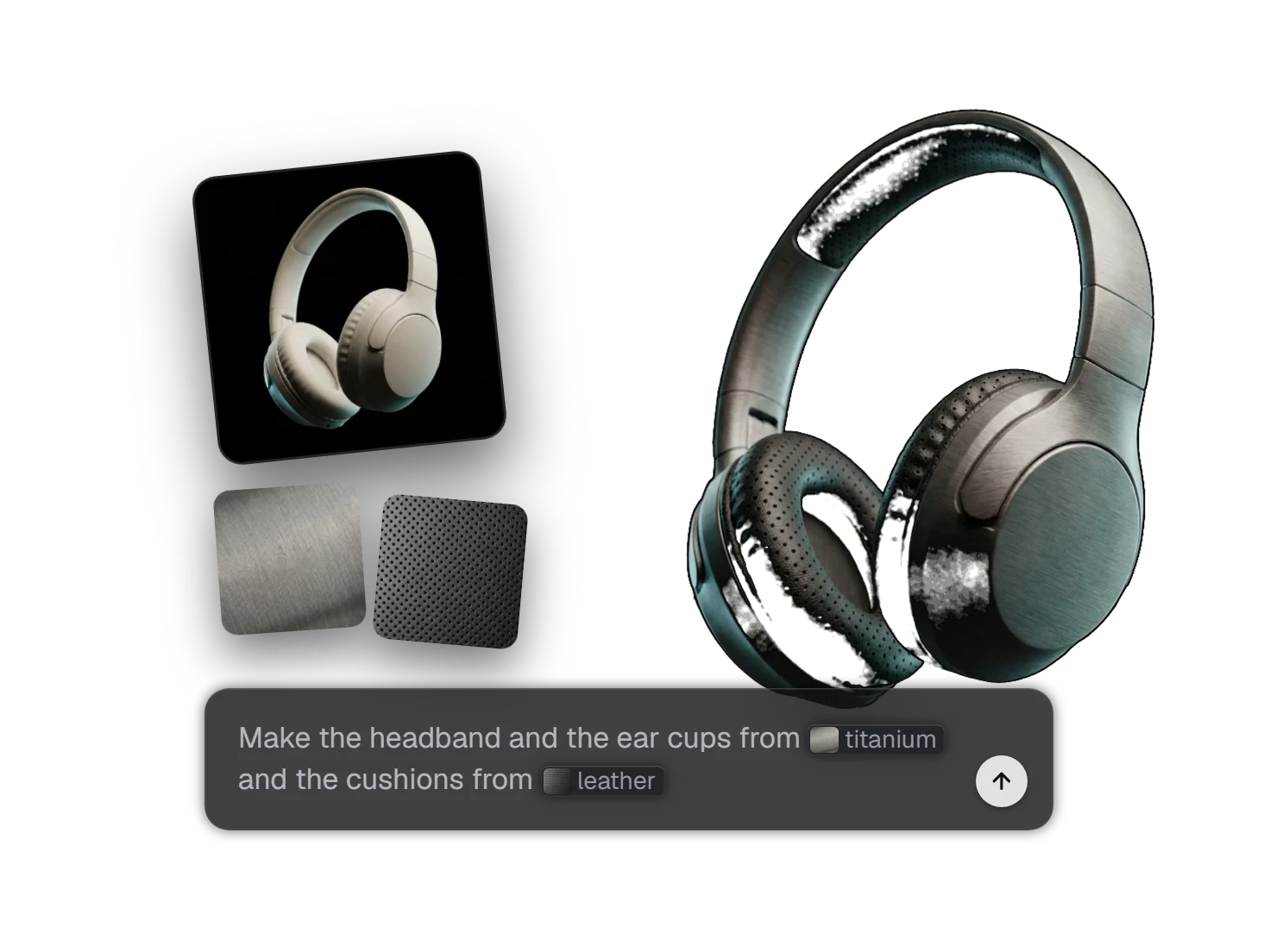
Connect an Image Edit node to a Generate Reference Images group, and one prompt edits every ticked image. Group Nodes put the results in a new group beside the node, thus the originals stay as they were.
3re-runs for each item
Fix one item, keep the rest
Group Nodes let you re-run one item that came out wrong, up to three times, while the others stay done. Or open the nested graph of one reference image and add an edit between its input and its output before it goes to 3D.
1zip for the whole group
One download
The Download PBR group button of Group Nodes zips the whole set: one USDZ file for each asset with its textures baked in, or the PNG texture maps in a folder for each model.
What Group Nodes make
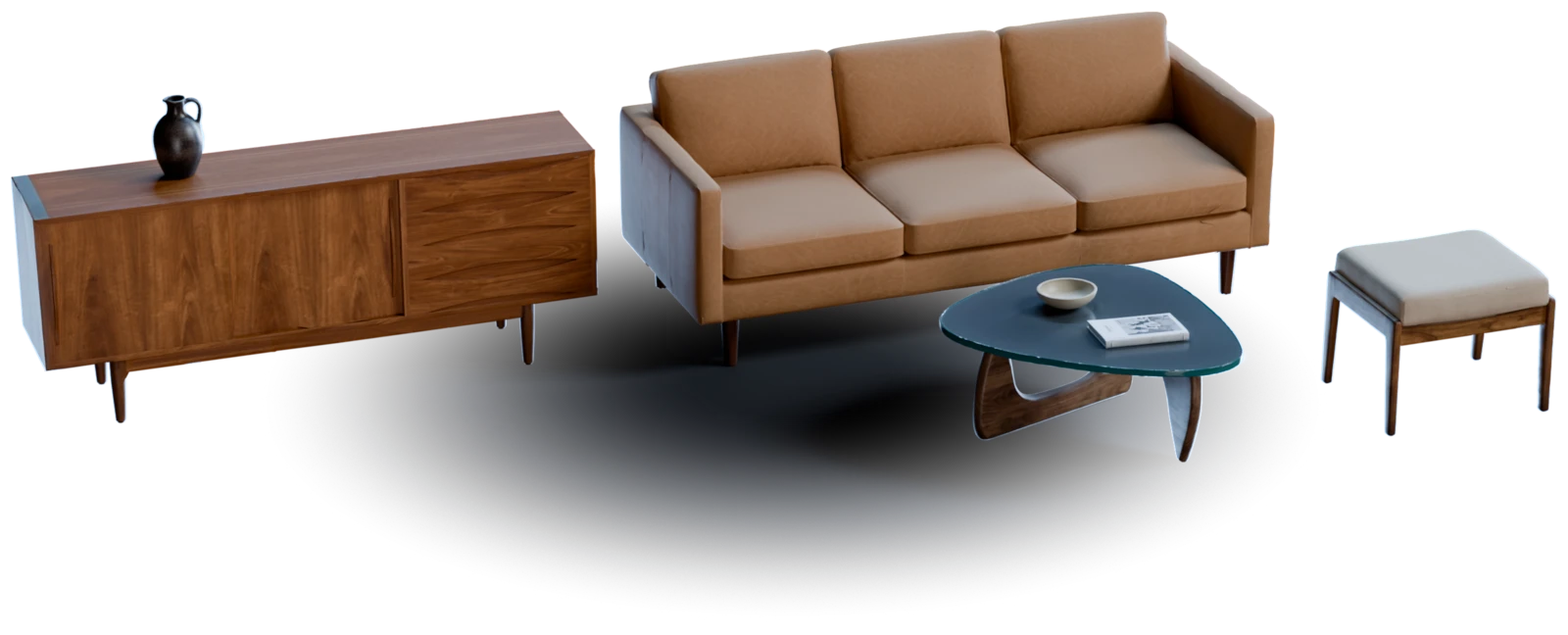
Dress a whole room
Group Nodes take the furniture and the props of a mid-century living room from reference images to textured 3D assets in three batch runs.
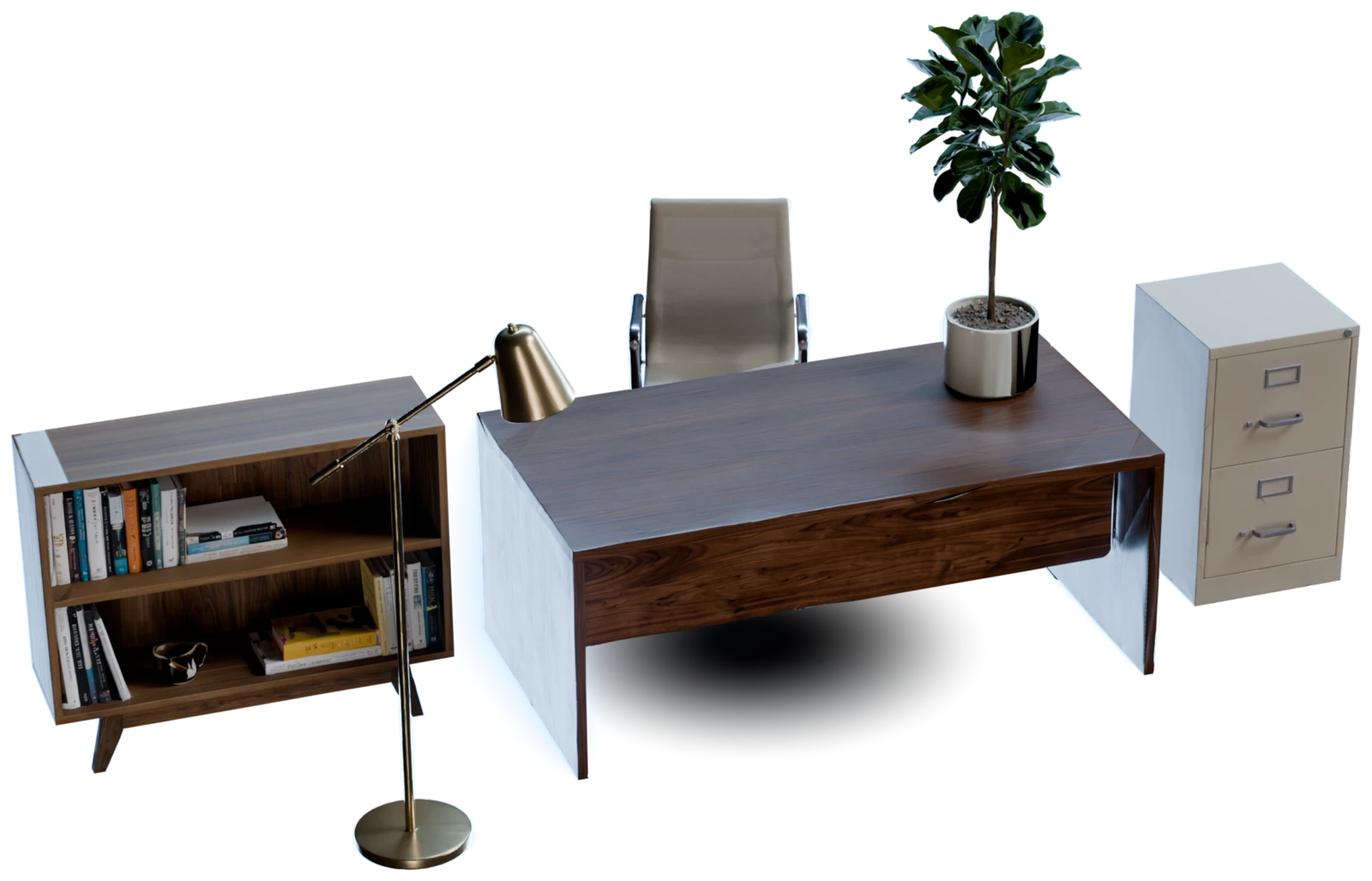
Fit out an office
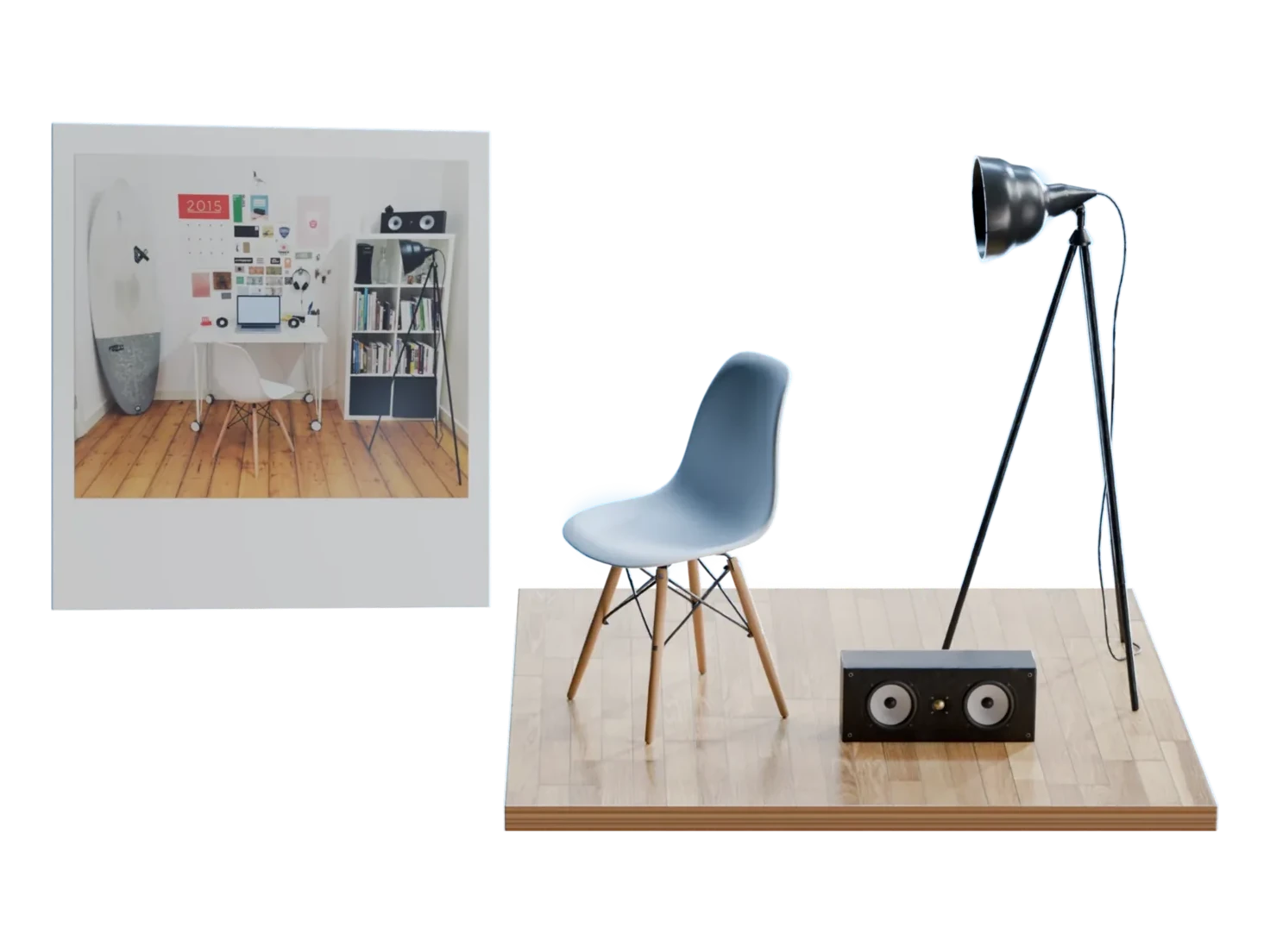
A walnut desk, an office chair, a filing cabinet, a bookshelf, a floor lamp and a fiddle-leaf fig: Group Nodes made all six as one set in three batch runs.
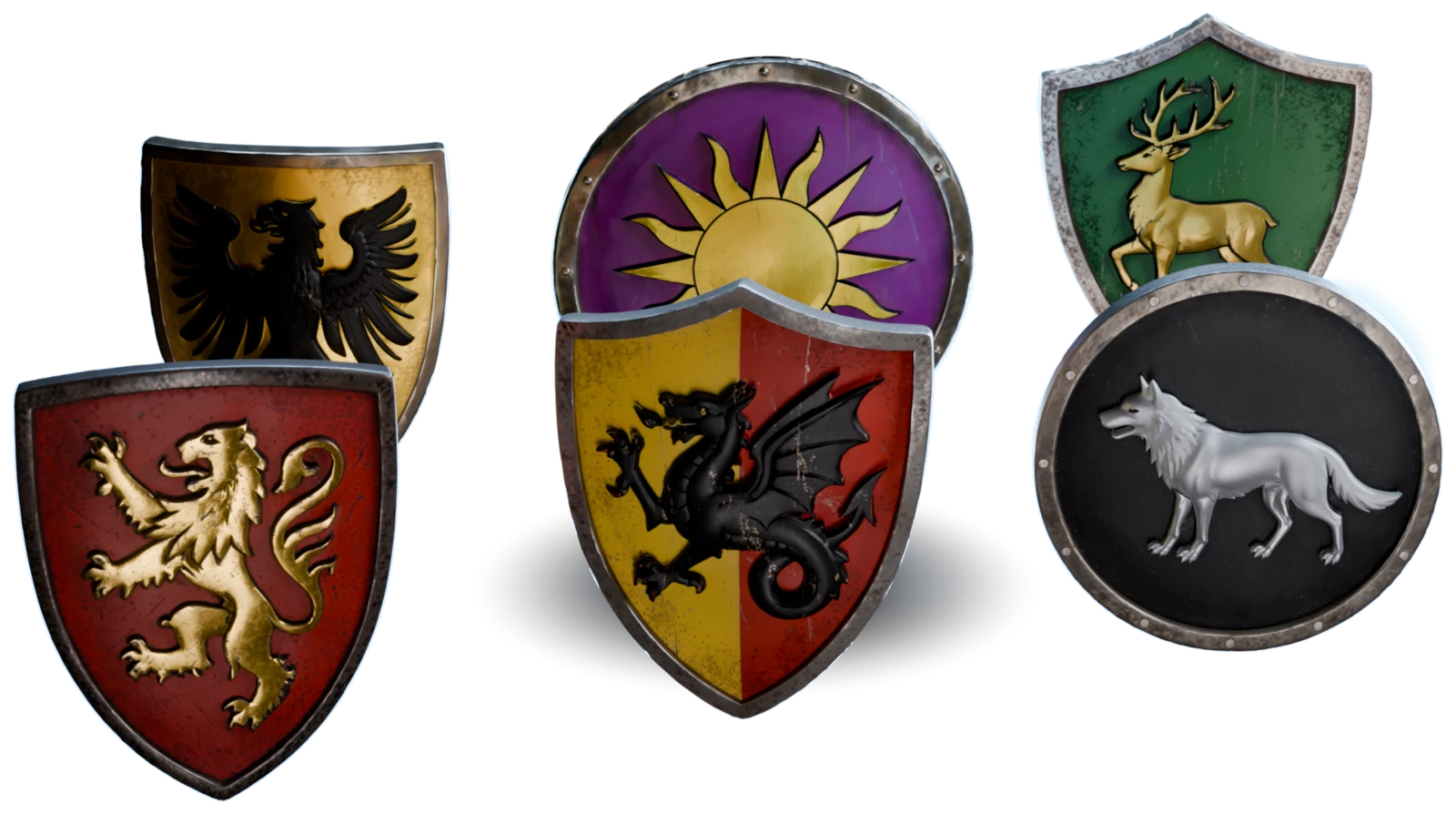
Ship a variety pack
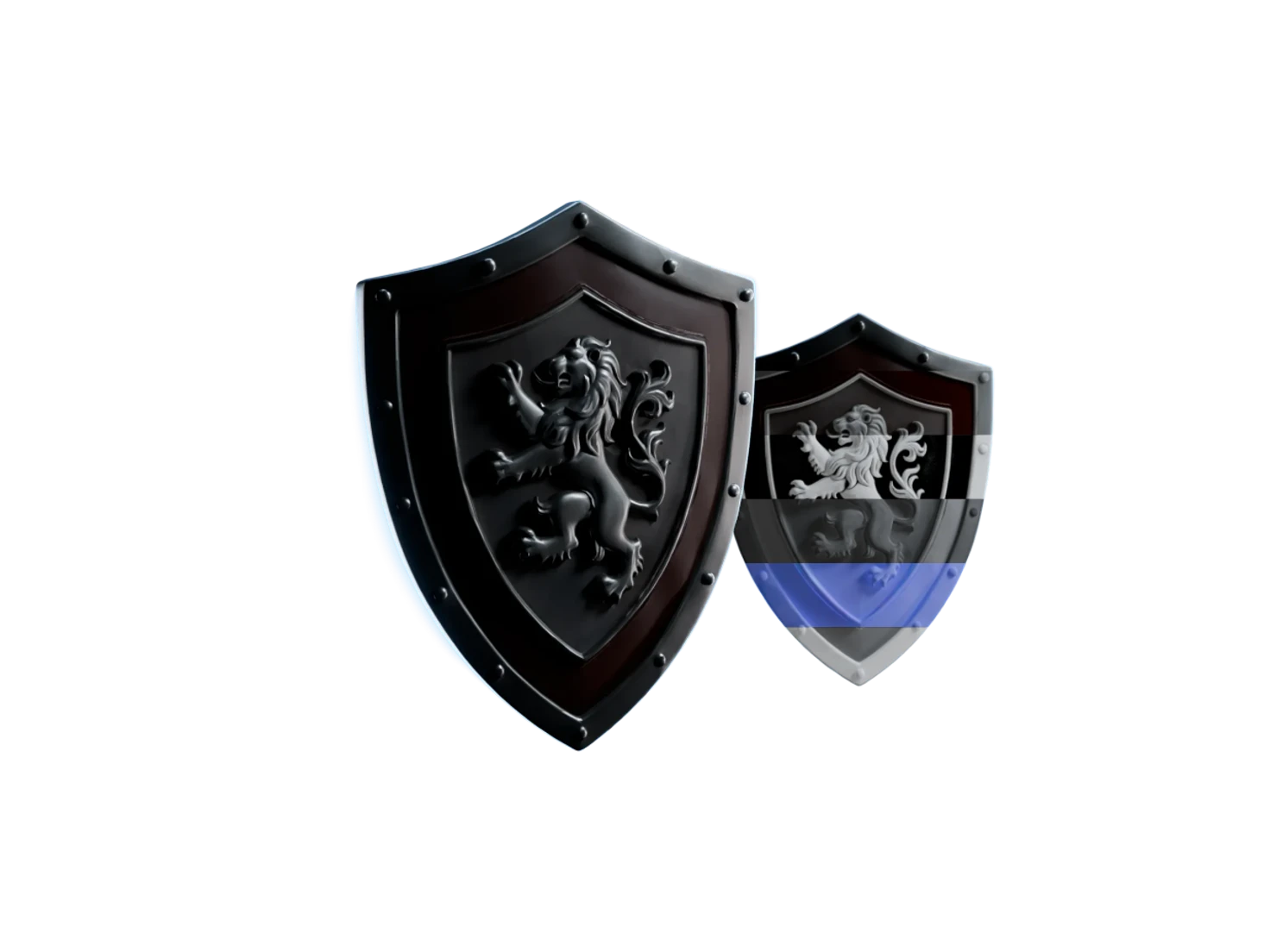
Detect Objects finds all twenty-five shields in one grid image. Group Nodes took six of them to 3D and PBR together, each with its own shape and crest.
Add detail to a hero area
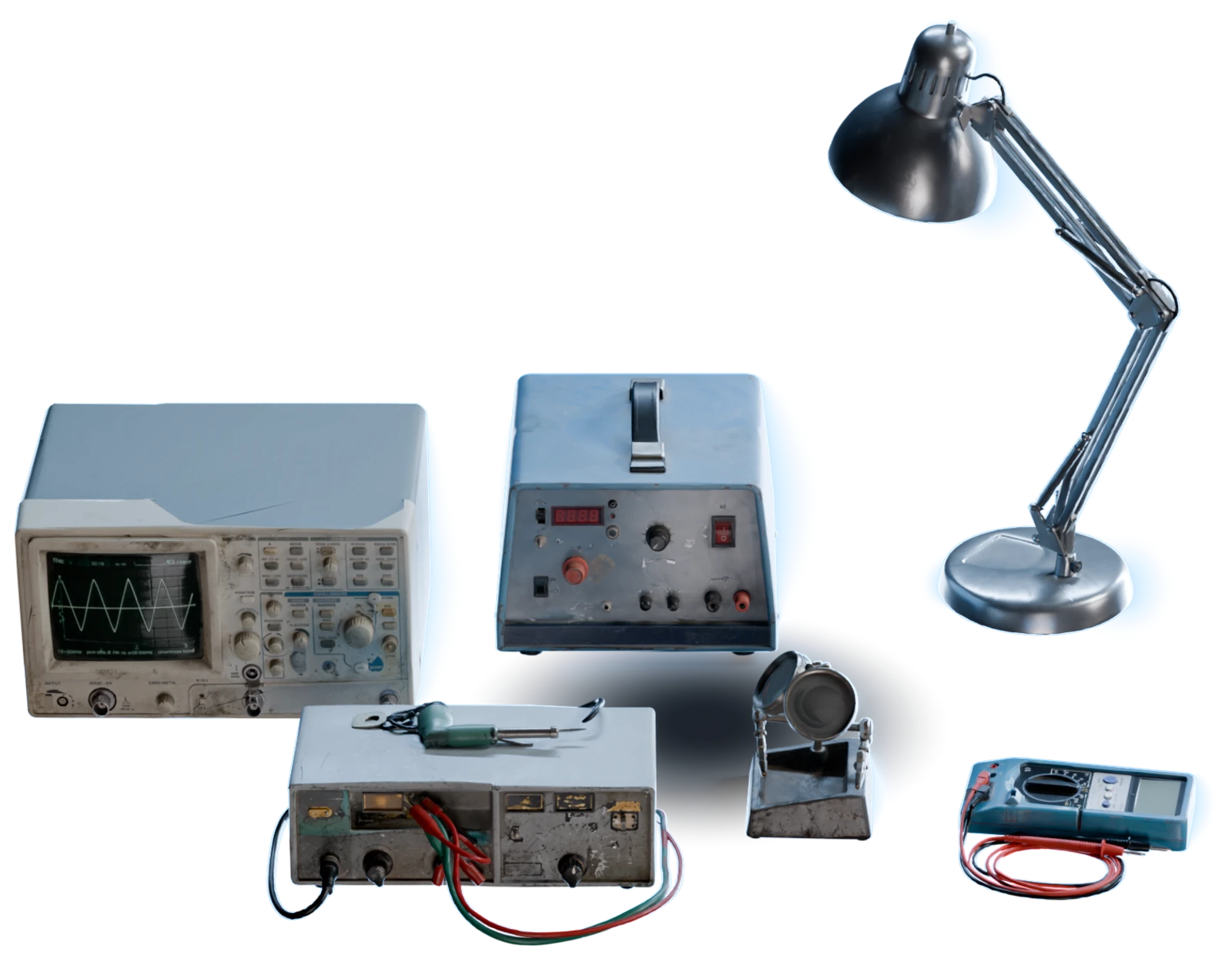
Image Edit closes in on the workbench of a cyberpunk apartment, and Group Nodes turn its oscilloscope, soldering station, power supply and tools into textured 3D assets.
Questions about Group Nodes
What artists ask before they send a whole scene to 3D in one batch.
Group Nodes are nodes that hold many items and run the same step on all of them: the Generate Reference Images, Generate 3D Models and Generate PBR Textures groups. Each group takes one setting for every item, with overrides for single items, thus a selection from Detect Objects becomes textured 3D assets in three runs.
Run Detect Objects on an image of a scene and confirm a selection, and a Generate Reference Images group makes one image of each object. Tick the images you want, connect a Generate 3D Models group and run it, then connect a Generate PBR Textures group. Group Nodes run each step on every ticked item in one batch. The Scene Generation template places all of these nodes for you.
Group Nodes take as many objects as your plan carries on from Detect Objects: ten on Artist, twenty on Artist Pro, and no limit on Studio and Enterprise. Only the ticked items of a group go on to the next group, and only those cost credits.
Yes. In a Generate 3D Models group, set the polygon count of one item from its card, and the rest keep the group setting. In Group Nodes, you can also re-run one item up to three times, or open the nested graph of one reference image and add an Image Edit node between its input and its output.
Group Nodes download a Generate PBR Textures group as one zip. Choose one USDZ model for each item with its textures baked in, or the PBR texture maps as PNG files in a folder for each model. To download one asset only, use Download in the menu of its card.
Every asset that Group Nodes make also goes to your Asset Library, and Add to collection files the ticked items of a group in one click. To check a model before you download it, open it in the 3D Viewer from the menu of its card.
Every object in the scene, in one pass
Set up the groups once, and the whole selection runs from reference images to textured 3D assets.