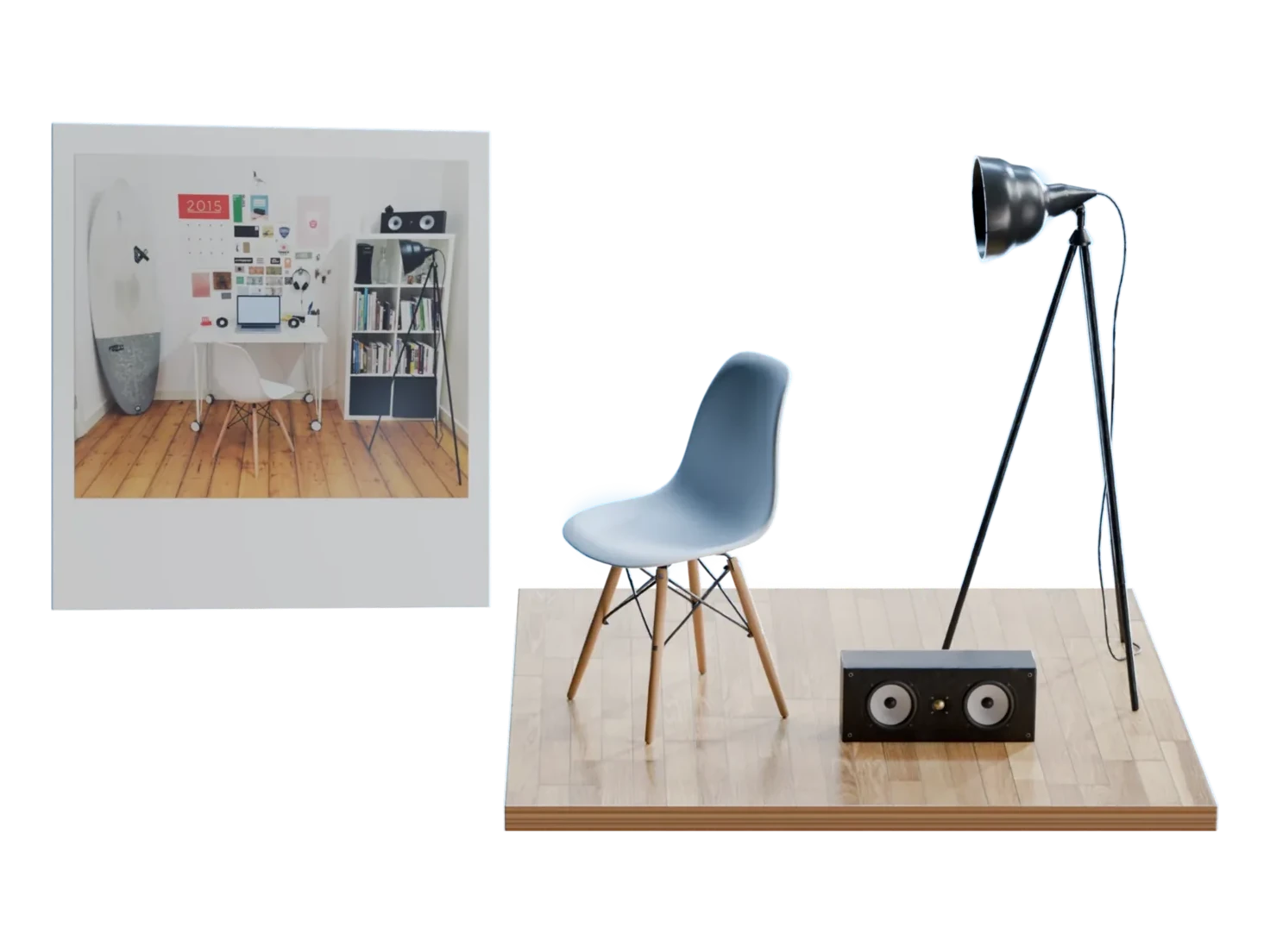
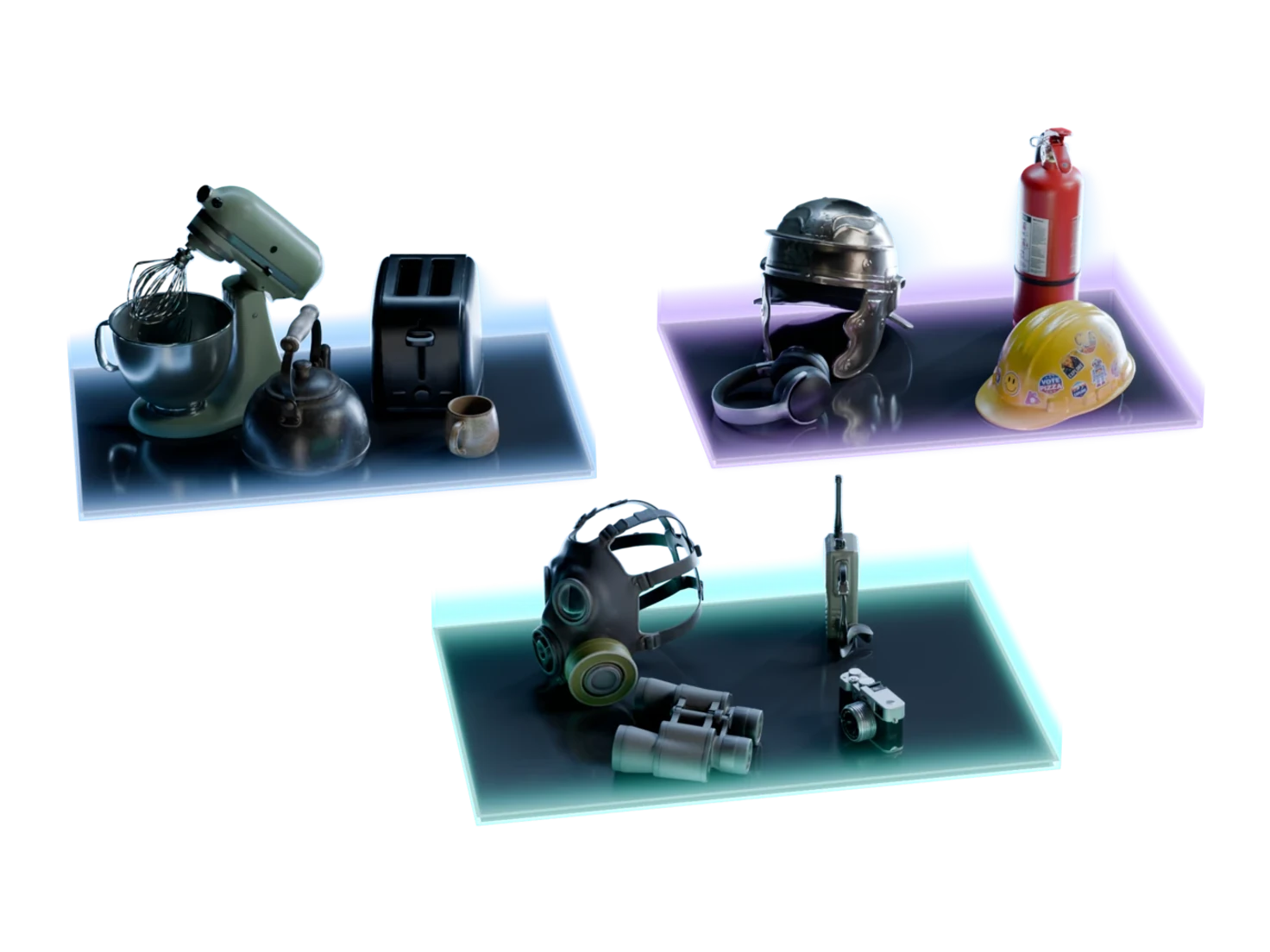
Turn one picture of a room into the props that fill it
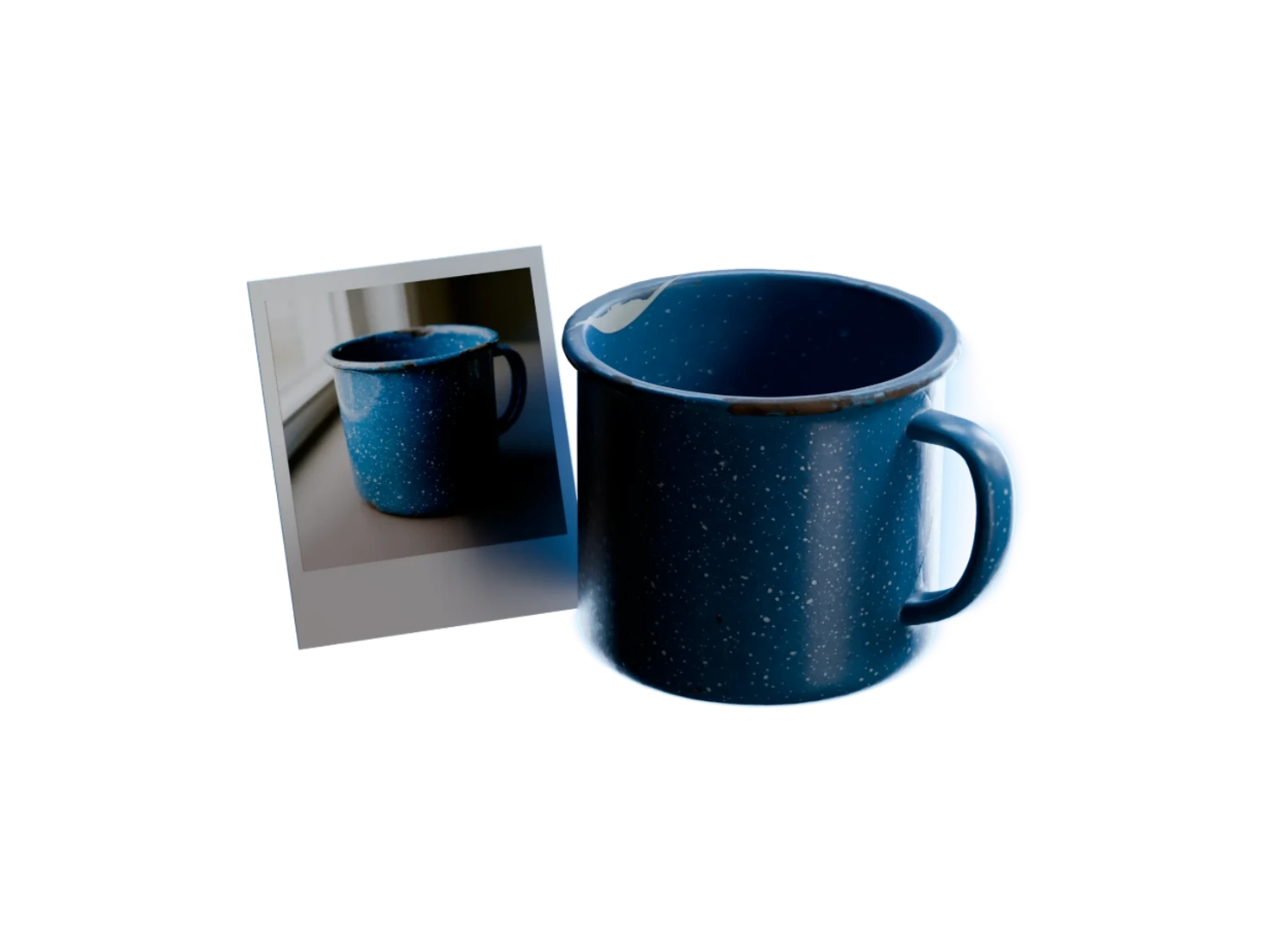
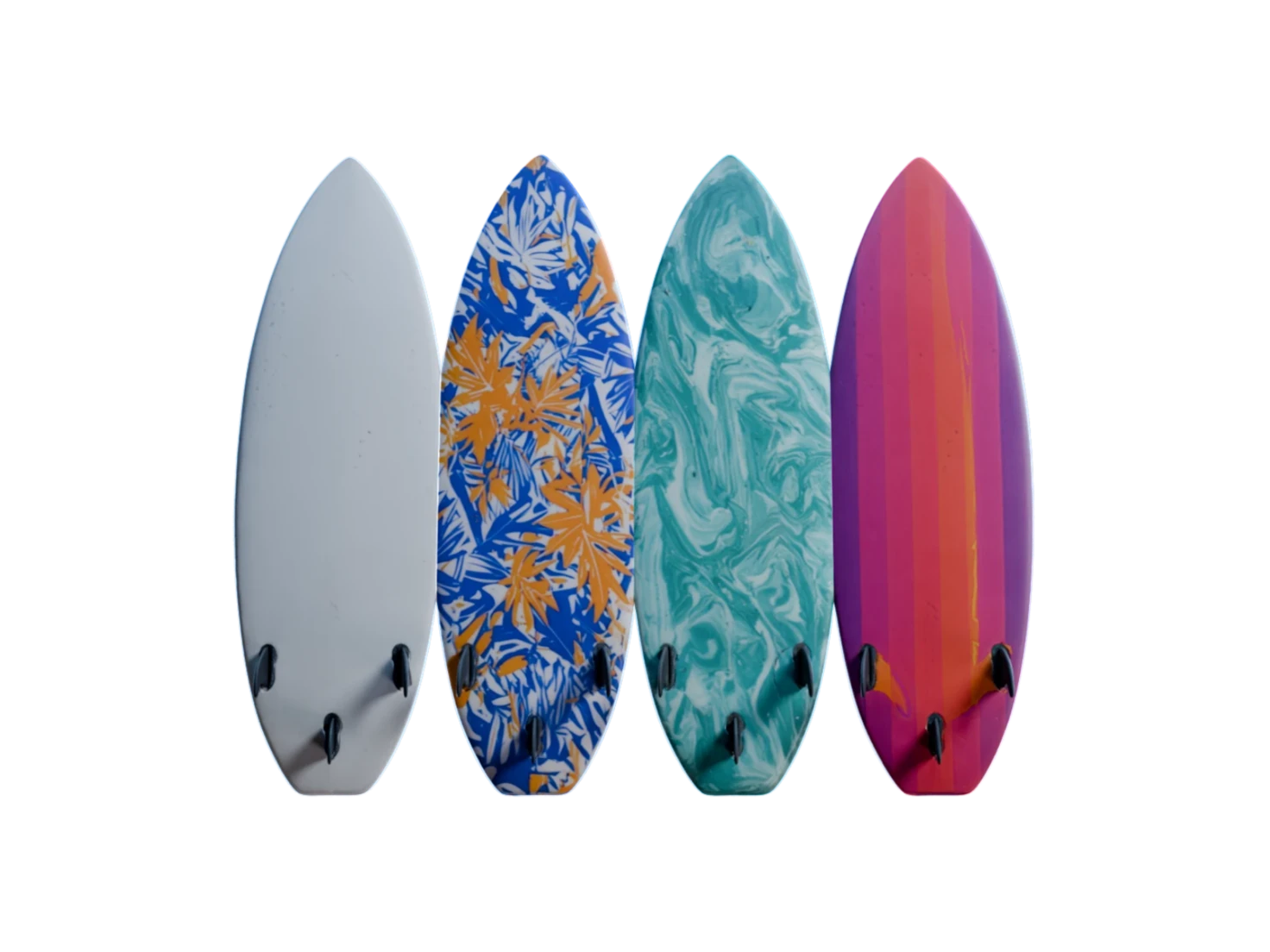
Detect Objects finds the furniture, props and set dressing in a photo or a generated scene, and draws a box around each one. Tick the ones you want, and the whole selection goes on to 3D together.
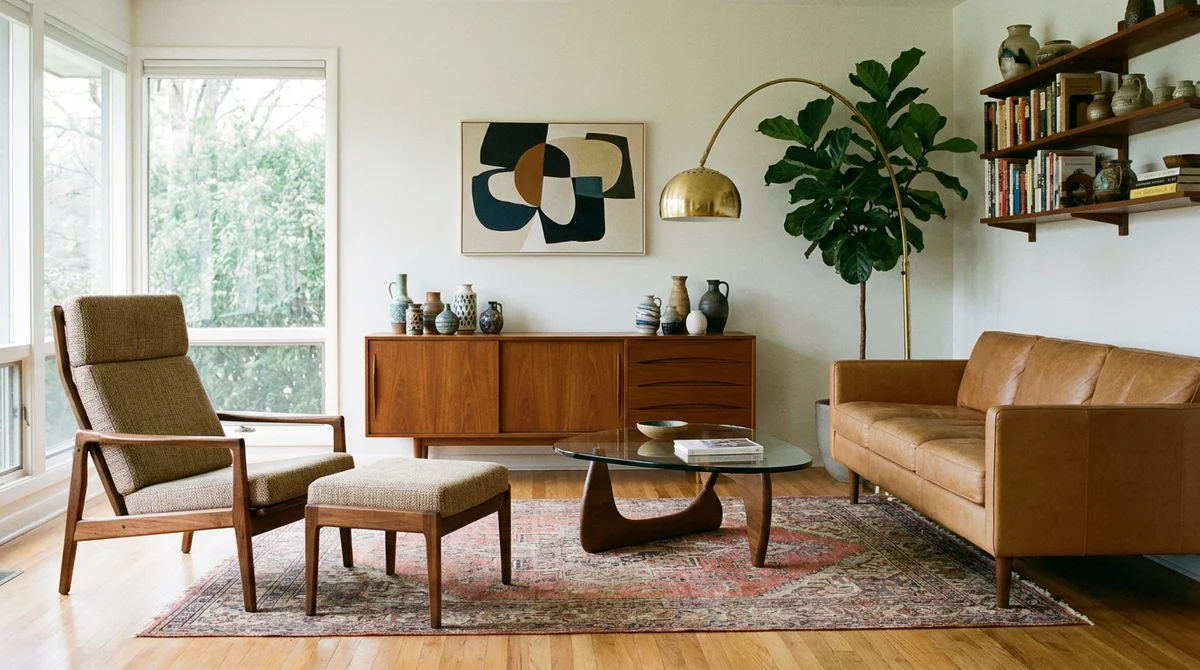 leather sofaarmchairottomansideboardcoffee tablewall artpotted plantwall shelves
How to turn a scene image into 3D assets
- 1
- 2EnvironmentEnvironmentSet DressingSet DressingPropsPropsFurnitureFurniture
Choose what to look for.
Turn on Environment, Set Dressing, Props or Furniture on the Detect Objects node, then run it.
- 3
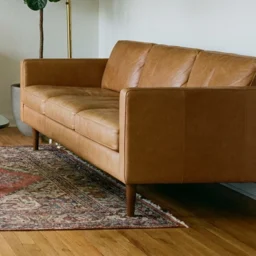

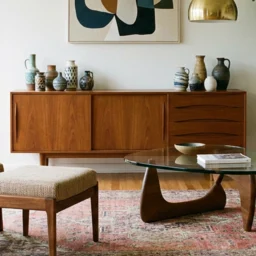
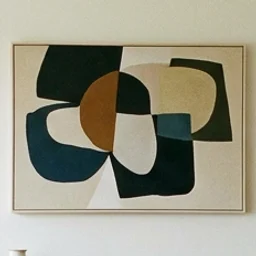
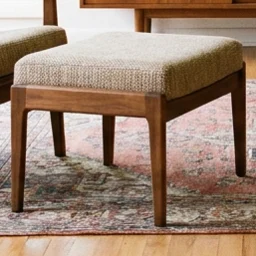
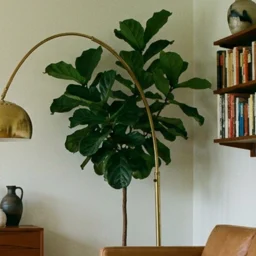
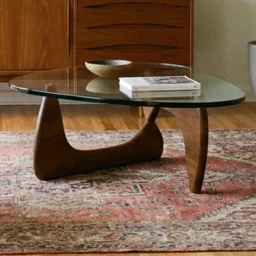
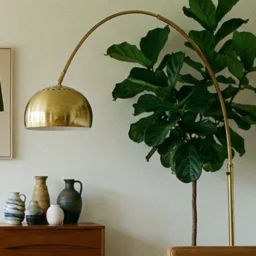
Make your list.
Open Modify selected objects, tick what you want, and use Draw box for anything Detect Objects missed.
- 4
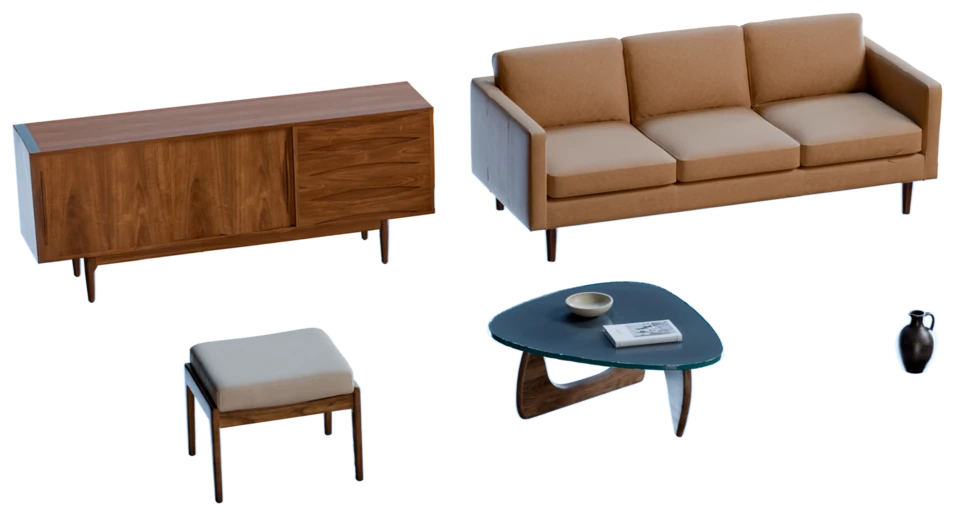
Generate the set.
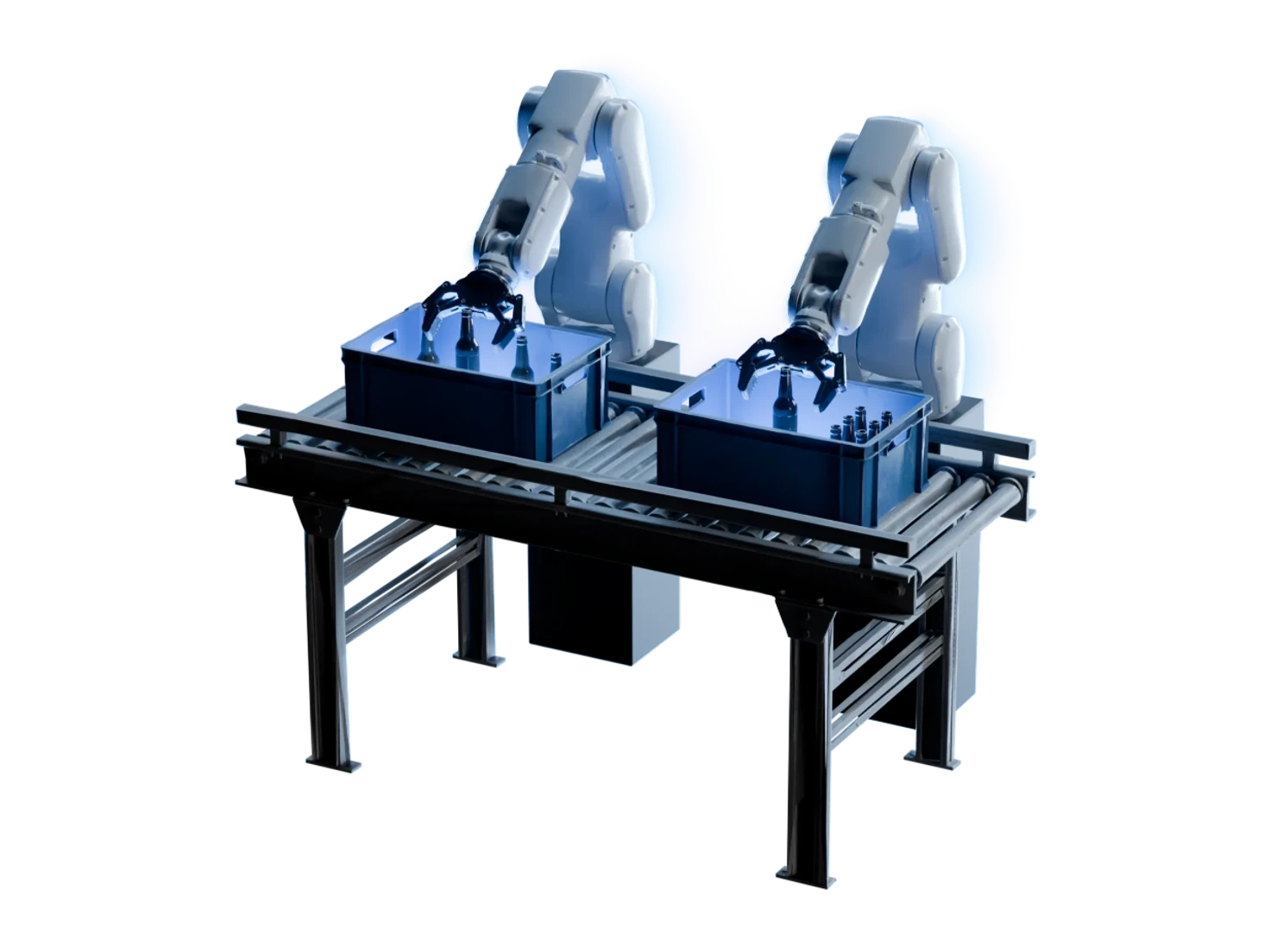
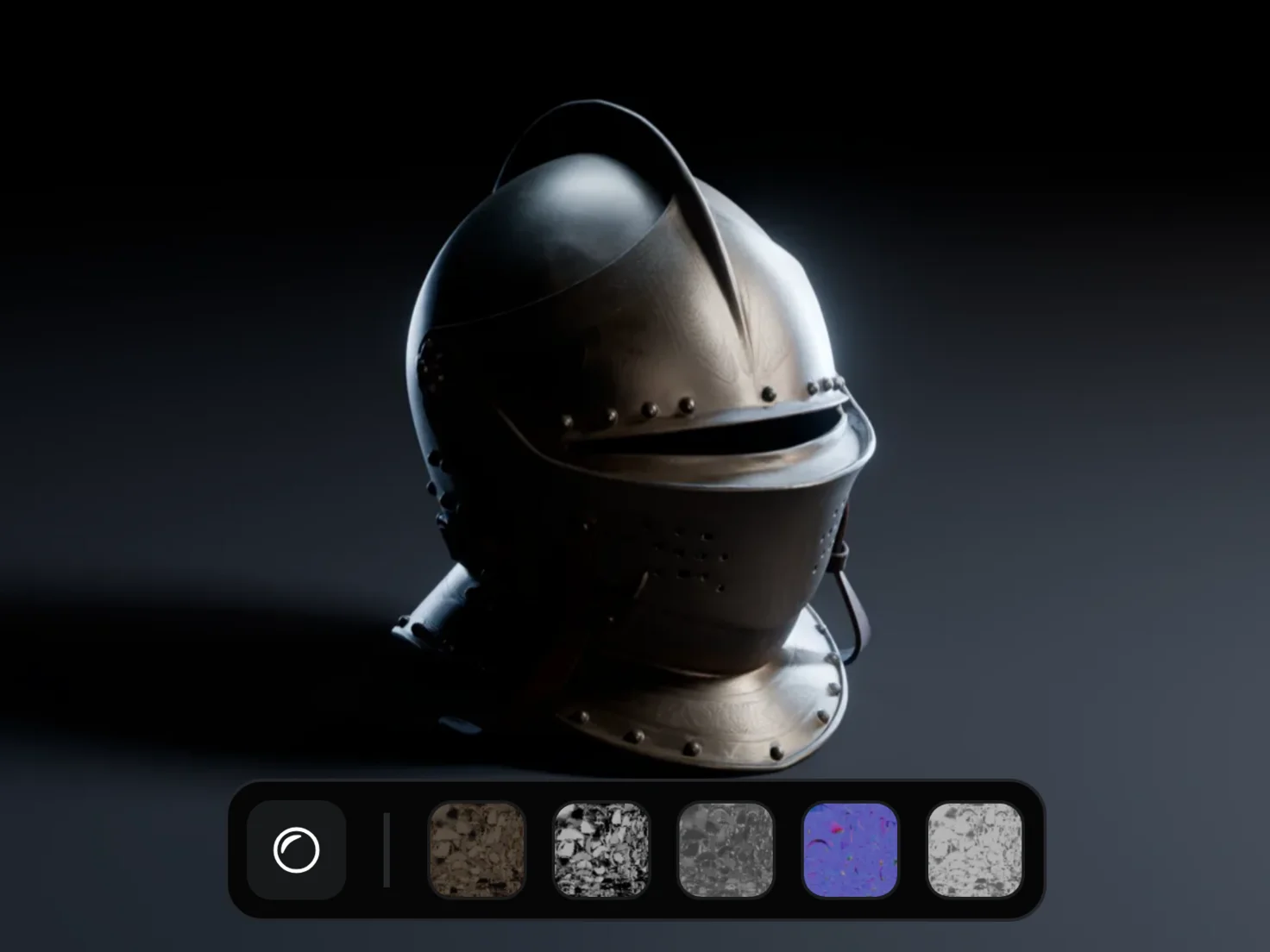
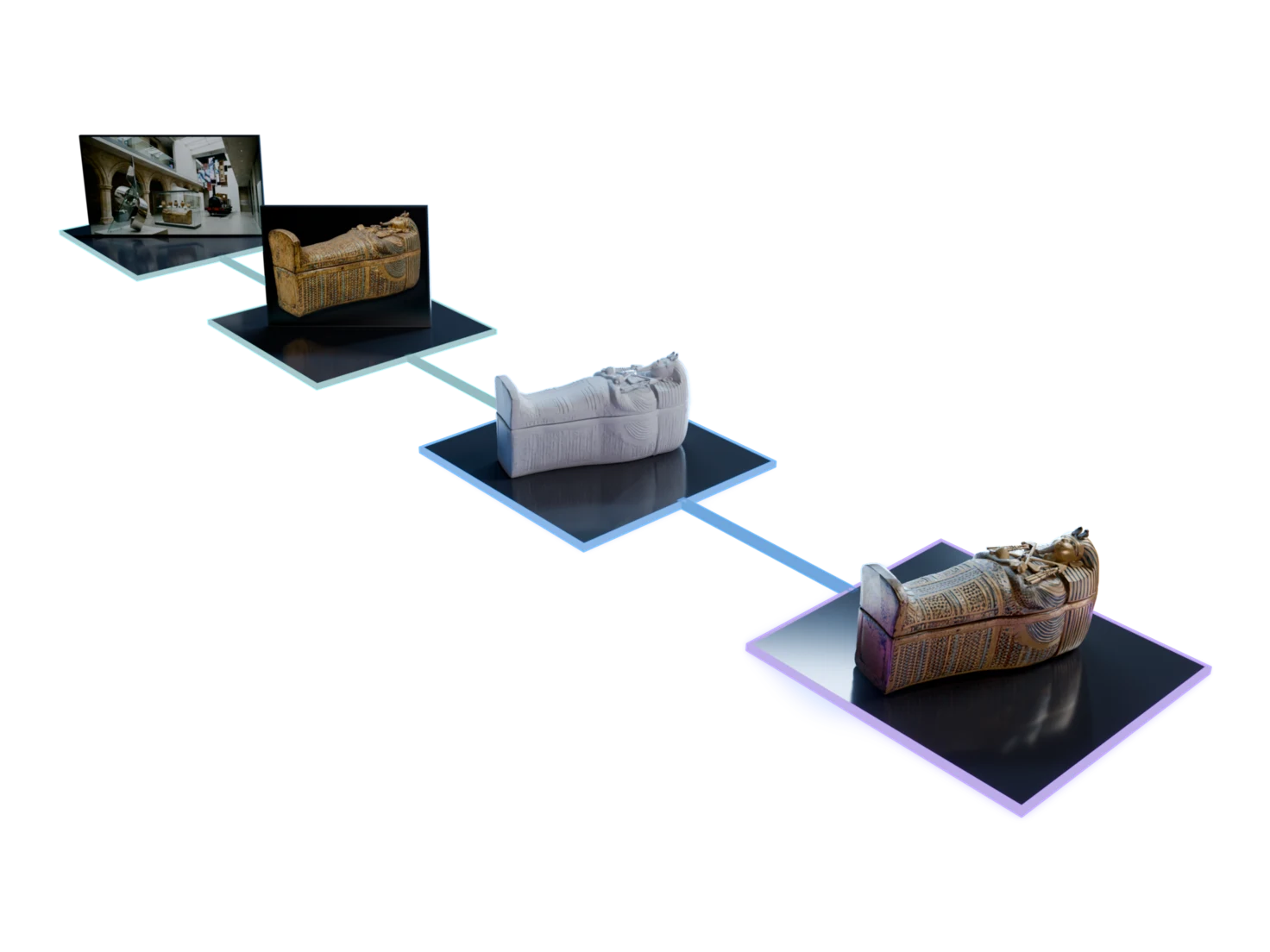
Each object gets its own reference image, then 3D Generation and PBR Textures build every asset in one batch of Group Nodes.
The whole room, not one prop at a time
4detection categories
Choose what counts
Detect Objects looks for four categories, and you choose which. Leave Environment off to skip the floor, the walls and the ceiling, or turn on Furniture alone for the big pieces.
3importance tiers
Your list, your call
Detect Objects gives each object a box, a name and a tier: hero, set or filler. Slide to select the most prominent first, tick or clear the rest, and draw a box around anything that was missed.
25shields from one grid image
Not just rooms
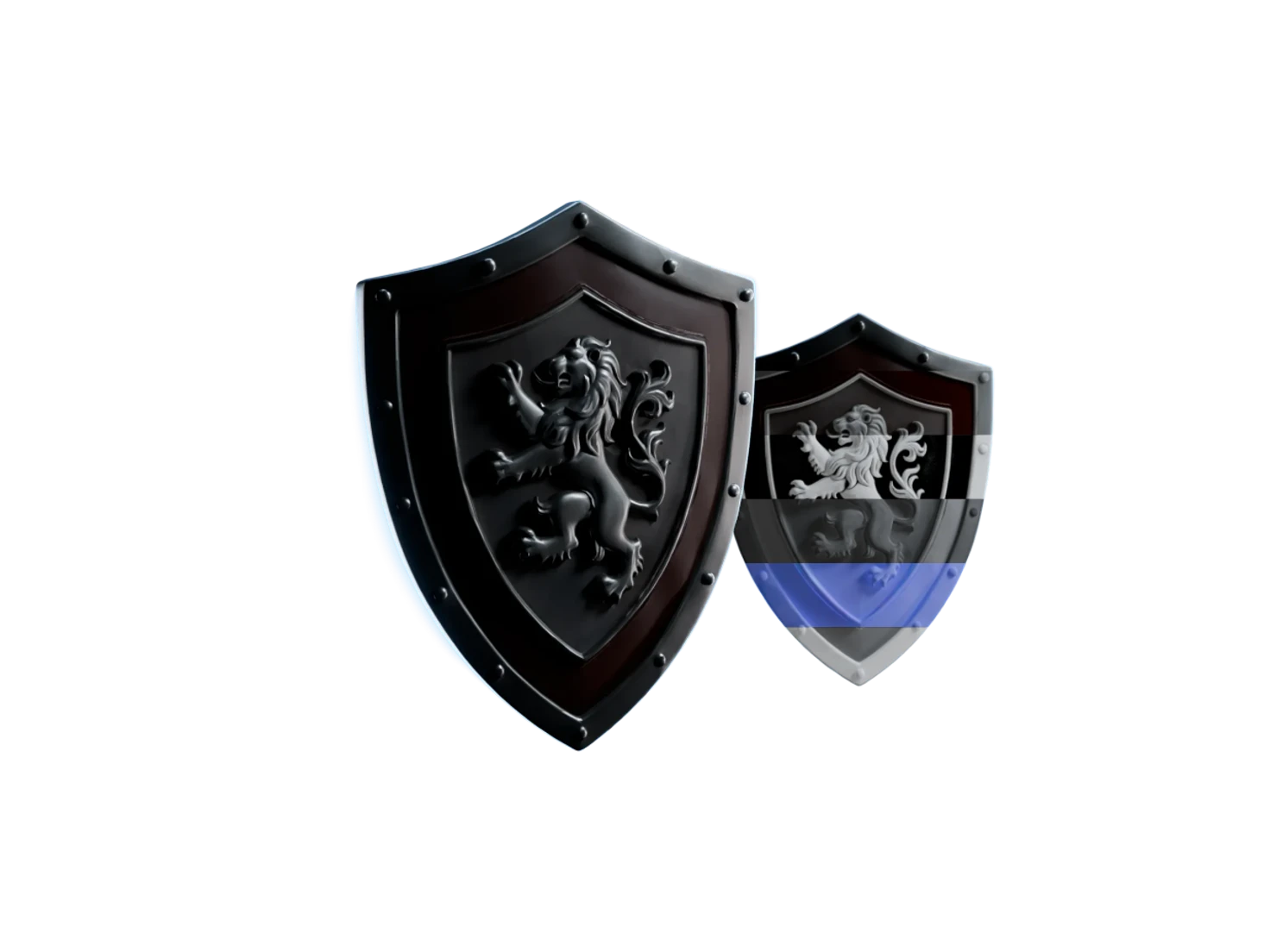
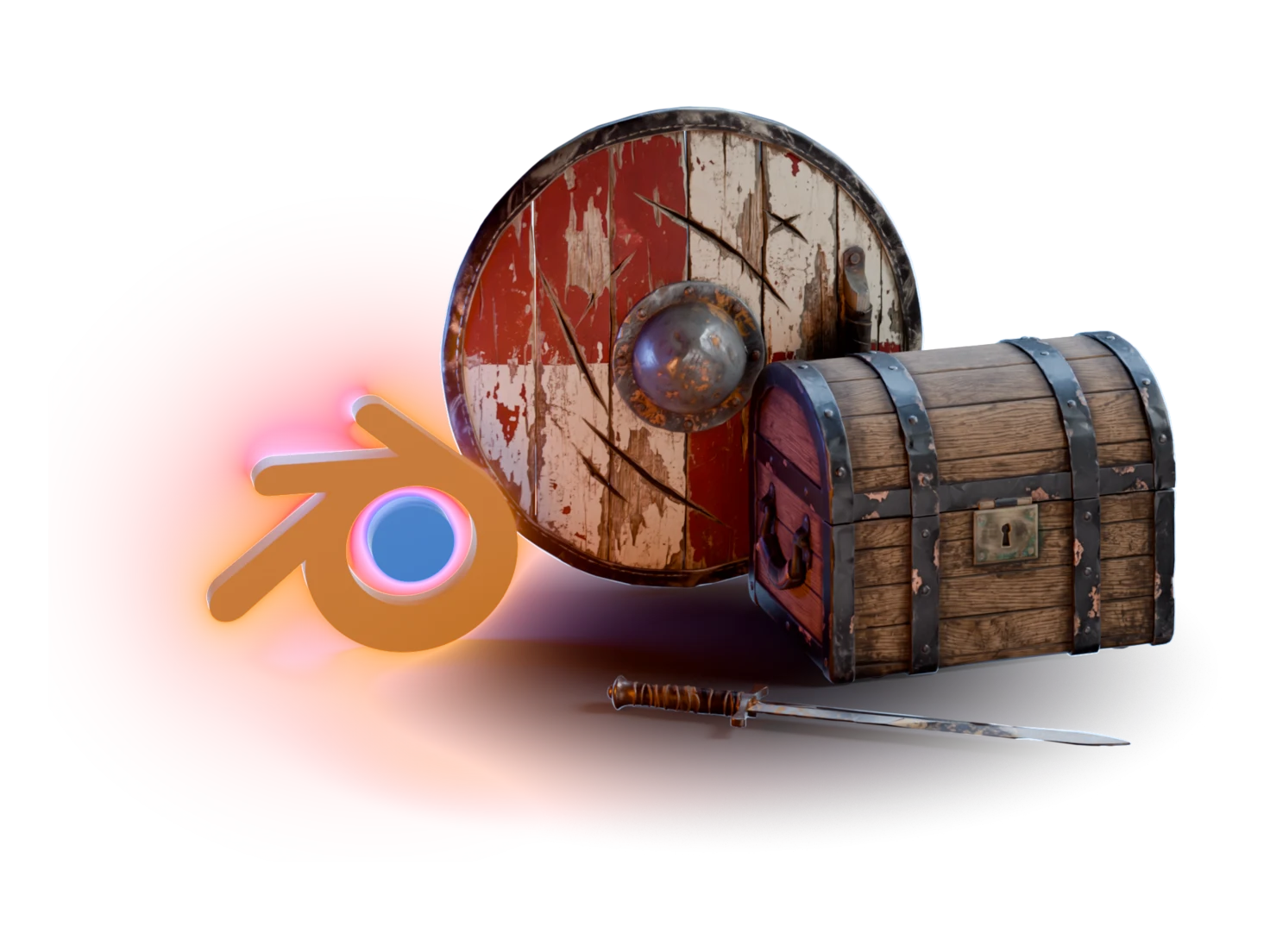
Generate a grid of shields on a black background, and Detect Objects picks out each one. One image becomes a variety pack of the same object in many looks.
Use cases
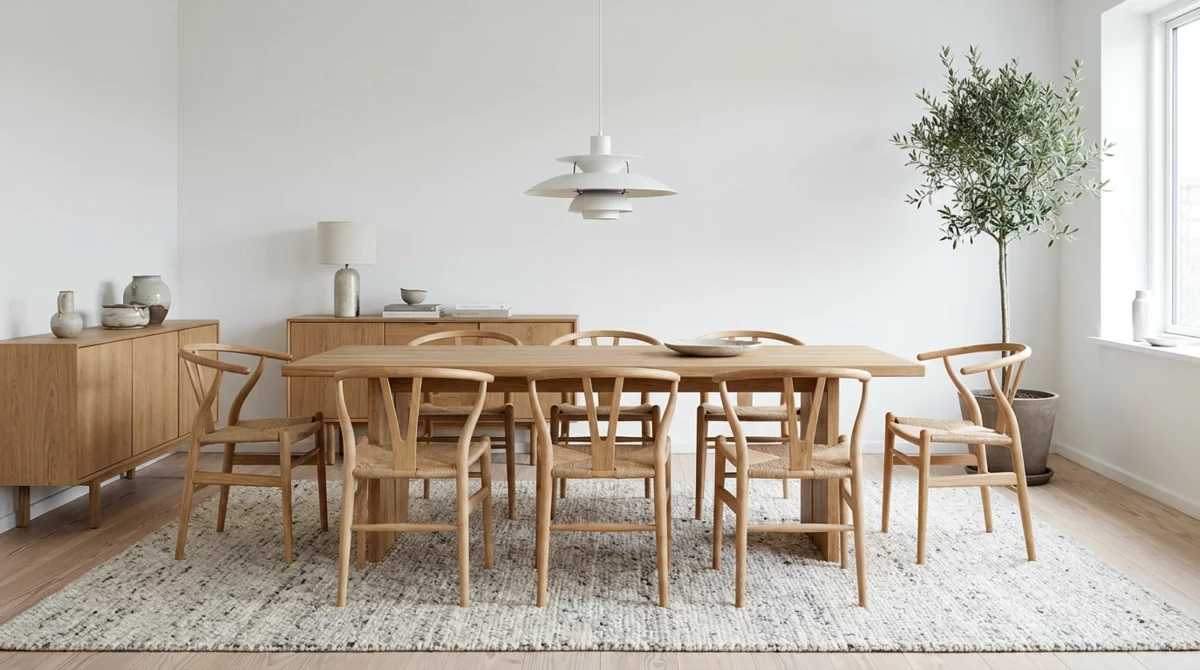 dining tablependant lightpotted treesideboard 1table lampdining chair 2dining chair 4
Furnish a whole room
A Scandinavian dining room from Scene mode: the table, all eight chairs, the pendant light and the sideboard, found and named in one run.
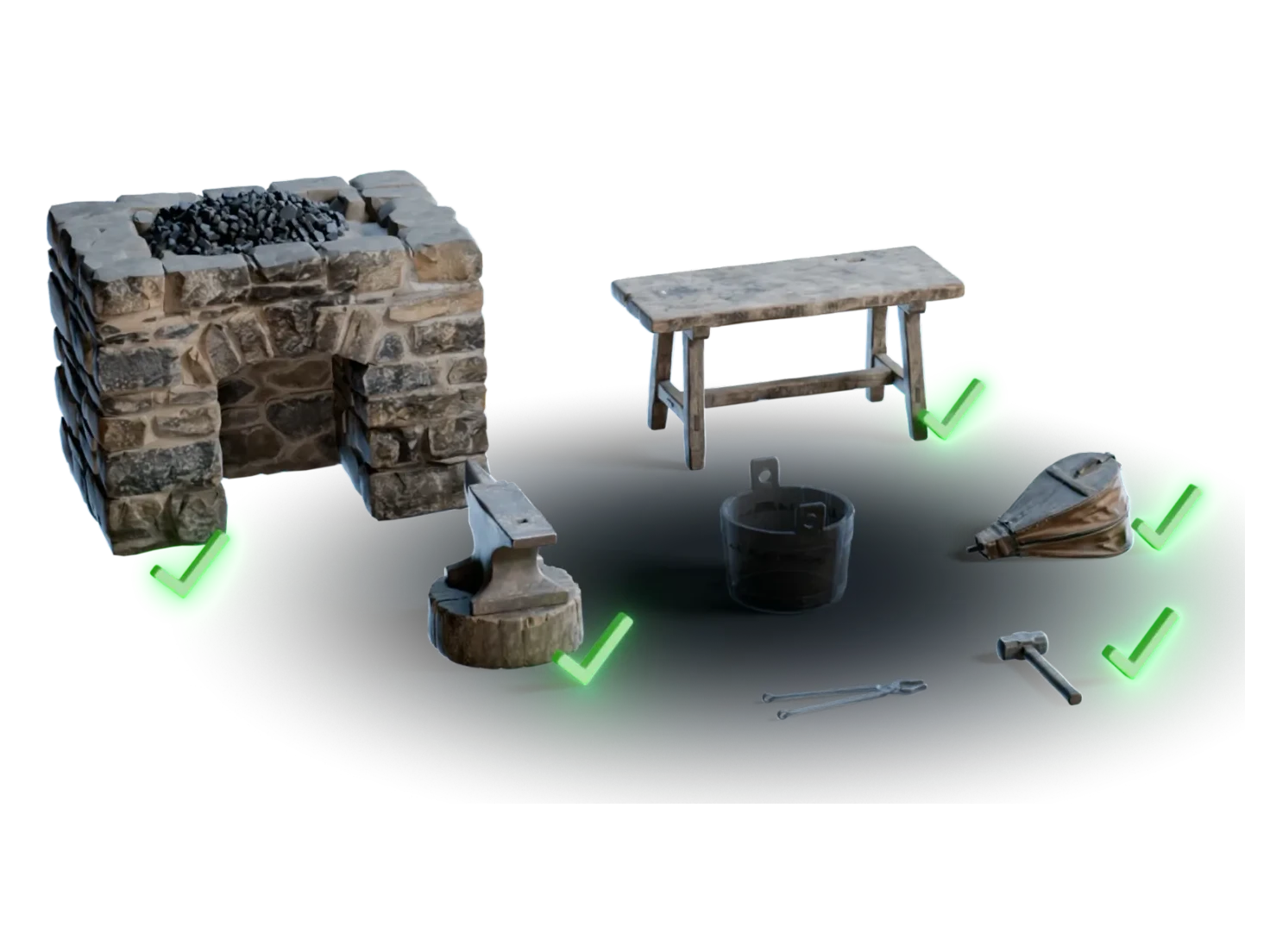
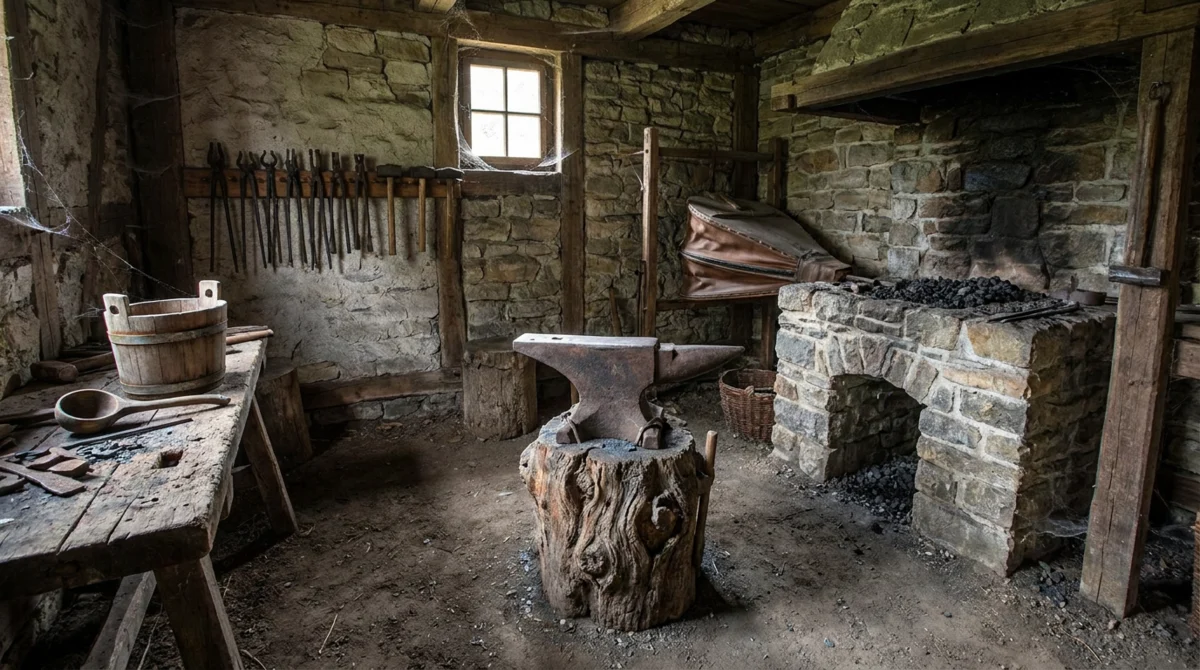 stone forgeanvilanvil stumpbellowswooden bucketworkbench
Fill a workshop
A blacksmith workshop: the forge, the anvil and its stump, the bellows, the bucket and ten tongs and hammers on the rack.

Make a variety pack
A grid of twenty-five shields on black: Detect Objects finds all twenty-five, and each one can go on to 3D as its own asset.
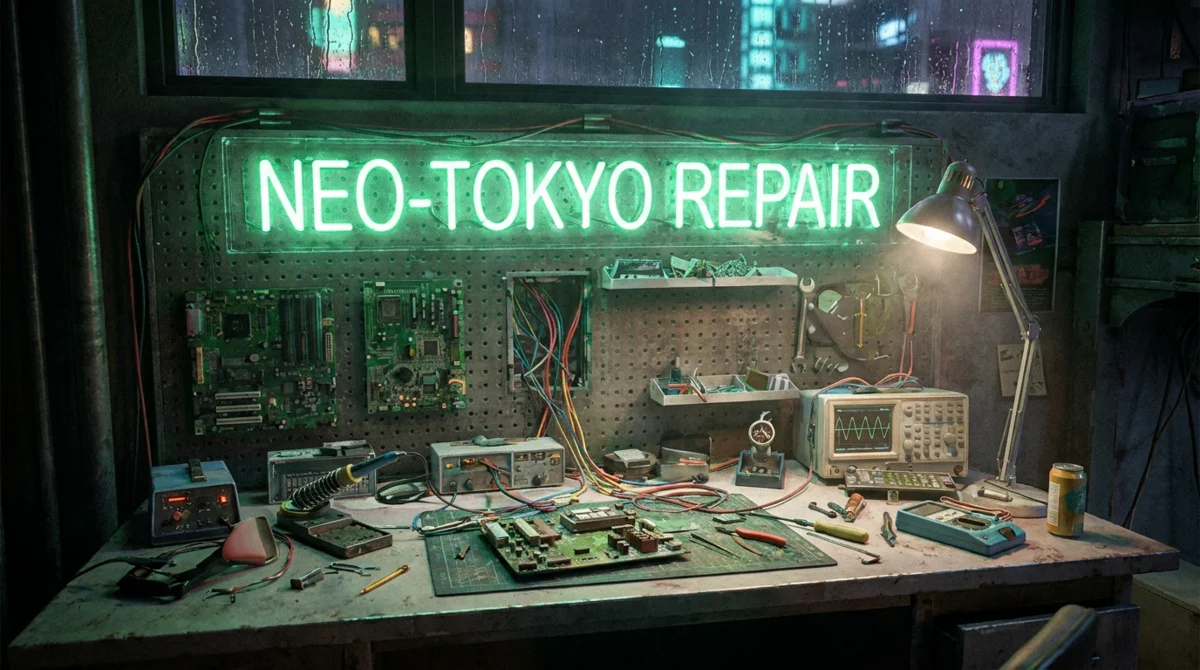 neon signmotherboard 1desk lamposcilloscopesoldering stationmultimeter
Get more from a hero area
Image Edit closes in on the workbench of a cyberpunk room, and Detect Objects finds twenty-nine objects on the close-up.
Questions about Detect Objects
What environment artists ask before they take a whole room to 3D. Detect Objects comes with the 14-day free trial of the Artist plan.
Connect the image to a Detect Objects node, choose the categories, and run it. Detect Objects draws a box around each object it finds. Tick the objects you want in Modify selected objects, then a Generate Reference Images group makes one image of each, and the 3D Models and PBR Textures groups turn every image into an asset.
Both. Detect Objects works on any image of a scene: a photo in a Load Image node, a Scene mode image from Image Generation, or a close-up from Image Edit. A grid of objects on a plain background works too, for example twenty-five shields in one image.
Draw it yourself. In the Modify selected objects window, click Draw box, drag around the object and give it a name; its type, tier and height are optional. The new box joins the list, selected, and goes on to 3D like every object that Detect Objects found.
No. Detect Objects selects nothing for you: only the objects you tick go on to reference images, 3D and PBR, and only those cost credits. Before you confirm, the window also tells you if your credits cannot pay for the whole chain for the objects you selected.
It depends on your plan: ten objects for each Detect Objects node on Artist, twenty on Artist Pro, and no limit on Studio and Enterprise. Detect Objects still finds and lists every object; the limit counts only the objects you tick, and the window tells you before you confirm a selection over it.
Detect Objects is on every paid plan, from the Artist plan at $29 a month, and on the 14-day free trial of the Artist plan, which needs a card. The Free plan gives you 400 credits a month for single-asset workflows, but it does not include Detect Objects.
Start from the room, not the prop list
One image in, and every object you choose comes out as a 3D asset with PBR.