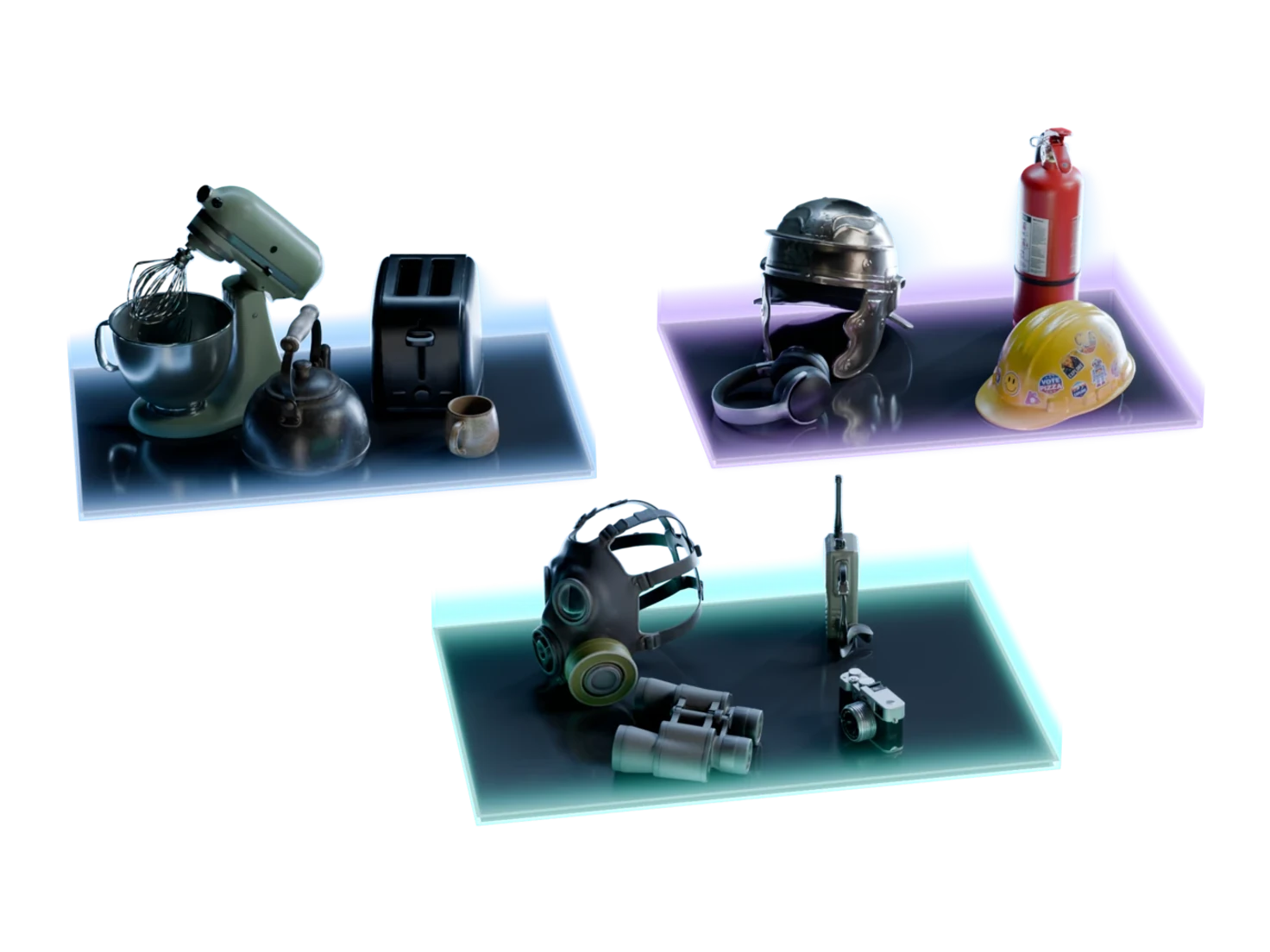
One good image, as many versions as you need
Image Edit changes an image you already have from a prompt: a new material, a matching piece in the same style, or another view of the same scene. Your reference images show exactly what you mean.
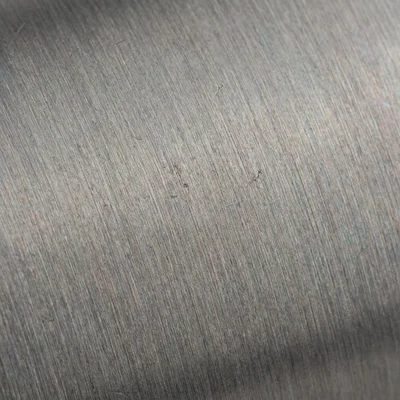
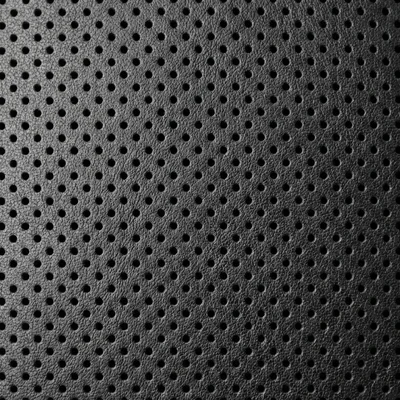
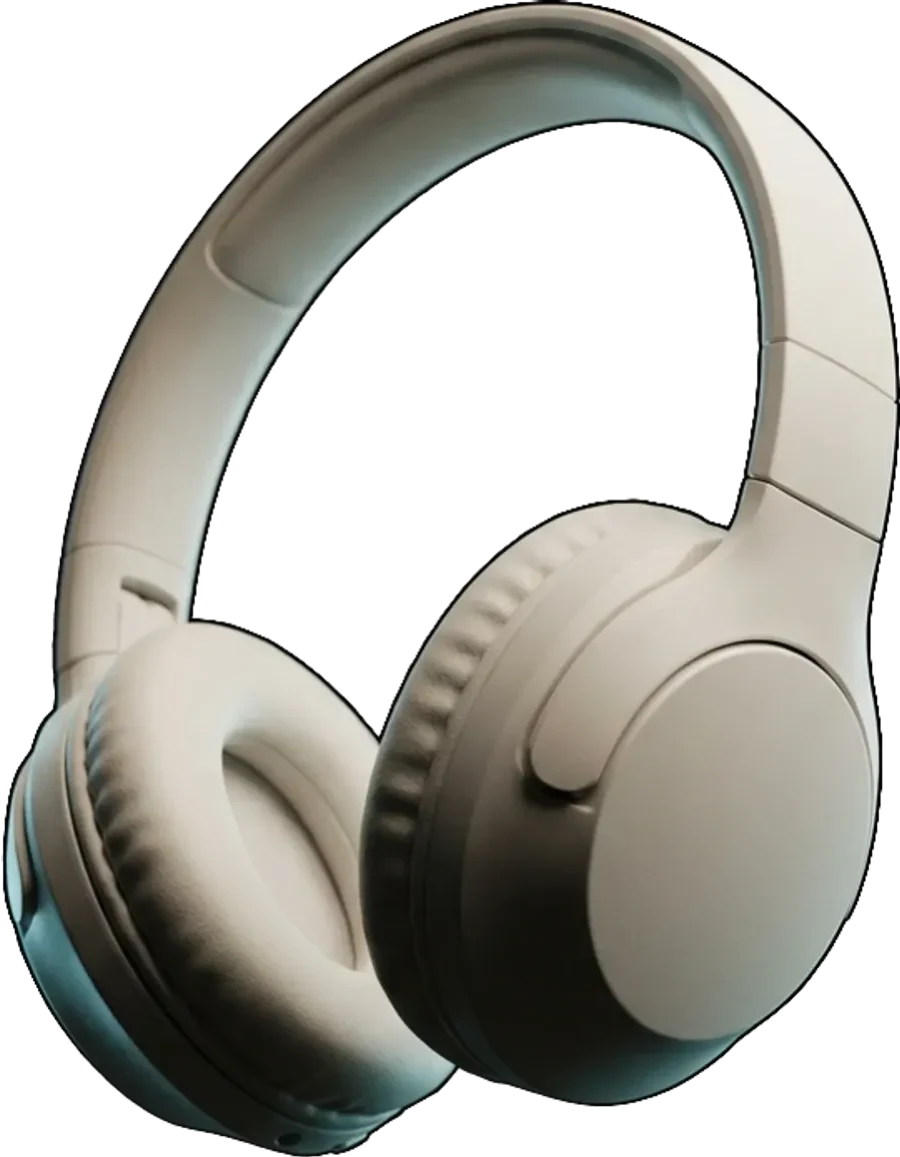
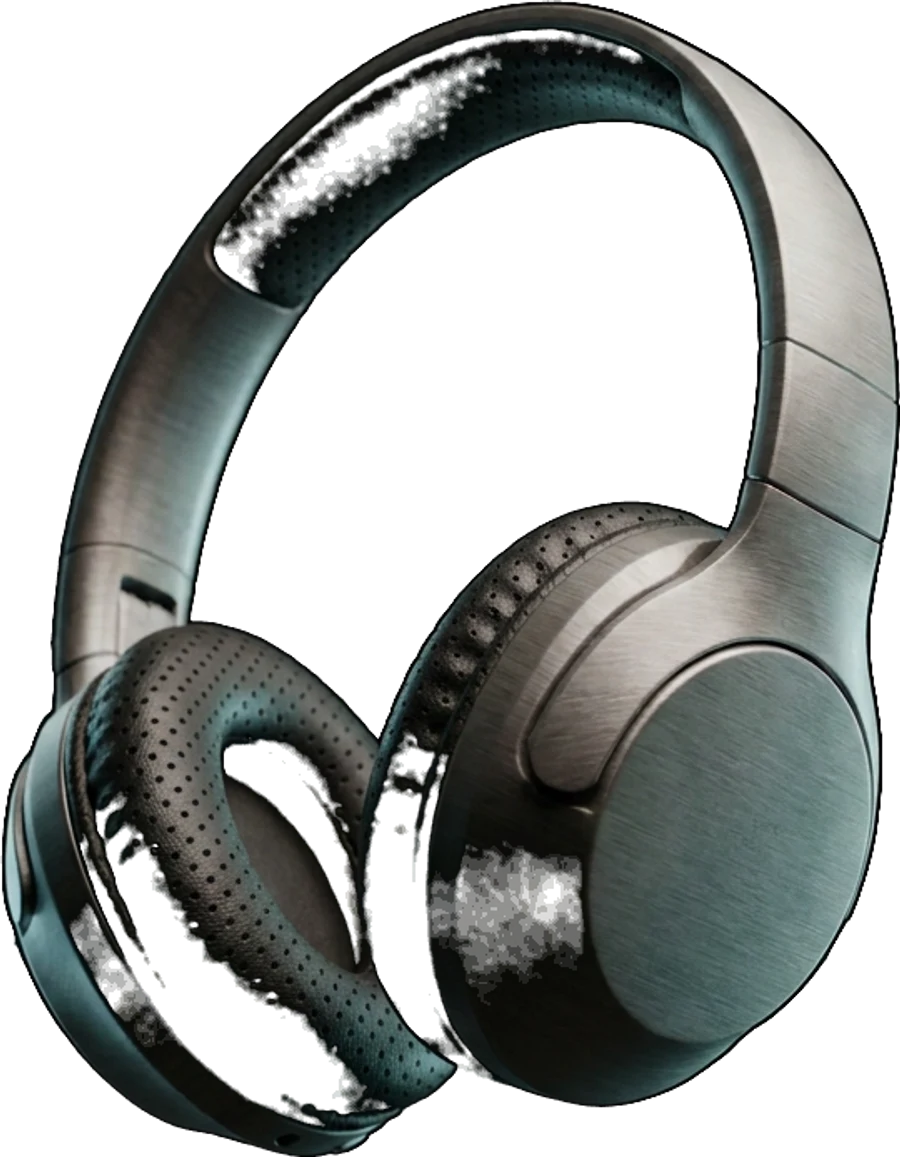
How to edit an image with AI and reference images
- 1
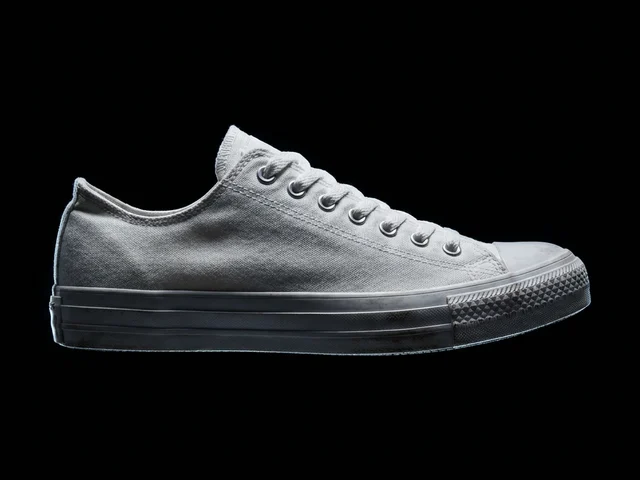
Connect your image.
A photo from Load Image, a result of Image Generation or an earlier edit goes into the Main image input.
- 2
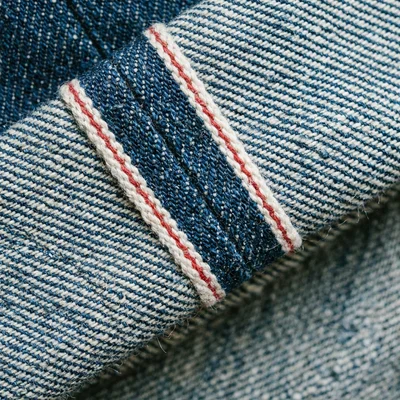
Add references.
Optional. Connect an image of a material, a shape or a style to the References input.
- 3
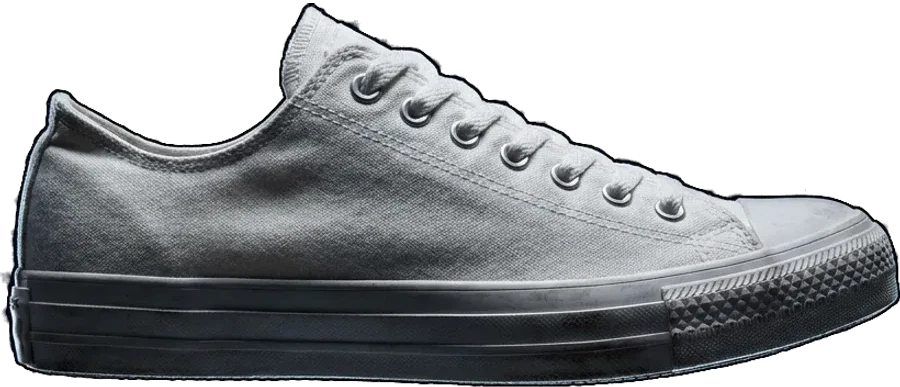
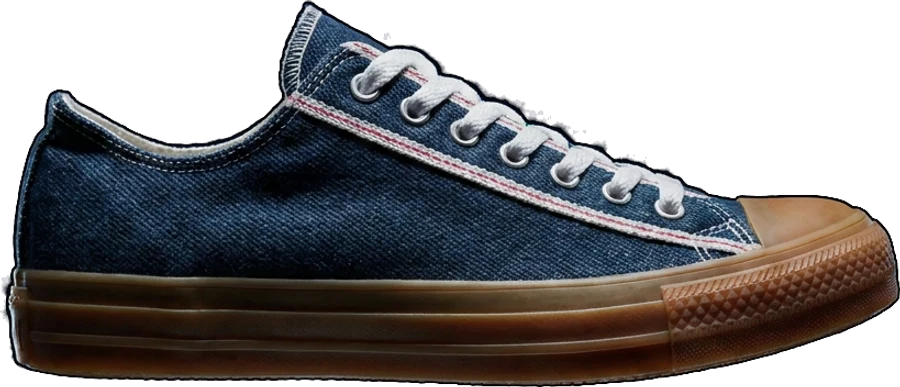
Make the upper from
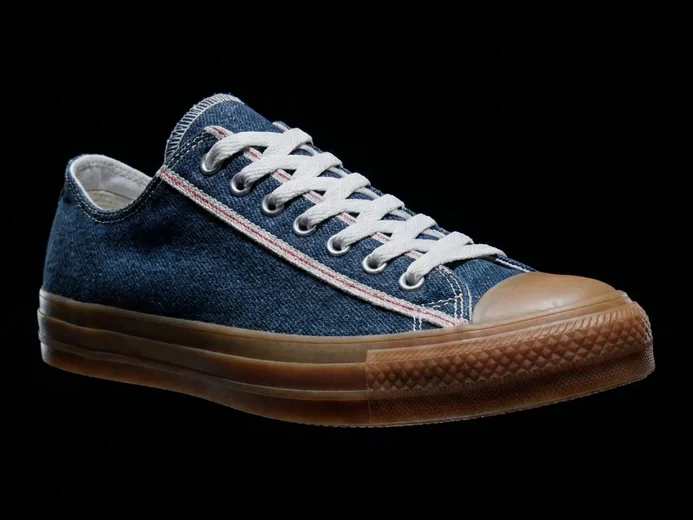
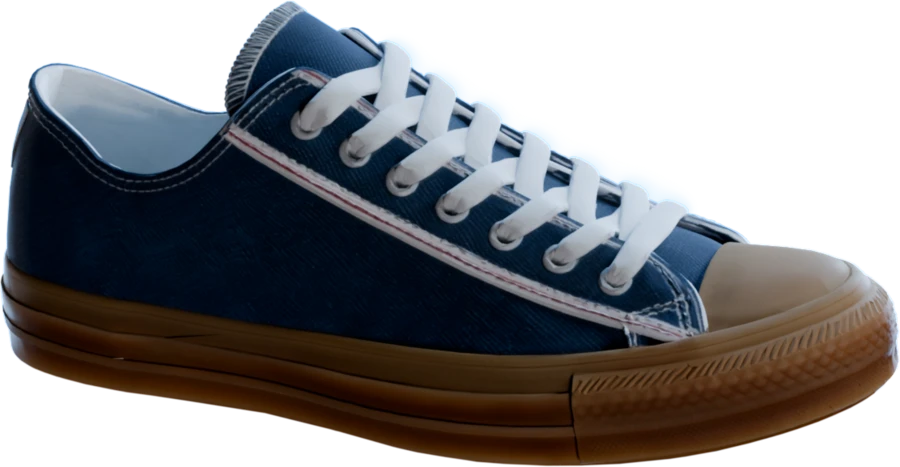
Sign in to try itdenim and the sole from gum rubberDescribe the change.
Type @ to name each reference in the prompt: "Make the upper from @denim and the sole from gum rubber."
- 4
Change one thing, keep the rest
Swap the material, keep the object
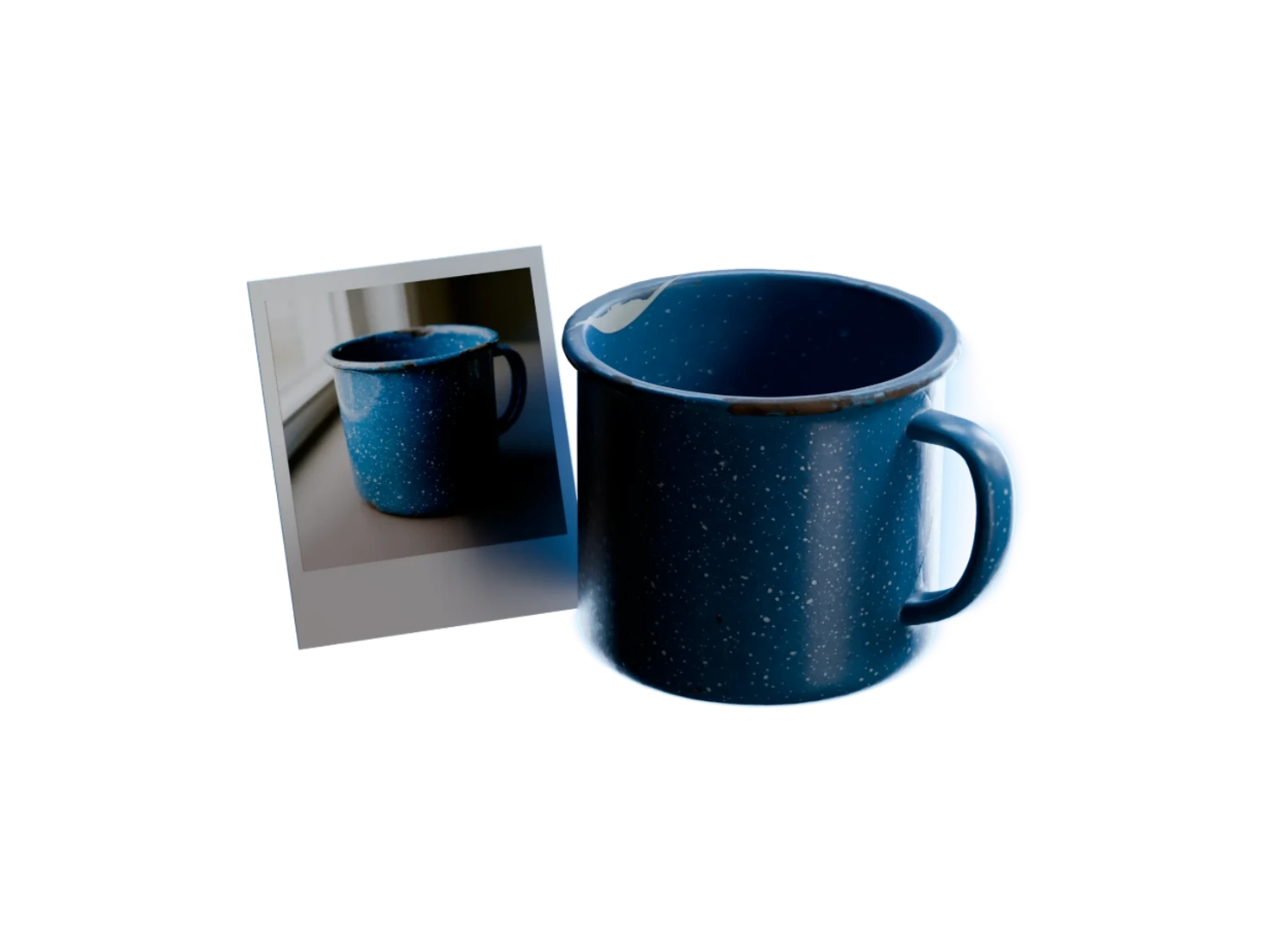
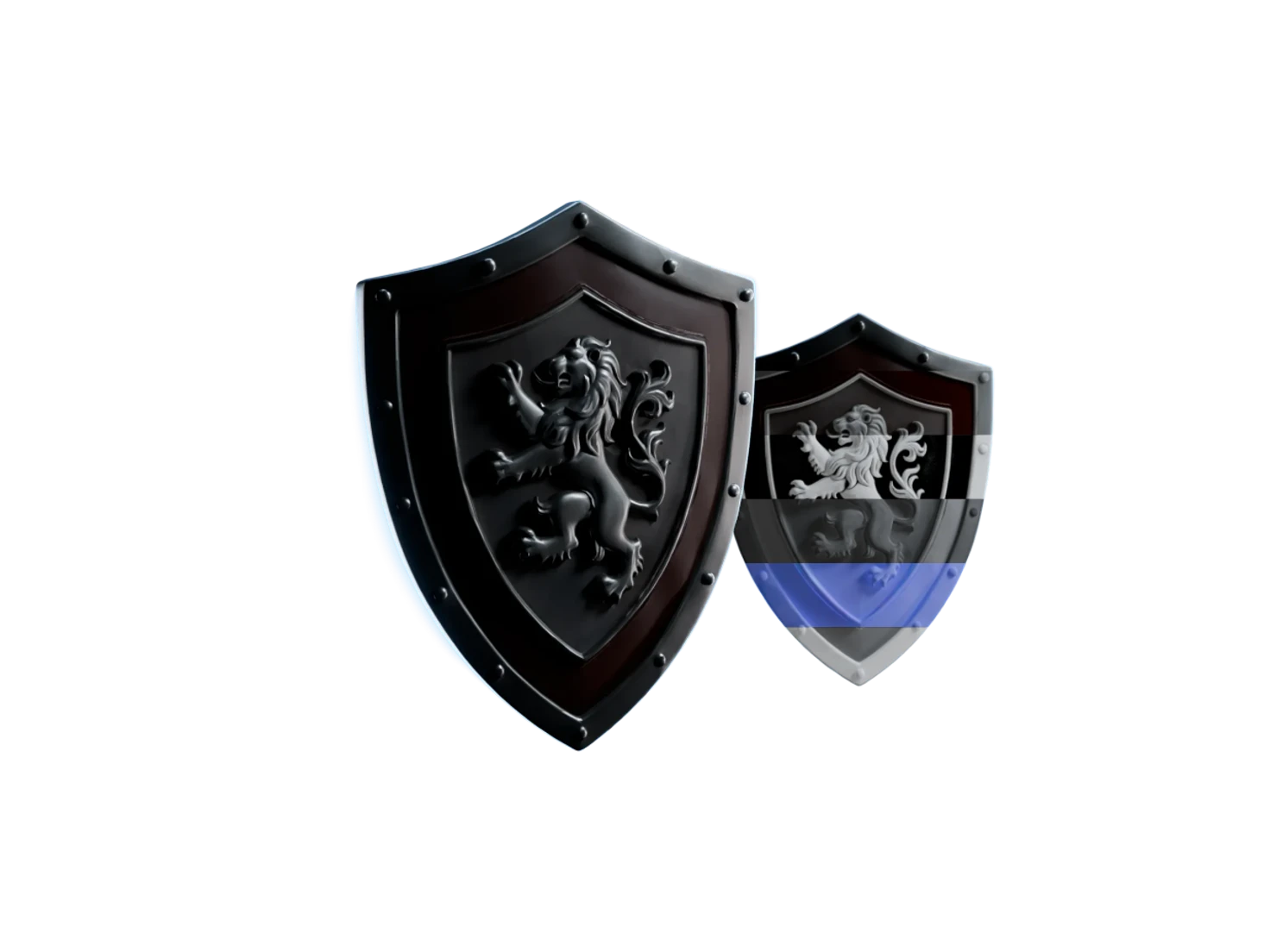
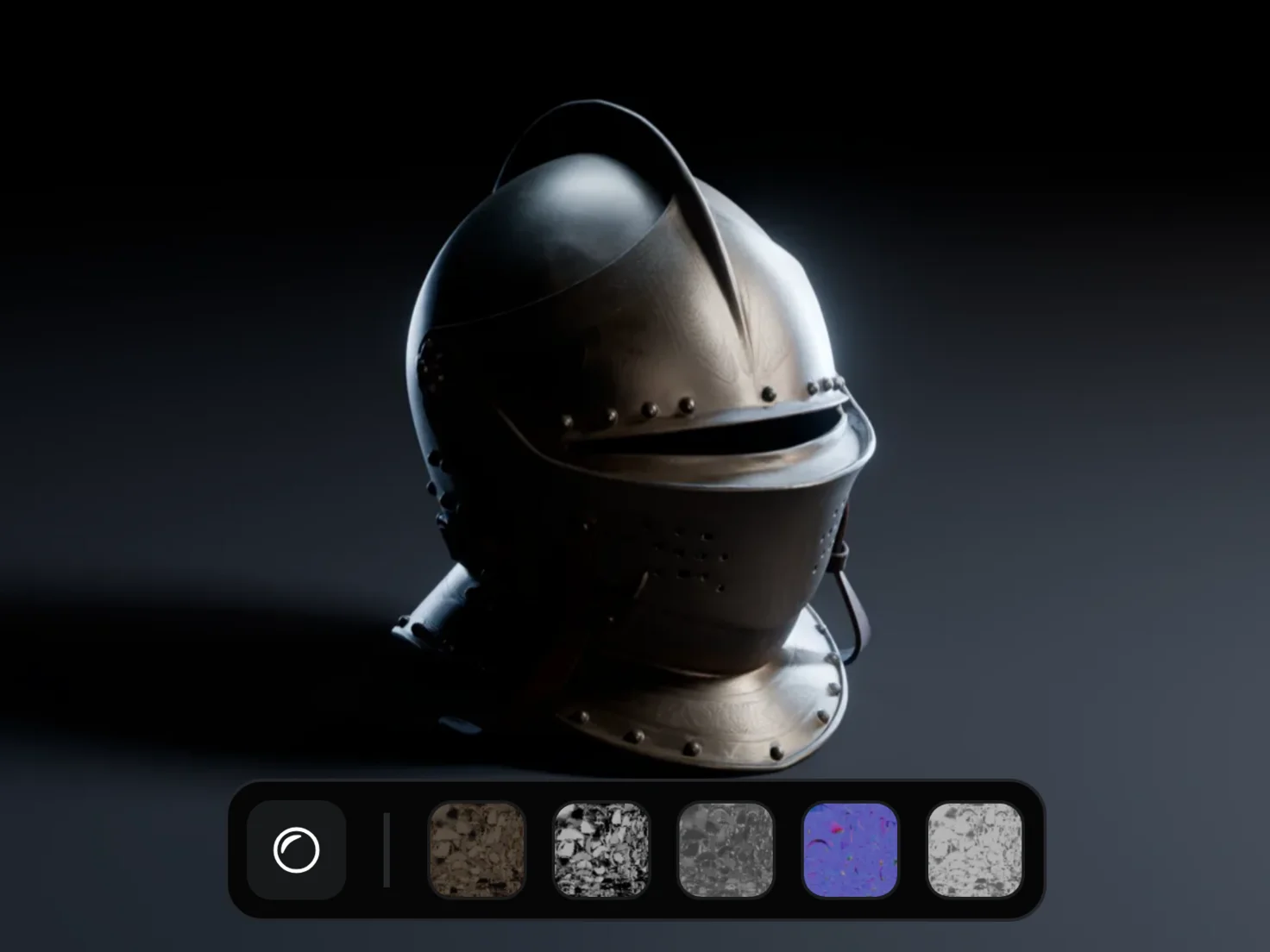
Connect an image of the material you want and name it with @. Image Edit keeps the shape, the framing and the resolution of the main image, and changes only the surface.
A matching set from one image
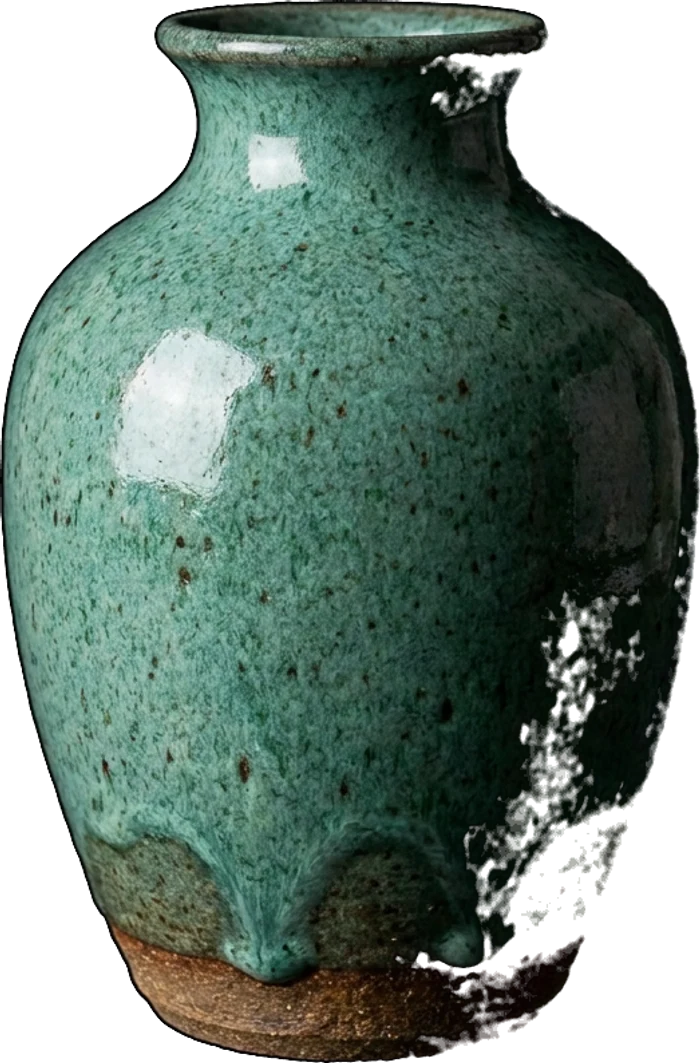
Connect several Edit Image nodes to the same image: a teapot, a bowl and a vase in the style of one glazed teacup. Each piece comes from the same source, thus the set looks like it belongs together.
Move the camera, stay in the scene
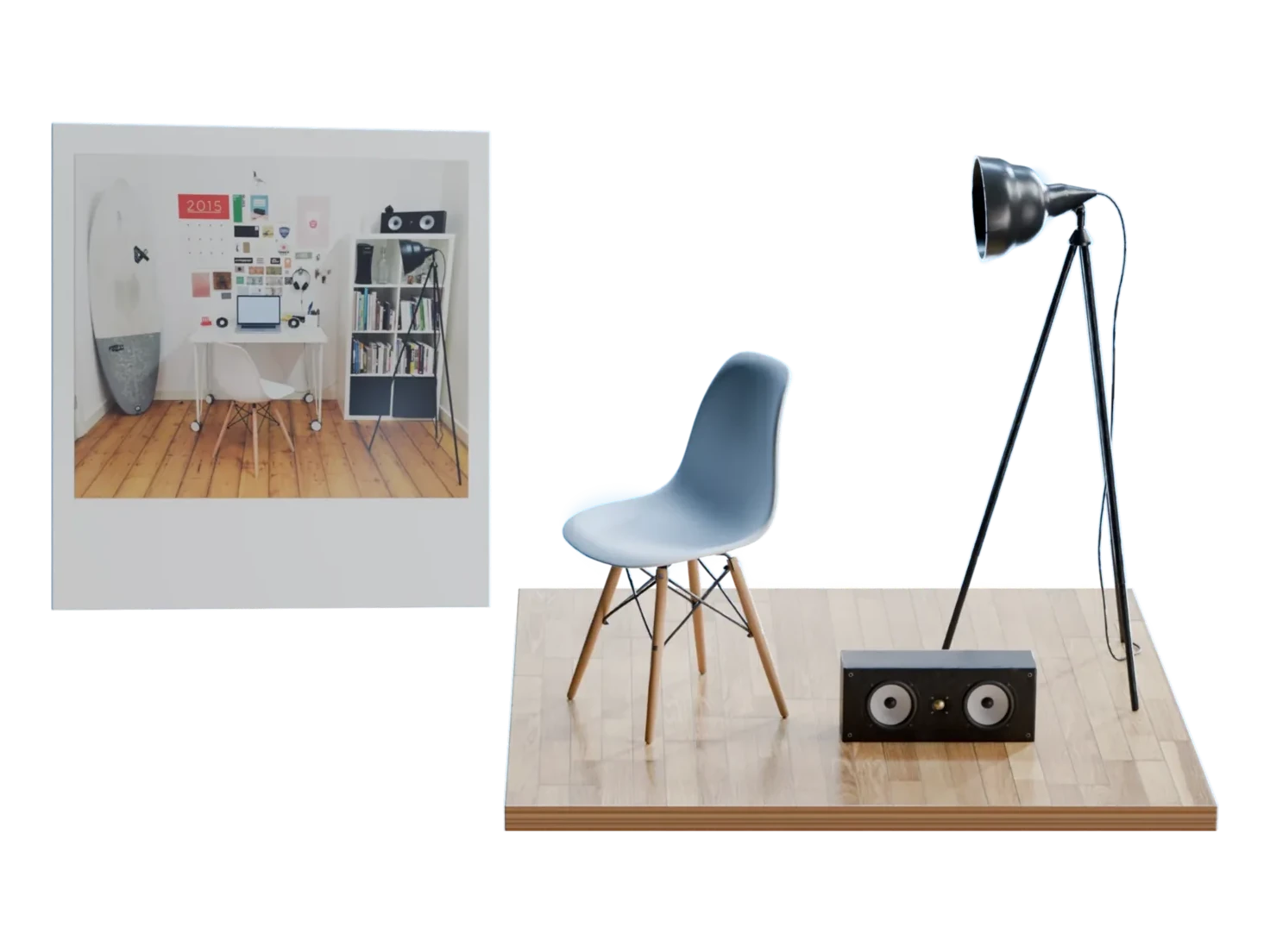
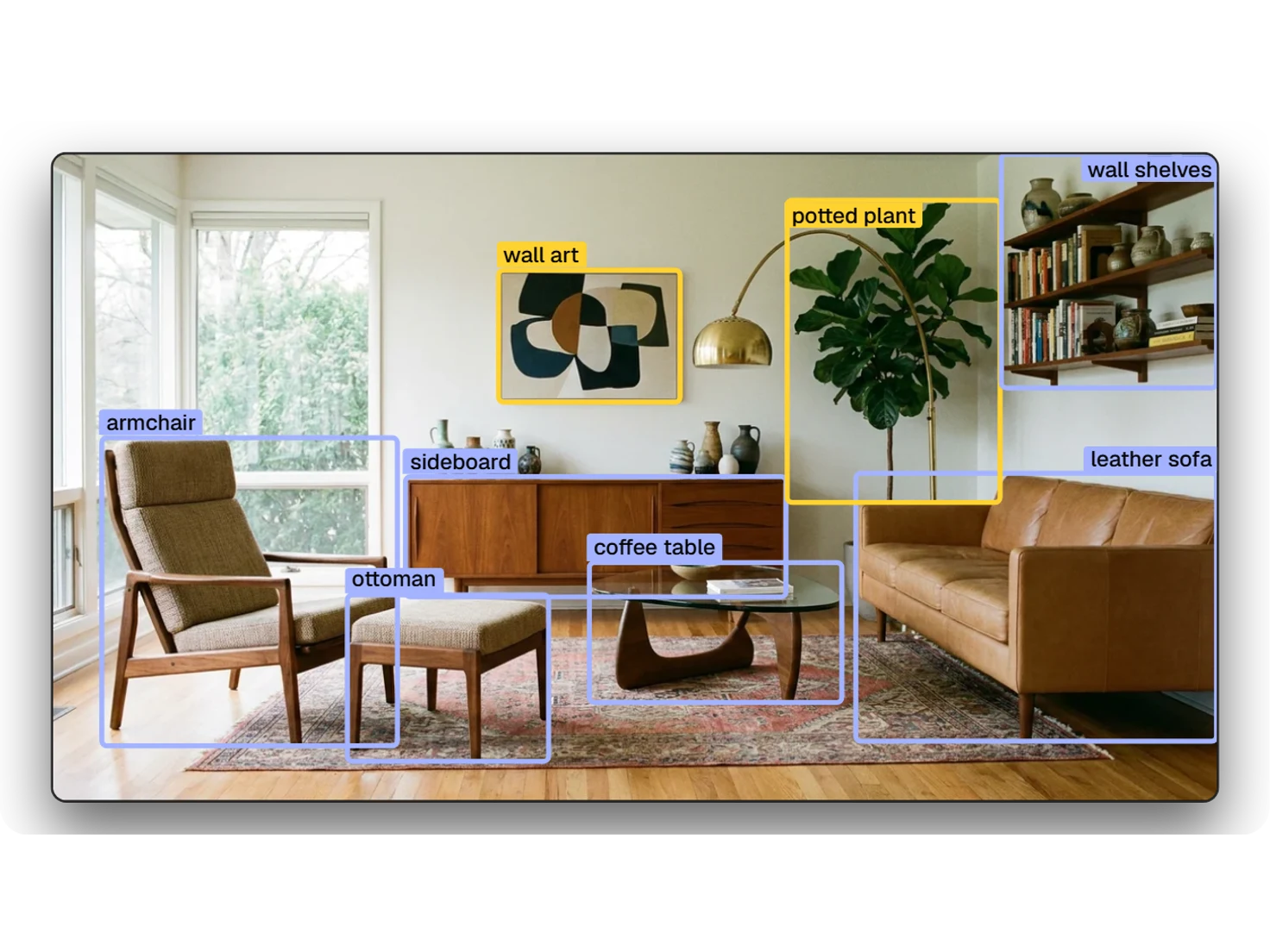
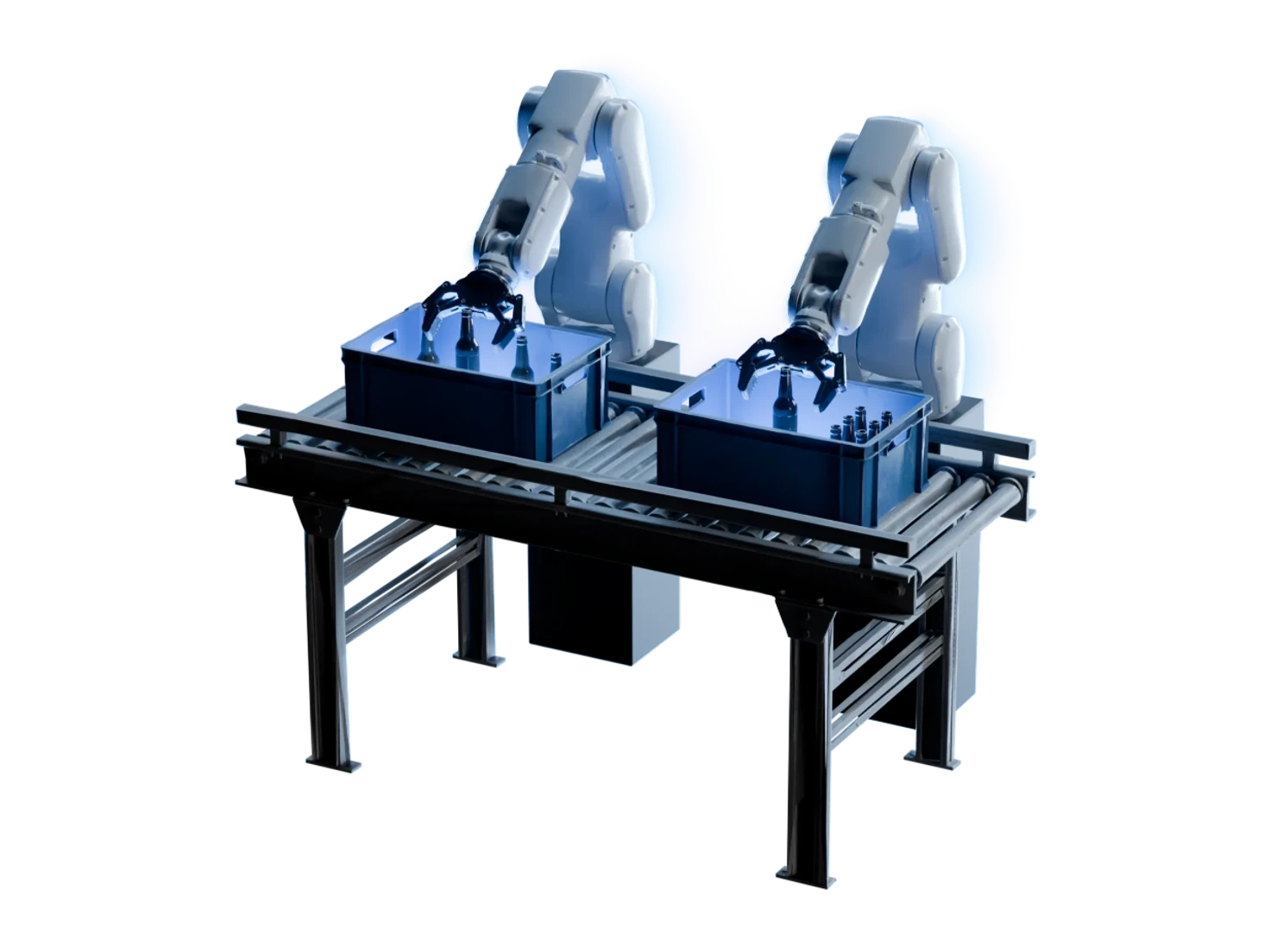
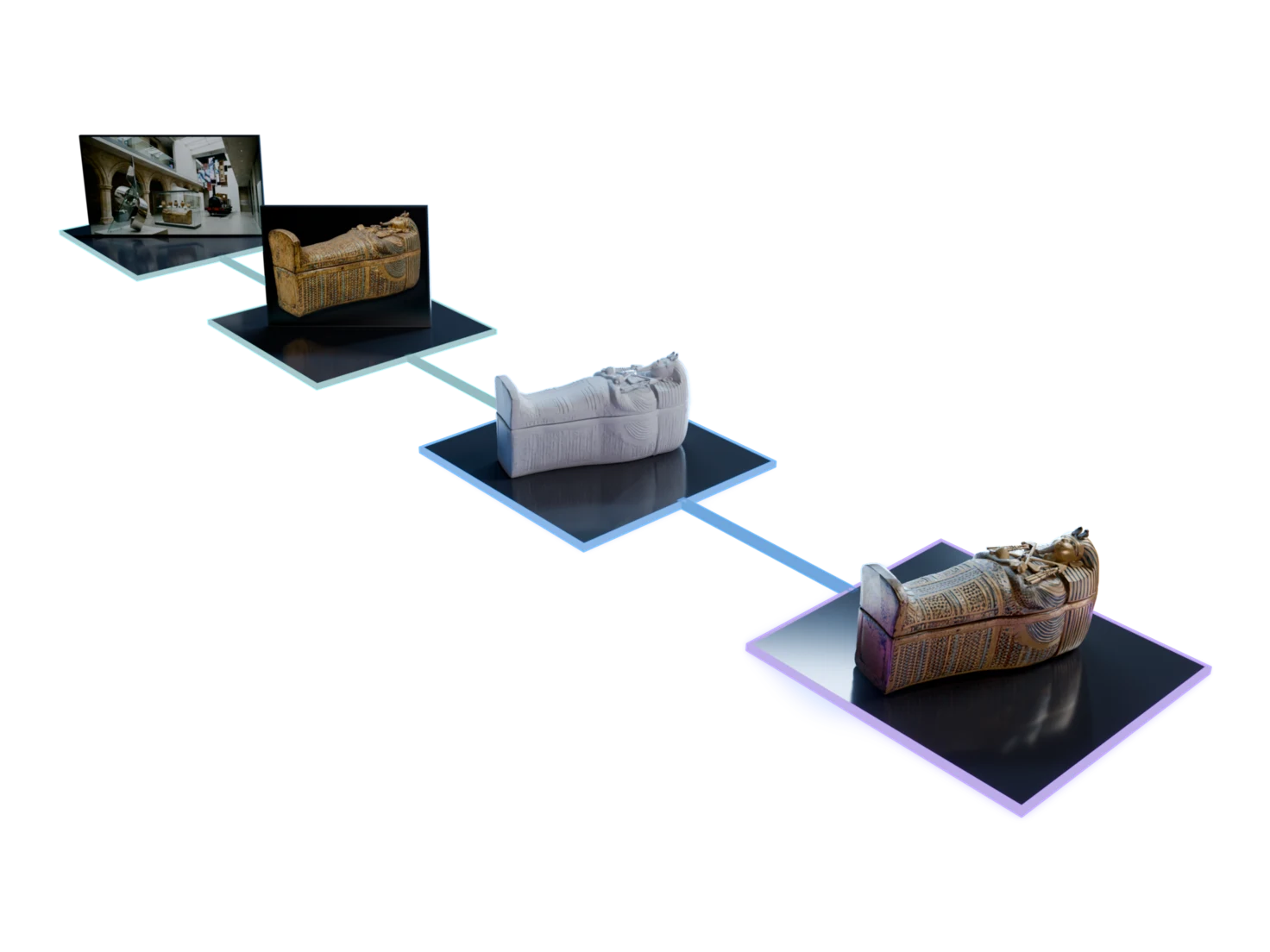
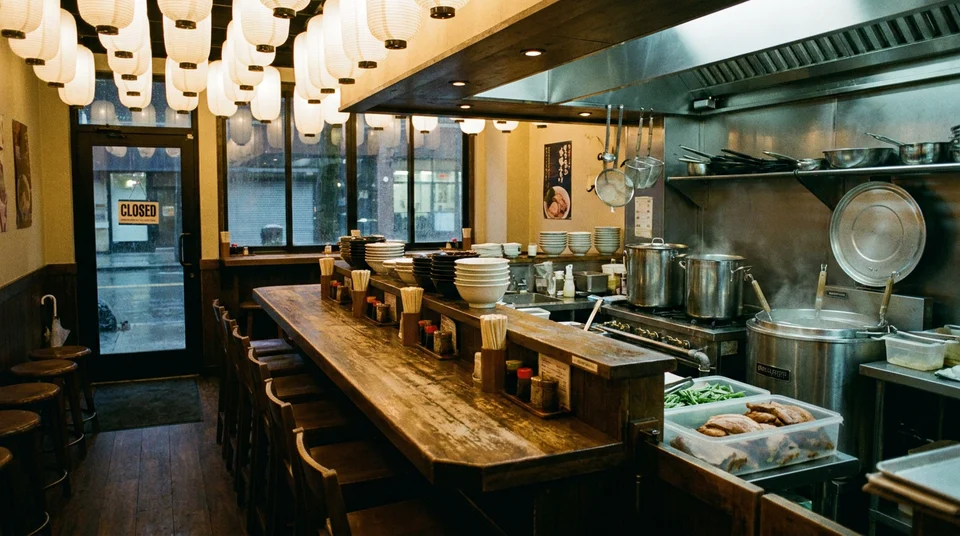
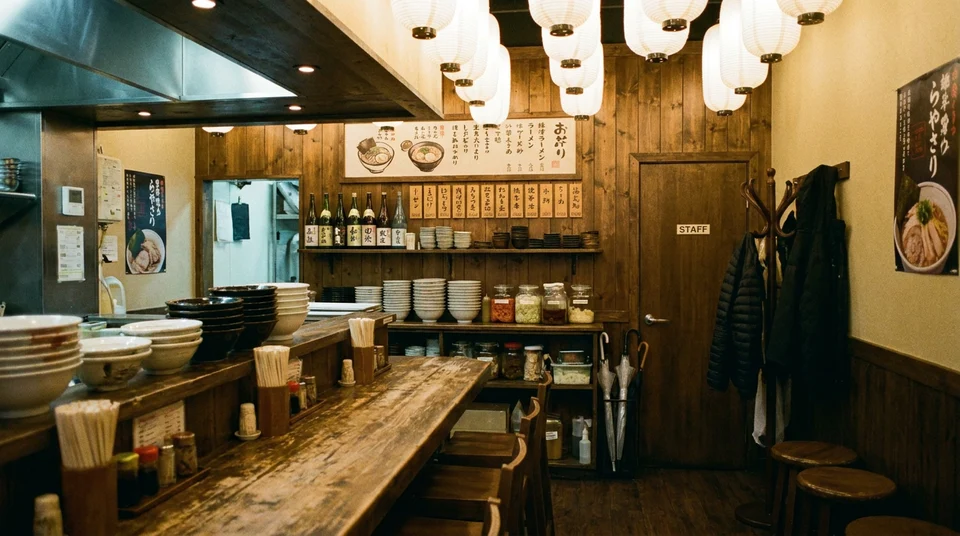
Ask Image Edit to turn the camera 180 degrees, or to close in on one corner of a room. Send the new view to Detect Objects to find more objects from the same scene.
One prompt, a whole group
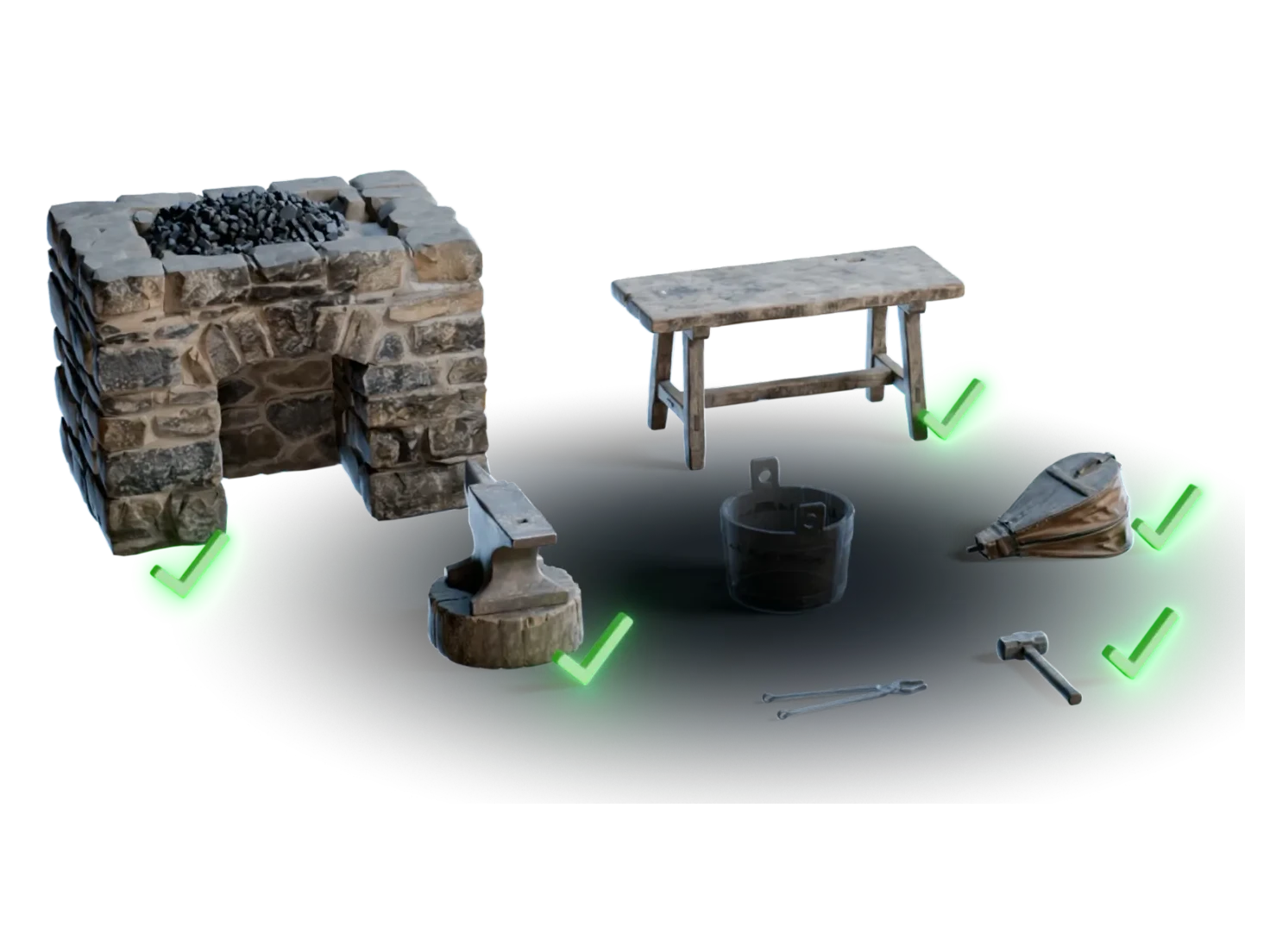
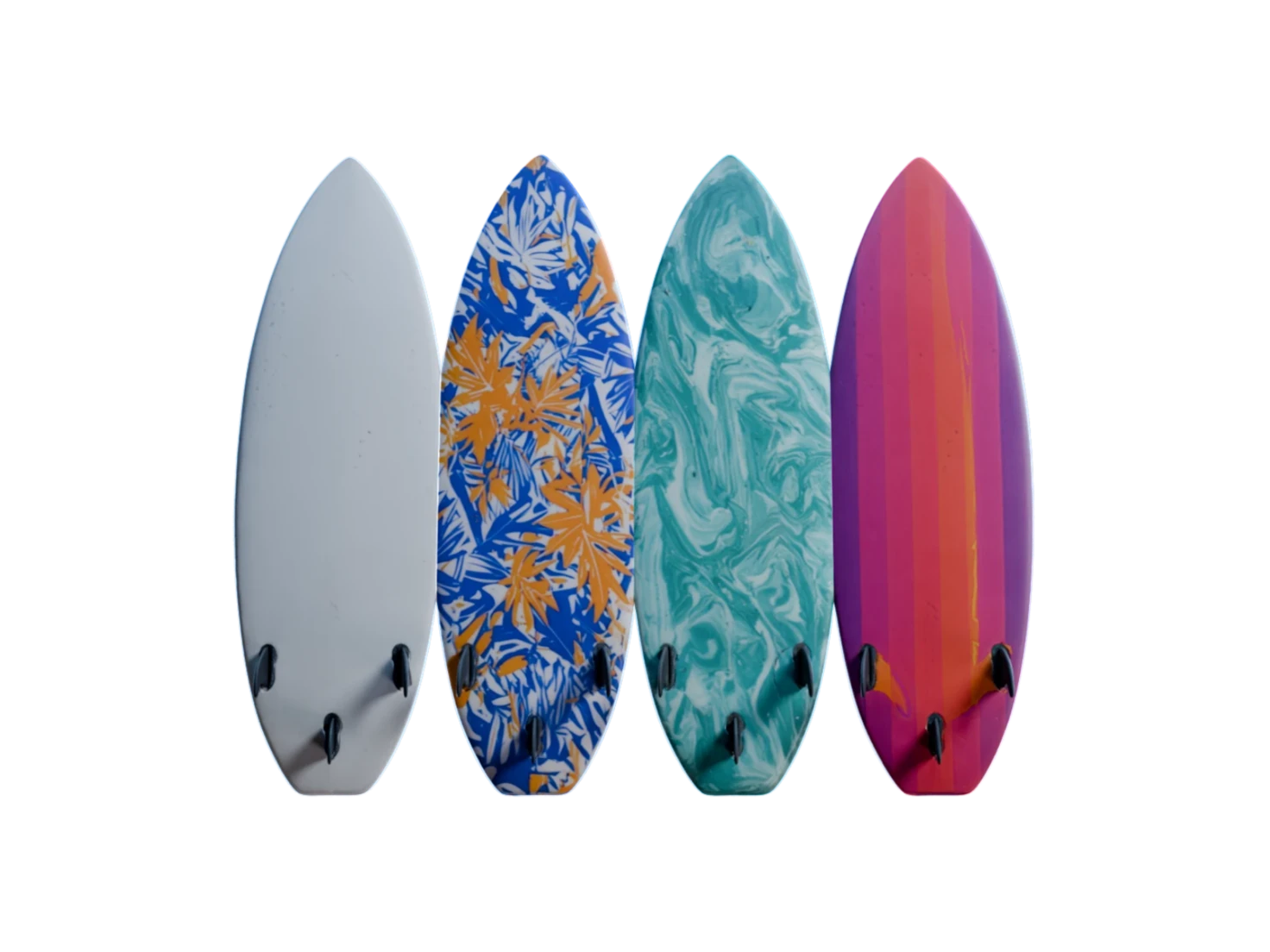
Connect a Reference Images group to the main image, and Image Edit runs one prompt on each image in the group, for example to give every object of a scene the same worn finish.
Use cases
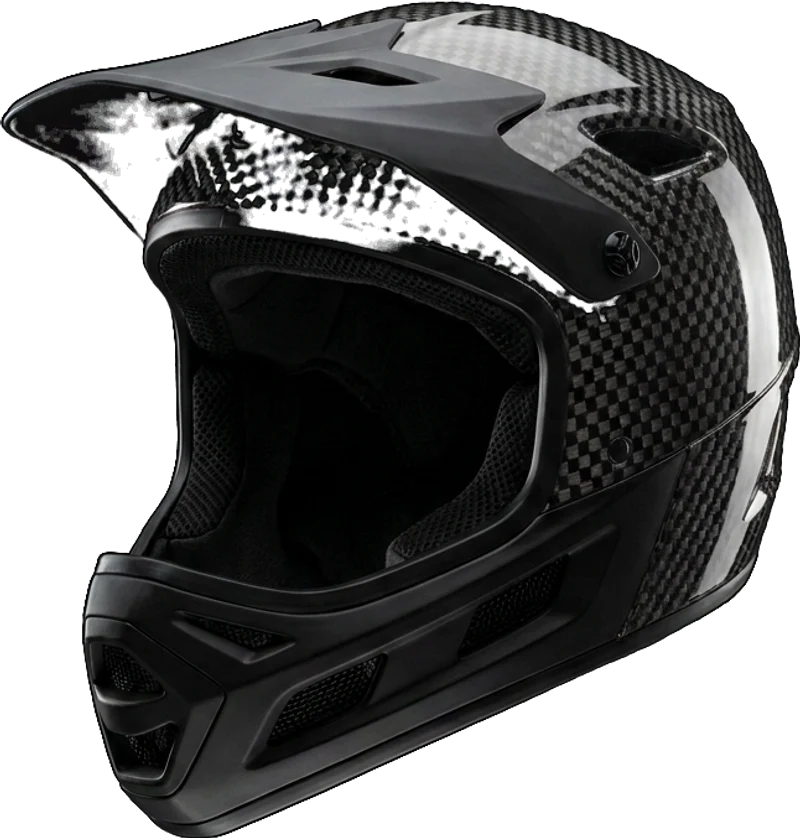
Change the material
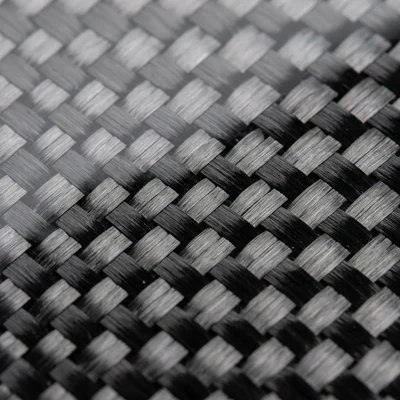
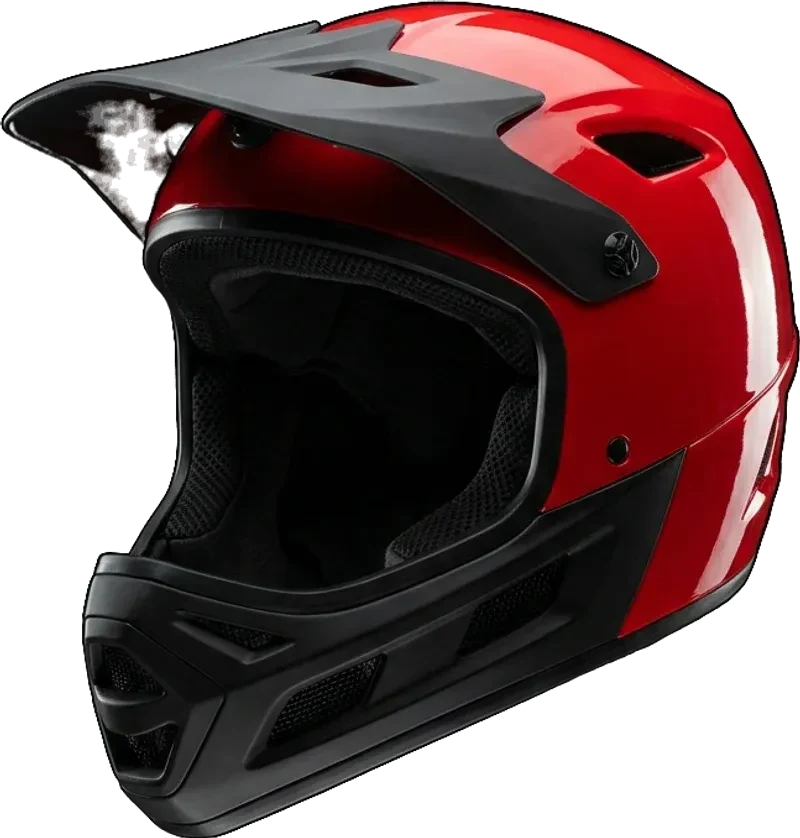
"Make the shell of this helmet from @carbon…", with a photo of carbon fibre as the reference, then 3D Generation.
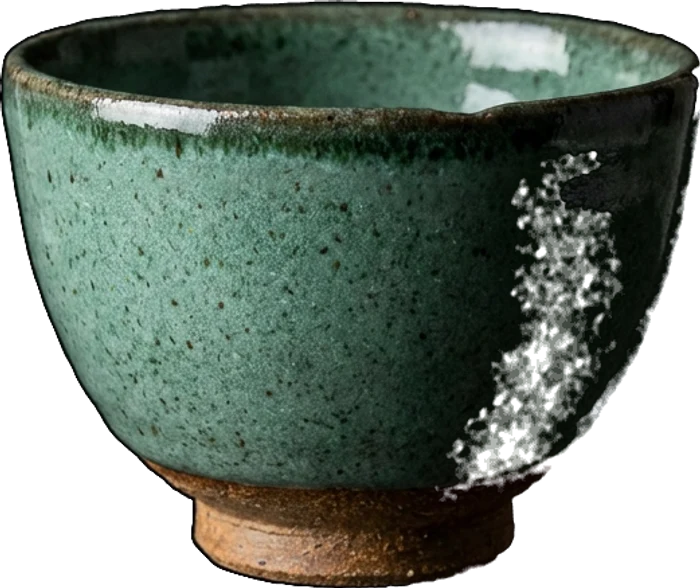
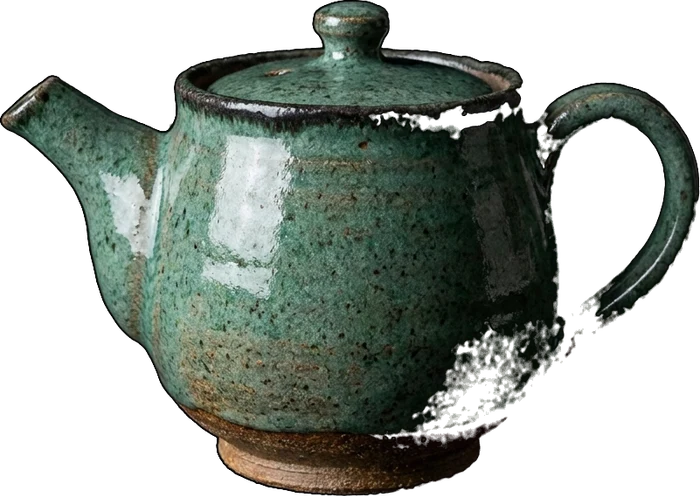
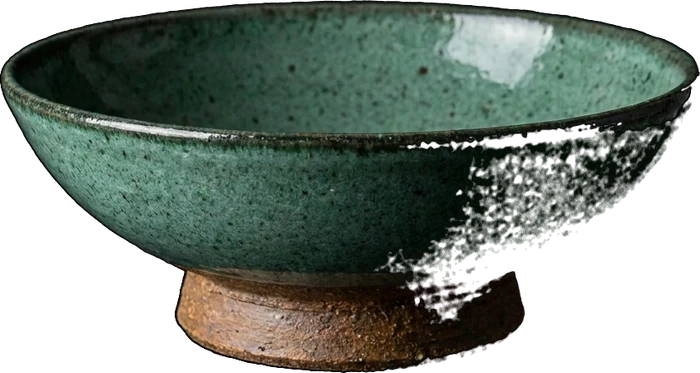
Build a matching set
"Make a teapot of this style" on one glazed teacup, then the same for a bowl and a vase: a set with one glaze and one clay.
See the other side of the room
"Turn the camera around 180 degrees…" on an empty ramen bar, then Detect Objects on the new view.
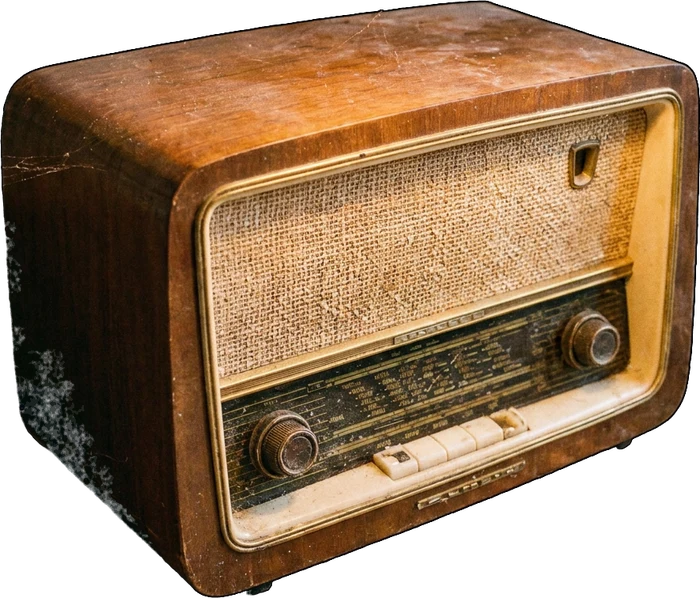
Pull one object out of a busy photo
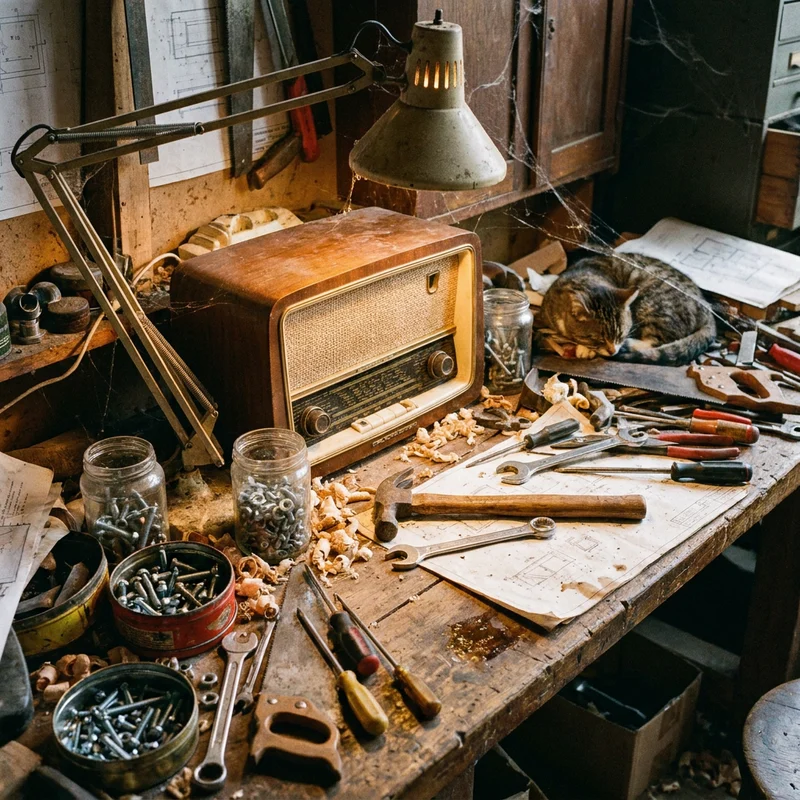
Image Edit lifts the radio off a cluttered workbench onto a plain background: one object, ready for 3D Generation.
Questions about Image Edit
What artists ask before they edit their first image for 3D. Image Edit comes with the 14-day free trial of the Artist plan.
Connect your image to the Main image input of an Edit Image node, and the reference to its References input. Then write the change in the prompt and type @ to name the reference, for example "make the shell of this helmet from @carbon". Image Edit keeps the main image as the base and takes only what you ask for from the reference.
The main image is the image that Image Edit changes: it gives the base, the aspect ratio and the resolution of the result. A reference lends one thing only, such as a material, a shape or a style, and the prompt names it with @. The main image input takes one image, and the References input takes as many as you need.
Yes. Image Edit can turn the camera around in a scene, for example 180 degrees to show the other side of the room, or close in on one corner. Send the new view to Detect Objects, and you get more objects that belong in the same environment, with no new scene to generate.
No. Variations made from one image share a family likeness, not an exact match. Image Edit carries the style of the source image into each new piece, thus a teapot, a bowl and a vase made from one glazed teacup look like a set. If one piece drifts, run that edit again: each earlier version stays on the node.
Yes. Connect a Reference Images group to the main image input of an Edit Image node, and Image Edit runs one prompt on each image in the group. Each image costs the same credits as a single edit. A group edit takes no reference images, thus describe the change in words.
Image Edit is on every paid plan, from the Artist plan at $29 a month, and on the 14-day free trial of the Artist plan, which needs a card. The Free plan gives you 400 credits a month for single-asset workflows, but it does not include Image Edit.
One good image, as many versions as you need
Start from the image you like, and build the rest of the set from it.