From one image to a 3D model
Marso Studio turns a photo or a generated image of one object into a 3D model. Choose from five generation models and polygon counts up to 1.5 million, then run.
How to turn an image into a 3D model
- 1
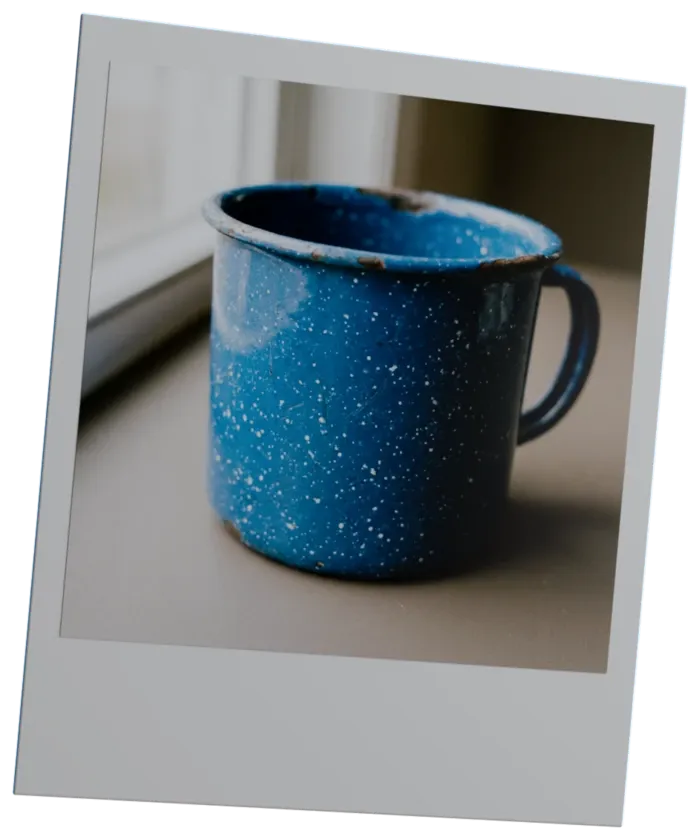
Start with an image.
One object, filling the frame. Object mode in Image Generation sets this up for you.
- 2
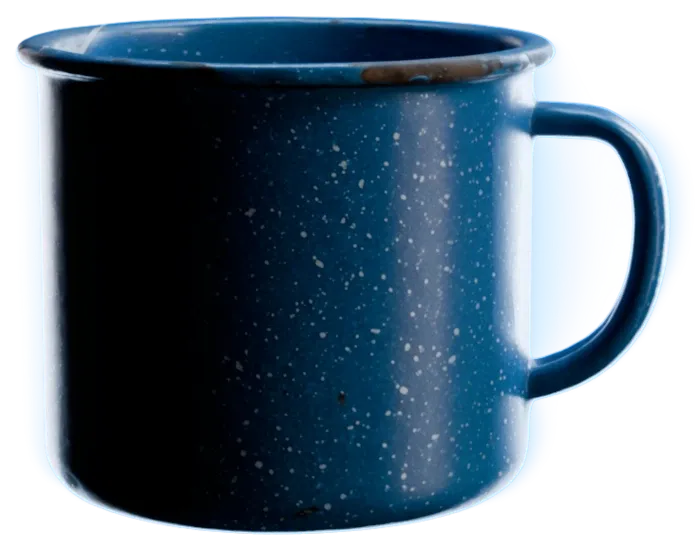 Settings
Choose your settings.
Pick a model and a polygon count under Advanced settings.
- 3
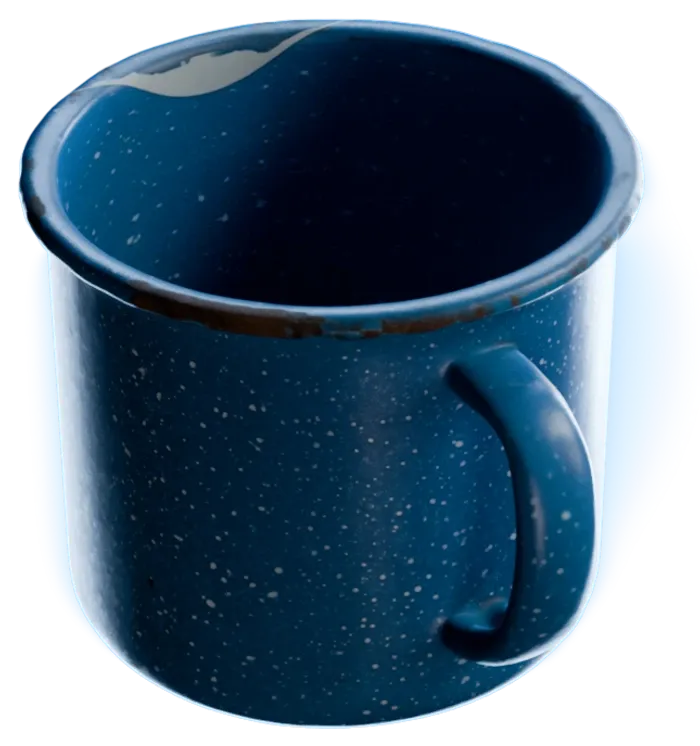
See it in action
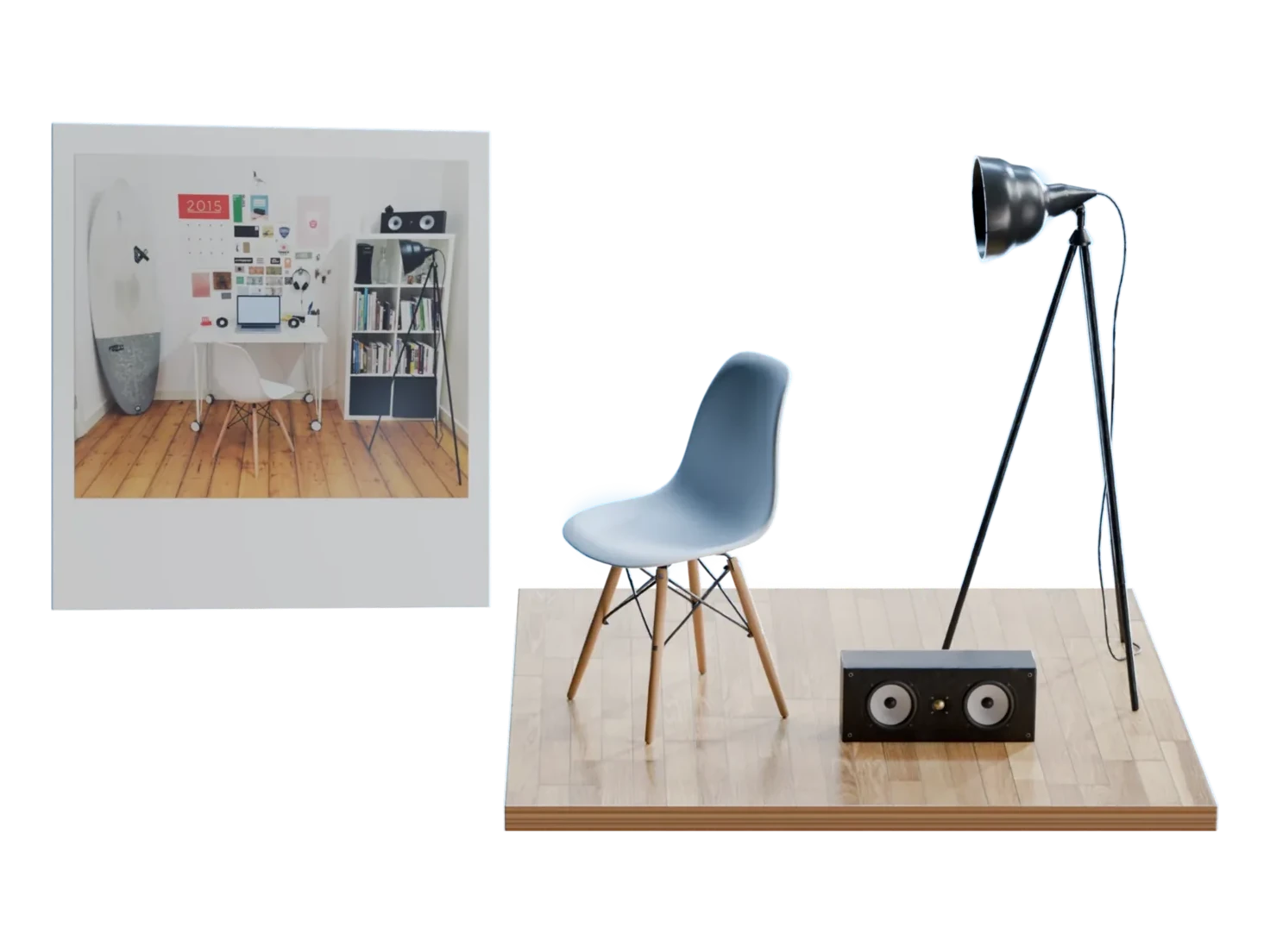
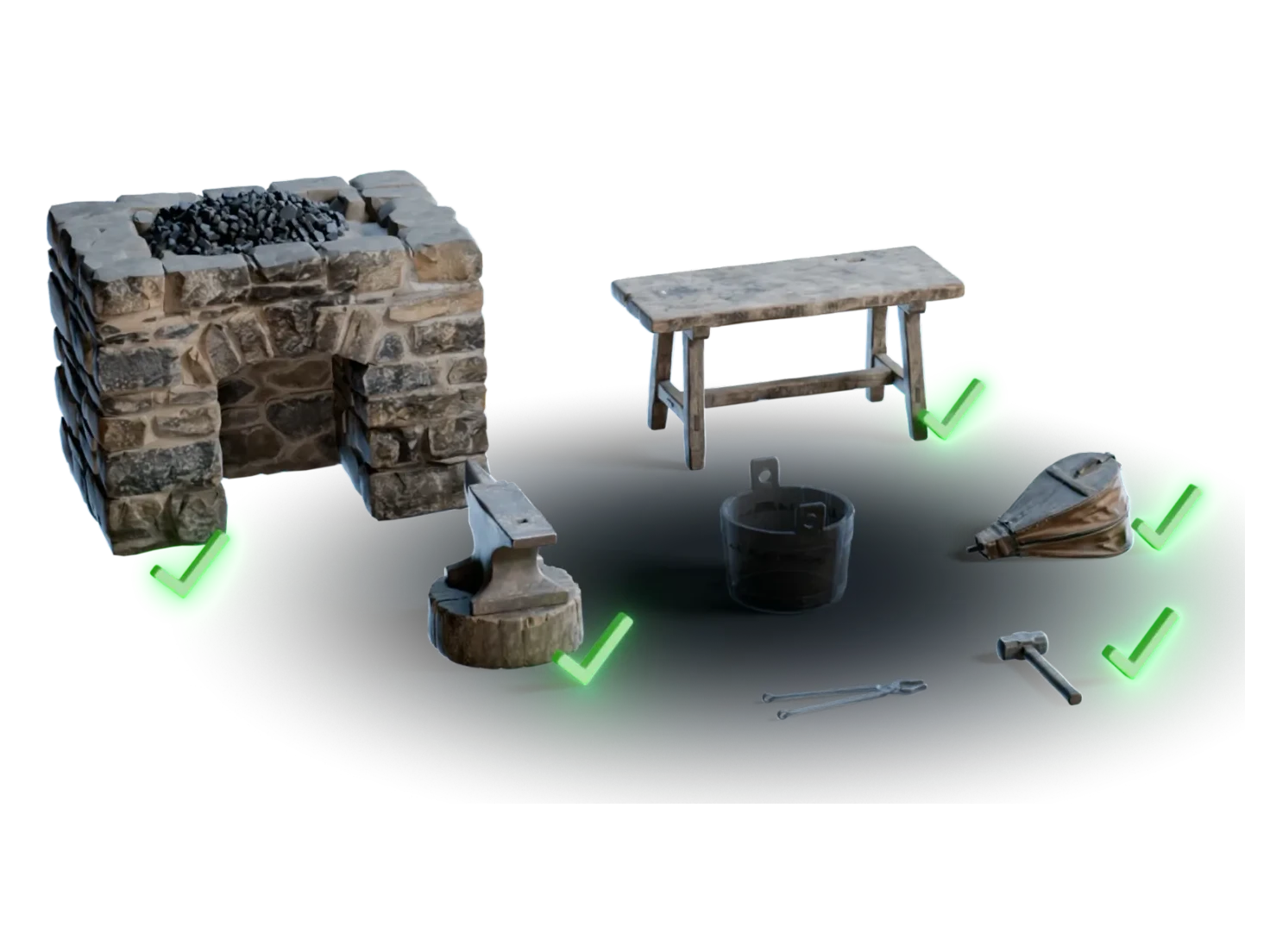
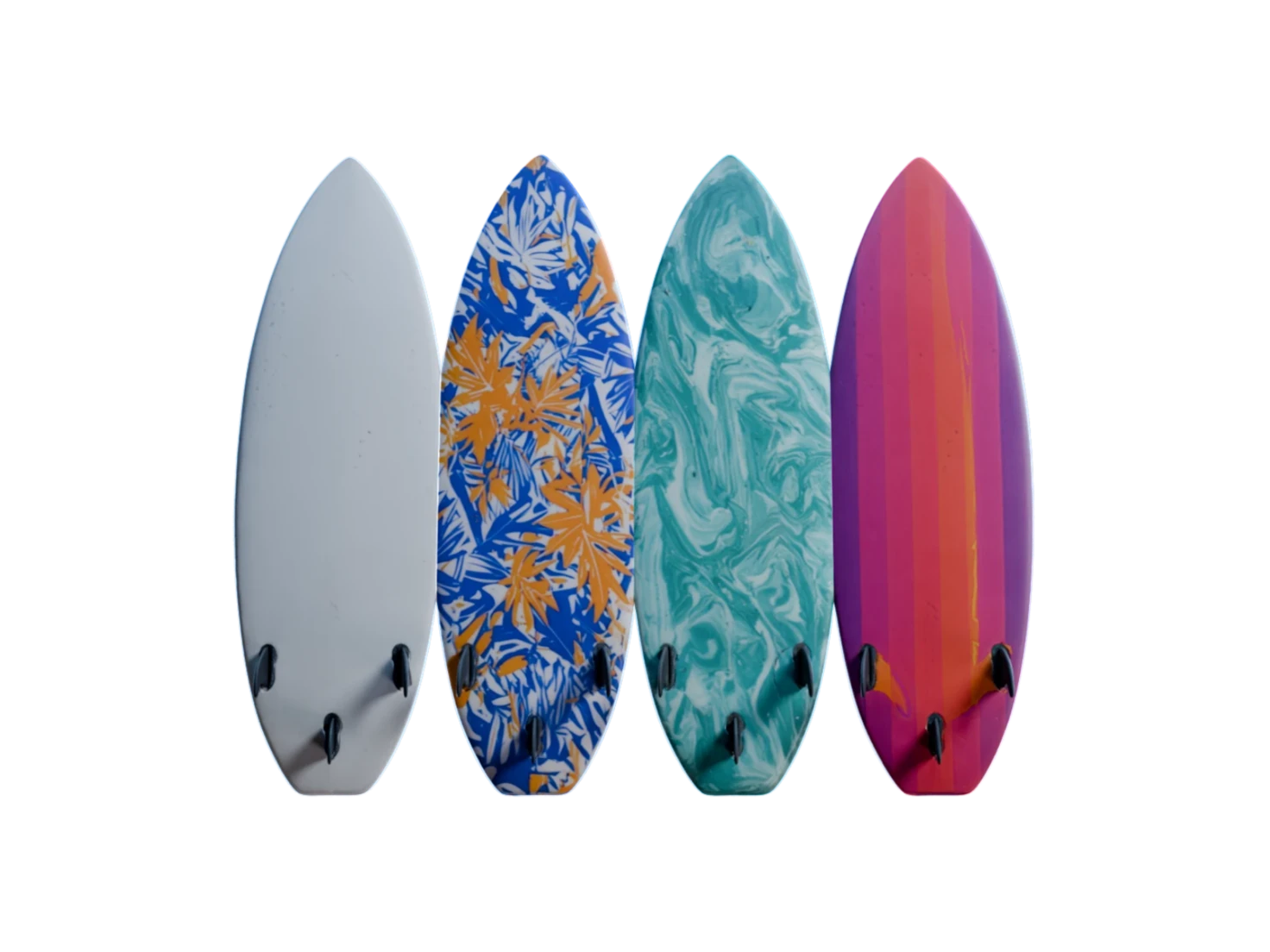
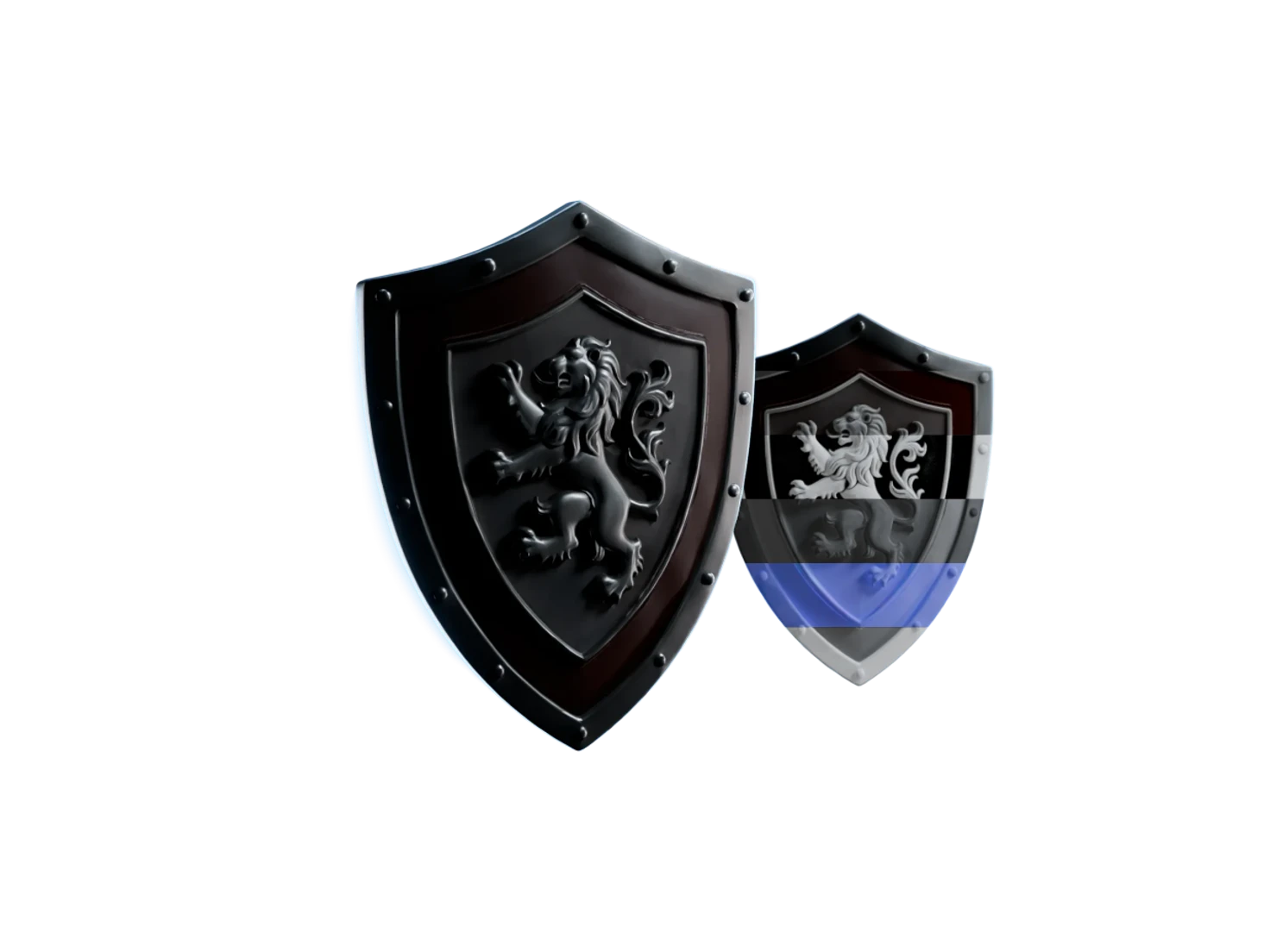
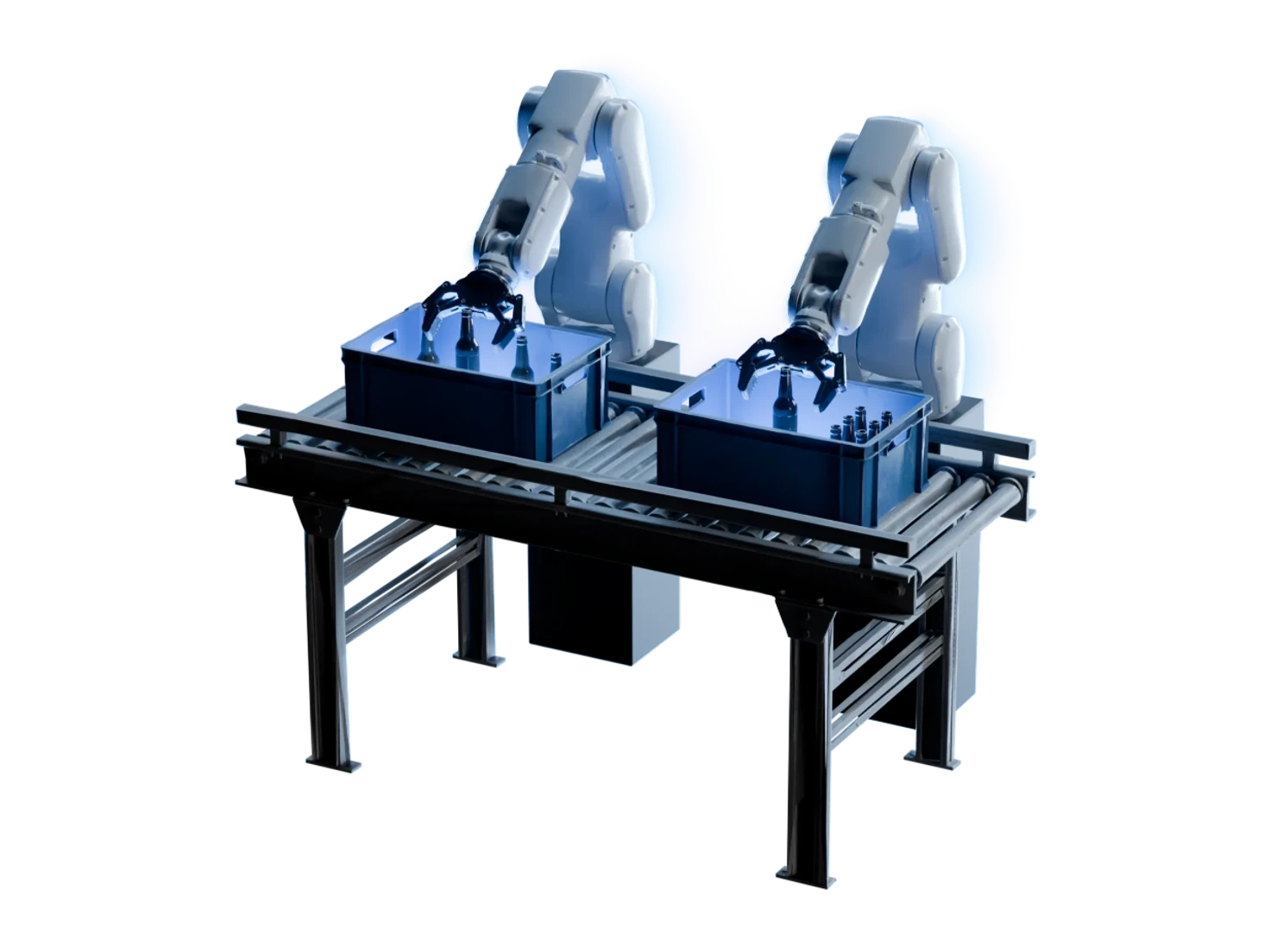
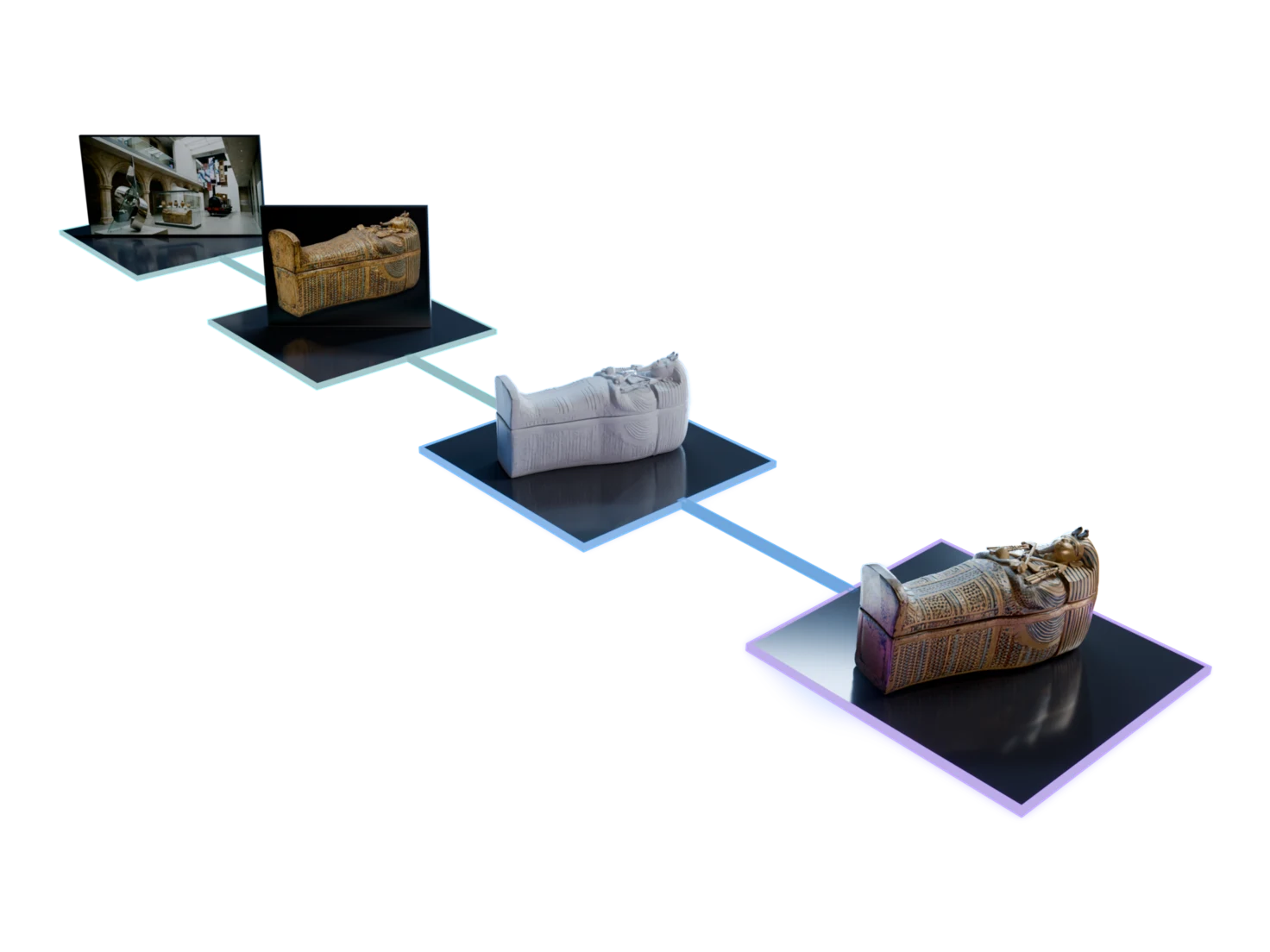
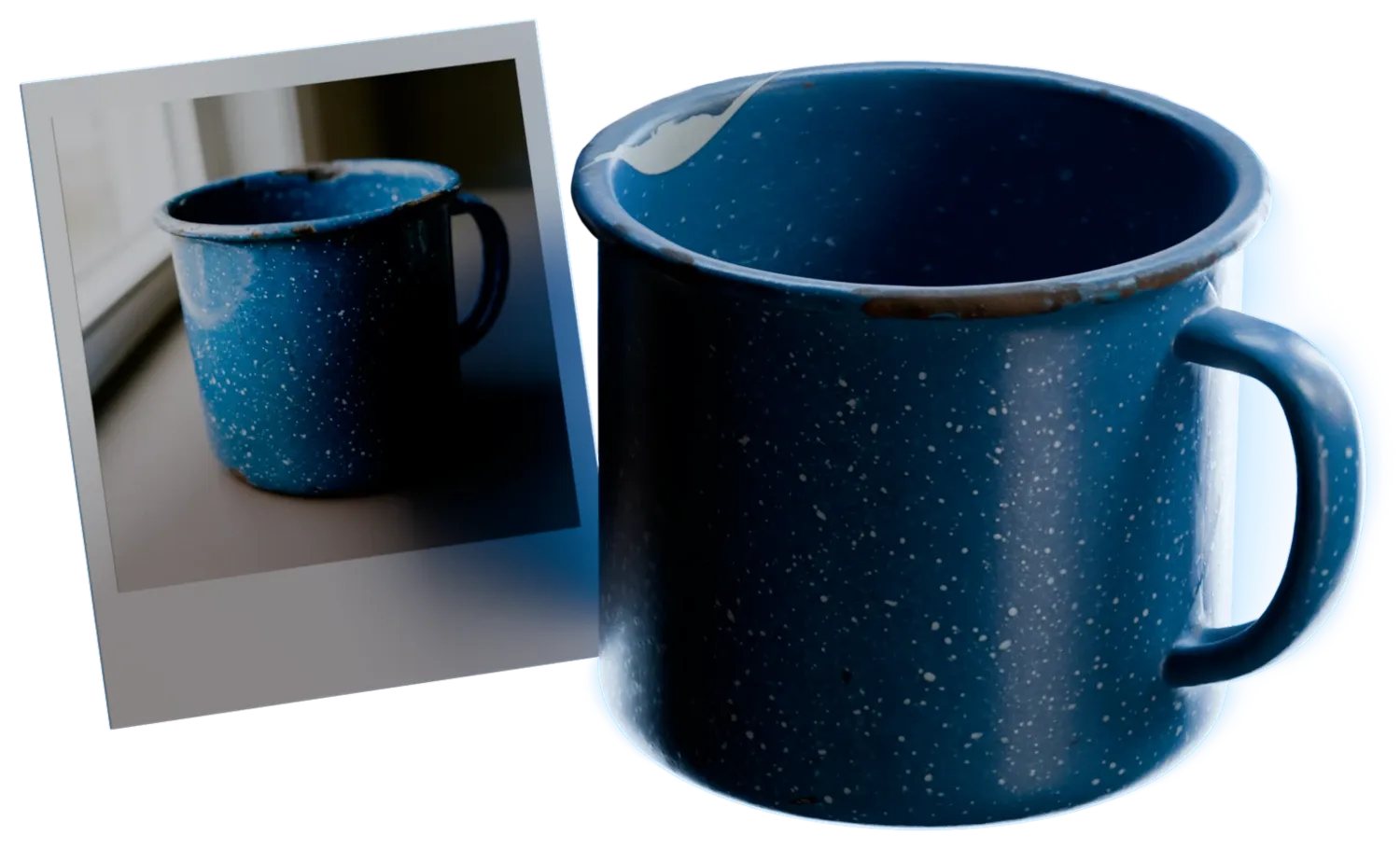
One image goes in, and a 3D model of the same object comes out, ready to turn, restyle or texture.
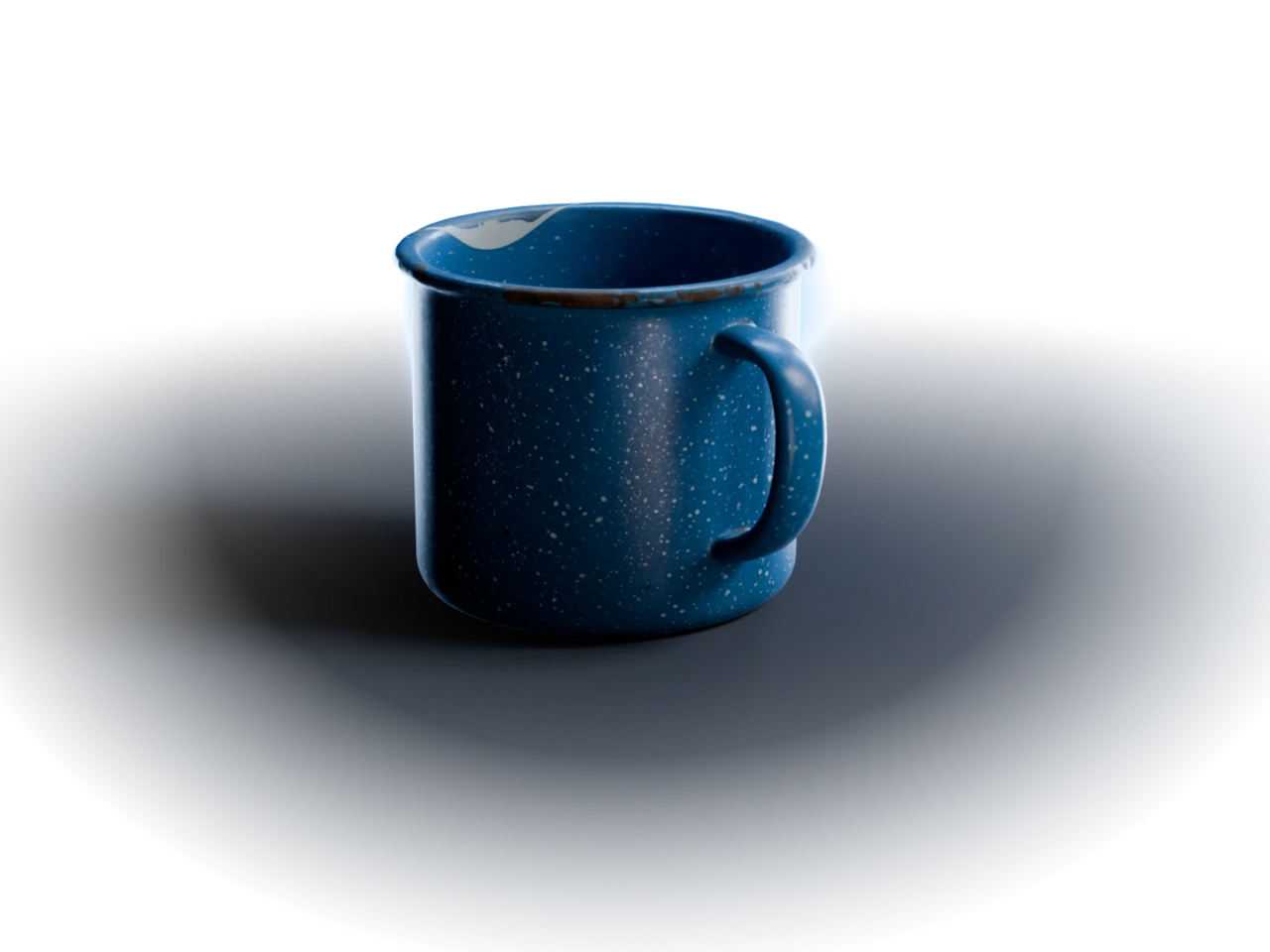
More control, less guesswork
1.5Mmax polygons
Your polygon budget
Choose a count from 40,000 up on the models that offer it. The default count costs no extra credits.
5generation models
One node, every model
Switch generation models from the same node to find the one that suits the asset.
200max objects per run
One object or a whole room
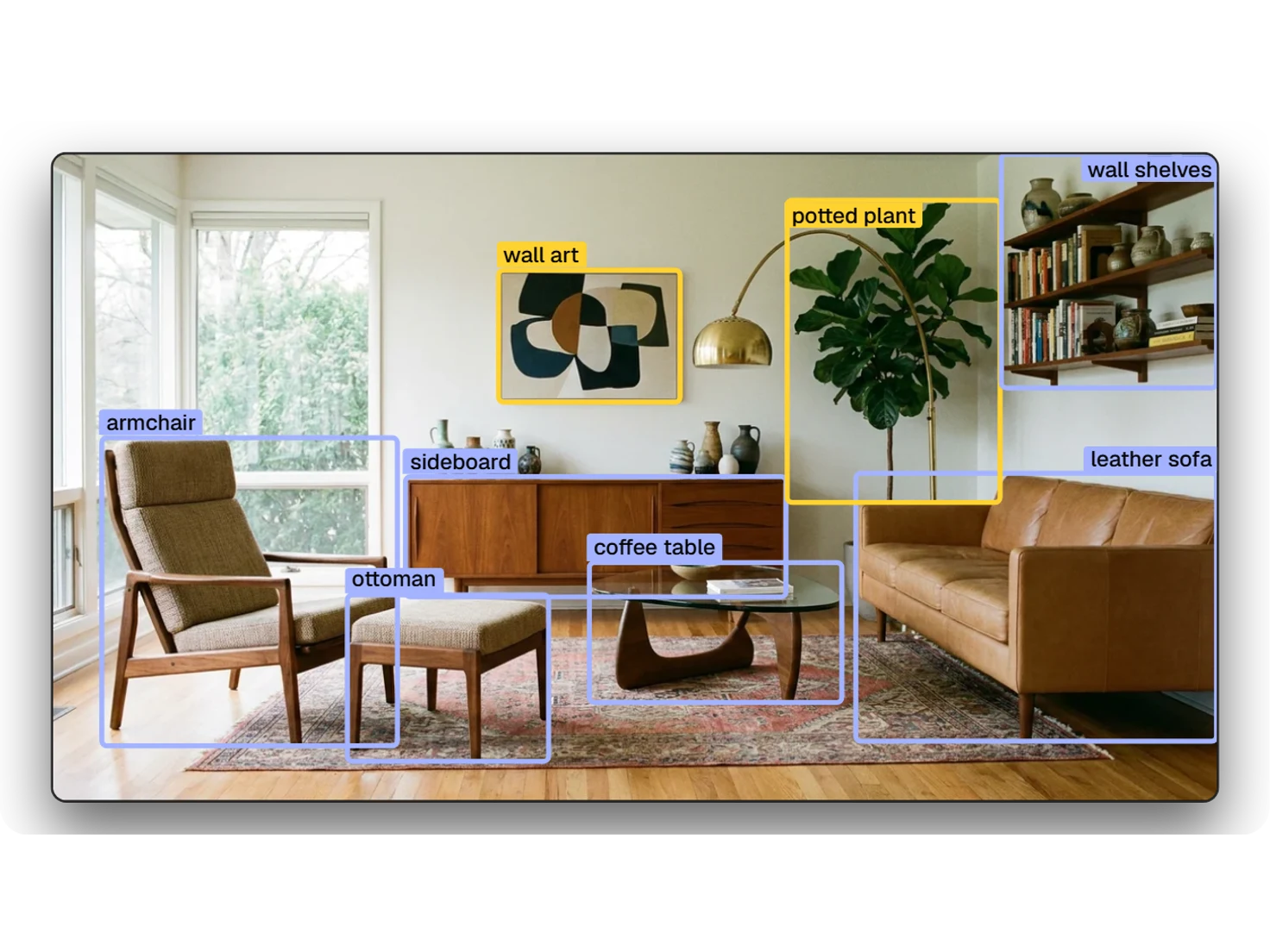
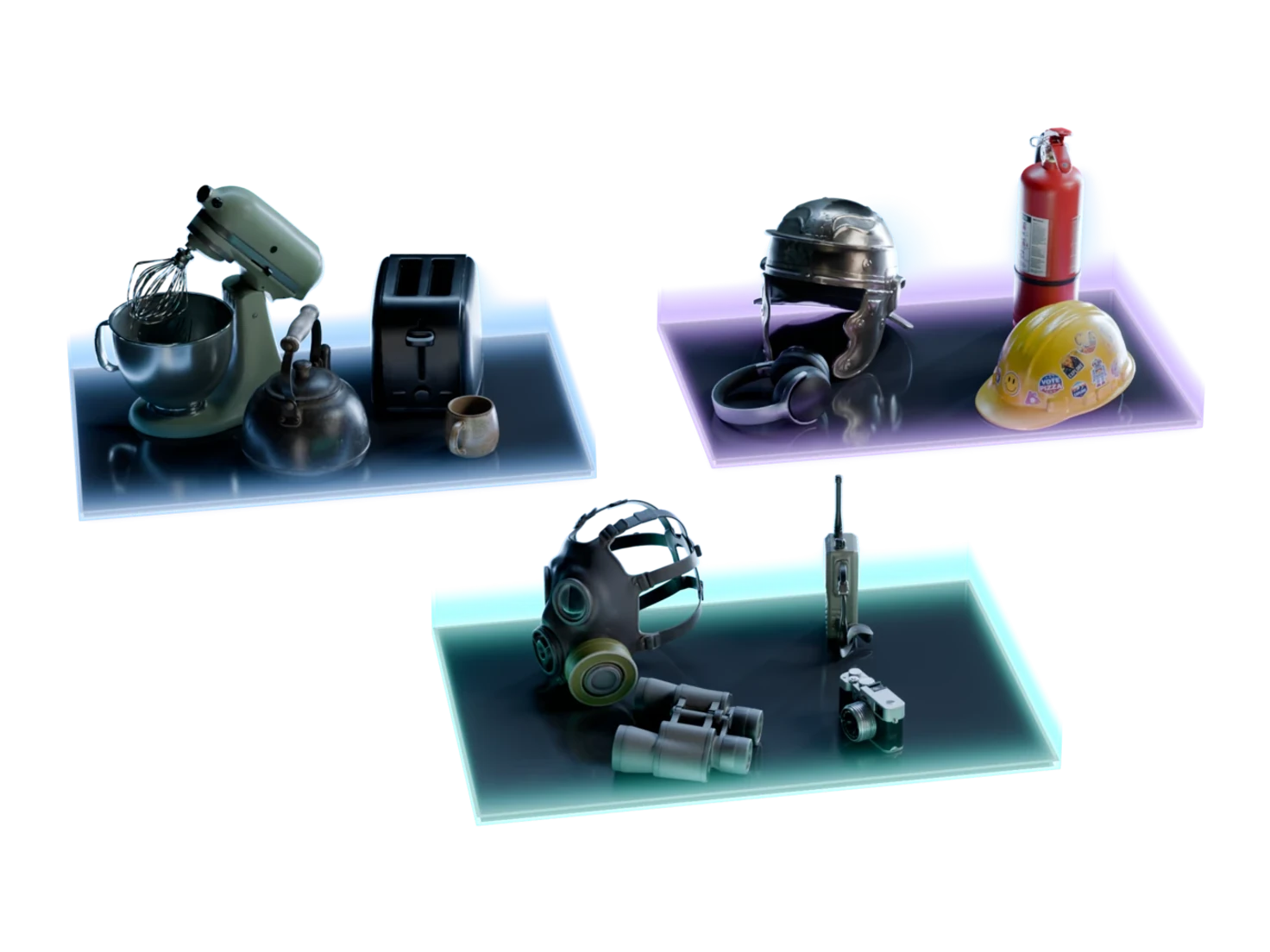
The Generate 3D Models group runs every object from a scene at once, with one setting for the group and overrides per item.
Use cases


Questions about 3D Generation
What teams ask before they turn their first image into a 3D model. Still unsure? The Free plan gives you 400 credits a month, with no card required.
Connect an image of one object to a Generate 3D Model node in Marso Studio, choose a generation model and a polygon count, and run. A photo from Load Image works. So does an image from Image Generation in Object mode, which frames one object on a black background, the input that 3D generation reads best.
Not in one step. Write your prompt in Image Generation first, then turn the image into a 3D model. You settle the look in 2D, where a new version takes seconds, and the 3D model comes out much closer to what you pictured.
One object, large in the frame, ideally on a black background. If your image shows more than one object, use Image Edit to keep only the one you want. For a whole room, Detect Objects finds each object, and the Generate 3D Models group turns them all into models in one run.
Up to 1.5 million, depending on the generation model. Marso Studio offers five generation models, and on the ones that support it you choose a count from 40,000 up under Advanced settings. A lower count suits a game engine or a simulation; a higher count keeps fine detail.
The default polygon count never costs extra credits. On some generation models a custom count costs more than the default, and on the others it costs the same.
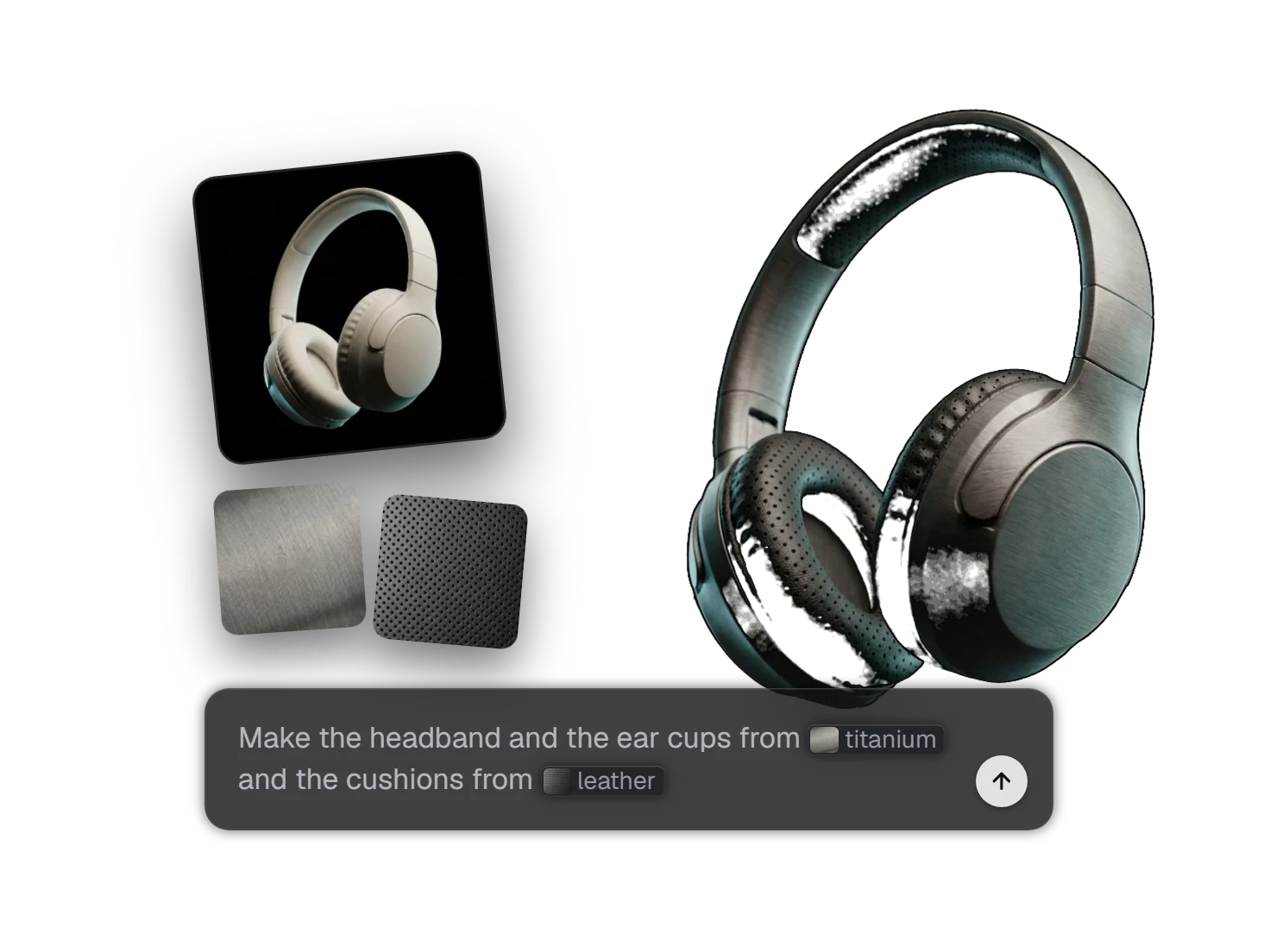
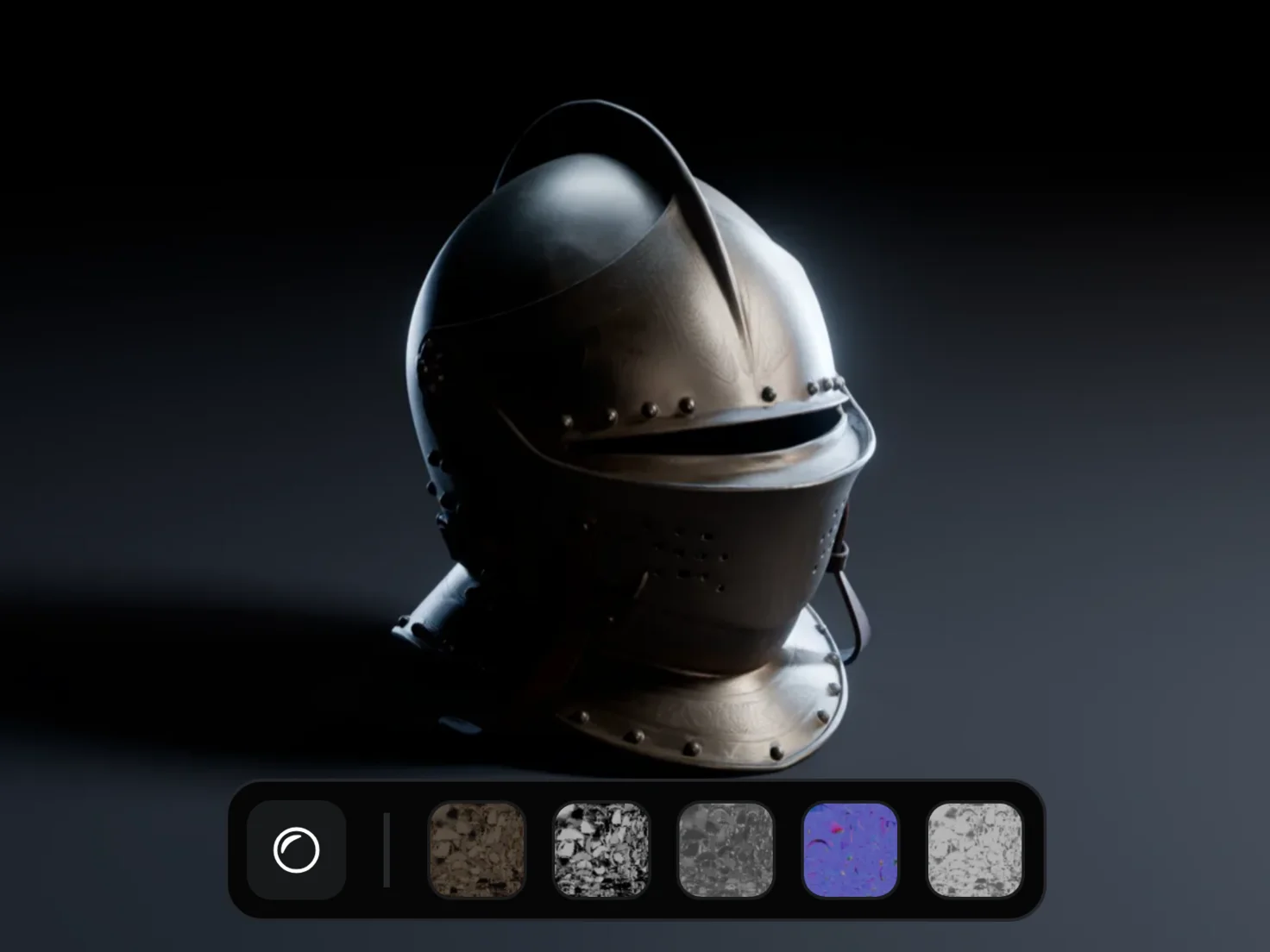
Restyle it with 3D Asset Edit, or send it to Generate PBR Textures for albedo, roughness, metallic, IOR and normal maps. The finished asset is a USD with real-world scale and physics properties, which opens in Blender, Unreal Engine, Unity and Isaac Sim.
From one image to a 3D model
Pick your model and your polygon budget, and run.