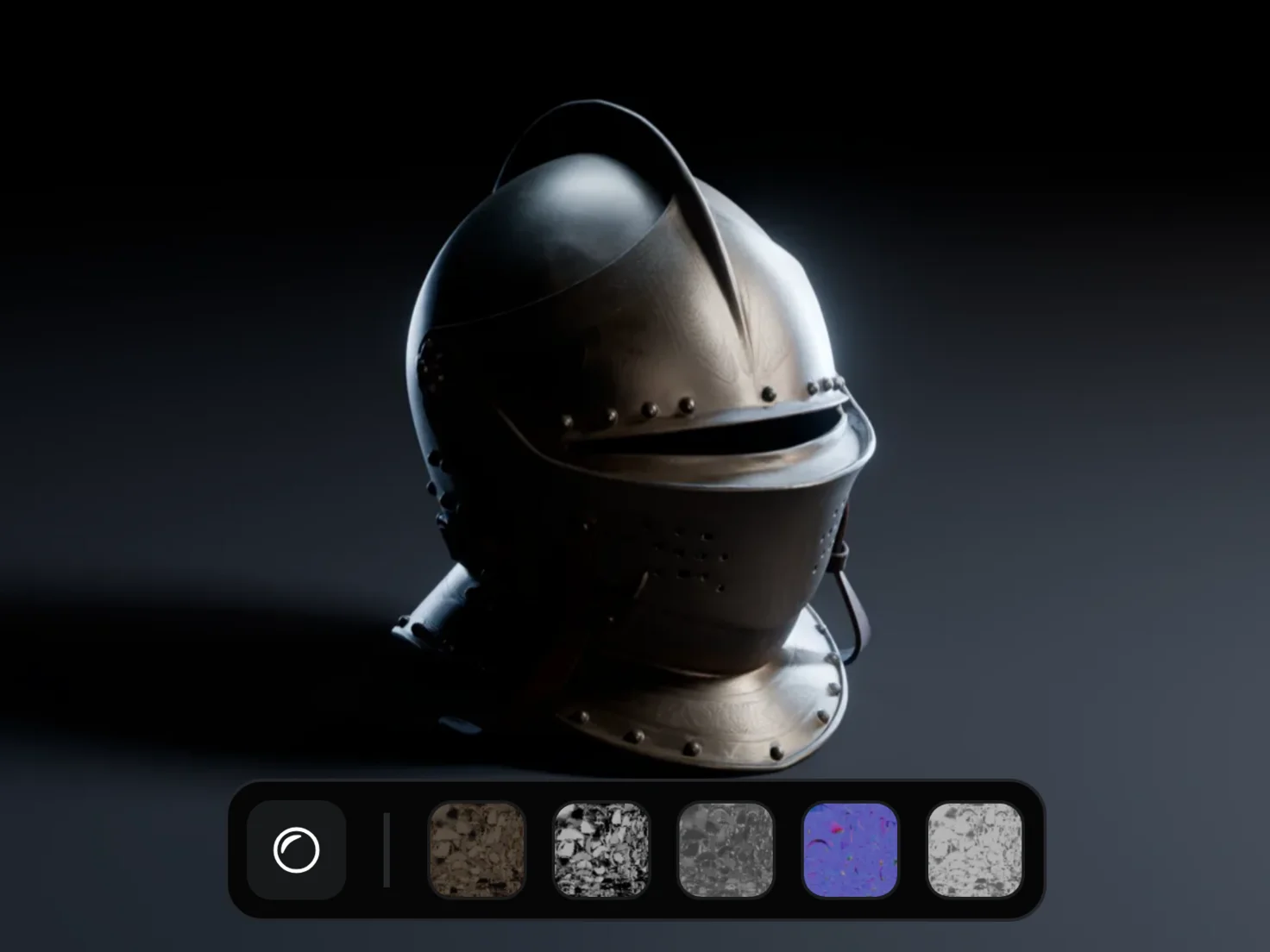
Your Marso assets, inside Isaac Sim
Marso Library, the Marso Studio add-on for NVIDIA Isaac Sim, lists what you've made in Marso Studio in a panel beside the stage. Add an asset to your simulation as USD, upright, at real-world size and with physics applied.
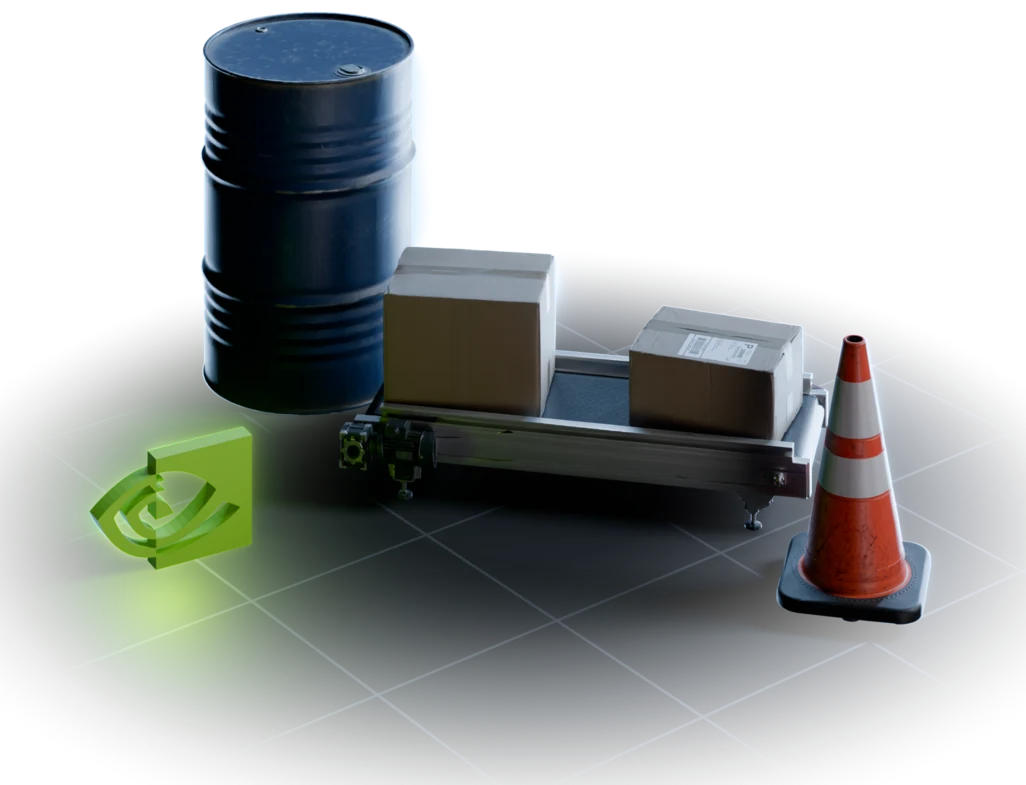
How to import AI-generated 3D assets into Isaac Sim
- 1
Install Marso Library.
In Isaac Sim 6.0 or later, add the Marso registry in Window > Extensions > Settings, then install Marso Library and switch it on.
- 2mxr_live_
Connect your account.
Create a key under API Keys on marso.app, paste it into the Settings tab of Marso Library, and press Check.
- 3

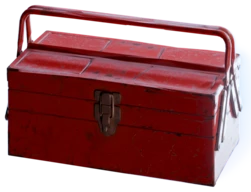
Browse your projects.
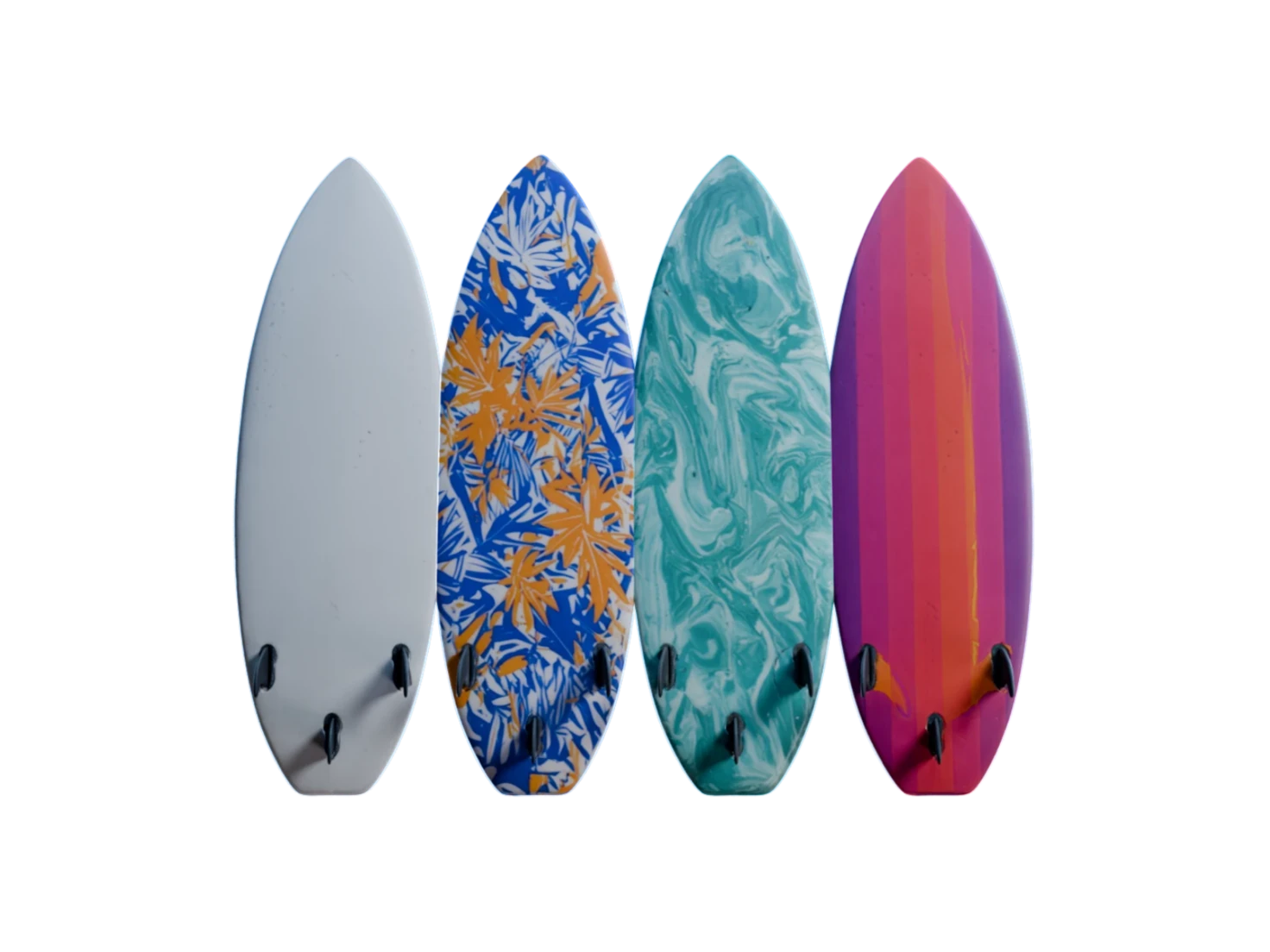
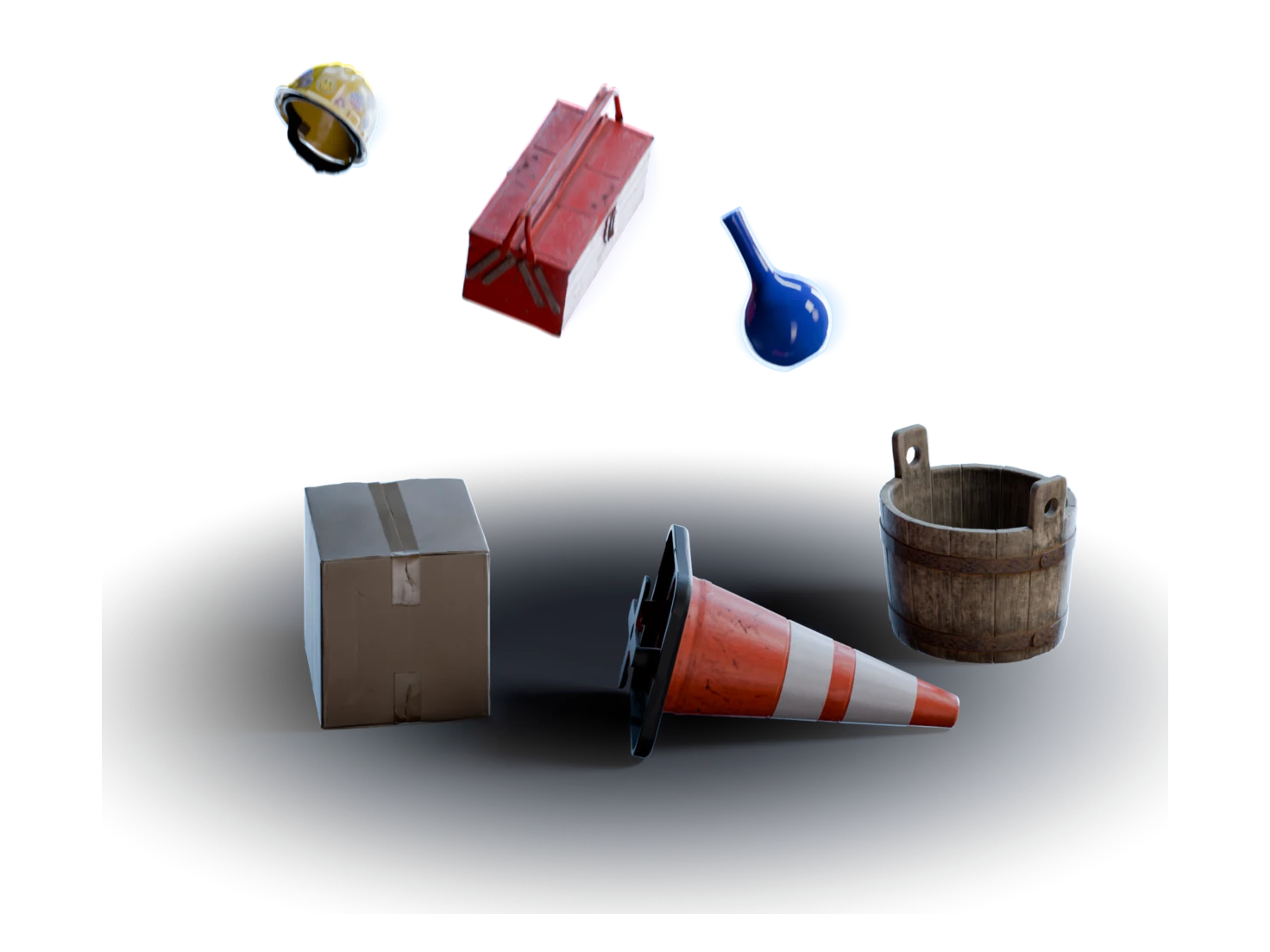
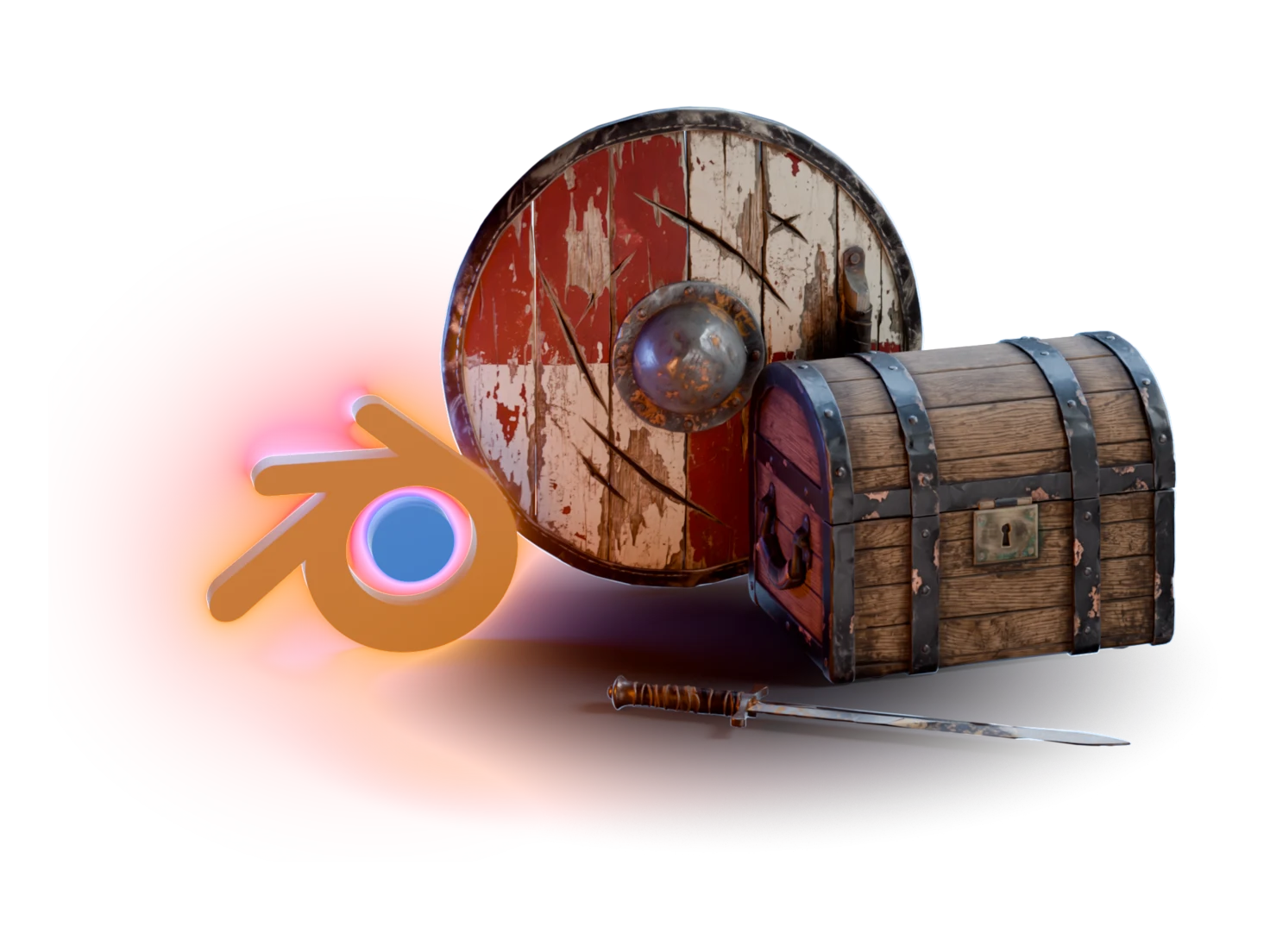
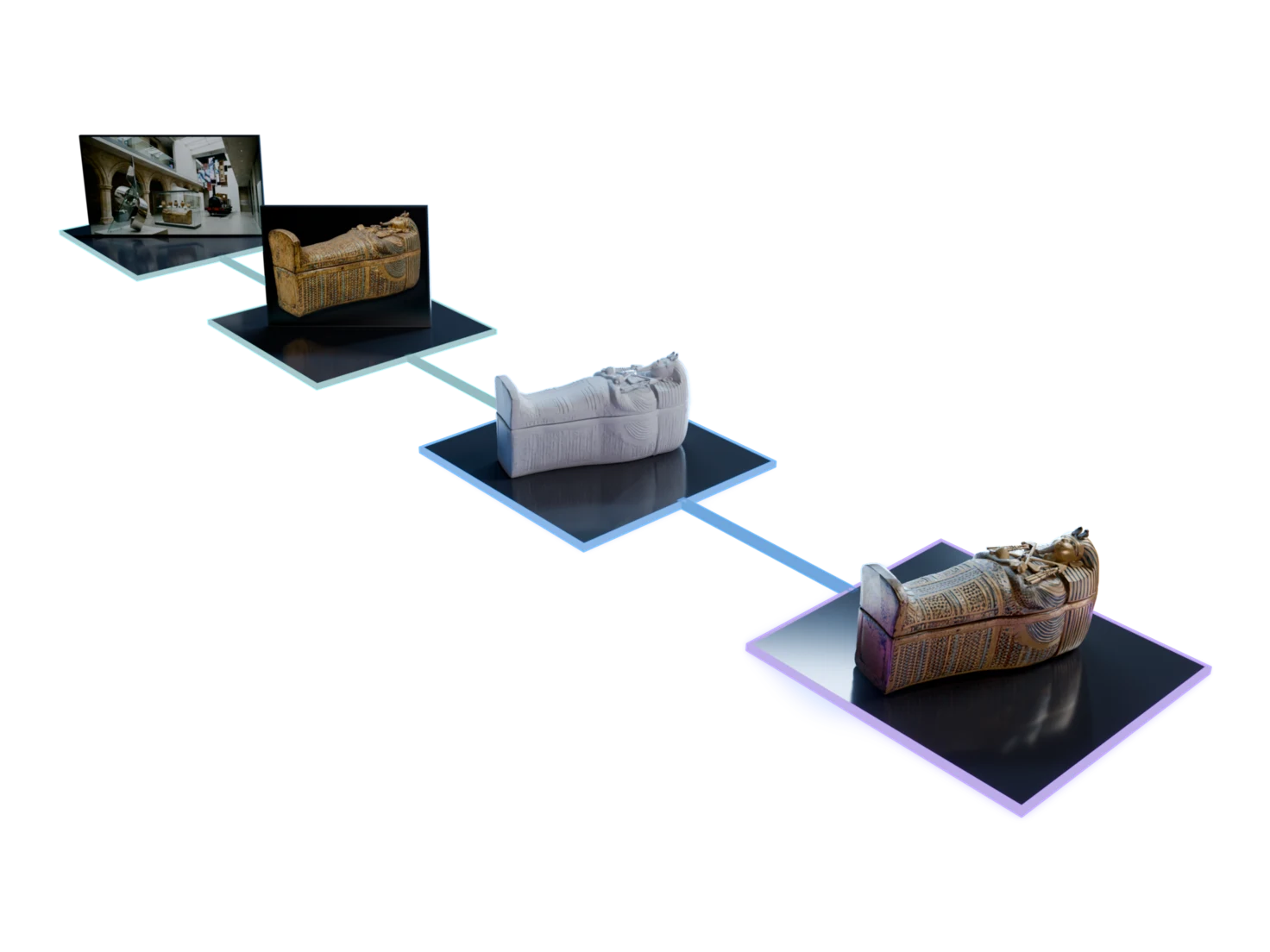
The Library tab lists the assets of each project in Marso Studio, from 3D Generation to Generate PBR Textures.
- 4
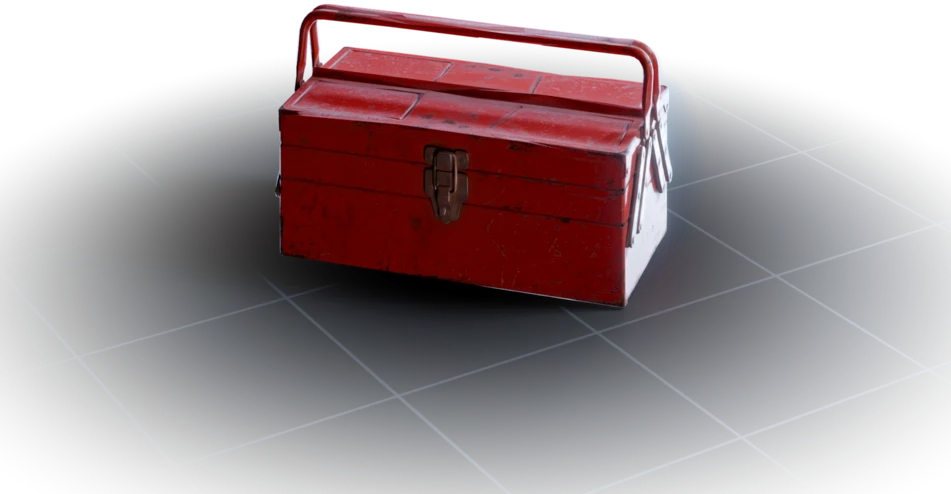
Add it to the stage.
Click Add to Stage, or drag a tile into the viewport. Press Play, and the asset falls and collides.
Marso Studio, one panel away
Arrives simulation-ready
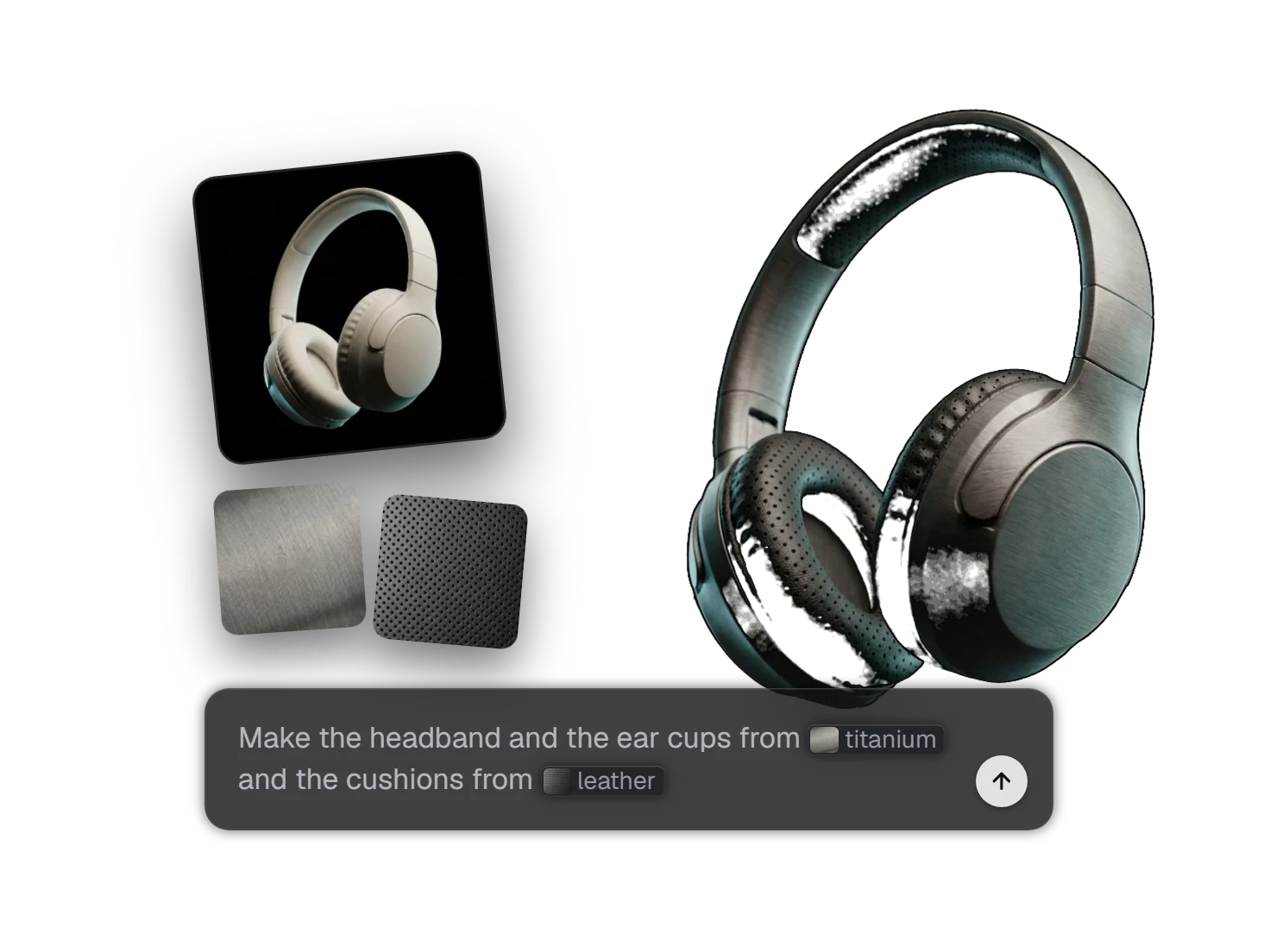
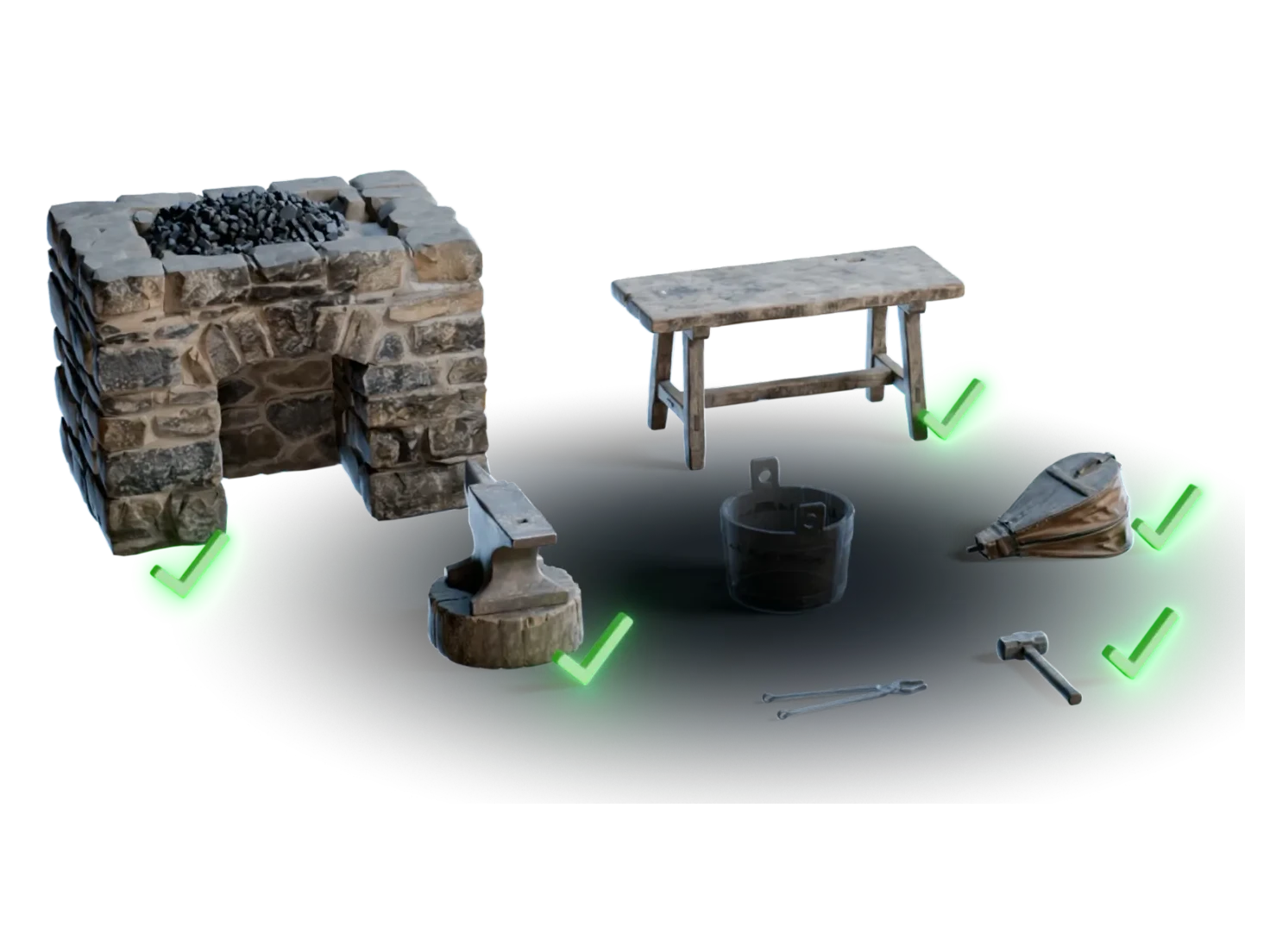
Every asset that has been through Generate PBR Textures lands on the stage with a rigid body, colliders and physics properties, at real-world size. In Marso Library, an atom badge on its tile marks it.
No download folder to manage
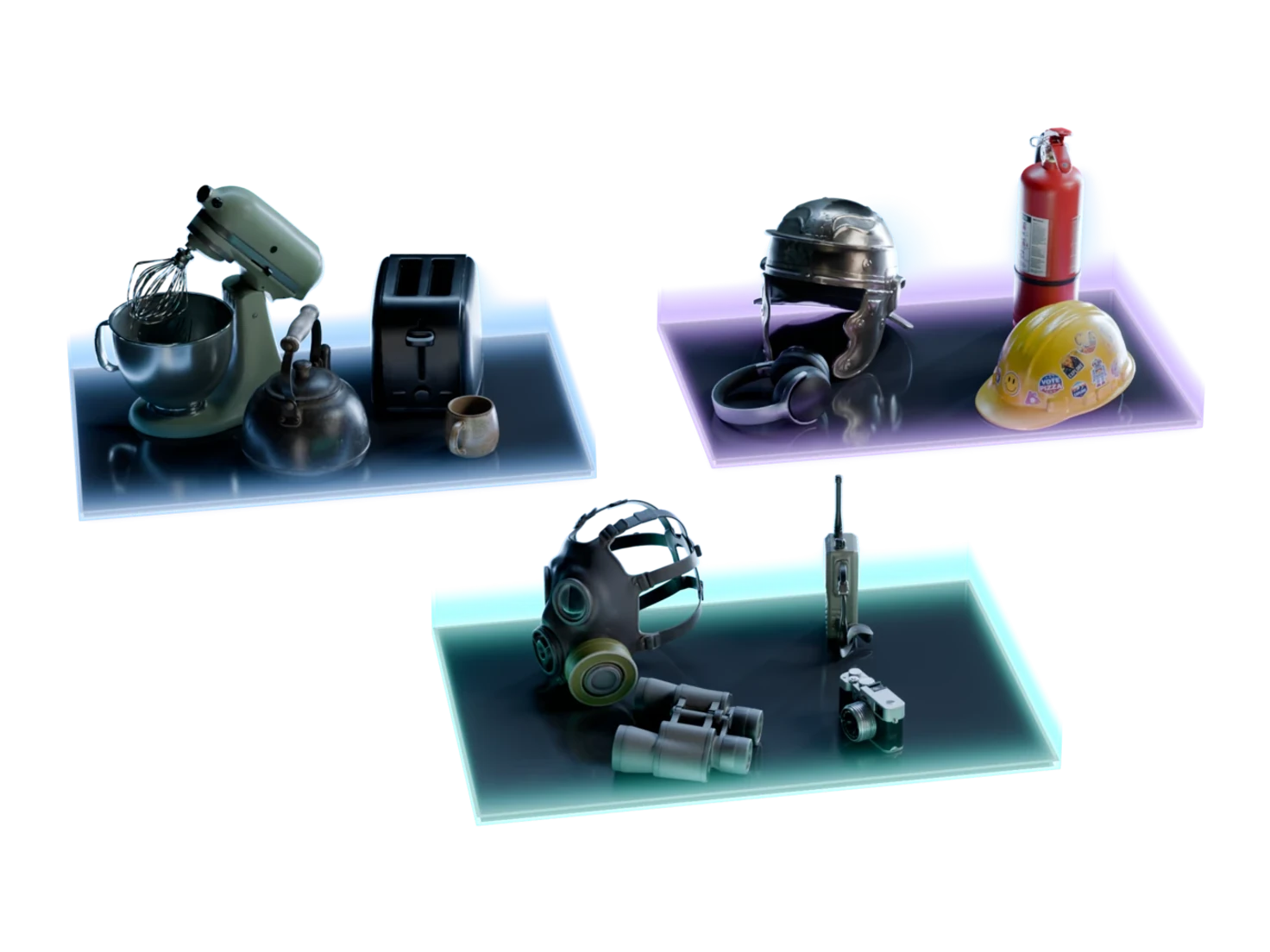
Marso Library opens beside the Content browser and lists every project of your Asset Library. Download assets ahead of time if you like: the Downloaded tab of Marso Library works offline.
New assets without leaving the sim
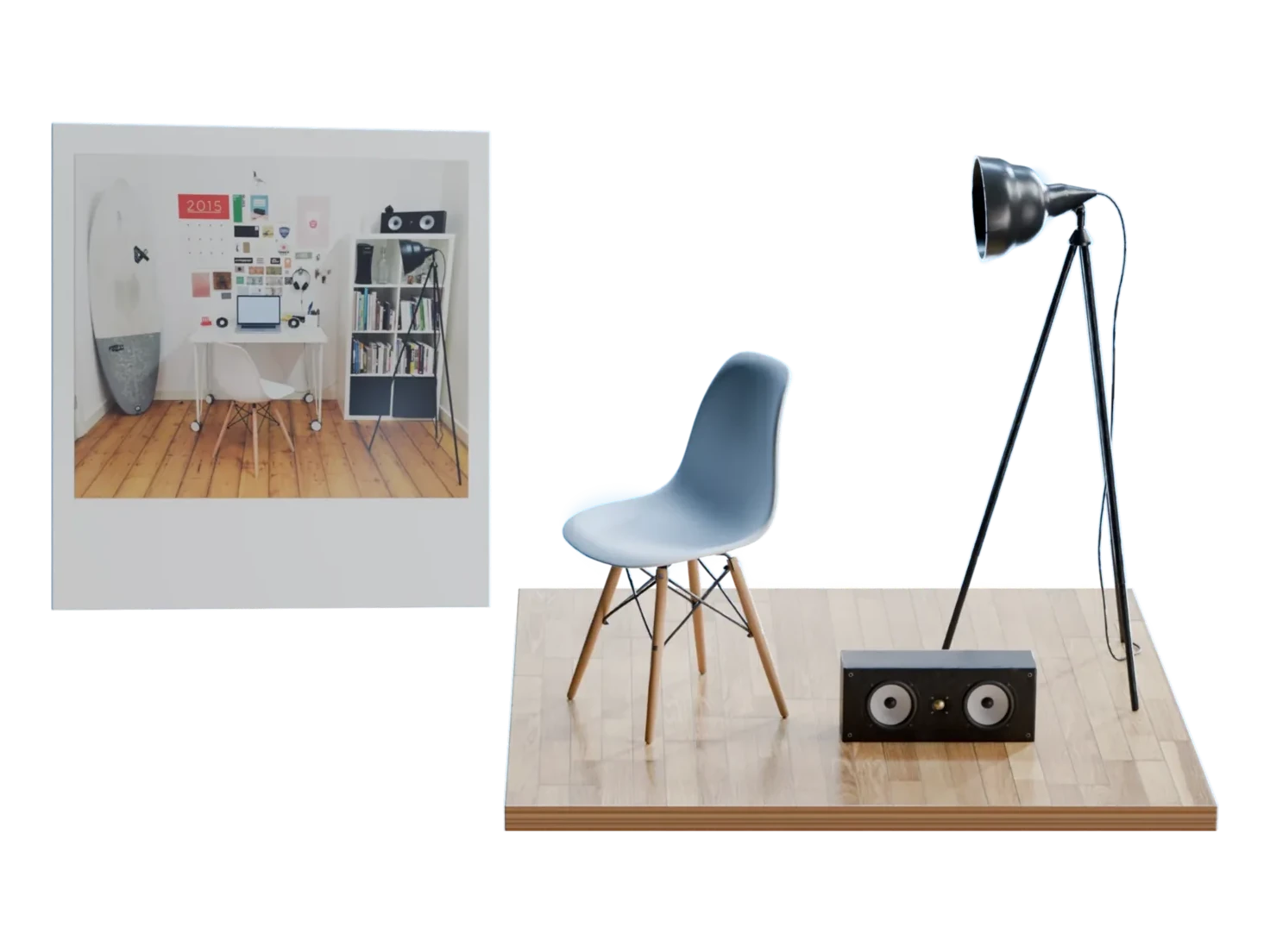
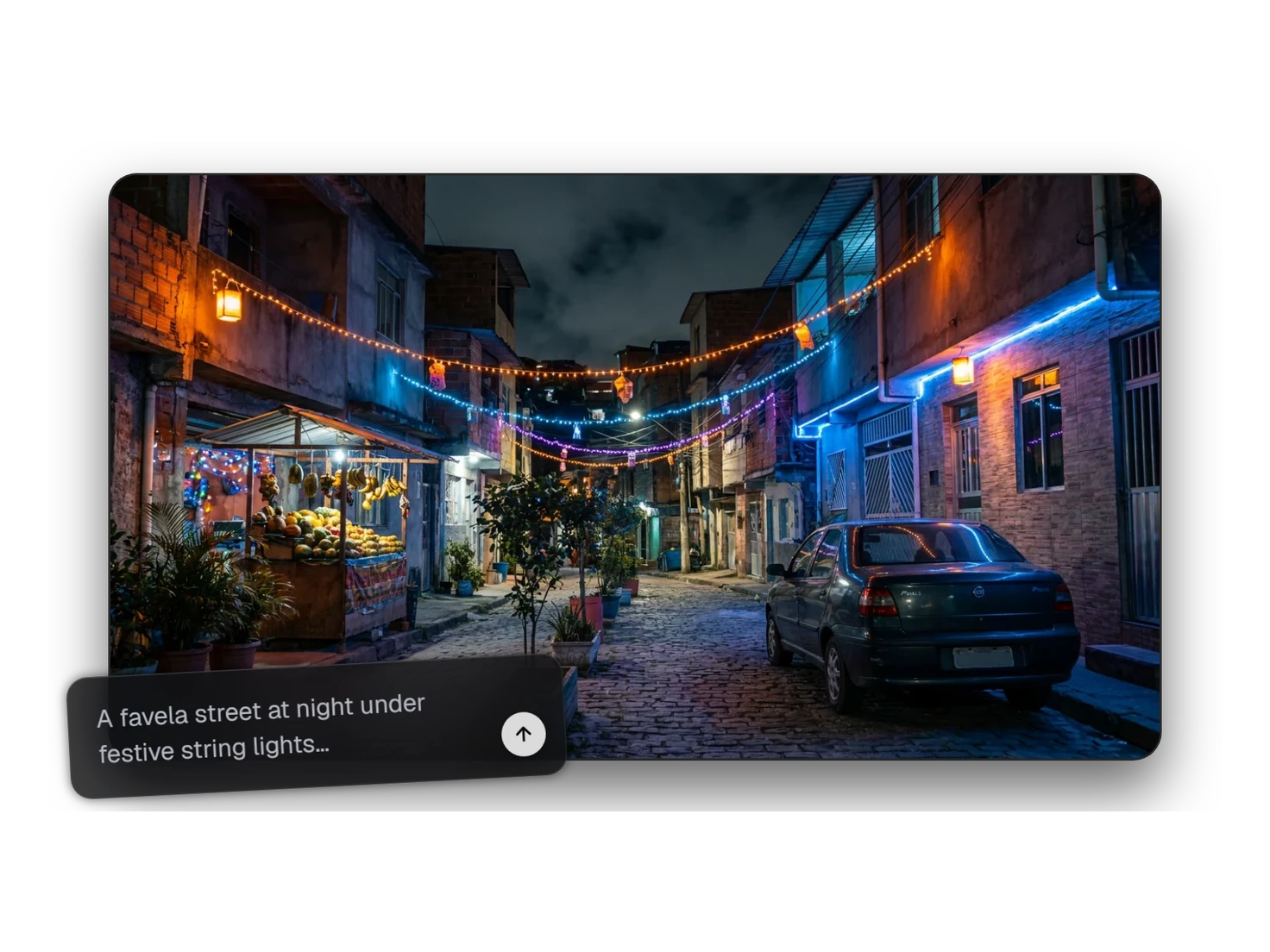
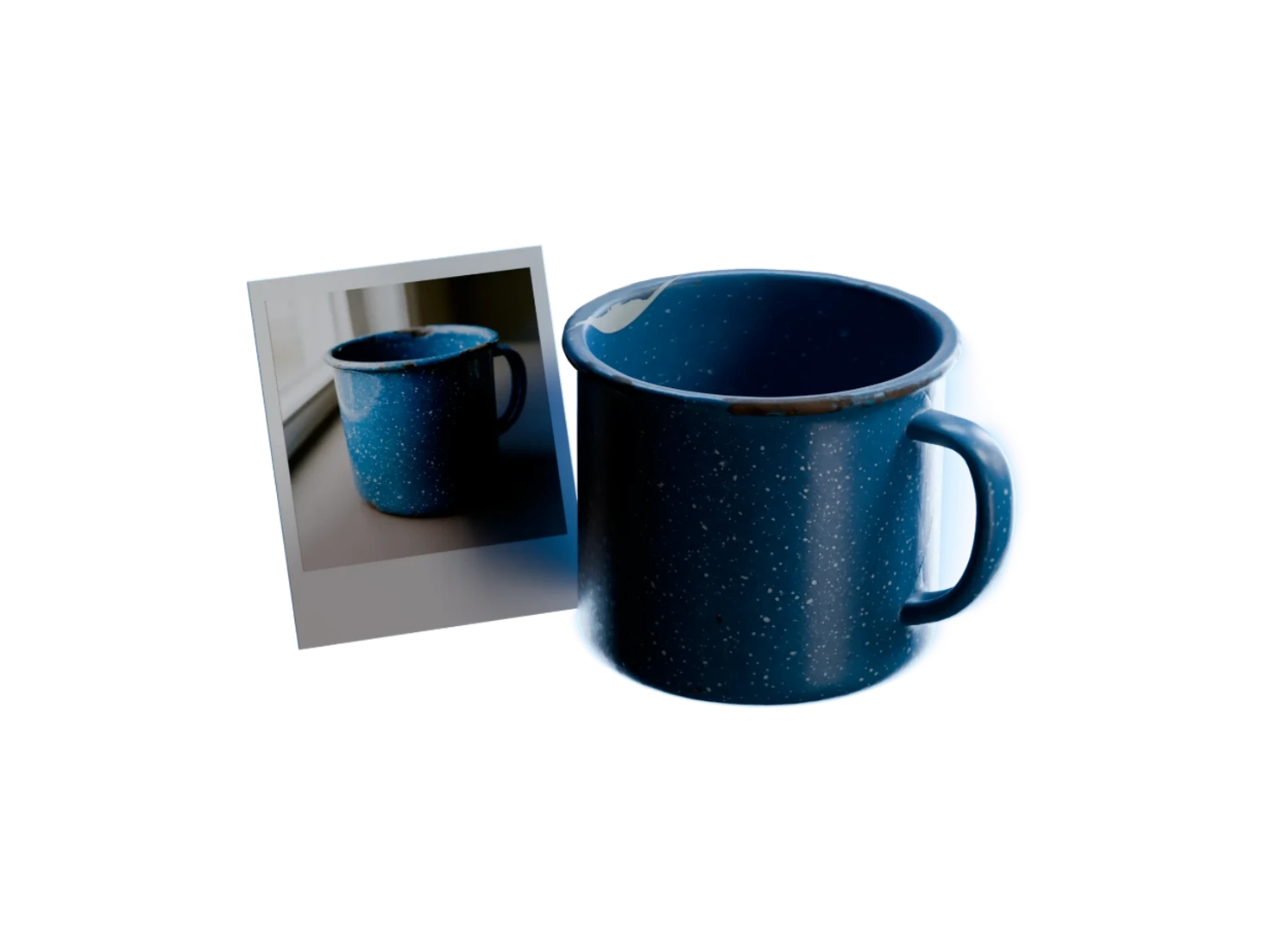
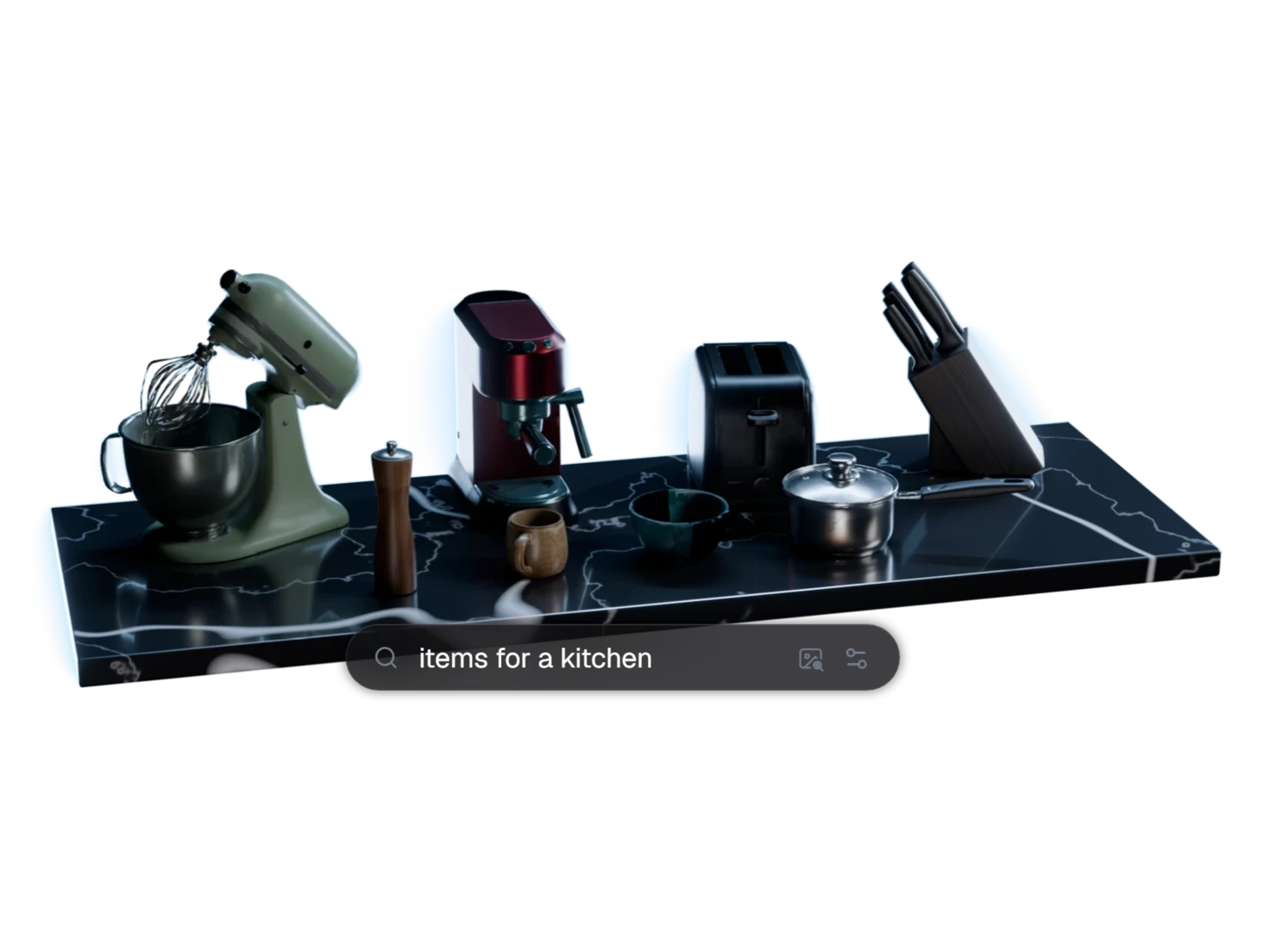
The Create tab of Marso Library turns a text description or a picture into a 3D asset with PBR materials and physics, in a few minutes. Each one also lands in a project named IsaacSim_AddOn in Marso Studio.
Film physics and robot tests
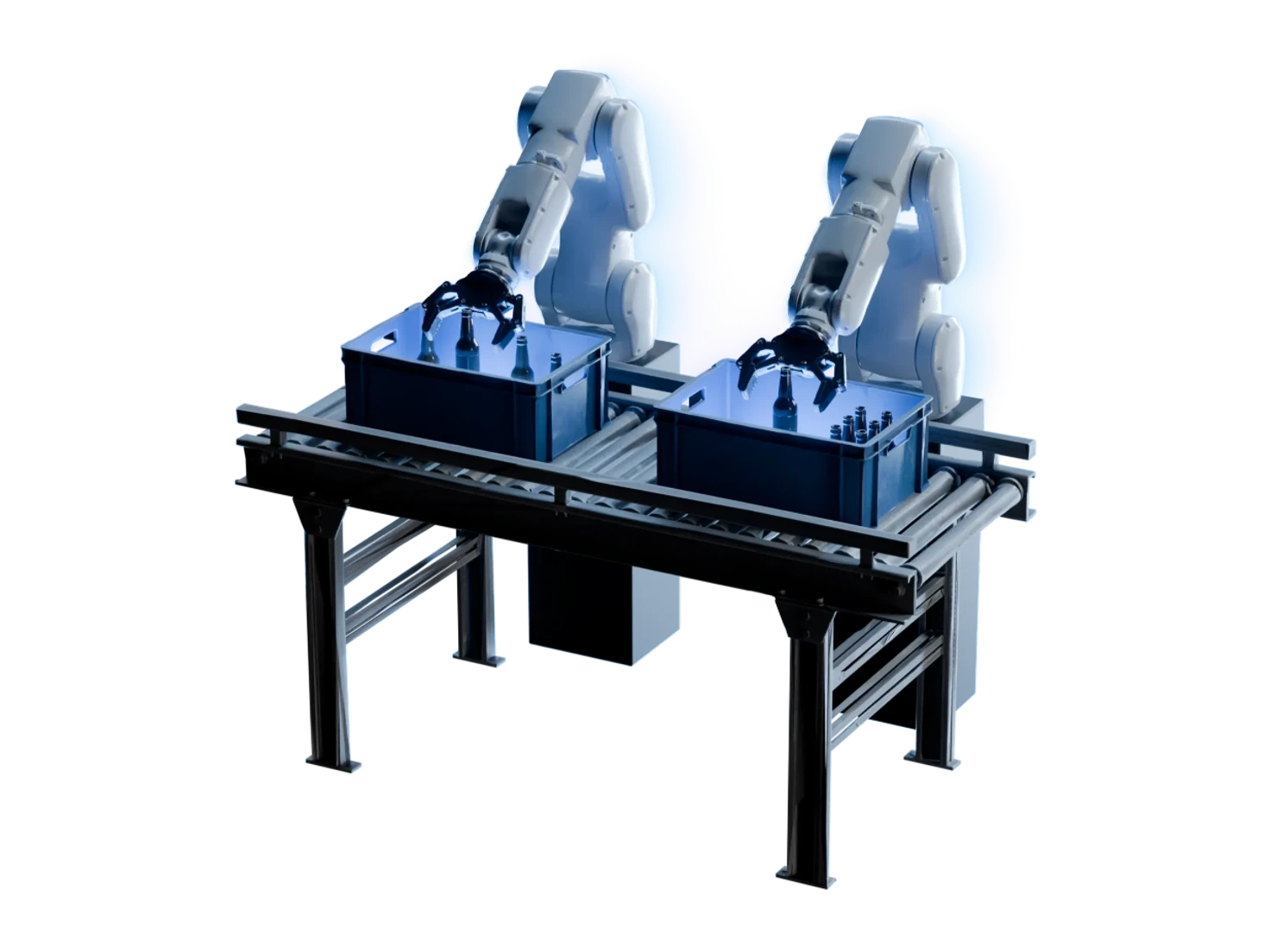
Sim Studio in Marso Library films your assets in five physics tests (scale, drop, friction, wind and collision) and five robot tests, such as a Franka pick-and-place and a Unitree G1 humanoid, at up to 4K. Each test measures the asset against the physics in its USD, for example the angle at which it slides.
Questions about the Isaac Sim add-on
What simulation teams ask before they install Marso Library. The add-on works on every paid plan and on the 14-day trial.
The Marso Studio add-on for Isaac Sim is Marso Library, an extension for NVIDIA Isaac Sim. Marso Library lists the assets you made in Marso Studio in a panel beside the stage, and adds each one to your simulation as USD, upright, at real-world size and with physics. It can also make new assets and film physics tests.
Open Window > Extensions in Isaac Sim, open Settings from the menu next to the search box, and add the Marso registry under Extension Registries. Then search for Marso, install Marso Library and switch it on. Last, paste a Marso Studio API key into its Settings tab and press Check.
The Marso Studio add-on supports NVIDIA Isaac Sim 6.0 or later, on Windows, with an NVIDIA RTX GPU. The team tests Marso Library on Isaac Sim 6.0.1 and 6.1.0. The add-on needs an internet connection, because Marso Studio makes each asset in the cloud, not on your machine.
Yes. The Isaac Sim add-on connects through the Marso Studio API, which every paid plan includes and the Free plan does not. The Artist plan has a 14-day free trial. A new asset made in the Create tab of Marso Library spends credits from the same balance as the web app.
Yes, when the asset has been through Generate PBR Textures. The Isaac Sim add-on then puts it on the stage with a rigid body and colliders, at real-world size, with mass, density, friction and restitution in its USD. Press Play and it falls and collides. Read more about simulation-ready assets.
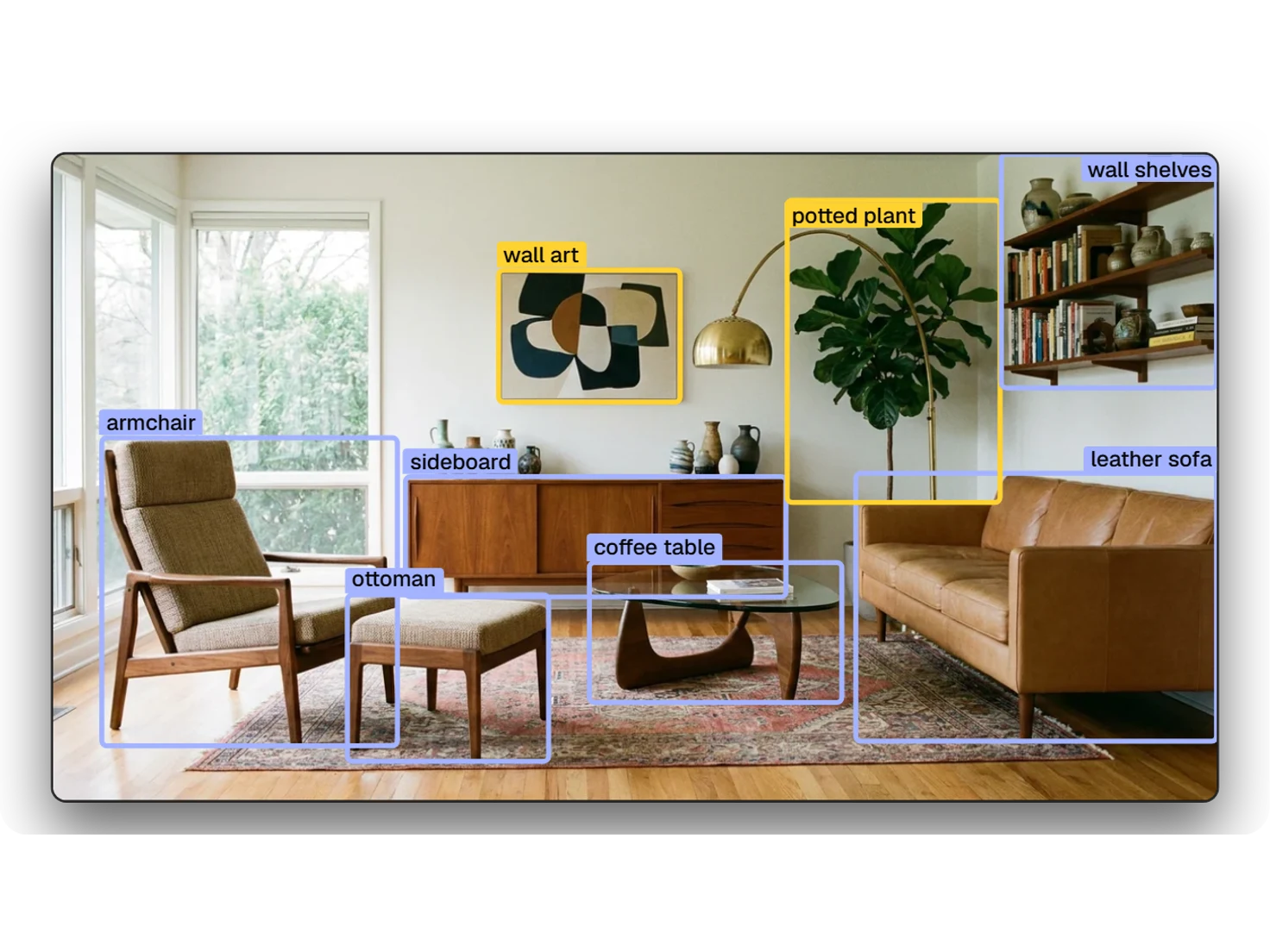
Yes. Turn on Connect to Marso Agents in the Settings tab of Marso Library, then add the Marso Studio MCP server to Claude, ChatGPT or Codex. The agent can then check the stage, put assets on it and film tests in Sim Studio. The agent cannot change settings or use the Create tab.
Your Marso assets, inside Isaac Sim
Make it in Marso Studio, then put it on your stage with physics applied.