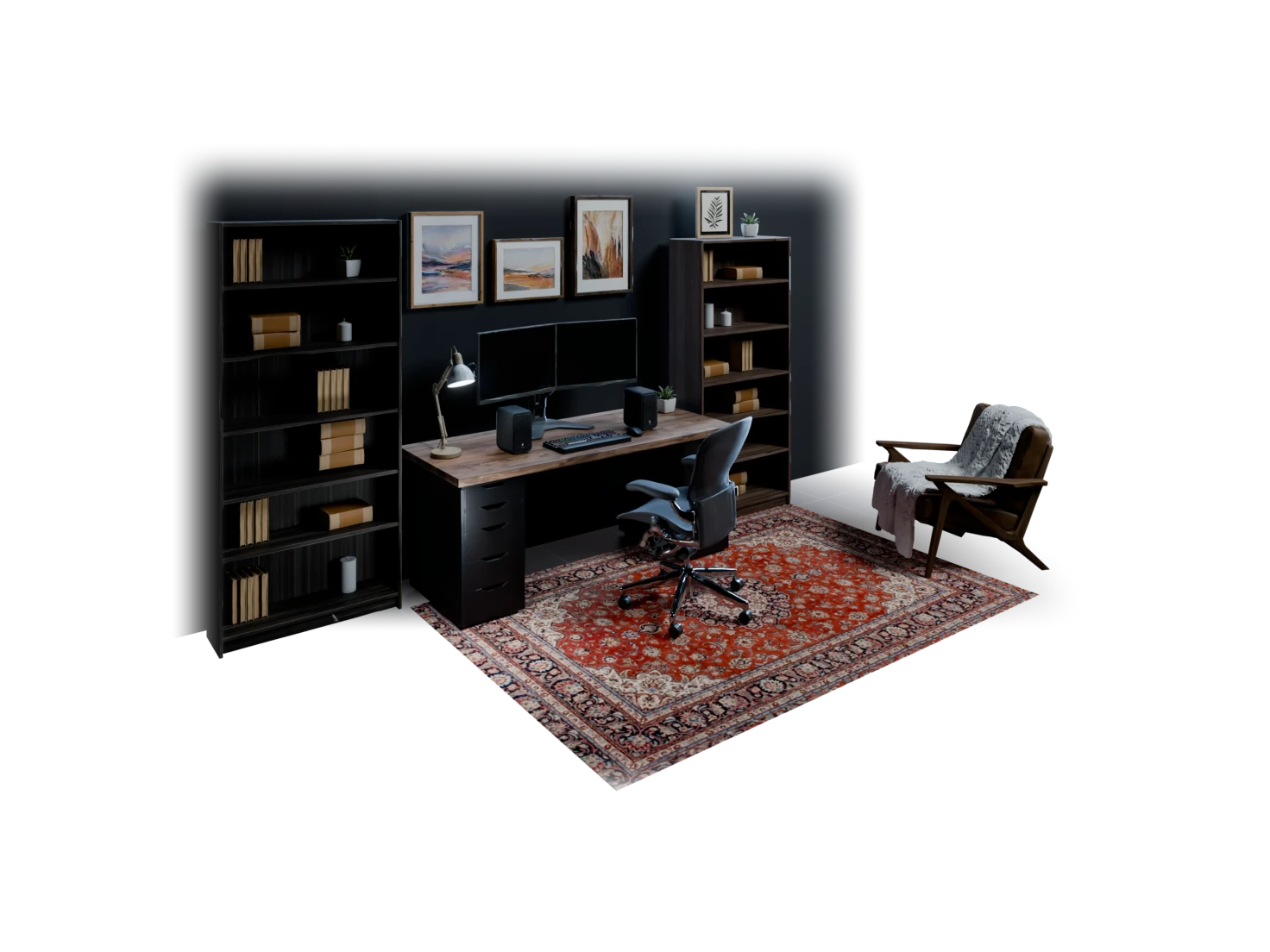
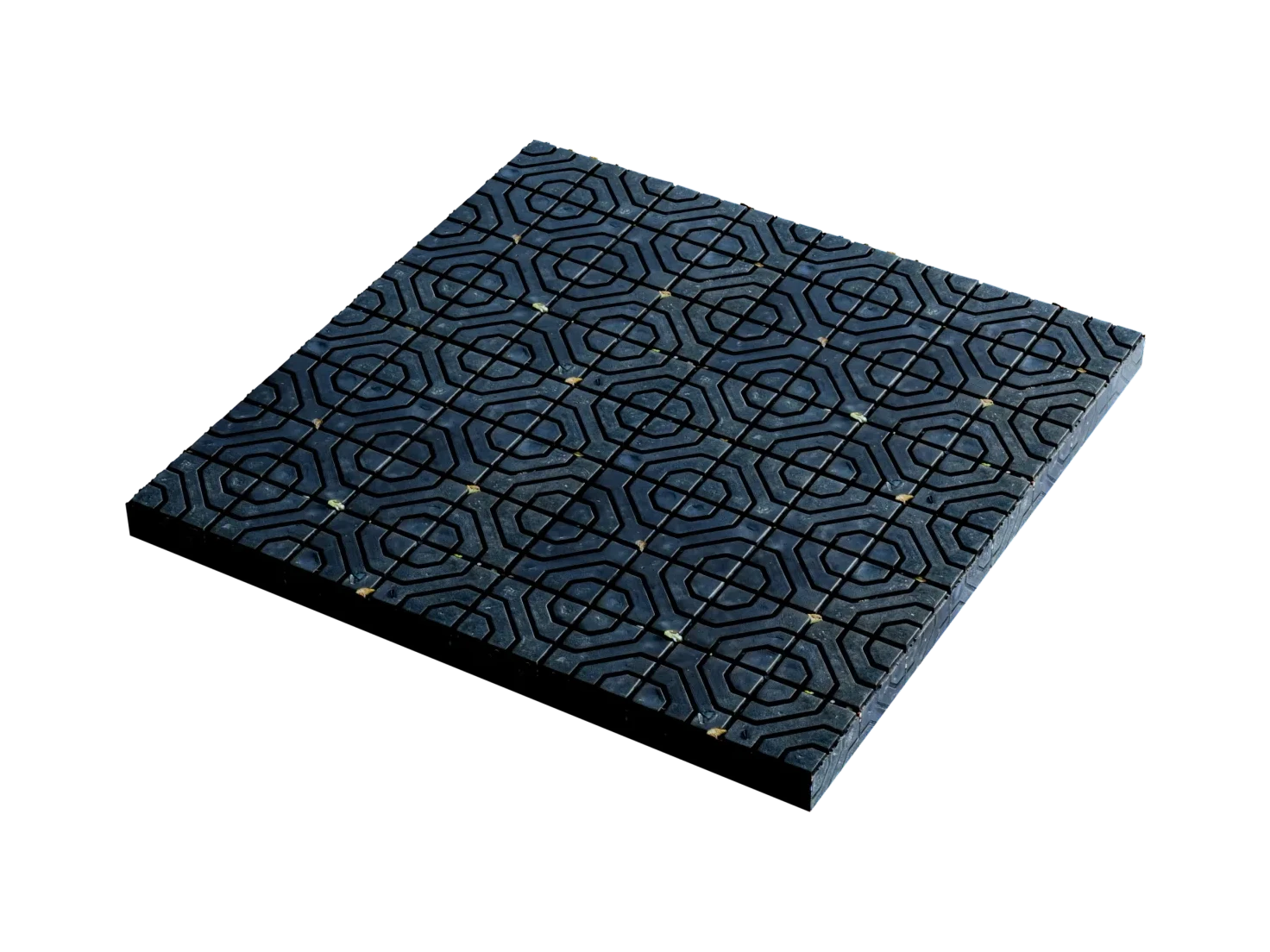
PBR materials for the meshes you already have
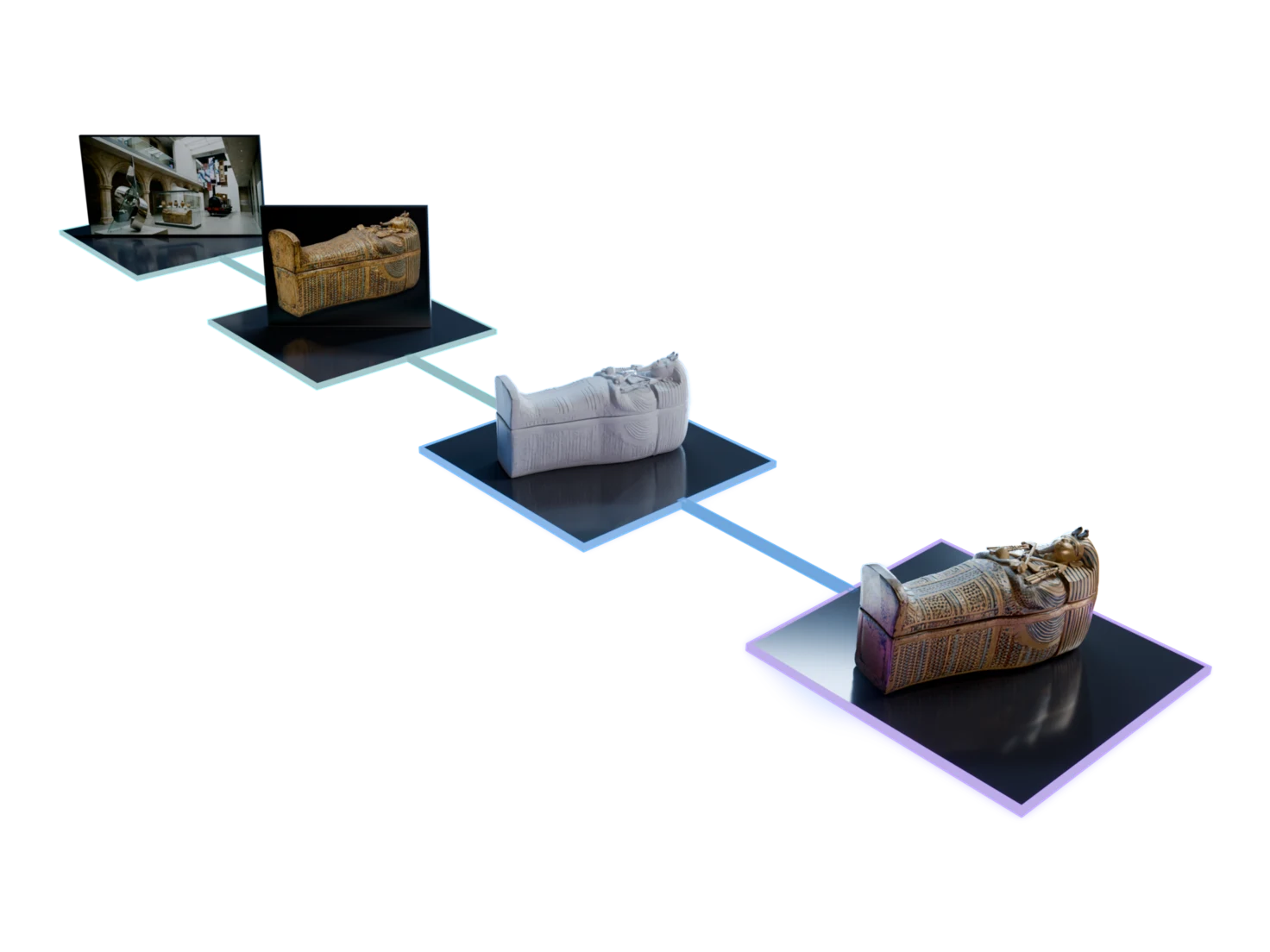
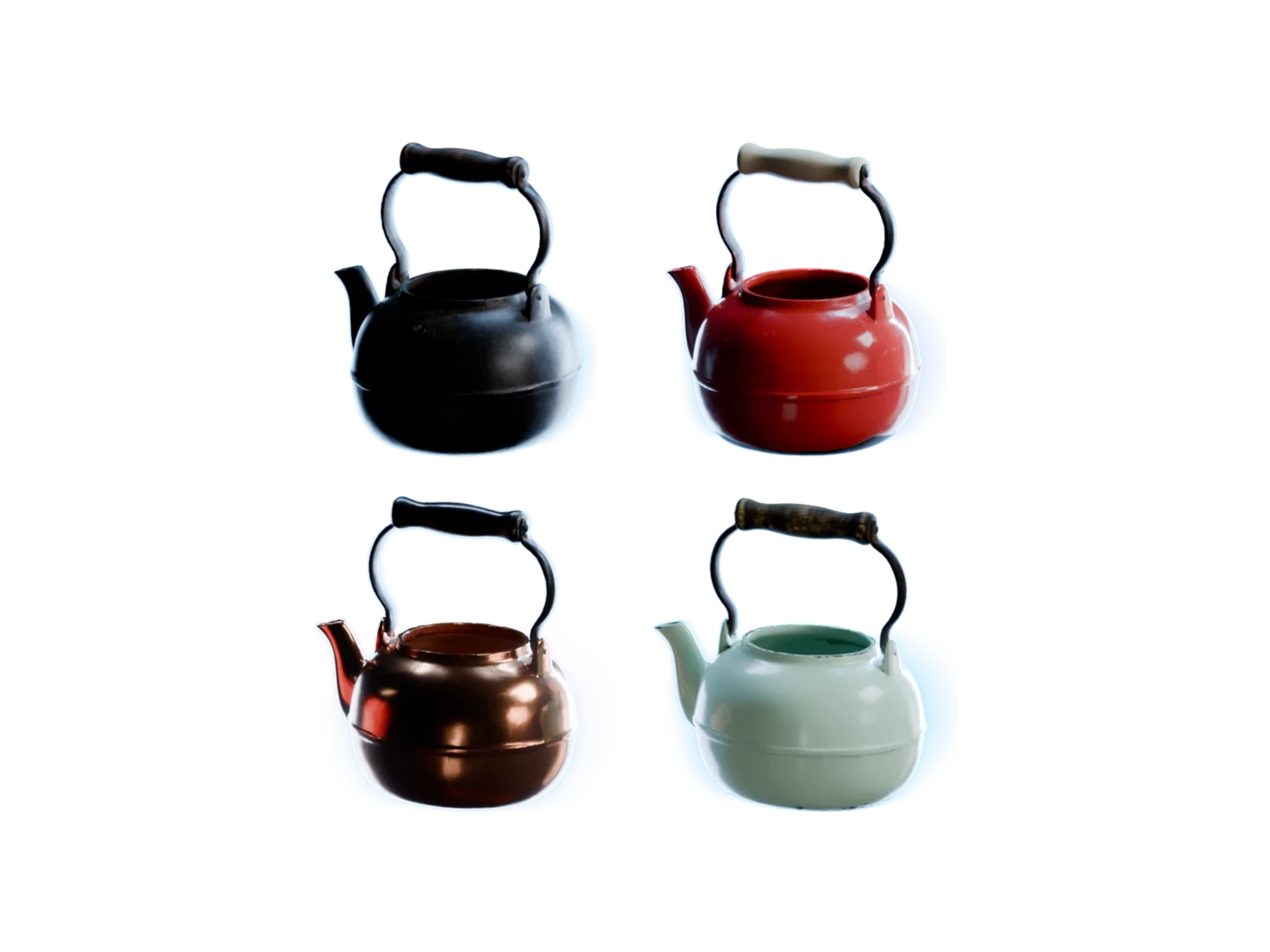
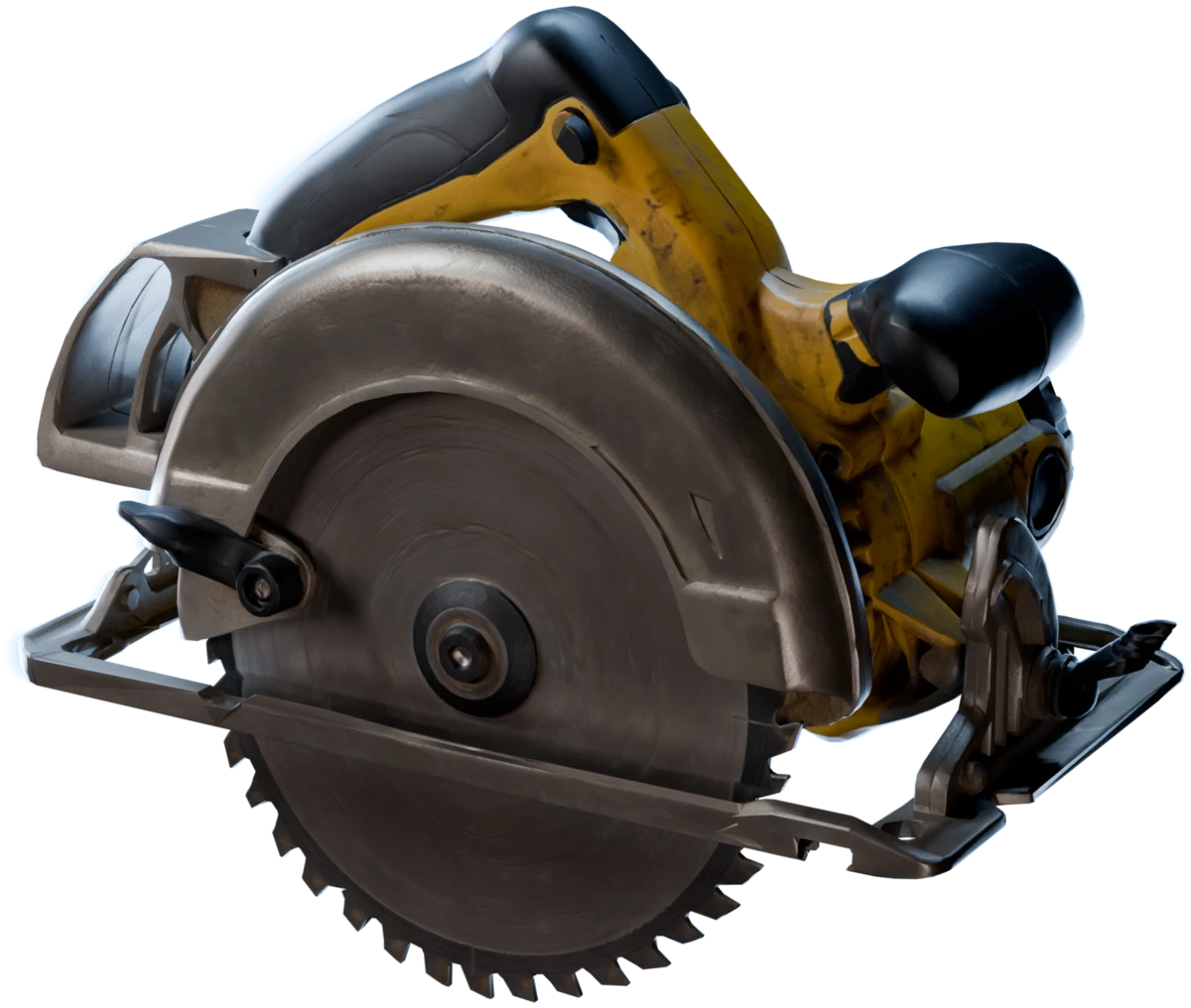
The Auto PBR workflow in Marso Studio takes a mesh you already have, from a scan, a kitbash or an old project, and gives it a full set of PBR maps on its own UVs.
Built for
- 3D artists
- Asset libraries
- Photogrammetry
- Product visualisation
How to give your own 3D models PBR materials
- 01
In Your 3D tool
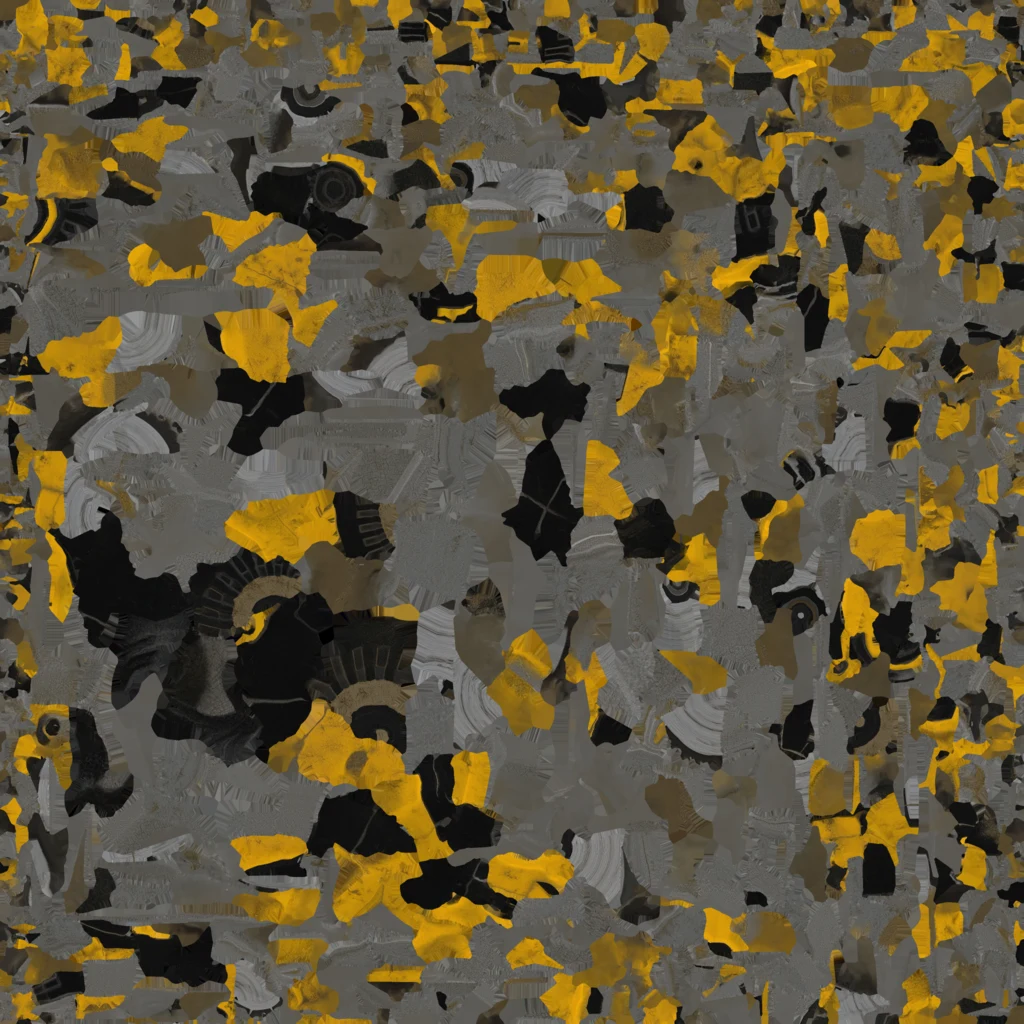
Check that your mesh has a colour texture
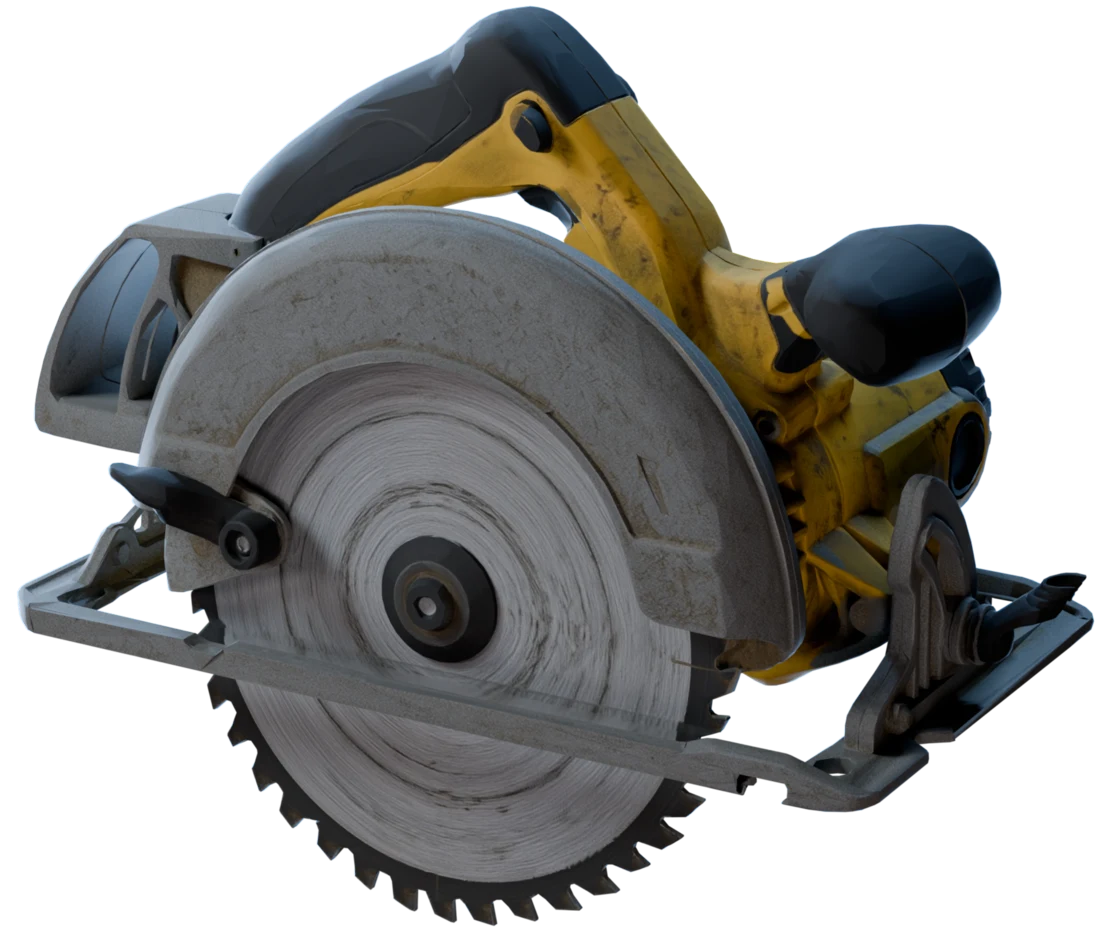
Marso Studio reads the base-colour texture on your UVs to predict every other map. Bake vertex colours into a texture first, and remove any roughness, metallic or normal maps.
- 02
In Marso Studio
Upload it
Open Add PBR to Your 3D Model and drop in a GLB, an FBX, or a USDZ. An FBX can come on its own or zipped with its textures.
GLBFBXUSDZ13 MB - 03
Run it once
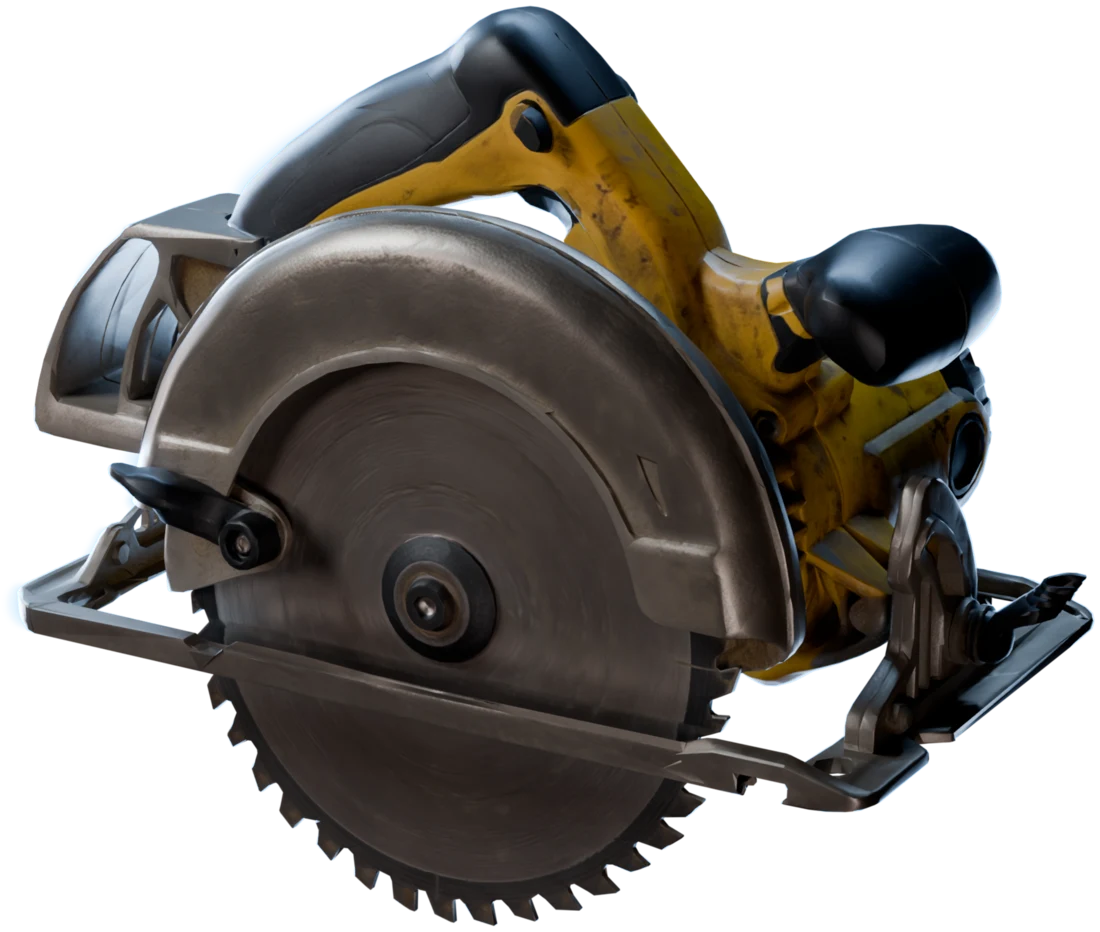
Generate PBR Textures predicts the maps onto the UVs your model already has. The same mesh always gives the same maps, so there's nothing to reroll.
- 04
In Your Library
Check every map, then download
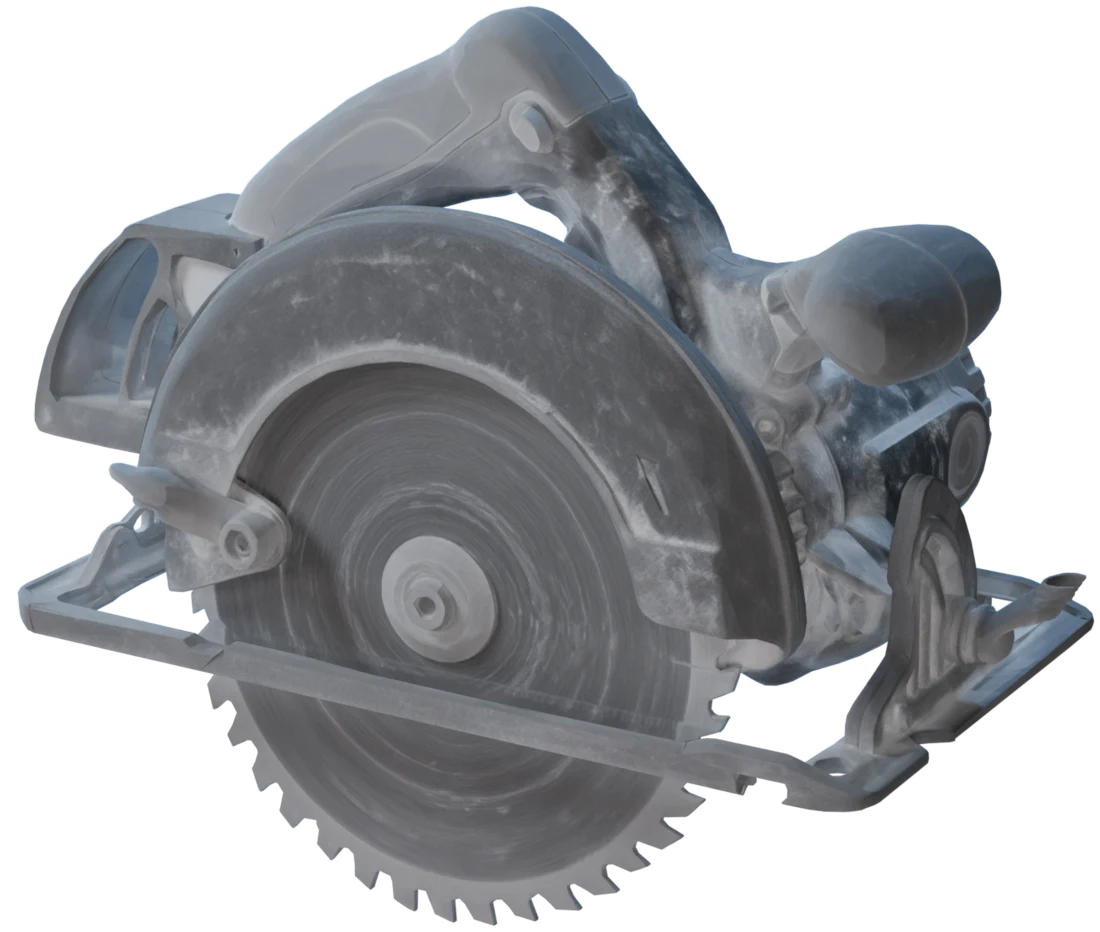
Step through each map in the 3D Viewer, then take the asset from your Asset Library.


What your mesh needs, and what it gets back
The rules of the upload, and the result.
 Albedo
 Roughness
 Metallic
 Normal
 IOR
- File size
- Up to 100 MBThe only size limit of the upload.
- Texture
- Base colourMapped to the UVs and packed into the file. Lighting baked into it, as in a scan, reads better than one flat colour.
- FBX in a zip
- color.pngName the base-colour map color.png, albedo.png, basecolor.png, base_color.png or game.color.png, so Marso Studio can find it.
- Maps out
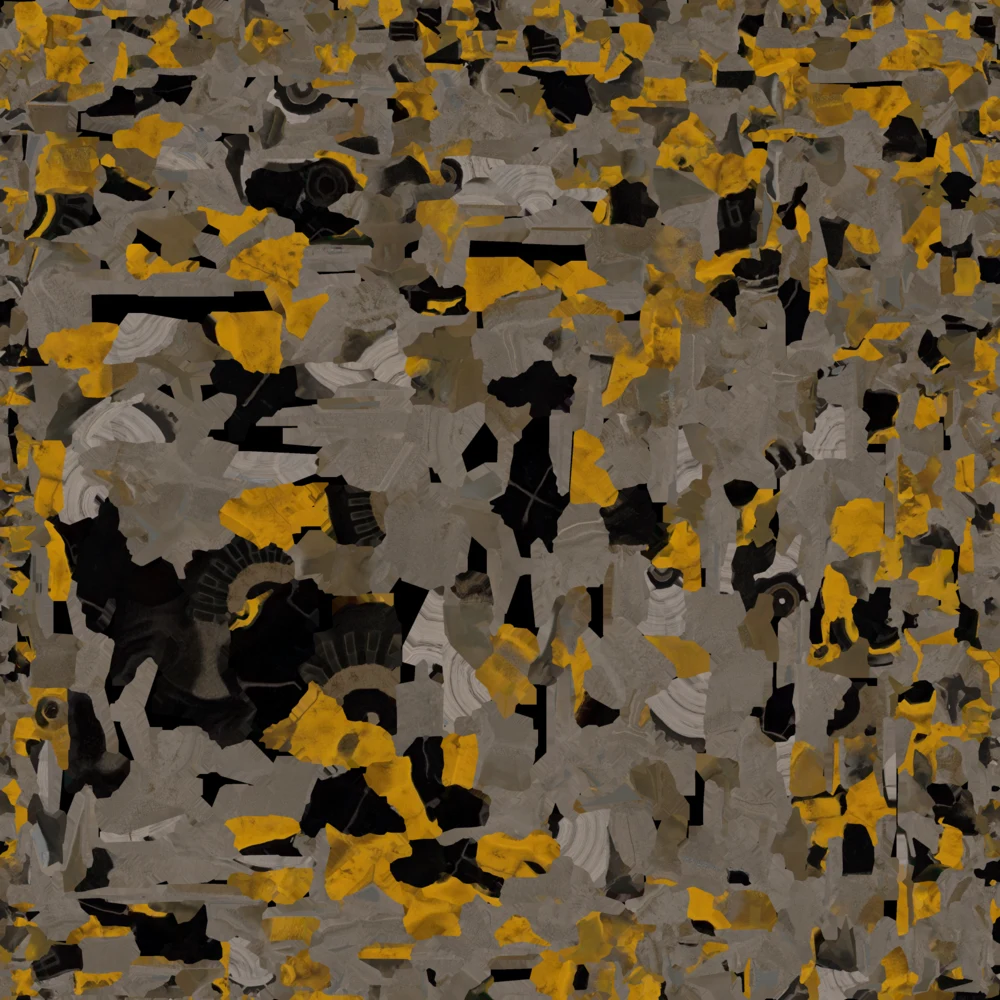
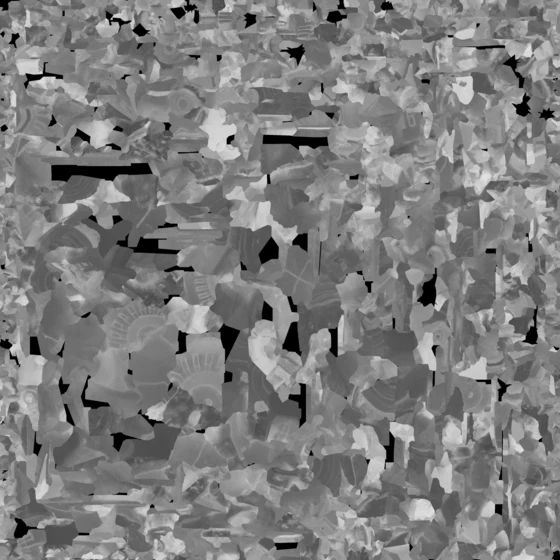
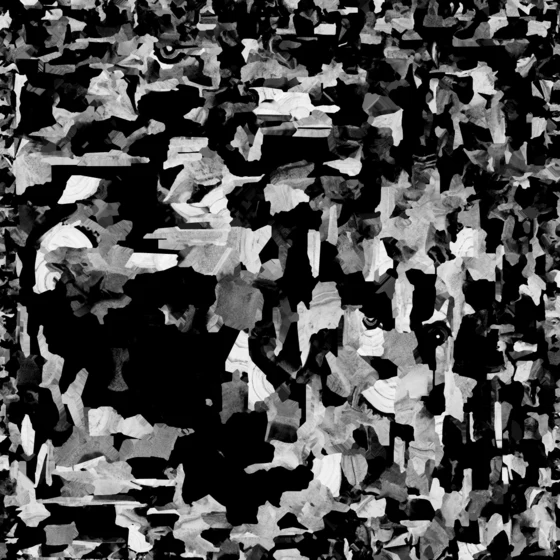
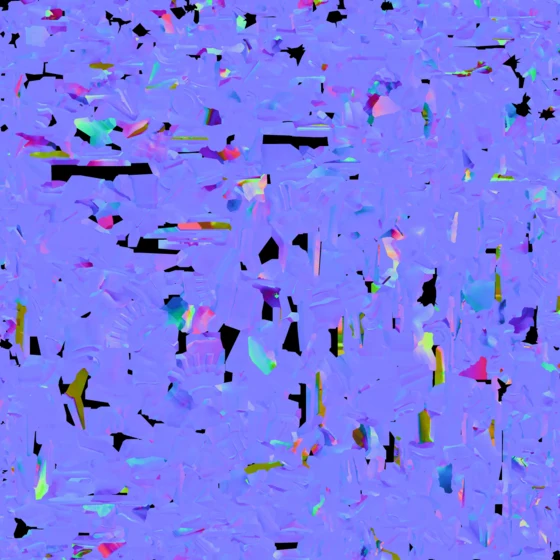
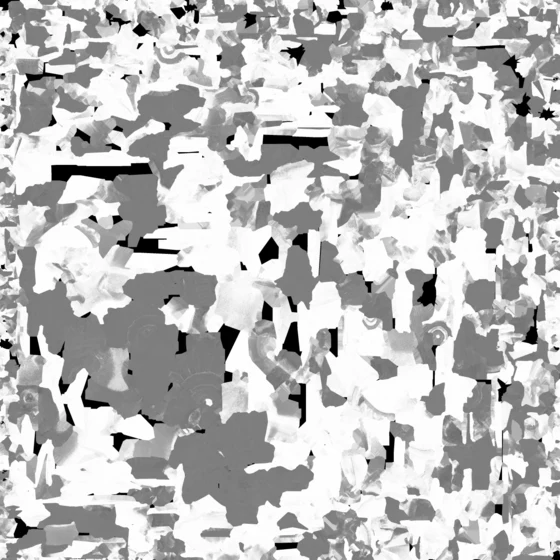
- 5Albedo, roughness, metallic, IOR and normal, on the UV unwrap you uploaded.
- Geometry
- UnchangedNot a vertex moves, so the asset still fits the scene it came from.
Use it where you work
- Blender
Blender
Skip the upload: queue the meshes of your scene in Auto PBR in the Blender add-on, and the maps are wired into the material of each one.
- .usdz
Any tool that reads USD
Download a USDZ with every map in its material, for Unreal Engine, Unity, Omniverse and the rest of your stack.
- .png
Your own shader
Download the five maps as PNG files and wire them into the material your renderer already uses.
Questions about the Auto PBR workflow
What 3D artists ask before they texture a mesh they already own.
Use the Auto PBR workflow in Marso Studio. Upload your model as a GLB, FBX or USDZ with a base-colour texture on its UVs, and run it. Marso Studio predicts albedo, roughness, metallic, IOR and normal maps onto the UVs you already have, and saves the textured asset to your library.
The Auto PBR workflow predicts every other map from the base-colour texture, so a mesh with no texture, or with vertex colours only, gives it nothing to read. Bake vertex colours into a UV-mapped texture first. A texture with some shading in it, as a scan has, gives better maps than one flat colour.
No. The Auto PBR workflow keeps your geometry and your UV unwrap exactly as they are, and paints the new maps onto them. If your model already has roughness, metallic or normal maps, remove them before you upload, because Marso Studio makes its own.
From Blender, yes. Queue the meshes of your scene in Auto PBR in the Blender add-on, and each one is uploaded, textured and wired into its material. On marso.app, the Auto PBR workflow takes one model per run.
You can run the Auto PBR workflow on the Free plan, with its 400 credits a month, and check the maps in the 3D viewer. Downloads and the Blender add-on need a paid plan. The Artist plan comes with a 14-day free trial, which needs a card.