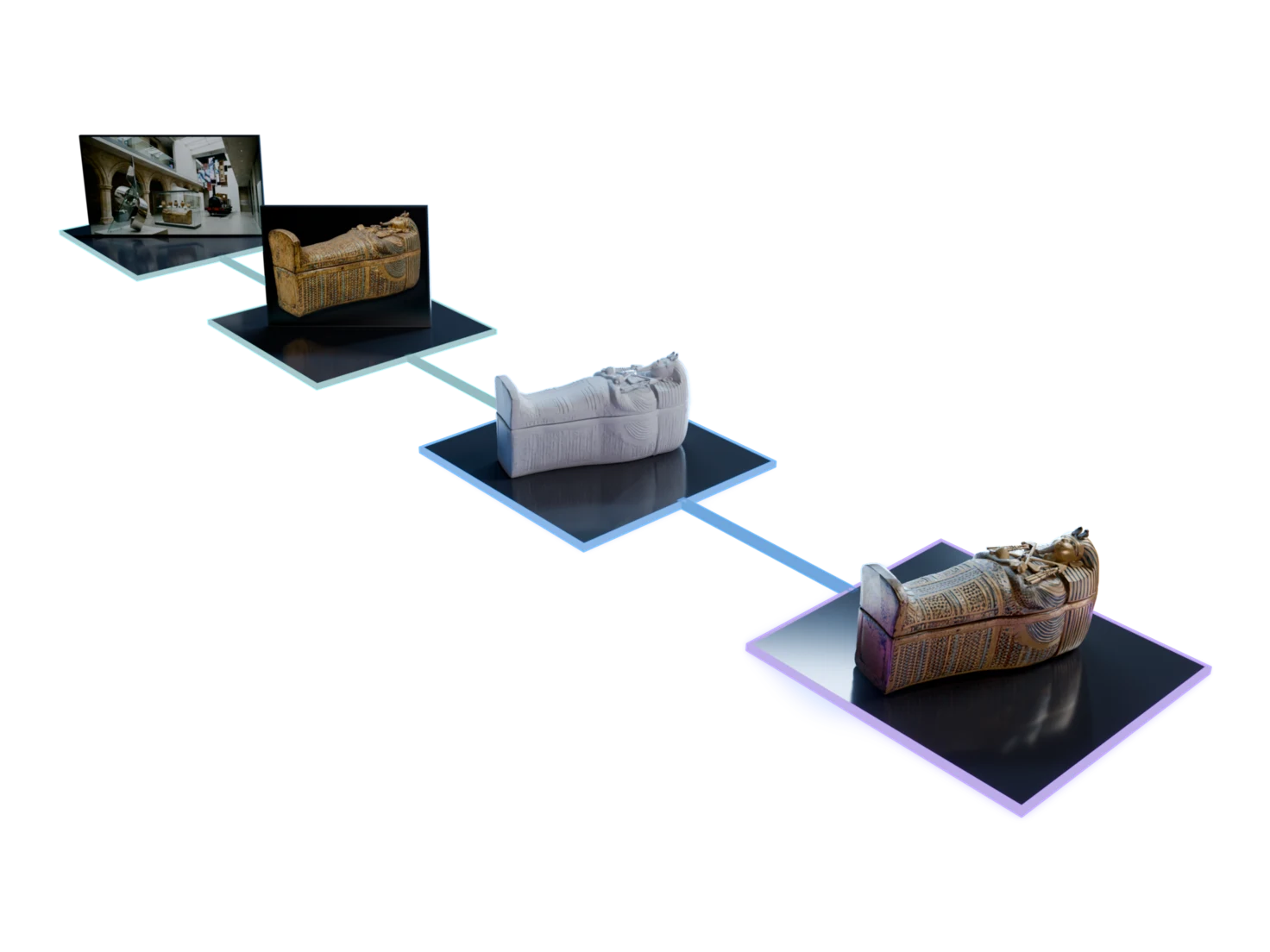
From a prompt to a textured prop in your engine
The Game-ready workflow in Marso Studio turns a prompt, a photo or a mesh you already have into a textured 3D asset, at the polygon count you pick, with PBR maps that your engine reads.
Built for
- Indie games
- Prop art
- Level design
- Prototyping
How to make game-ready 3D assets with AI
- 01
In Marso Studio
Describe a prop, or bring a photo or a mesh
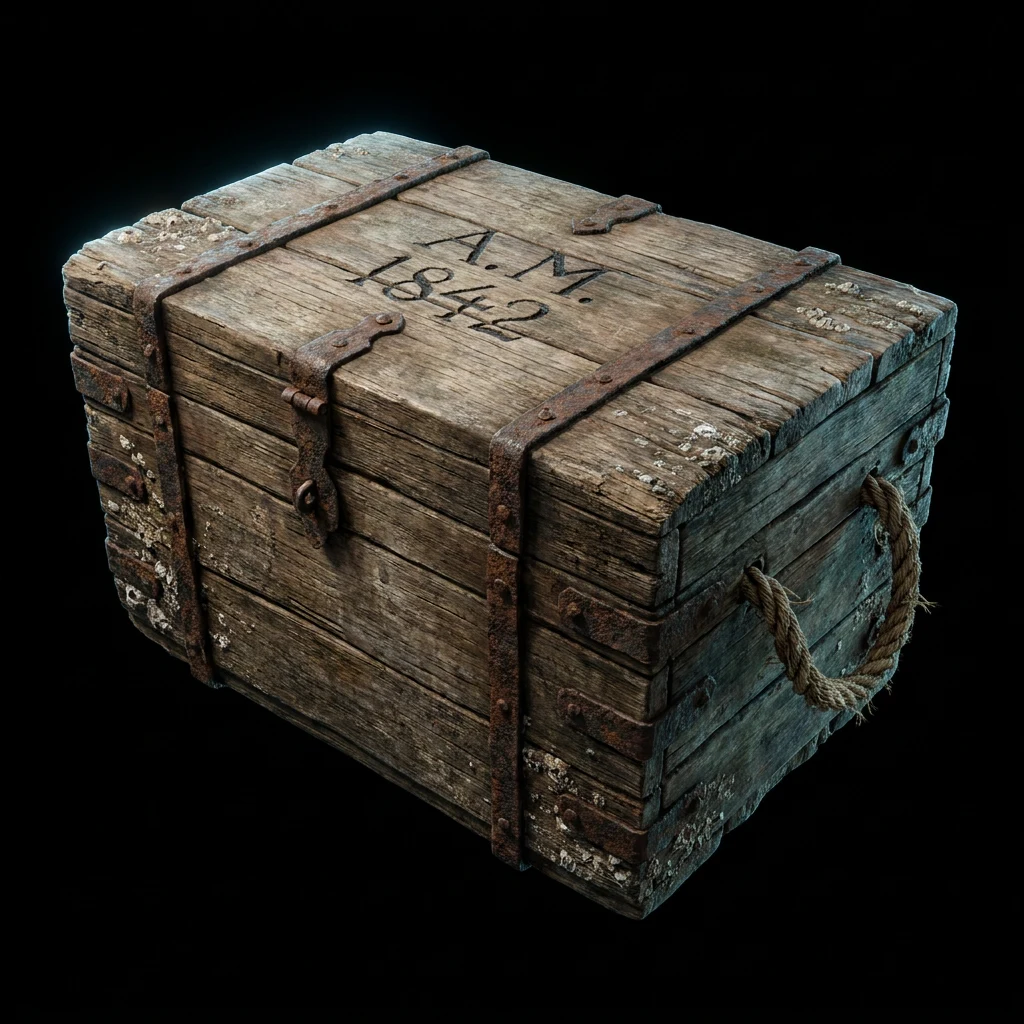
Open Game-ready and write what you need, like "a sailor's sea chest with rope handles", or upload a photo of one object. Already have a GLB, FBX or USDZ? Upload it and skip to step 4.
Sailor’s sea chest: salt-stained wood, frayed rope handles, rusted iron fittings and initials carved into the lid.
Sign in to try it - 02
Get an image of the prop
Image Generation turns your prompt into a picture of the prop for the 3D step to read. A photo skips this step.
- 03
Set the polygon budget
Open the Model and Polygons settings before you run. Keep background props light and give a hero asset more detail, then 3D Generation builds the mesh.
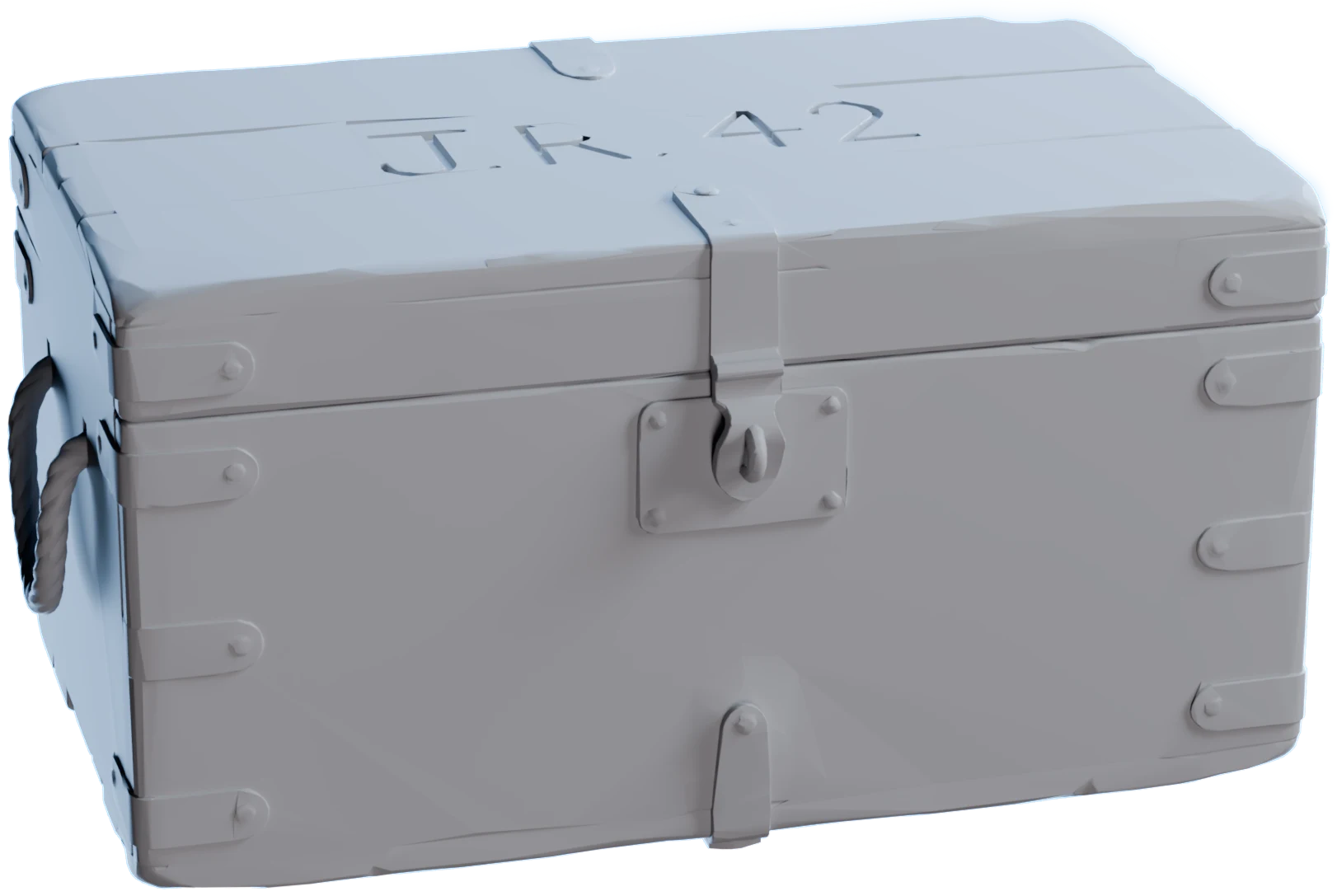 ModelMeshy 7Polygons30K
- 04
Add PBR textures
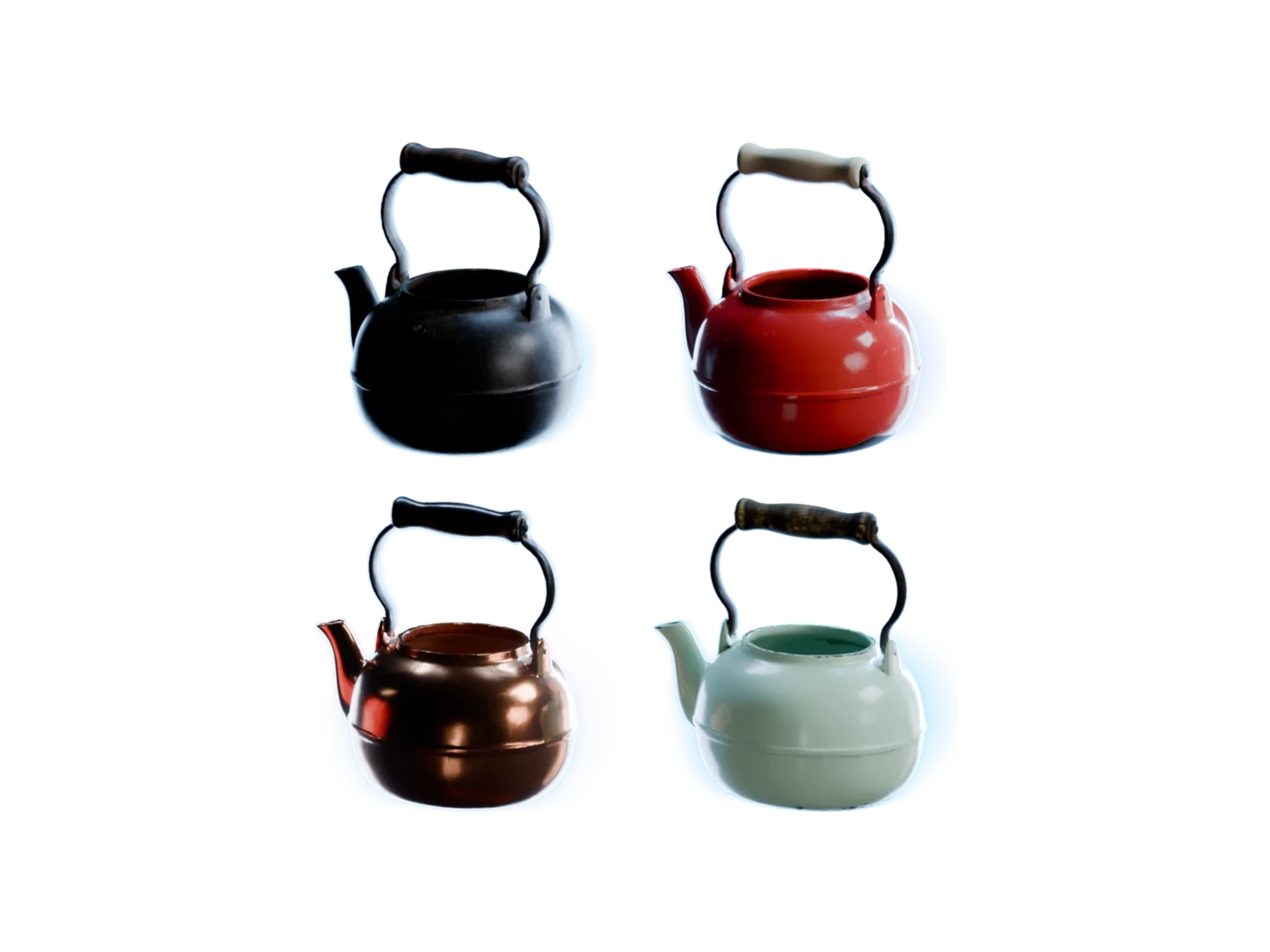
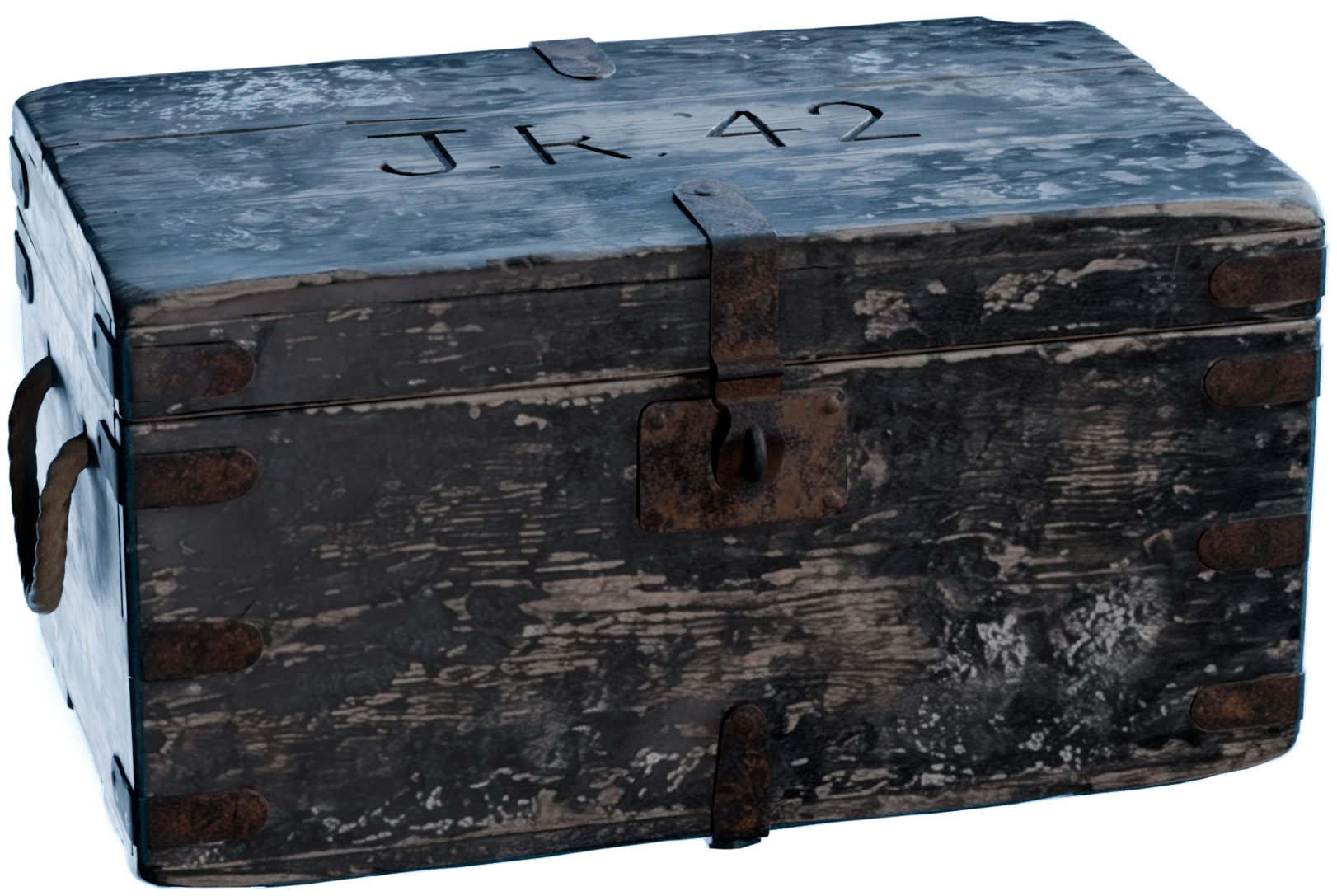
Generate PBR Textures paints the material maps onto the model's own UVs, so nothing you set up earlier gets undone.
- 05
In Your Library
Download it for your engine
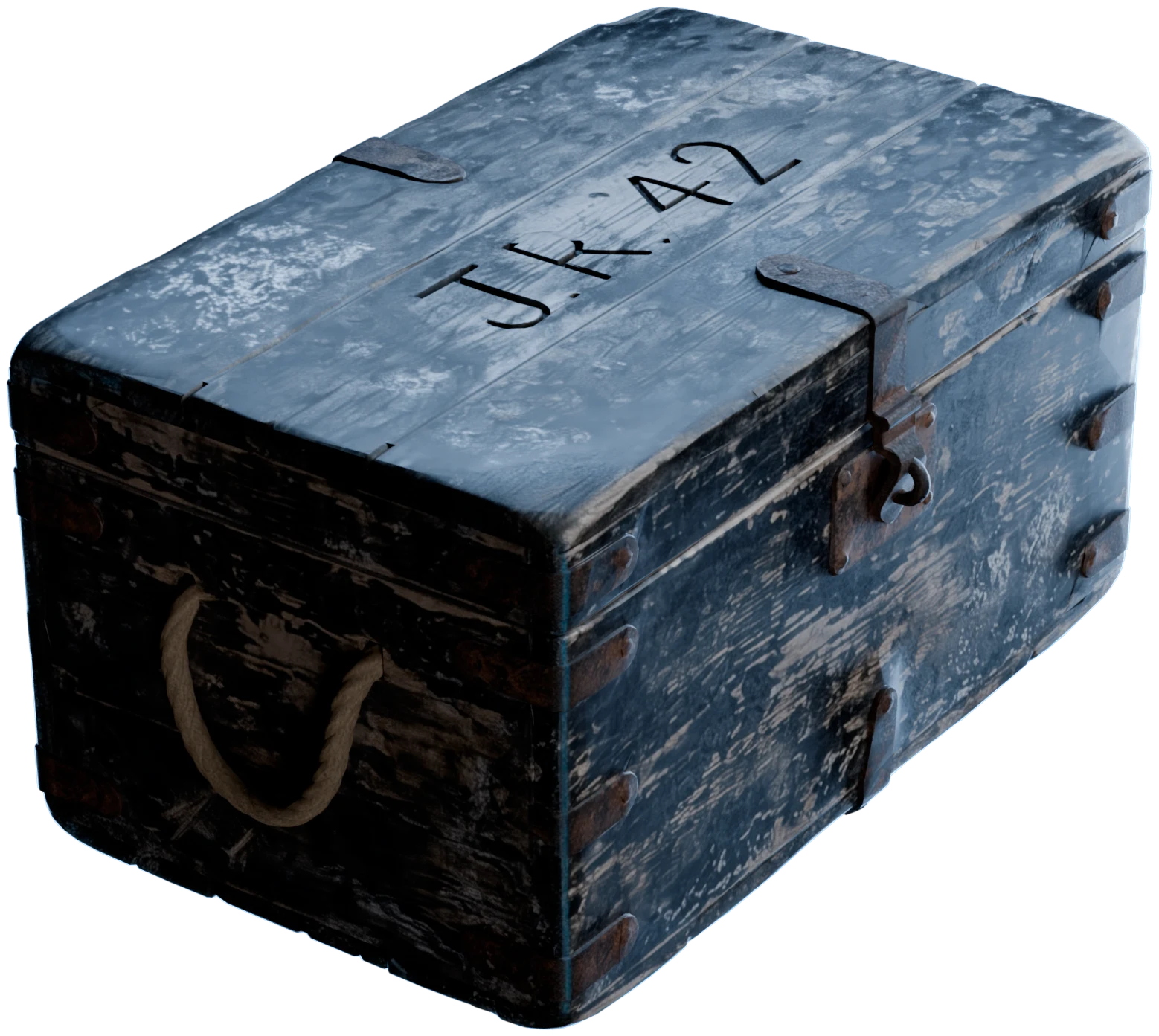
The finished prop lands in your Asset Library, where you can check every map in the 3D Viewer before you download it.
Vintage Wooden Storage ChestDownload3D model with embedded texturesDownload 3D model
What's in each game-ready asset
What your engine gets with every prop.
- Polygons
- Up to 1.5MYou choose the count for each run, from the models that offer one. The default count never costs extra credits.
- PBR maps
- 5Albedo, roughness, metallic, IOR and normal, all on the model's own UVs.
- Material
- UsdPreviewSurfaceEvery map is already wired in, so the prop imports shaded, with nothing to connect by hand.
- Files
- USDZ or PNGOne USDZ with the textures inside, or each map as its own PNG for a material you build yourself.
- Scale
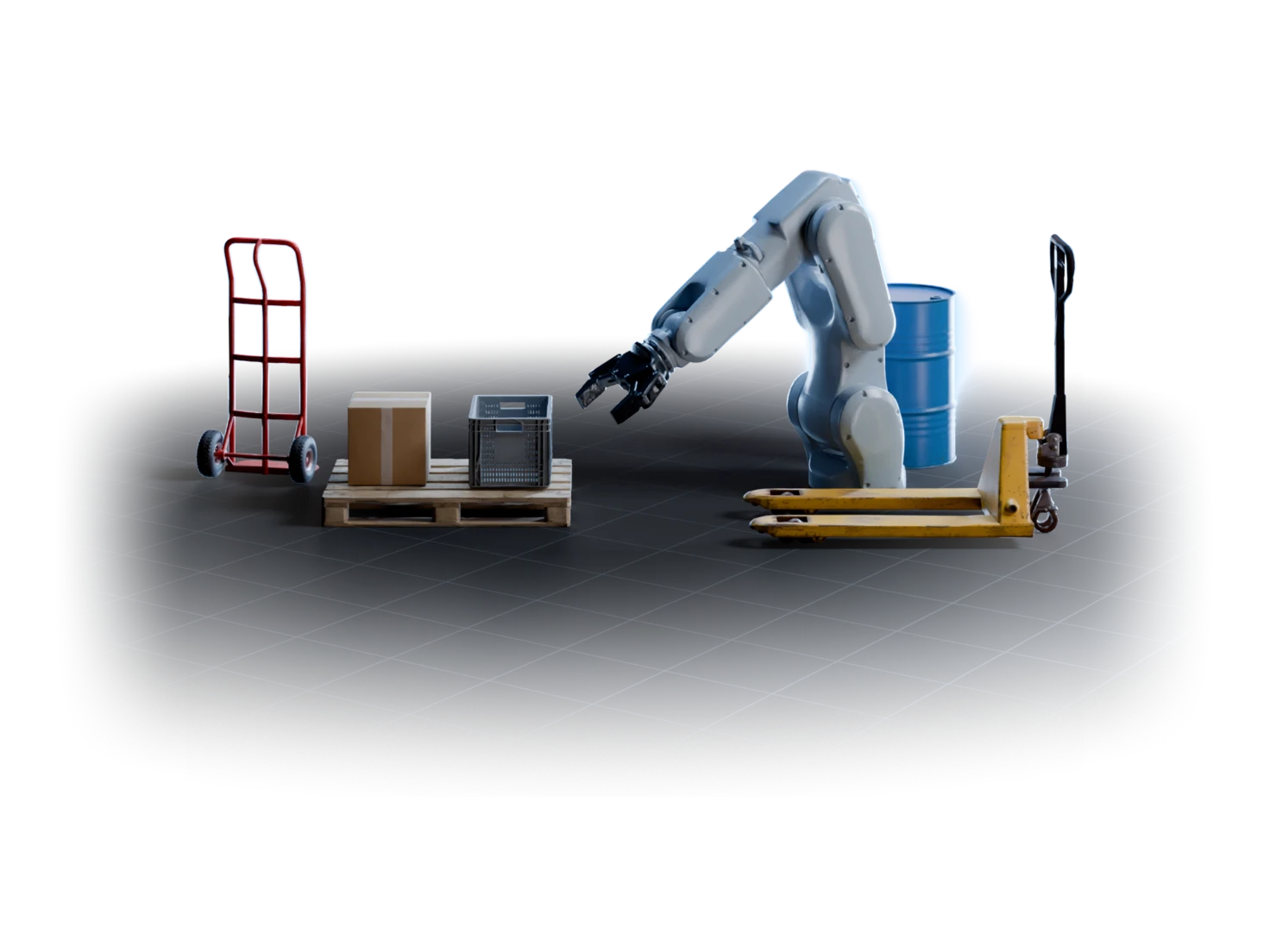
- Real-worldSized in metres, so a barrel comes in at barrel size next to the rest of your props.
Bring it into your engine
- Unreal Engine
Unreal Engine
Import the USDZ with Unreal's USD importer, and the prop arrives with its material. Or build your own material from the PNG maps.
- Unity
Unity
Bring the USDZ in through Unity's USD package, or drop the PNG maps into the material your project already uses.
- Blender
Blender
The Blender add-on imports any asset from your library as USD, from the sidebar of the 3D Viewport.
Questions about the Game-ready workflow
What game developers ask before they fill a level with Marso Studio props.
Use the Game-ready workflow in Marso Studio. Describe a prop, upload a photo of one, or upload a mesh you already have. Marso Studio builds the 3D model at the polygon count you set, adds five PBR maps on its UVs, and saves it to your library, ready to download as a USDZ or as PNG maps.
It depends on how close the camera gets. The Game-ready workflow lets you set the count before each run, so a crate in the background can stay light while a hero weapon keeps its detail. 3D Generation offers five generation models, and the normal map adds fine surface detail without adding polygons.
Yes. The Game-ready workflow saves each asset as a USDZ with its PBR maps wired into a UsdPreviewSurface material, and both Unreal Engine and Unity import USD. If your pipeline builds materials by hand, download the five maps as PNG files instead and plug them into your own shader.
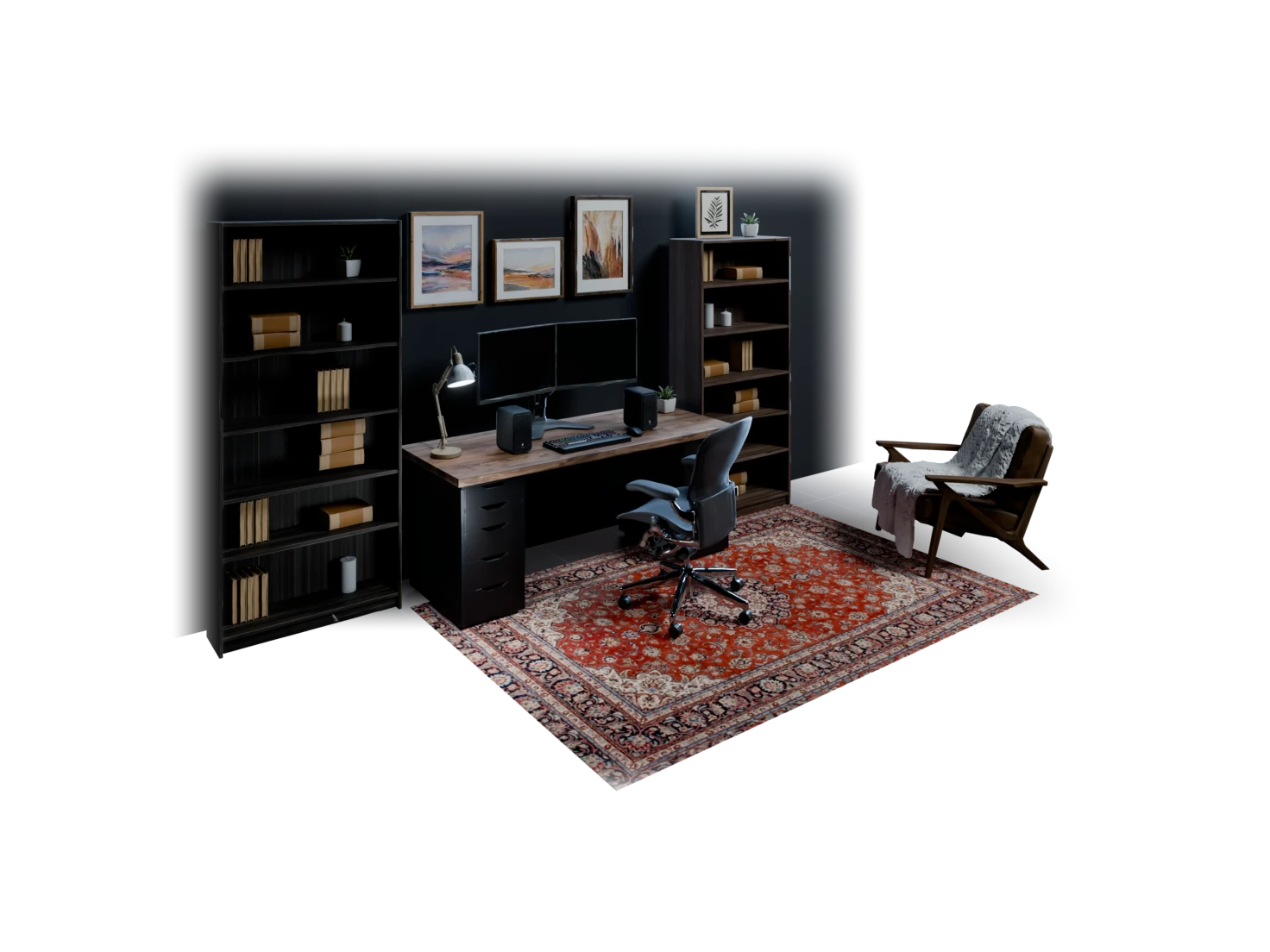
Yes. Switch the Game-ready workflow from Single object to Scene, then describe a place or upload a picture of one, like a tavern corner or a pirate ship deck. Detect Objects finds the objects, and each one comes out as its own textured asset. Scenes need a paid plan.
No. The Game-ready workflow and downloads both come with the paid plans. The Free plan's 400 credits a month let you try the same steps on single objects, without downloads. The Artist plan comes with a 14-day free trial, which needs a card.